PhotoShoot Tool Deep Dive — All 40+ Themed Categories
A walkthrough of ZenCreator's PhotoShoot tool: how the themed categories work, how to pick the right one, and how the built-in prompt templates save you from prompt-engineering every shot from scratch.

If you've ever sat in front of a text-to-image tool trying to write the perfect prompt for "cinematic café portrait, golden hour, 35mm, shallow DOF, editorial..." — and you've done that for the fifth shoot in a row — the PhotoShoot tool exists to make all of that go away.
It's a category-driven shortcut: pick a theme, upload your character, and the tool handles the prompt, lighting language, framing, and styling. Forty-plus themed categories cover everything from clean studio portraits to seasonal looks to lifestyle scenes. Here's how to use it.
What PhotoShoot actually does
Most text-to-image flows ask you to be both the art director and the prompt engineer. PhotoShoot splits those jobs: you choose the look, the tool handles the language. Each themed category is a curated prompt template with the right keywords already in place — wardrobe, lighting, lens, mood, composition. You upload a character reference and it slots that character into the template.
The result: instead of debugging one prompt for half an hour, you generate ten variations across three different themes in the same time.
Where to find it
Open the tool here: Photo ShootOpen tool in ZenCreator
You'll land on the category grid. Each card is a theme — café shoot, studio editorial, beach, winter, gym, fantasy, and so on. Forty-plus of them at the time of writing, and the team adds more.
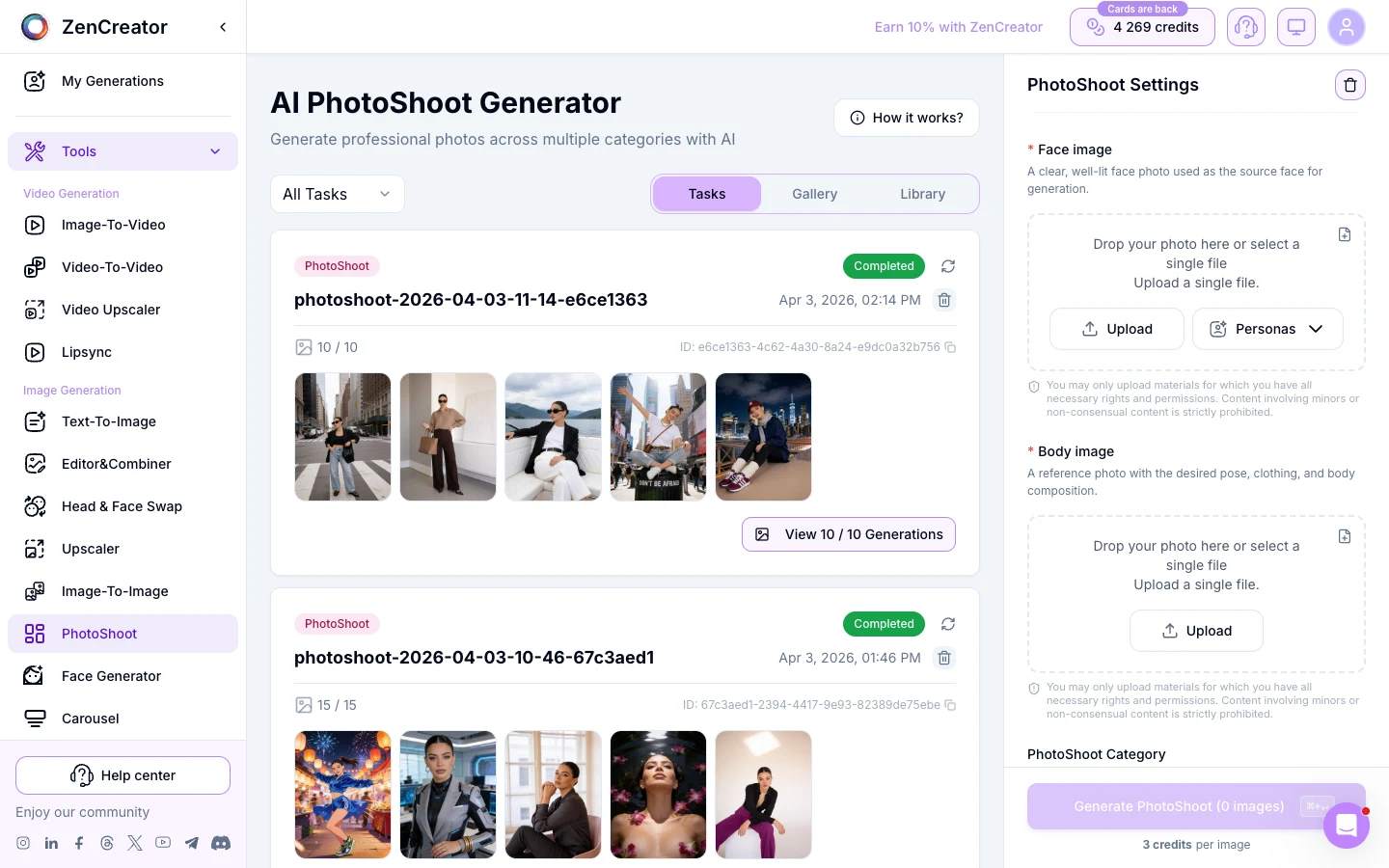
How the categories are organized
Categories cluster into a few practical groups:
- Studio & editorial — clean backgrounds, controlled lighting, magazine-cover energy. Use these when you need a hero shot or a content thumbnail.
- Lifestyle & location — café, street, beach, rooftop, gym. Casual framing, real-world lighting. Best for social posts and "day-in-the-life" sequences.
- Seasonal — winter knit, summer pool, autumn park, holiday. Plug these in when you want a content series tied to a moment in the calendar.
- Themed / fantasy — cosplay, anime, cyberpunk, fairy. Use when the character is the hook and the world should match.
Pick by the vibe of the post you want to publish, not by the prompt. That's the whole point.
The 3-step workflow
- Pick a category. Click any card from the grid. The category opens with a preview prompt and a few example outputs.
- Upload your character reference. One clean full-body or portrait shot of your character. The tool keeps face and body consistent across the generations.
- Generate. You get a batch of variations on that theme using your character. Pick the keepers, regenerate the rest, move on.
Start with a character reference
This is the single image you upload once. Everything below is the same character:
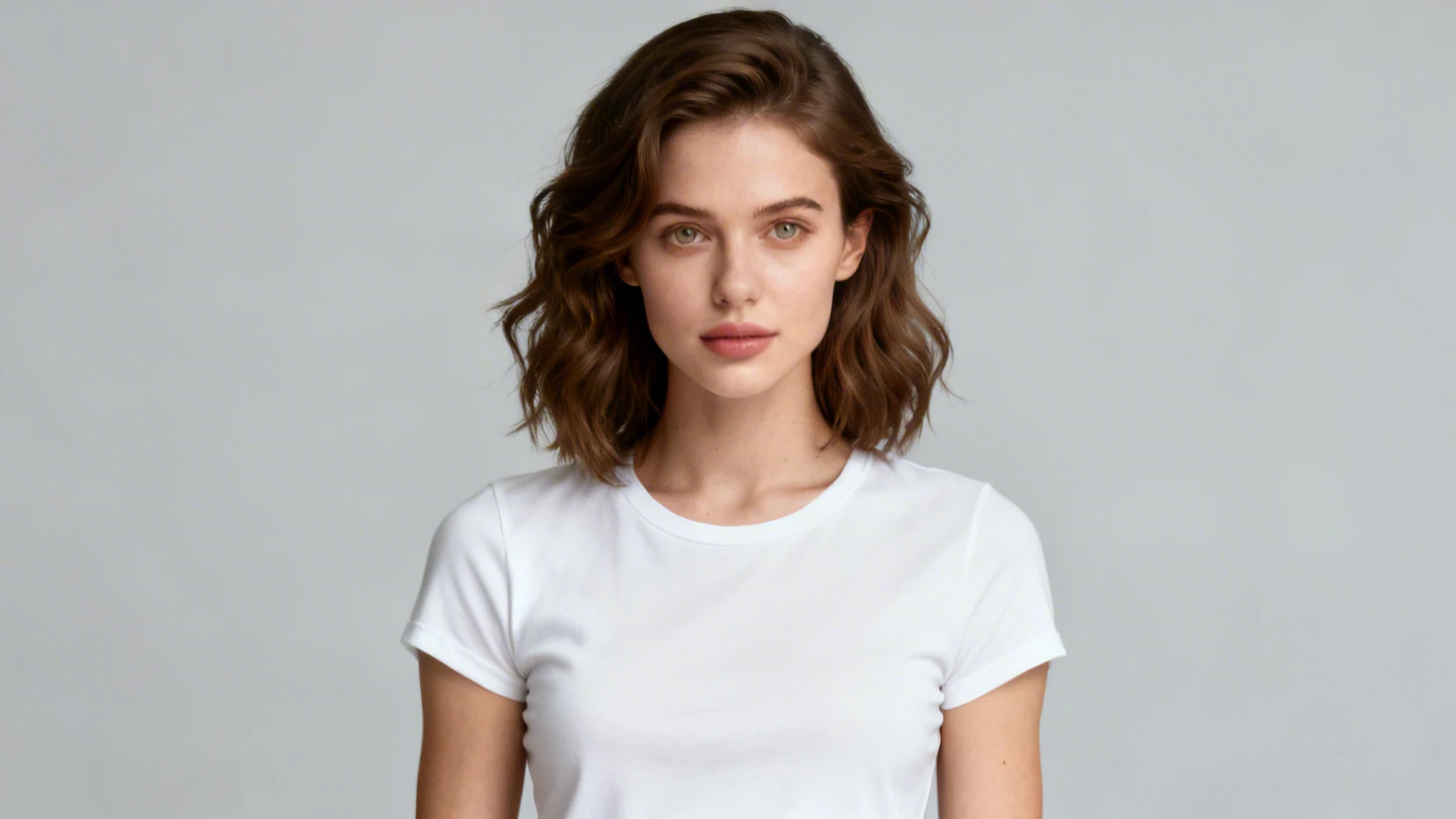
Same character, five different shoots
Now the same persona dropped into five different category templates — different location, wardrobe, lighting, mood. Same face throughout:

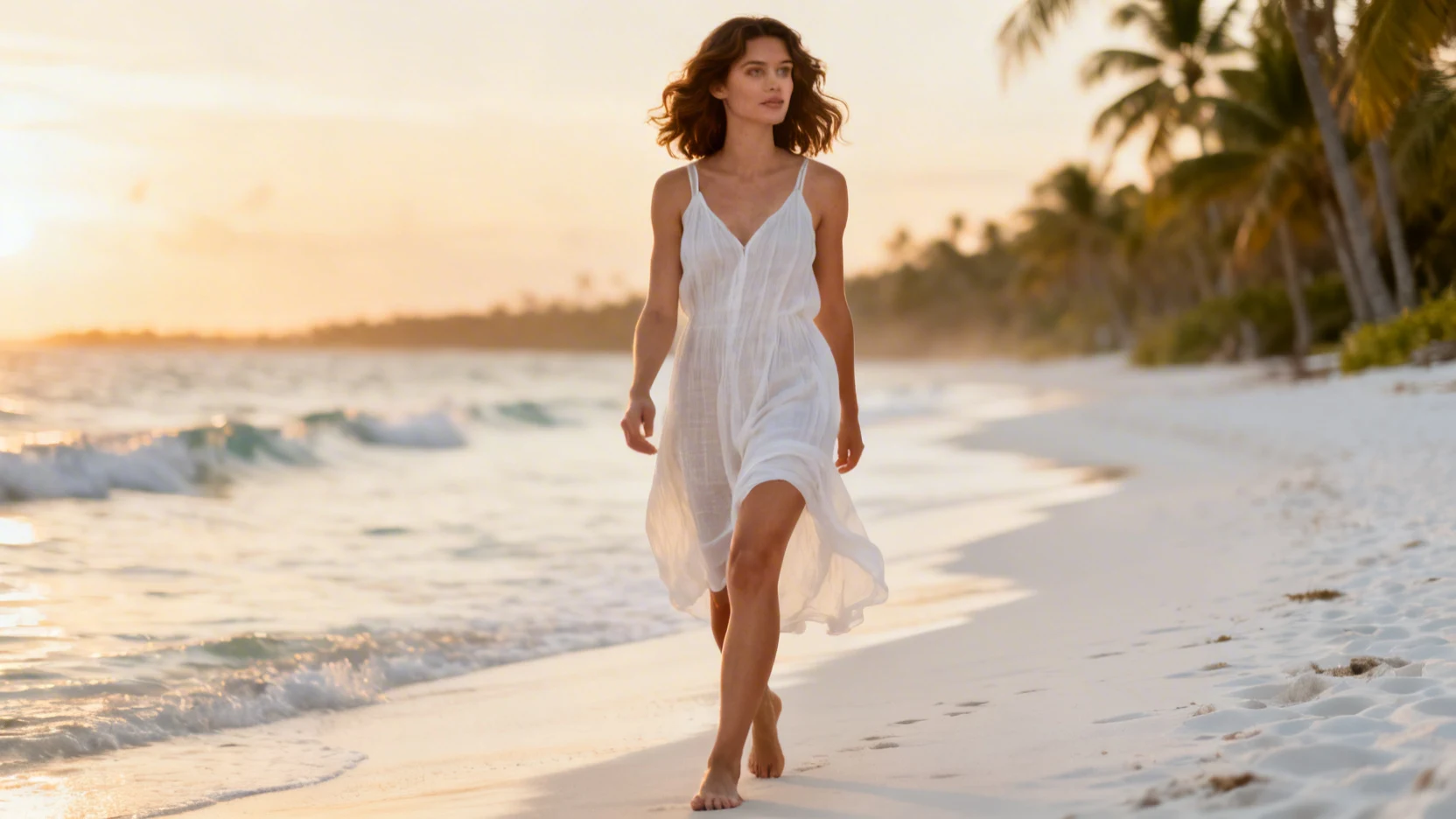
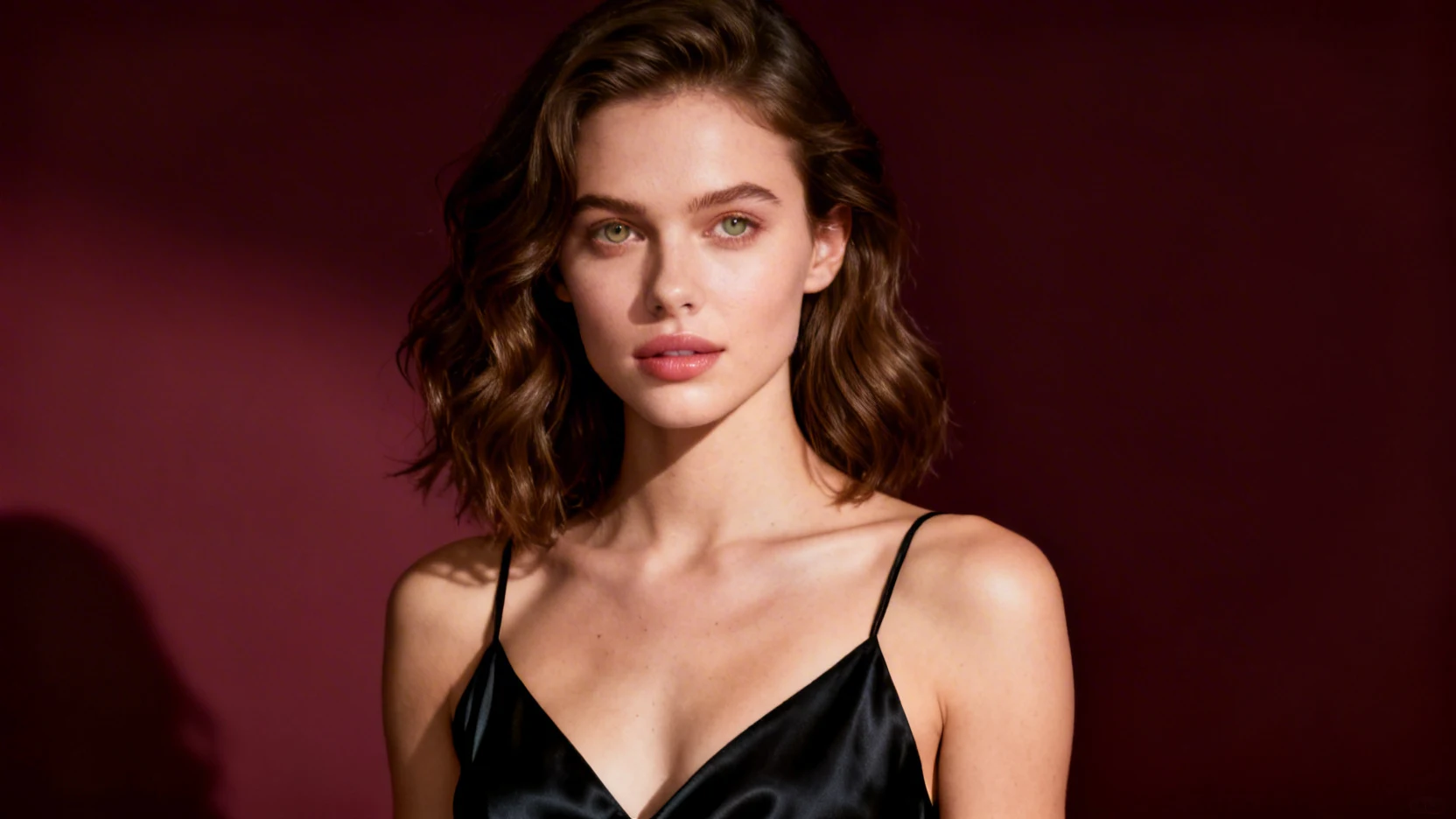
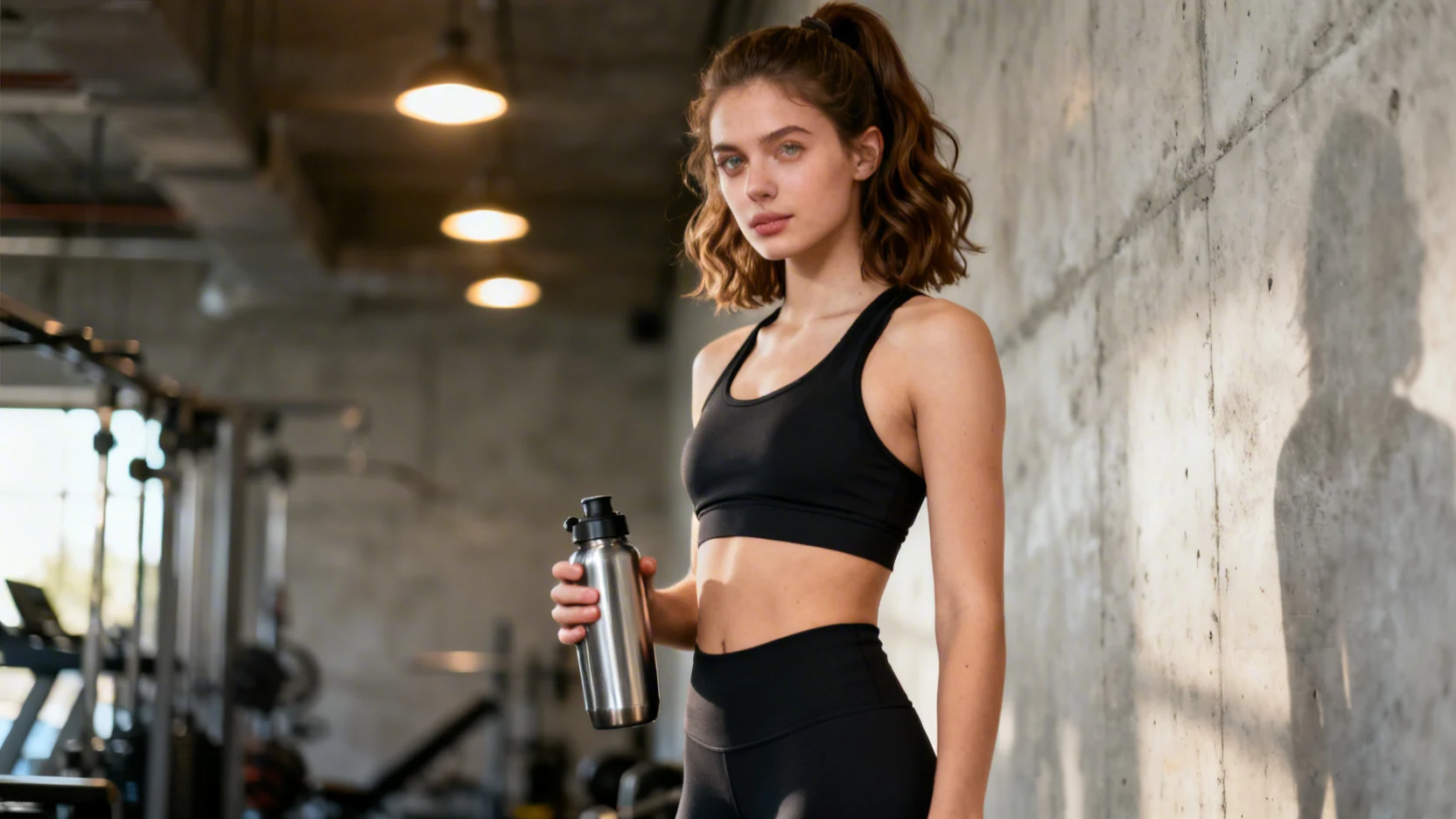
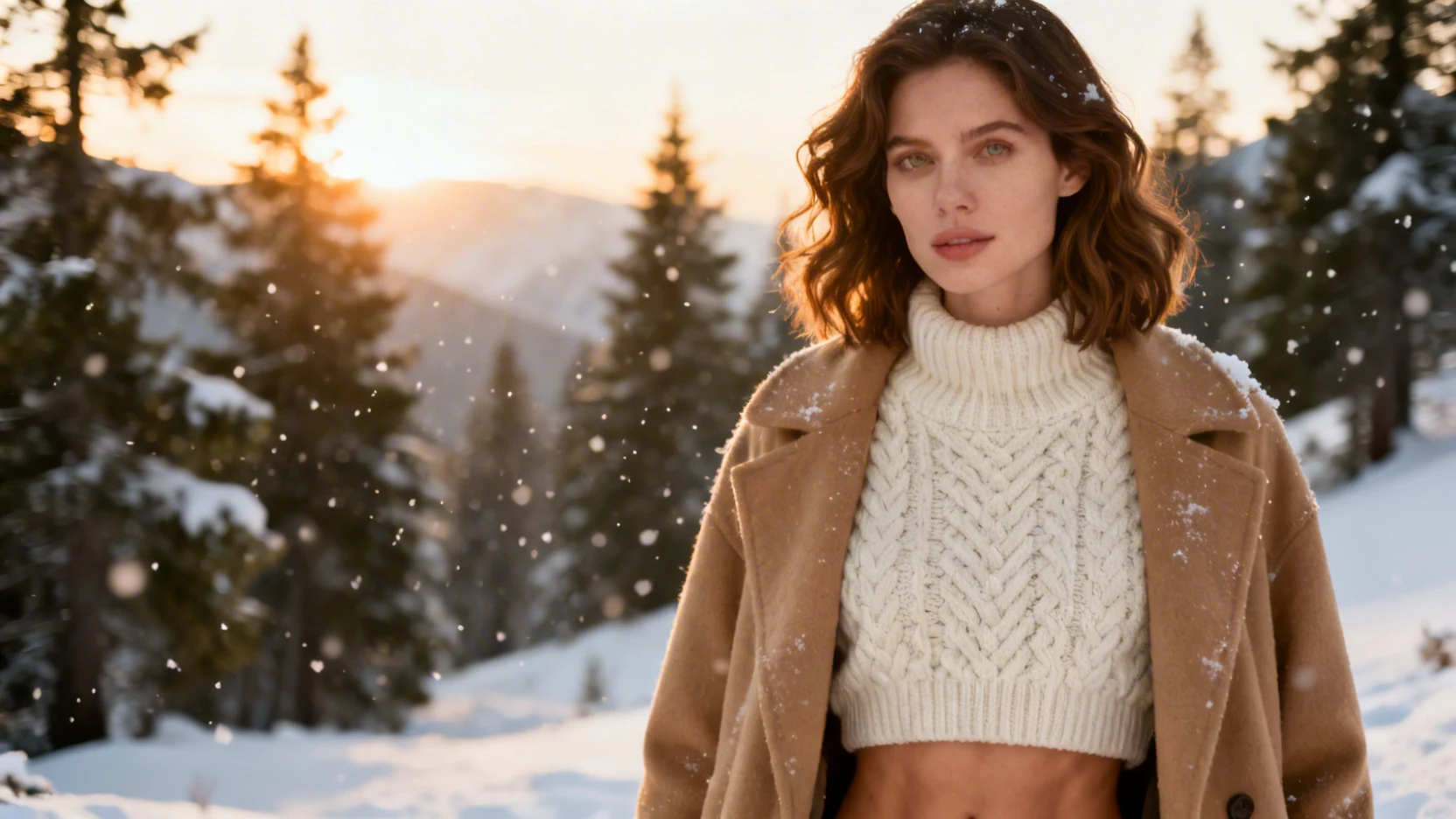
Same face, five completely different shoots — that's the whole pitch of the tool.
Why use a template instead of writing your own prompt?
Two reasons that show up immediately:
- Consistency across a series. When you produce ten posts a week, you don't want lighting and framing drifting between them. Templates lock the look.
- You stop reinventing the wheel. The keywords that make a "café shoot" actually look like a café shoot — depth of field, window light, foreground bokeh, lens choice — are already baked in. You'd otherwise rediscover them by trial and error.
You can still tweak. Most categories let you override the location detail or adjust the wardrobe before generating. The template is a starting point, not a cage.
FAQ
How many variations do I get per generation? Usually four, depending on the category and your settings. Pick the best, regenerate the rest.
Will my character stay consistent across categories? Yes — the tool uses your reference image as the identity anchor. The same character reads as the same person whether you put her in a café or on a beach.
Can I use my own prompt instead of the template? The template is the point — that's the value. If you need full prompt control, use the regular Text-to-Image tool instead.
Try it
Pick a category, upload a reference, generate. First batch lands in under a minute.