How to Create NSFW Content for an Existing AI or Real Model
This guide covers four proven workflows — from Text-to-Image and Image Editor to Carousel Maker and Generation by Reference — to produce mature yet tasteful photo sets with full face and body continuity.
🎯 Goal
You already have an established model with SFW content. Now you'll extend her portfolio into NSFW territory — keeping the same identity, lighting, and aesthetic quality across all outputs.
🧭 Available Workflows
- Text-to-Image → Upscale → Face Swap
- Image Editor (Style / Pose / Scene)
- Carousel Maker (Angle Expansion)
- Generation by Reference (Image-to-Image)
1️⃣ Text-to-Image → Upscale → Face Swap
Goal
Create new NSFW photos while maintaining your model's body proportions, lighting style, and identity.
Step 1 · Generate Base Images
Tool: Generator by Prompt Use SDXL (Uncensored) or WAN (Uncensored) modes. Keep body type, hair colour, and complexion consistent with the model's SFW photos.
📸 Example Prompt
cinematic photo of a 25-year-old woman with long brown hair, nude, sitting by the window in morning light, natural skin tones, DSLR realism
🎯 Tips
- Avoid over-descriptive erotic prompts — focus on light, setting, and realism.
- Use LoRa modifiers to fine-tune anatomy subtly (e.g., curvier hips, athletic tone).
- Reuse the same seed to maintain consistency across shots.
Step 2 · Select and Upscale
Tool: AI Upscaler Use Premium Realism mode for skin detail enhancement. Choose the most consistent 10–20 shots.
Step 3 · Apply Face Swap
Tool: AI Face Swap Use your model's reference face. This locks facial identity, lighting, and skin tone across all photos.
2️⃣ Image Editor (Style / Pose / Scene)
Goal
Reimagine your existing model photos — adjust poses, lighting, or outfits (or remove clothing) while keeping facial identity intact.
Step 1 · Choose Base Photo
Pick one of your model's SFW photos as the starting point.
Step 2 · Add References
Optional supporting images:
- Nude body references matching your model's physique.
- New background or interior (e.g., "modern bedroom", "sunlit shower").
- Clothing or prop details (optional).
Step 3 · Run Image Editor
Tool: Image Editor Combine references and prompts to achieve the desired scene.
📄 Example Prompt
Recreate Figure 1 with the body of Figure 2 in this bedroom environment, soft daylight, cinematic tone
Run multiple tests and pick the most realistic outputs.
Step 4 · Refine Identity
If the face changes slightly, rerun through Face Swap or feed the portrait again into the editor for correction.
3️⃣ Carousel Maker (Angle Expansion)
Goal
Generate multi-angle, consistent NSFW variations of existing photos to create full carousels or dynamic galleries.
Step 1 · Upload Existing Photos
Tool: AI Carousel Generator Upload one or several NSFW images of your model.
Step 2 · Choose Variations
Select how many angles (1–10) you want per source.
Step 3 · Generate and Review
Preview angles — front, side, back, overhead — and select your favourites. You can route the best shots to Video Generation.
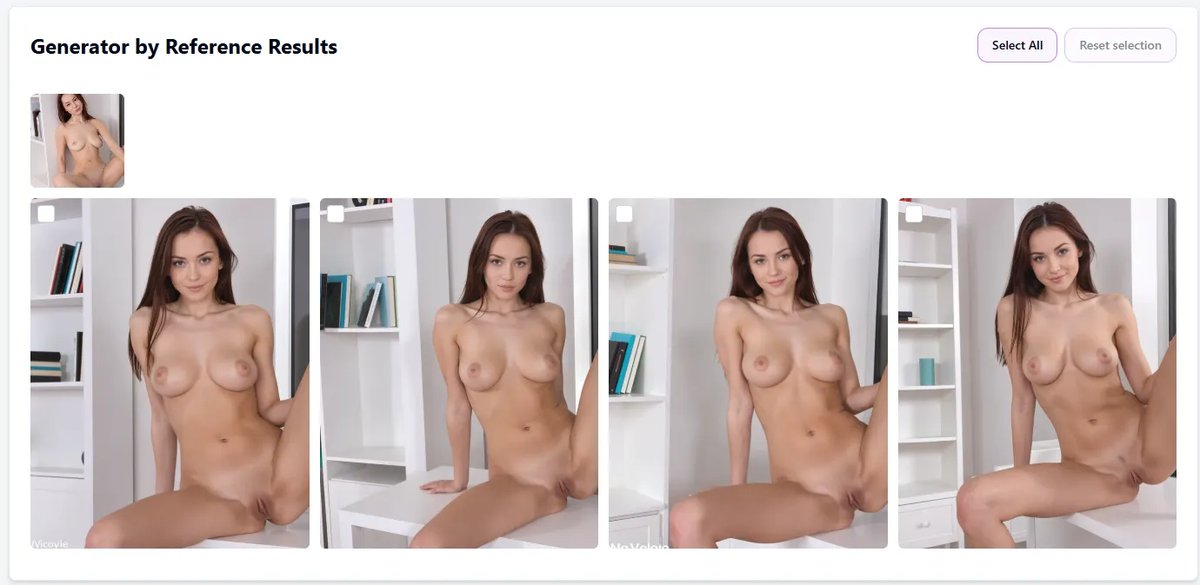
4️⃣ Generation by Reference (Image-to-Image)
Goal
Reimagine your existing model's photos as NSFW versions while preserving pose and overall look.
Step 1 · Upload Reference
Tool: Generator by Reference Use the same or a similar photo as your model's previous SFW shoot.
Step 2 · Enable Uncensored Mode
Choose SDXL, toggle Uncensored, and (optionally) add LoRa modifiers for anatomy.
Step 3 · Adjust Creativity
- Low values (10–20%) keep the output close to the reference.
- High values (60–80%) produce artistic or alternate interpretations.
Generate several variants and pick the most consistent ones.
Step 4 · Optional Finishing Steps
- Upscale for final 4K output.
- Face Swap if minor inconsistencies appear.
- Send to Publishing Hub or keep private inside your Creator OS workspace.