How to Make AI Twerking Videos (Step-by-Step Workflow)
The 2-step workflow for AI twerking videos that don't get blocked: generate a character still, then animate it with a motion prompt.

If you've tried prompting a general AI video tool for a twerking clip, you already know how it ends — the generator either flat-out refuses or hands you a stiff, sanitized loop that nobody wants to watch. The fix isn't a better prompt. It's a different workflow.
This guide walks through the exact 2-step process I use to get clean, on-rhythm AI twerking videos.
Why most AI video tools fail at this
It's not capability — it's filters. Most general video models block the prompt the moment they see anything resembling suggestive motion, even if the character is fully clothed. You spend more time fighting the safety layer than making content. The workaround is simple: don't argue with a filter, use a model that doesn't have one.
The 2-step workflow
The pattern is always the same:
- Generate a character still — a clean, full-body image with the pose and outfit you want.
- Animate it with a motion prompt — feed that image into image-to-video and describe the movement.
That's it. Each step takes about a minute.
Step 1 — Generate the character still
Open Text-to-Image at Generator By PromptOpen tool in ZenCreator and describe a full-body, dance-ready pose. Three things matter:
- Full body in frame. If the legs and hips aren't visible in the still, the animation has nothing to move. Always include "full body" or "wide shot."
- Dance-friendly outfit. Crop tops, shorts, leggings, fitted dresses — anything that lets the camera read the motion. Long flowy gowns confuse the model.
- Clean background. A bedroom, studio, or empty street works. Busy backgrounds with lots of objects make the AI hallucinate during motion.
Here's a prompt template you can paste in:
Photorealistic full-body shot of a [age] woman with [hair], [build], wearing [outfit],
standing in [simple location] with [lighting], confident pose, cinematic depth of field.
Generate 4 variations, pick the cleanest one. This becomes your base for every clip in the post — same seed, same character, three different angles later.
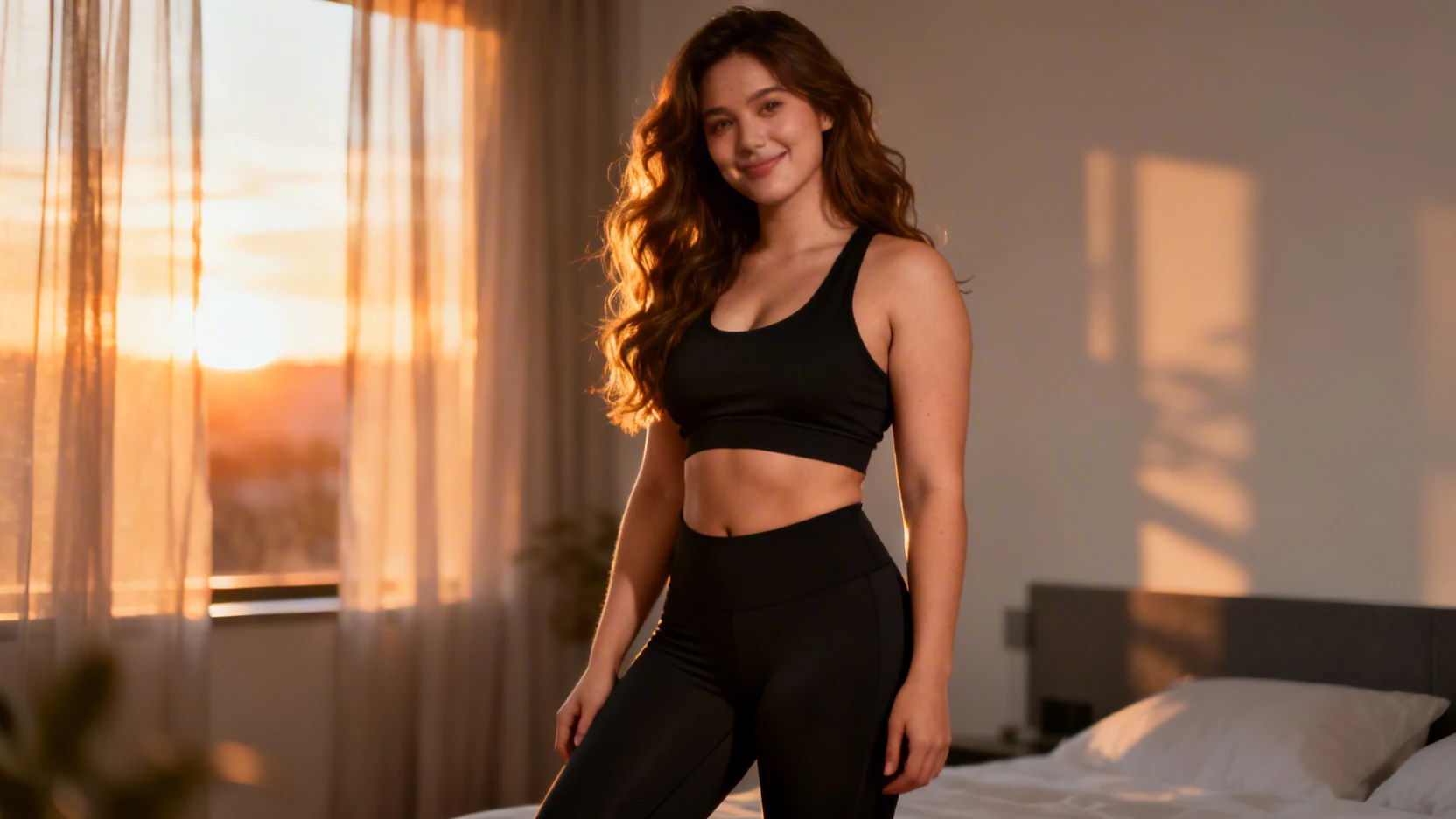
Step 2 — Animate with a motion prompt
Open Image-to-Video at Video GeneratorOpen tool in ZenCreator, upload the still, and choose an NSFW model — that's the one without the prompt filter.
The motion prompt is where 90% of the quality comes from. Skip the mood words ("sexy," "hot," "amazing") and write physical instructions instead:
The woman turns away from camera and starts twerking with a steady rhythmic hip motion,
hips moving down and up in a controlled bounce, knees slightly bent, back arched naturally,
hands resting on knees. Camera holds steady at waist height. Smooth confident rhythm.
What's working in that prompt:
- A direction of movement ("down and up," "turns away") — gives the model an axis to animate on.
- Body anatomy named ("hips," "knees," "back") — keeps the motion localized instead of full-body wobble.
- Camera instruction ("holds steady at waist height") — without this the AI swings the camera around and ruins the rhythm.
- No mood adjectives — they push the model toward generic "dance video" motion.
Set duration to 5 seconds (the sweet spot — long enough to read the rhythm, short enough that the AI doesn't drift), aspect ratio to 9:16 for vertical, and generate. Here's the result of animating the still from Step 1 with exactly this prompt:
FAQ
What duration should I pick? Stick with 5 seconds. Longer clips drift — the AI loses the rhythm and the character starts morphing.
What aspect ratio? 9:16 vertical. It's what every short-form platform expects, and it frames the motion correctly.
Can I use a real photo as the base instead of a generated character? Use a generated character. You get full control over framing, outfit, and lighting, and you sidestep any consent or likeness issues.
Ready to make one?
Open the image-to-video tool, upload your character still, and try the motion prompt above. First clip takes about a minute.