Uncensored Text-to-Video AI Generator — Cinematic Clips from a Prompt
ZenCreator Text-to-Video: generate cinematic 5 or 8 second clips from a text prompt. No source image, no prompt filter, five aspect ratios.
Most "AI video generators" want a source photo before they do anything. Text-to-Video on ZenCreator skips that step: you describe the scene, the model renders the whole clip — cinematic, in any aspect ratio, in around a minute. No image upload, no prompt filter when adult content is enabled, no extra tools.
This guide walks through what the tool does, when to reach for it instead of Image-to-Video, and how to write prompts that don't drift off-brief.
What is the ZenCreator Text-to-Video generator?
Text-to-Video turns a text prompt into a 5 or 8 second cinematic clip on ZenCreator — no source image, no upload, no extra tools.
Under the hood it runs text → still image → motion in a single tap, powered by Wavespeed[1]. You type a scene, the model renders it as a frame, then animates it into a clip. You only see the final video.
Here's an example clip generated from a single prompt — no reference photo, no manual editing:
Japanese woman in traditional kimono preparing matcha tea ceremony in minimalist tatami room, soft natural light through paper screens, slow camera dolly in, steam rising from bowl, contemplative mood, 35mm cinematic photorealThat's the entire workflow: one prompt, one tap, one cinematic clip. No earlier flow on ZenCreator gives you a finished video from text in a single step — the older path was Text-to-Image followed by Image-to-Video.
How is Text-to-Video different from Image-to-Video on ZenCreator?
Text-to-Video starts from nothing — you describe both the subject and the motion. Image-to-Video starts from a photo you upload and only the motion comes from the prompt.
The two tools live in the same Video Generator panel but solve different problems:
| Need | Use |
|---|---|
| Don't have a source image — want a scene generated from scratch | Text-to-Video |
| Have a specific face / pose / composition to preserve | Image-to-Video (see WAN 2.7 Spicy guide) |
| Want a one-off cinematic clip for an ad / reel / social post | Text-to-Video |
| Need character consistency across many clips | Image-to-Video + Face Swap |
| Want a specific aesthetic the model hasn't seen | Text-to-Video with detailed style cues |
| Want to animate an existing portrait you generated | Image-to-Video |
Text-to-Video is faster when you don't already have a starting frame in mind. Image-to-Video is the right call when the face matters — Text-to-Video gives you a new face every time.
How do you write a Text-to-Video prompt that actually works?
A good Text-to-Video prompt names six things in one sentence: Subject + Action + Setting + Camera + Lighting + Mood. Miss one and the clip drifts off-brief.
Subject + Action + Setting + Camera move + Lighting + Style / mood
The text-to-video model sees nothing until you tell it. Unlike Image-to-Video, where the source photo already establishes the character and setting, Text-to-Video starts from zero. Every visual detail has to land in the prompt.
Three concrete patterns — each prompt below is real, the video next to it is the output you get from running it as-is.
Pattern 1 — Subject + Action + Setting
The skeleton: a concrete subject, a verb of motion, a named setting. Works for almost any scene.
Hot espresso pouring from silver Italian moka pot into white ceramic cup on dark wooden table, slow motion close-up, steam curls rising, golden morning light from left, shallow depth of field, cinematic food cinematography 50mmPattern 2 — Camera grammar
Name the camera move explicitly: orbit, dolly, track, crane, handheld. One verb per shot — mixing two confuses the model.
Professional surfer carving a turquoise wave at golden hour, water spray catching sunlight, slow motion side tracking shot, dramatic cinematic widescreen anamorphic, 35mm photorealPattern 3 — Atmosphere + mood
Lock the mood with named genres (film noir, cyberpunk, road trip) and specific light sources. Generic adjectives ("moody", "epic") don't steer the model.
Cyberpunk Tokyo alleyway at night, neon kanji signs reflecting in puddles, lone figure in trench coat walks away from camera, smoke from a ramen stall drifts across frame, slow dolly in, Blade Runner aesthetic, cinematic 35mmCopy any of these as a starting point, swap the subject and setting, keep the camera and lighting cues, and you've got a working template.
How do you generate a Text-to-Video clip on ZenCreator step by step?
Four taps from idea to clip. The whole flow takes about a minute end to end.
- Open the Video Generator at
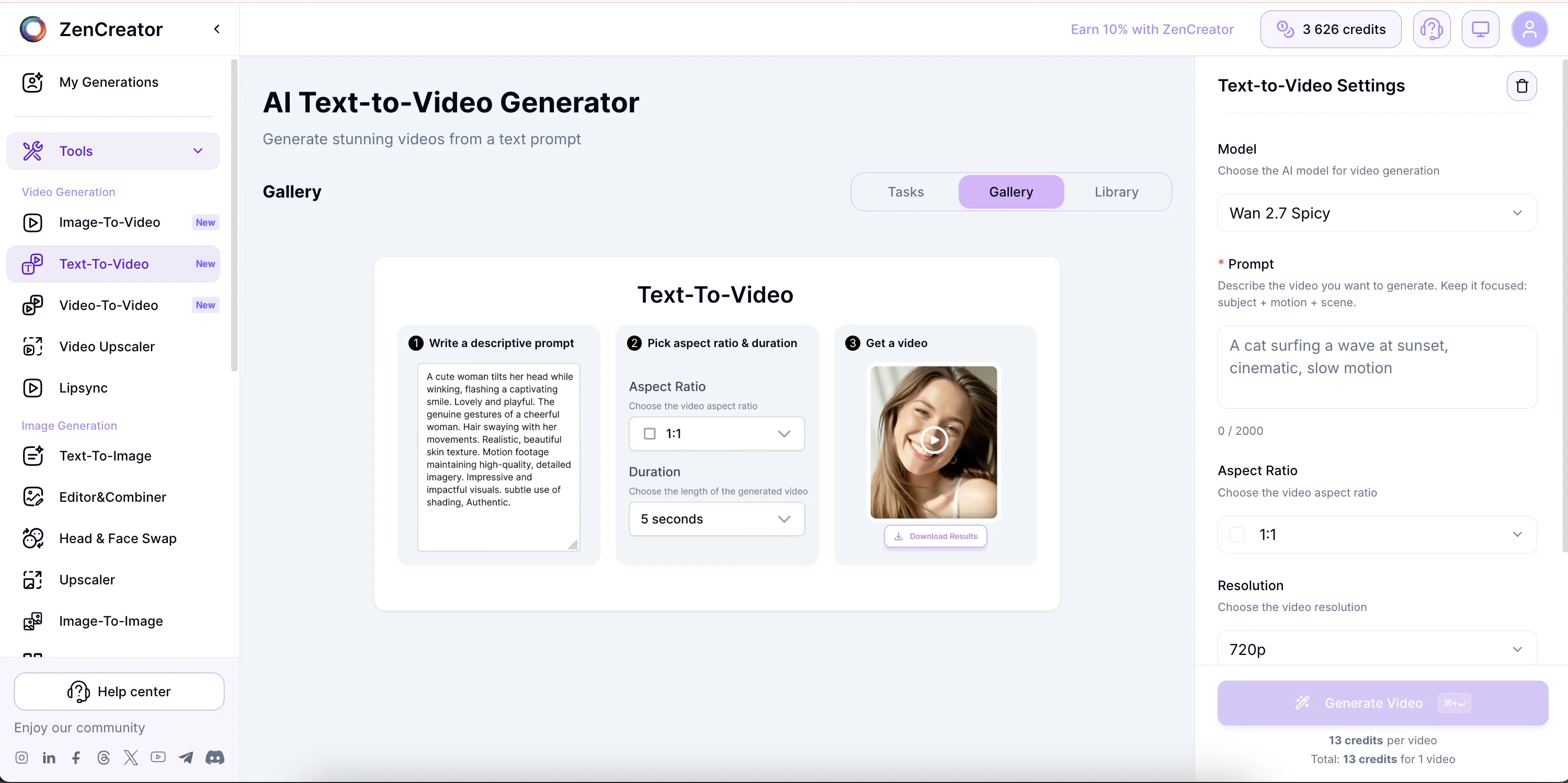
app.zencreator.pro/tools/video-generatorand pick Text-To-Video in the left sidebar. No image upload required. - Write your prompt using the formula above — subject, action, setting, camera, lighting, mood. Up to 2,000 characters.
- Pick aspect ratio and duration — 16:9 cinema, 9:16 vertical for reels, 1:1 square for feed, 4:3 or 3:4 portrait. 5 seconds for a single beat, 8 seconds for a reveal.
- Hit Generate. Clip arrives in around a minute. Tweak the prompt and re-run for variations.
Here's the panel with the model picker, prompt input, and ratio + duration controls in their actual layout:
What aspect ratios and clip lengths are supported?
Five aspect ratios and two clip lengths. Pick the combo that matches the channel you're posting to.
| Aspect ratio | Best for | Native channels |
|---|---|---|
| 16:9 | Cinema, horizontal | YouTube, ads, TVs |
| 9:16 | Vertical, reels | TikTok, Reels, Shorts |
| 1:1 | Square, feed | Instagram feed, Facebook |
| 4:3 | Classic horizontal | Educational, vintage feel |
| 3:4 | Portrait | Pinterest, dating profiles |
| Duration | Best for |
|---|---|
| 5 seconds | Single action, atmosphere shot, quick beat |
| 8 seconds | Narrative arc, camera move with reveal, light shift |
For content longer than 8 seconds, chain multiple clips in a video editor — or extend a clip with Video-to-Video.
Is Text-to-Video on ZenCreator uncensored?
Yes — Text-to-Video runs without a prompt filter when adult content is enabled on your account. Mature themes, intimate framing, and explicit prompts render without refusal.
That puts ZenCreator in a small group of platforms that handle adult creative work in Text-to-Video at all — most major hosted tools refuse the same prompts. Two things to know:
- Account flag must be on. Adult content is opt-in per account. If you haven't enabled it in your ZenCreator settings, even an explicit prompt comes back tame. See Unrestricted AI for the full account setup.
- Phrasing still matters. Even with the filter off, vague prompts under-perform. Be specific — wardrobe state, pose, light, camera move. Euphemisms ("intimate", "suggestive") read weaker than concrete descriptors.
If you've already worked with WAN 2.7 Spicy for image-to-video, the same prompting discipline applies — except Text-to-Video skips the image upload step entirely.
Pro tips for cinematic results
A few short rules that bump output quality without changing the workflow:
- Name the camera move. One verb per shot — orbit, dolly in, track, crane, handheld. Skip it and the model defaults to a near-static frame.
- Be specific about light. "Golden hour" beats "warm". "Single overhead bulb" beats "moody". Specific source → cinematic result.
- Pick the aspect ratio before you prompt. Vertical 9:16 frames differently from 16:9 — the subject placement changes. Decide first.
- 5 seconds for a beat, 8 for a reveal. Quick atmosphere or single action → 5. Camera move + light shift + reaction → 8. Longer doesn't help if the beat is short.
FAQ
How is Text-to-Video different from Image-to-Video?
Text-to-Video generates the entire scene from a prompt — no source image needed. Image-to-Video starts from a photo you upload and animates it. Use Text-to-Video when you don't have (or don't want) a starting frame; use Image-to-Video on WAN 2.7 Spicy when you need a specific face, pose, or composition preserved.
Is Text-to-Video on ZenCreator uncensored?
Yes — Text-to-Video runs without a prompt filter when adult content is enabled on your account. Mature themes, intimate framing, and explicit prompts render without refusal. Account flag is the gate; see Unrestricted AI for setup.
What aspect ratios does Text-to-Video support?
Five: 16:9 cinema, 9:16 vertical (reels / TikTok / Shorts), 1:1 square (feed), 4:3 and 3:4 portrait. Pick the one that matches your destination channel.
What's the maximum clip length?
8 seconds in a single generation. For longer content, chain multiple 8 second clips in a video editor — or use Video-to-Video to extend an existing clip.
Why does my Text-to-Video clip look static?
Almost always the prompt described a still image, not motion. Add a verb of action and one camera move — "slow dolly in", "orbit around", "tracking shot from behind". The model needs to know what changes over time.
How long does Text-to-Video take to generate?
Around a minute per clip on Wavespeed. Quick enough to iterate prompts in the same session and pick the best take.
Can I use ZenCreator Text-to-Video clips commercially?
Yes. ZenCreator grants commercial usage rights on outputs from paid plans. If you publish AI content at scale in regulated jurisdictions, label it per local rules.