How to Create SFW Content for a New AI or Real Model
Learn how to build a consistent, studio-quality photo set for a brand-new AI or real model. This step-by-step guide walks you through Text-to-Image, Generation-by-Reference, and Image Editor workflows.
Creating a new model means producing a consistent photo set — 10 to 20 cohesive images of the same person or character in different poses, lighting, and angles.
You'll later use this set for LoRA training (soon), PhotoShoots, or future Gen-by-Reference sessions.
🧭 Available Workflows
You can build your first SFW photo set in three main ways:
1️⃣ Text-to-Image → Face Gen → Face Swap
Goal
Generate clean, realistic photos from text prompts, upscale them, then replace faces with your generated model's face for perfect consistency.
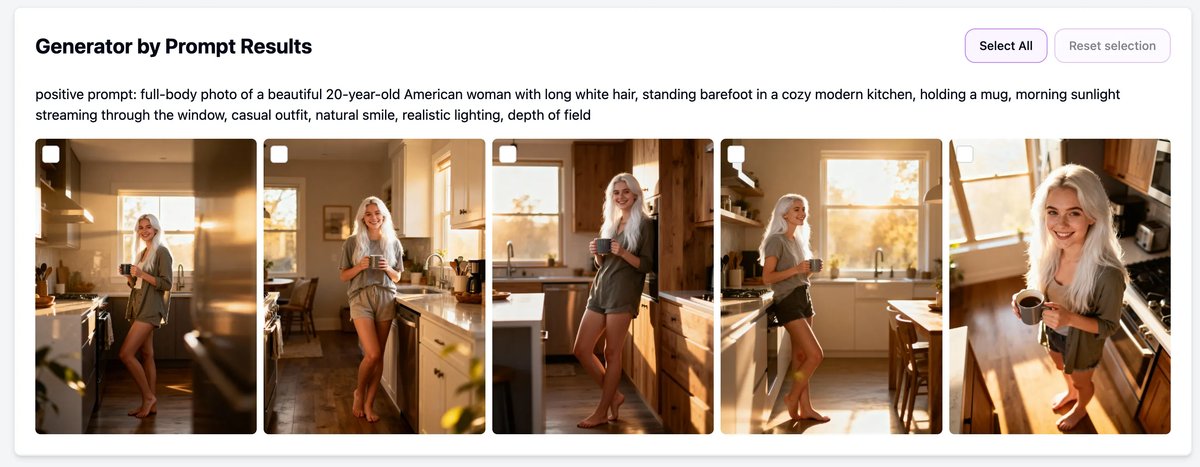
Step 1 · Generate Base Images
Tool: Generator by Prompt Recommended modes:
- WAN (SFW) – realistic, balanced lighting
- SDXL – stylised / body-shaping freedom
- (Avoid General NSFW for SFW work)
Try to create:
- 3 full-body shots (from different angles)
- 3 portraits
- 3 sitting poses
- 3 lying poses All with varied lighting and locations.
🎯 Tips
- Describe appearance in detail (hair color, age, body type, mood).
- Mention lighting and emotion for more life-like results.
- To expand angles later, you can send images to the Carousel Generator.
📸 Example Prompt
full-body photo of a 20-year-old American woman with long white hair, standing barefoot in a cozy kitchen, morning light through the window, holding a mug, cinematic tone, DSLR realism
Step 2 · Select and Upscale
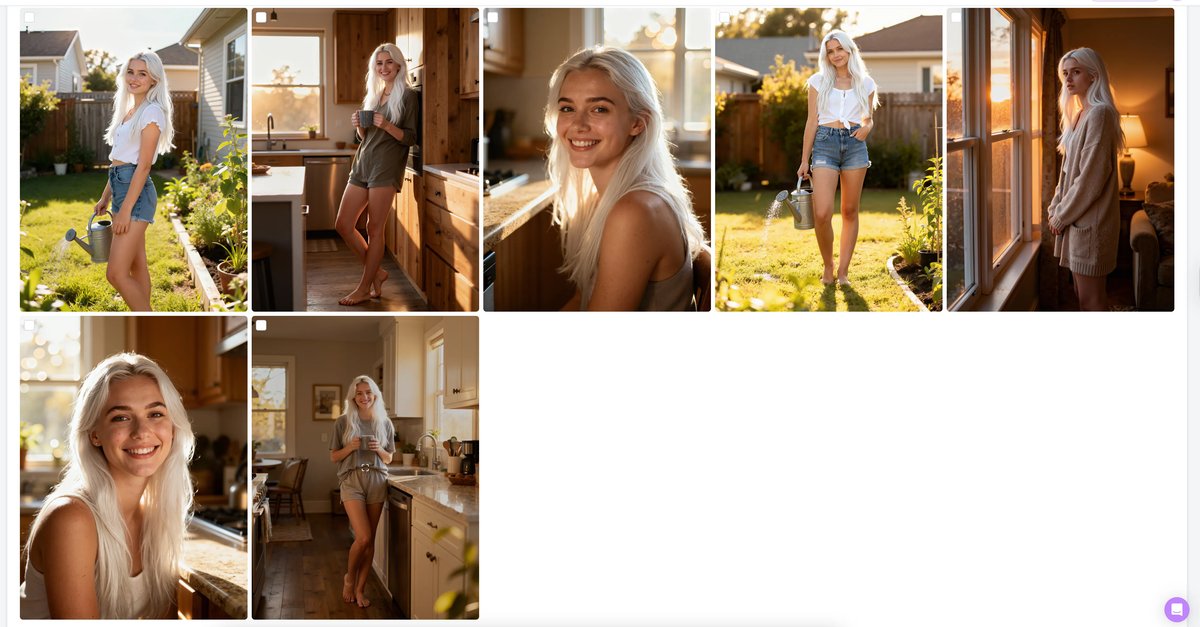
Tool: AI Upscaler Use Premium or Face-Safe mode for clean detail recovery. Choose the most consistent shots (10–20 total). No need to preserve the original face —we'll swap it next.
Step 3 · Generate the Face
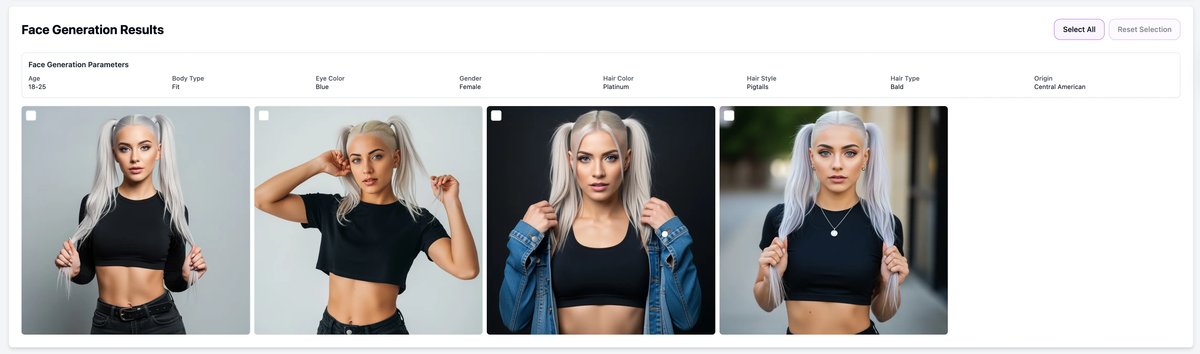
Tool: AI Face Generator Define gender, age, ethnicity, and style to match your prompt. Generate 4 faces per run; star your favorite one.
Step 4 · Apply Face Swap
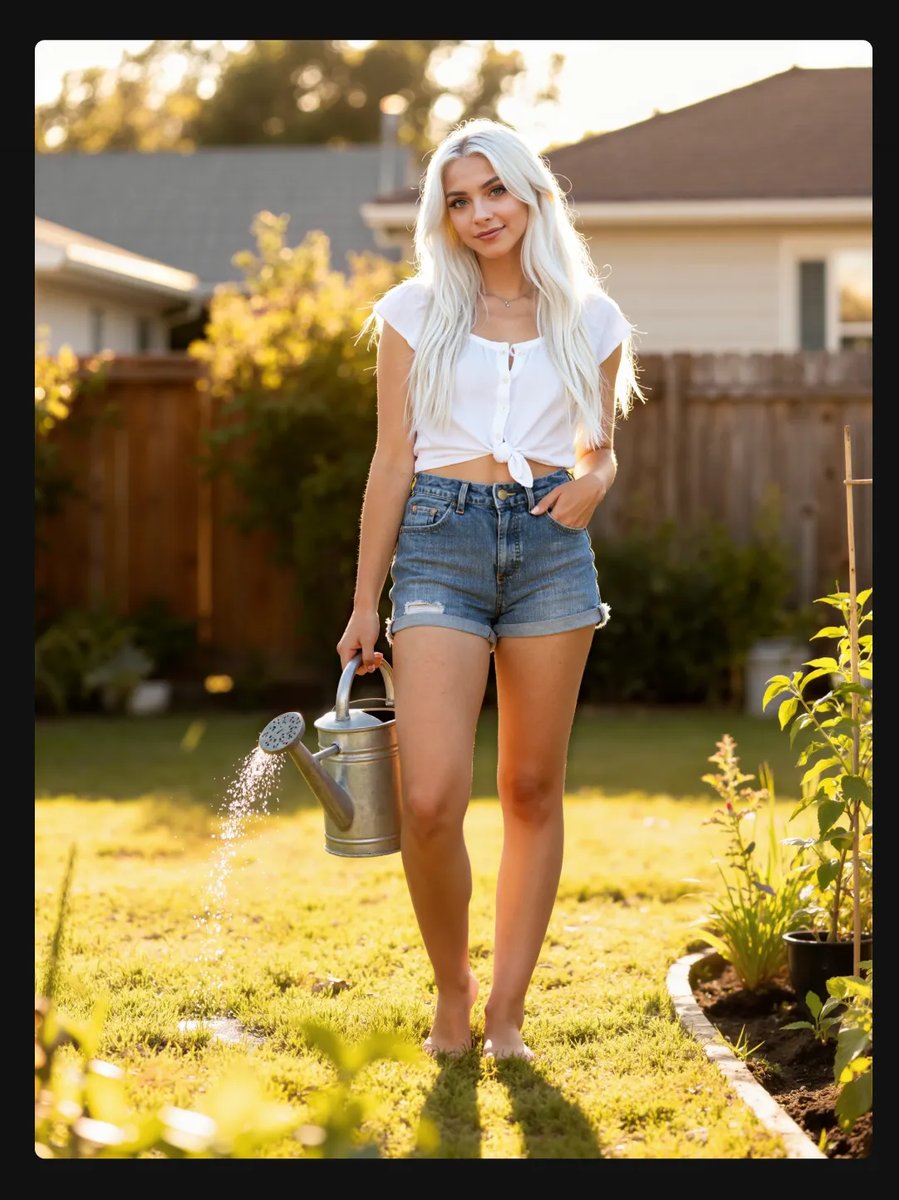
Tool: AI Face Swap Upload the upscaled images as targets and the new face as reference. Run bulk swap for a consistent look across all shots. Result: a 10–20 photo SFW set with identical identity.
2️⃣ Image-to-Image → Face Gen → Face Swap
Goal
Use reference photos (real or AI) to re-imagine them as your model's own shoot.
Step 1 · Pick References
Choose a real person or photos from Instagram that match the look you want. Keep hair and complexion close to your target model.
Step 2 · Generate by Reference
Tool: Generator by Reference Model options: Flux or SDXL (for SFW). Optionally attach LoRas to adjust body shape. Generate variants and select the most consistent results.
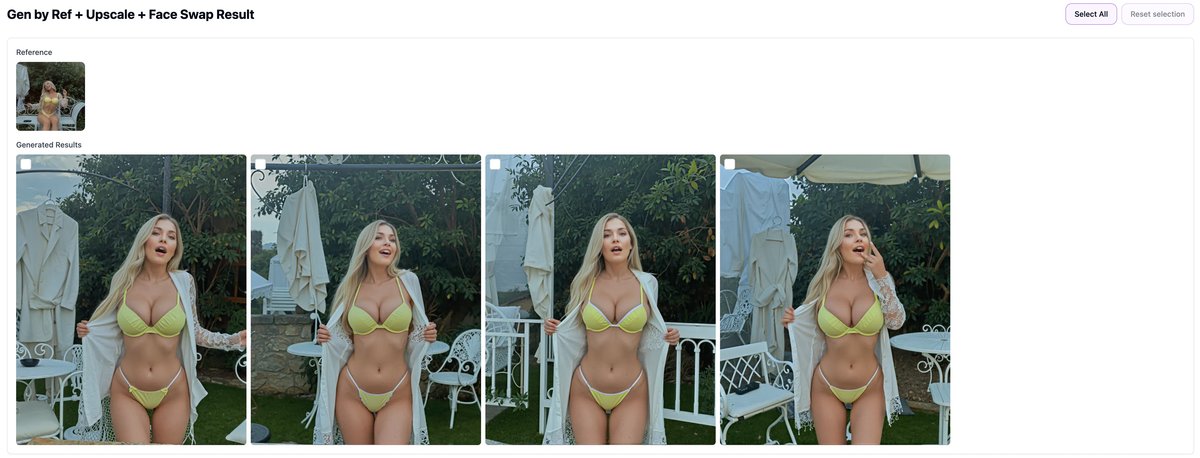
Step 3 · (Optionally) Upscale and Face Swap
Use the same Upscale and Face Swap steps from Workflow #1 to finalize the set.
3️⃣ Image Editor → Face Gen
Goal
Combine a face, body, and environment into a controlled, composed shot.
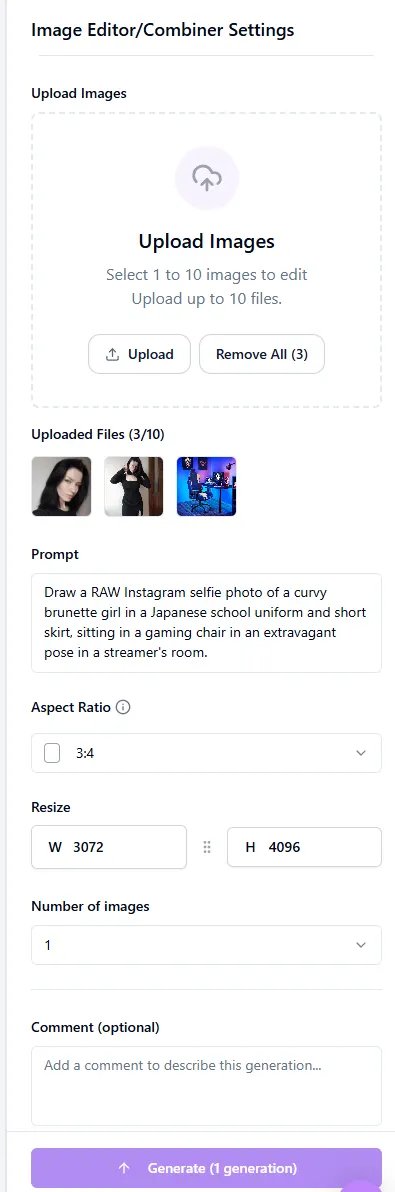
Step 1 · Prepare Source Images
- Model face
- Body photo (clear pose and silhouette)
- Optional references for clothes or background
- A precise prompt describing scene and mood 💡 Use simple backgrounds — the editor copies visible details from references.
Step 2 · Launch Image Editor
Feed the prepared inputs (face, body, environment). Generate until you reach your desired composition and lighting.
Step 3 · Refine and Expand
Select the best shots, then optionally send them to the Carousel Generator to create angle variations.
📦 Next Steps
Once you have your SFW photo set:
- Train a LoRA for advanced personalization (soon).
- Generate new photos by reference or prompt.
- Schedule content via the Publishing Hub.