AI Face Generation
AI Face Generator:Create Realistic AI Faces from a Prompt or a Photo
Generate new AI faces from a text prompt or an uploaded reference photo, with control over the model, the size, and the number of results.
Credits never expire
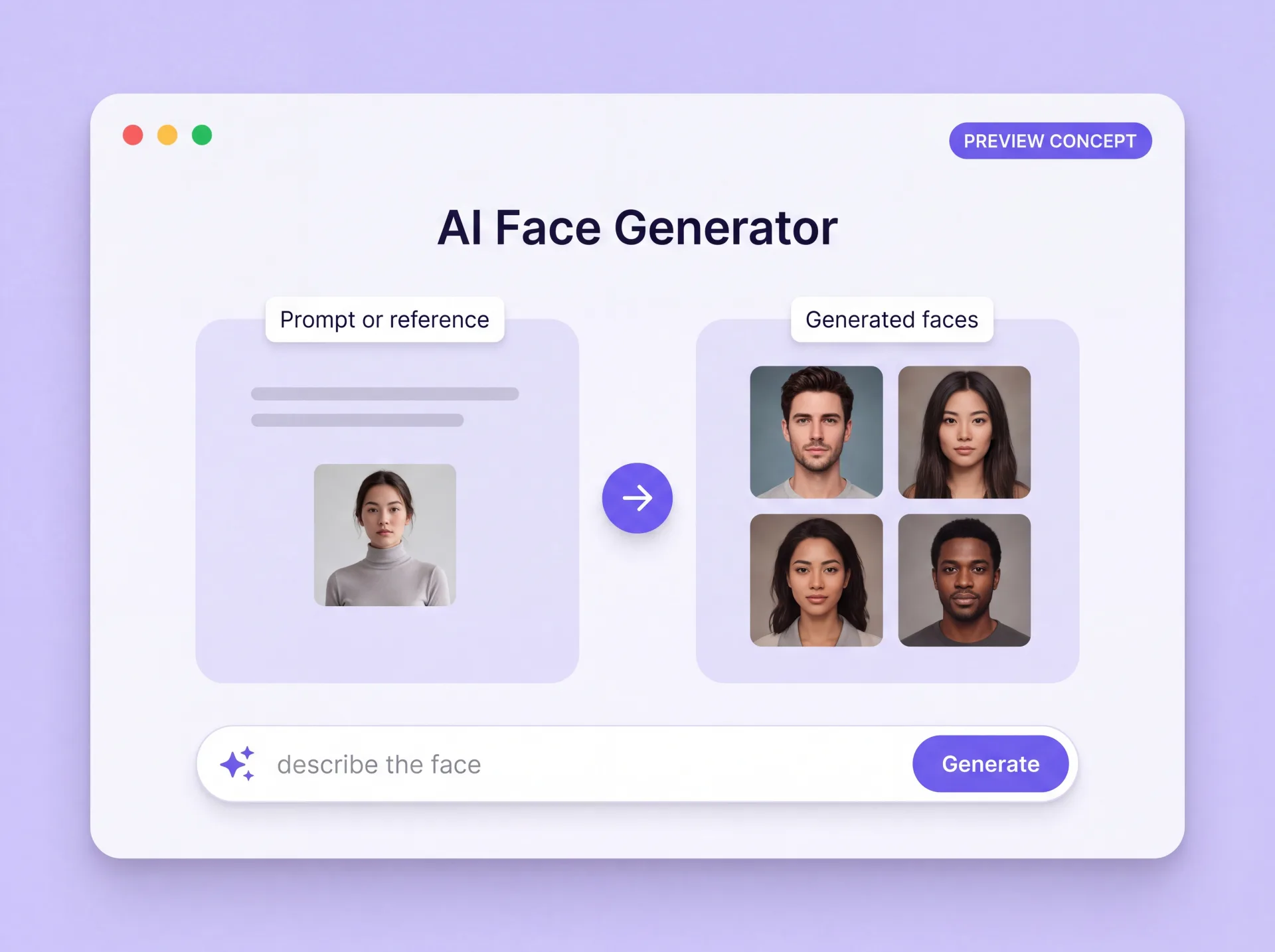
What the ZenCreator face generator creates
ZenCreator's AI face generator builds a new image of a face from a written description, from one or more reference photos, or from both. The AI generated faces are new images rather than retouched copies of your upload.
Any reference you add guides identity, clothing, style, lighting, and composition instead of preserving the original face unchanged. You choose the model, the aspect ratio, the output size, and how many faces one run returns.
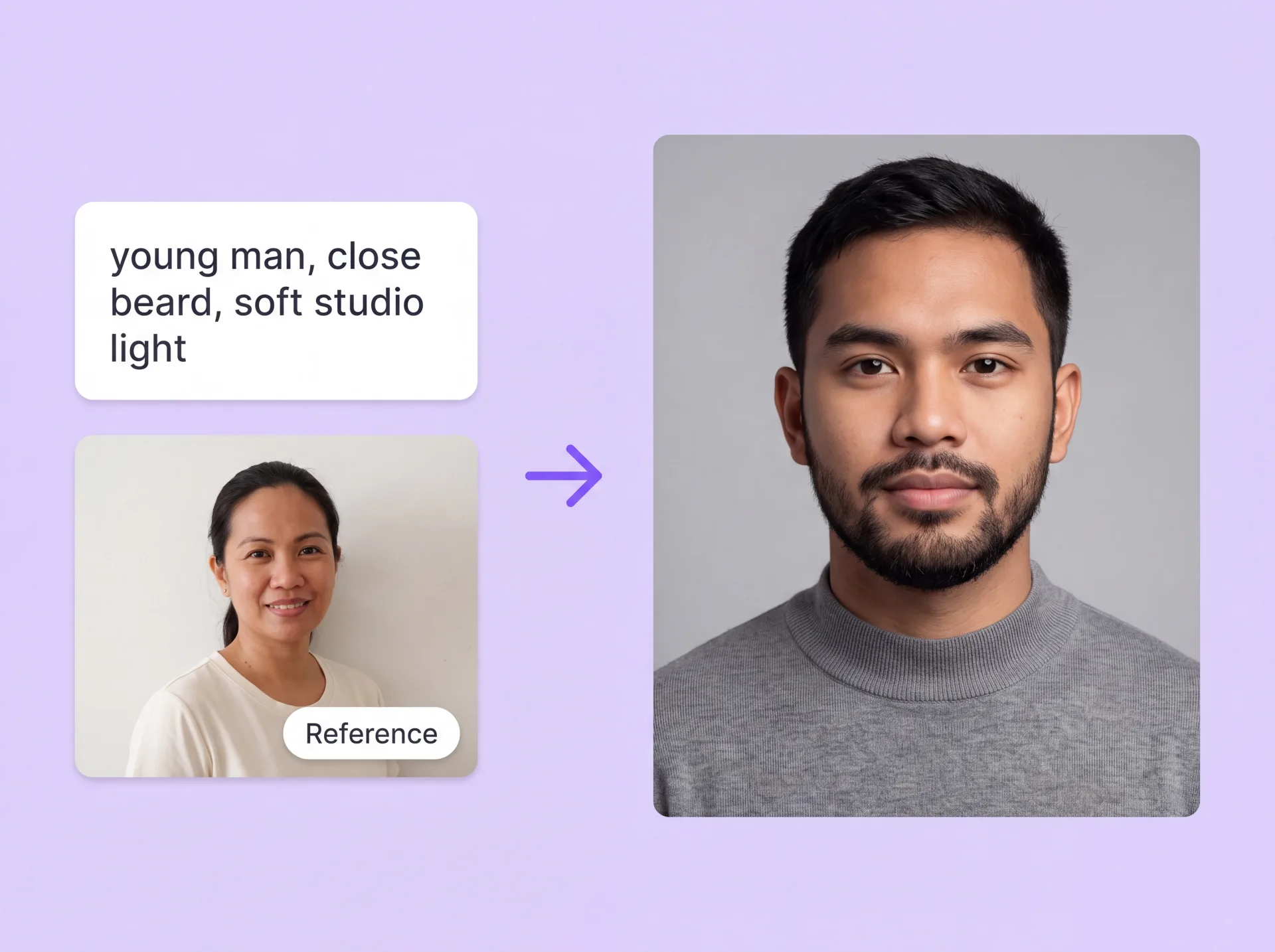
AI generated faces you can create
Four jobs the generator handles, each with the input it needs and the setting that changes the result.
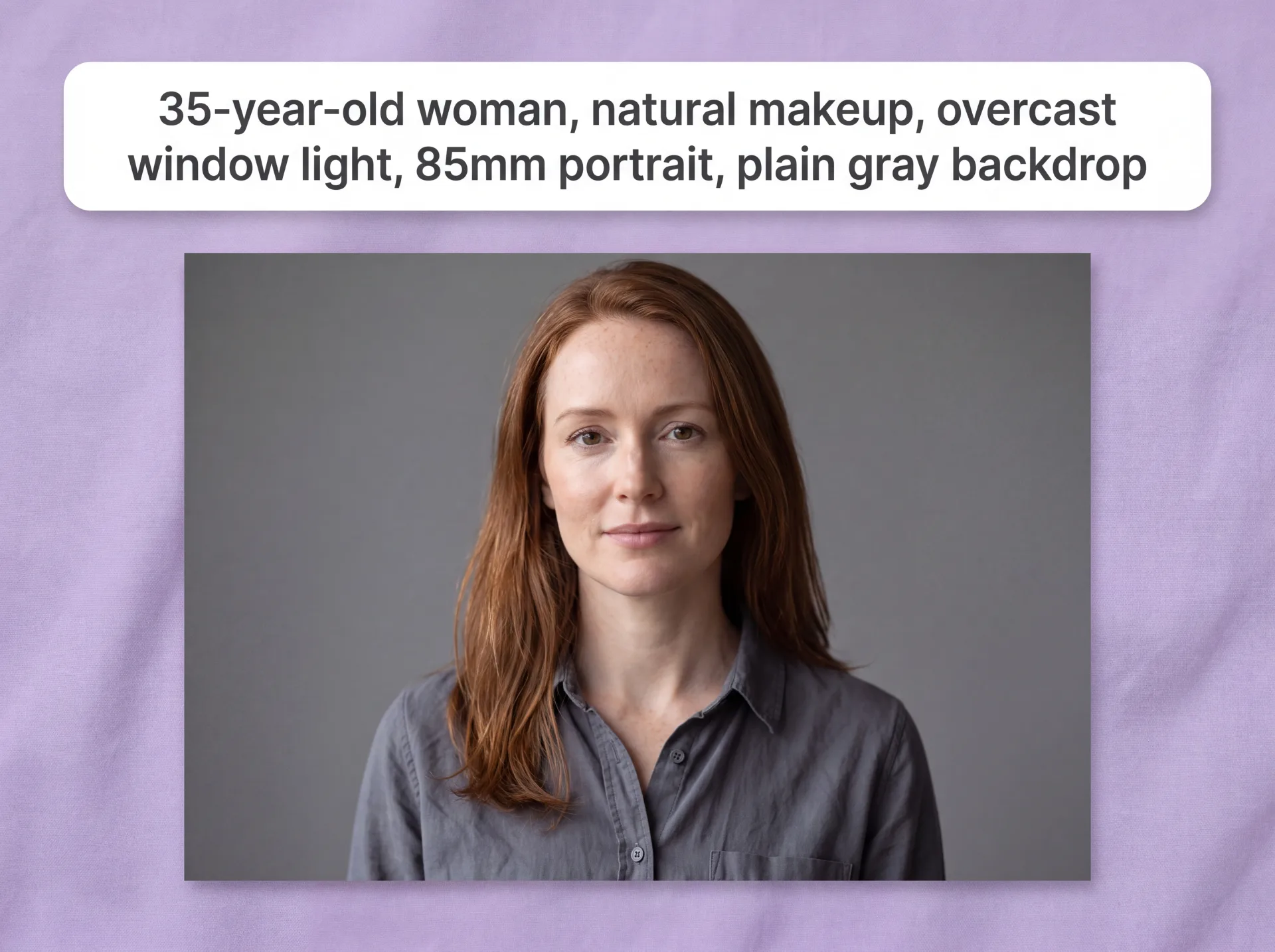
Realistic AI faces from a text prompt
Brief the face the way a photographer would — age range, expression, hair, skin, lens, and lighting — and Text to Image returns realistic AI generated faces built from that description alone. Output size follows the model and the dimensions you set, so a portrait can be generated at the frame you actually need. Example prompt: "35-year-old woman, natural makeup, overcast window light, 85mm portrait, plain gray backdrop."
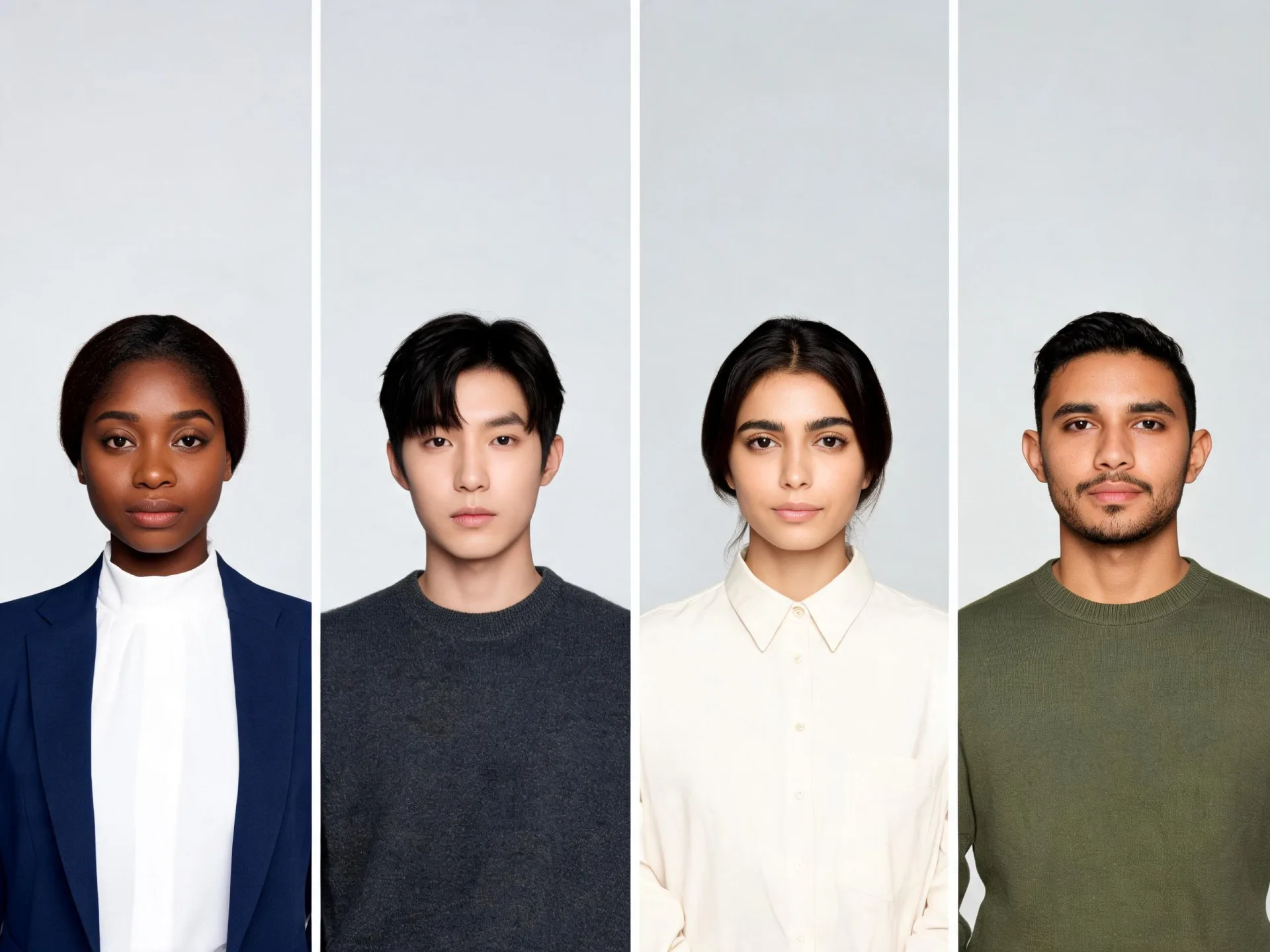
AI human faces and character portraits
The same prompt workflow covers AI generated human faces for concepts and mockups as well as stylized character portraits for a fictional cast; the description decides which. On compatible models, a LoRA style template holds one look across a whole set. Example: a four-person team page generated from a single brief.
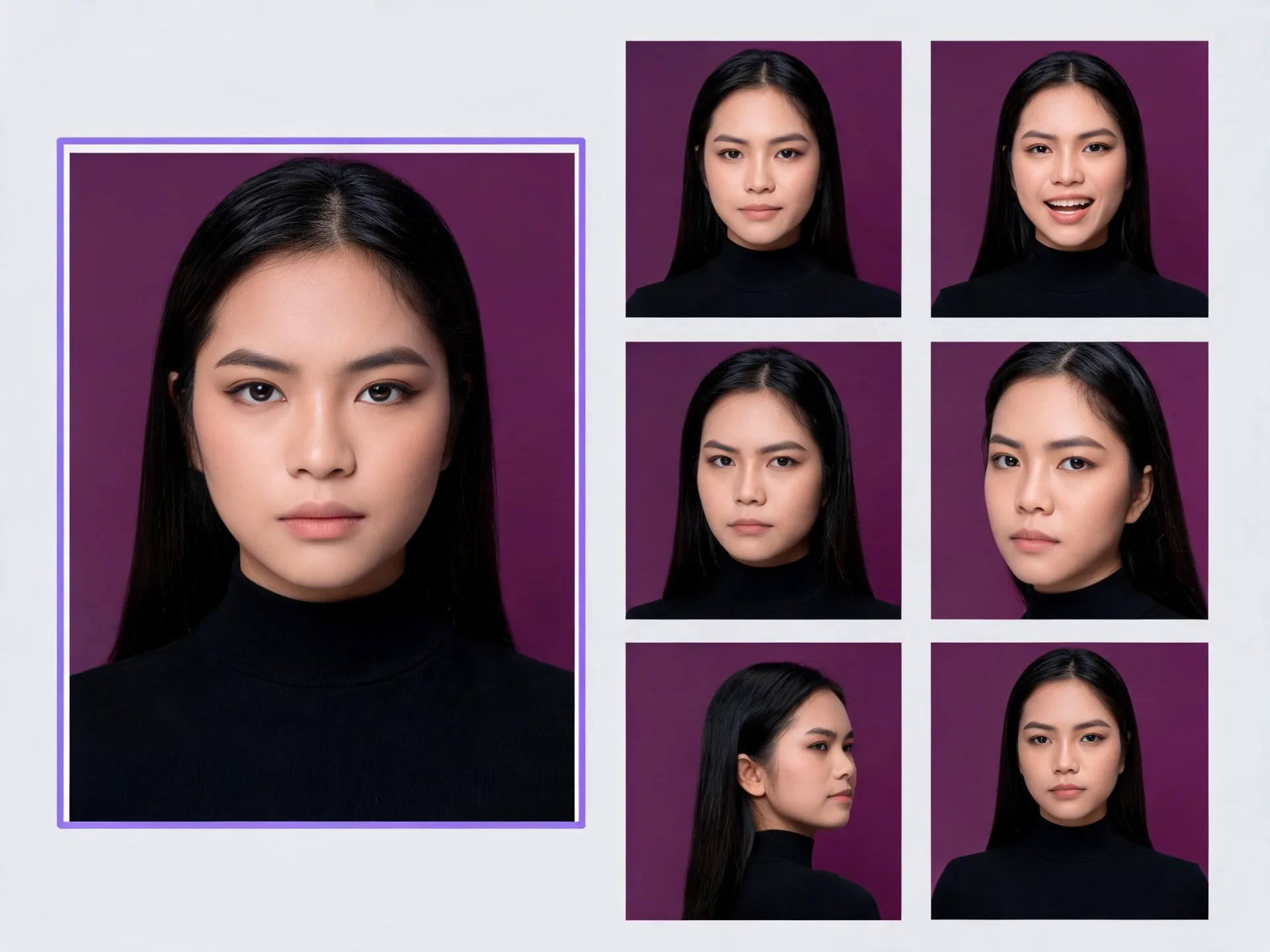
Face variations from one reference
Upload a face you have already approved and generate a set of variations from it, each starting from that reference. Variations produces its own set for each reference image, which is the direct route to alternatives once the face itself is settled. Example: one approved face, several expressions and crops to test.
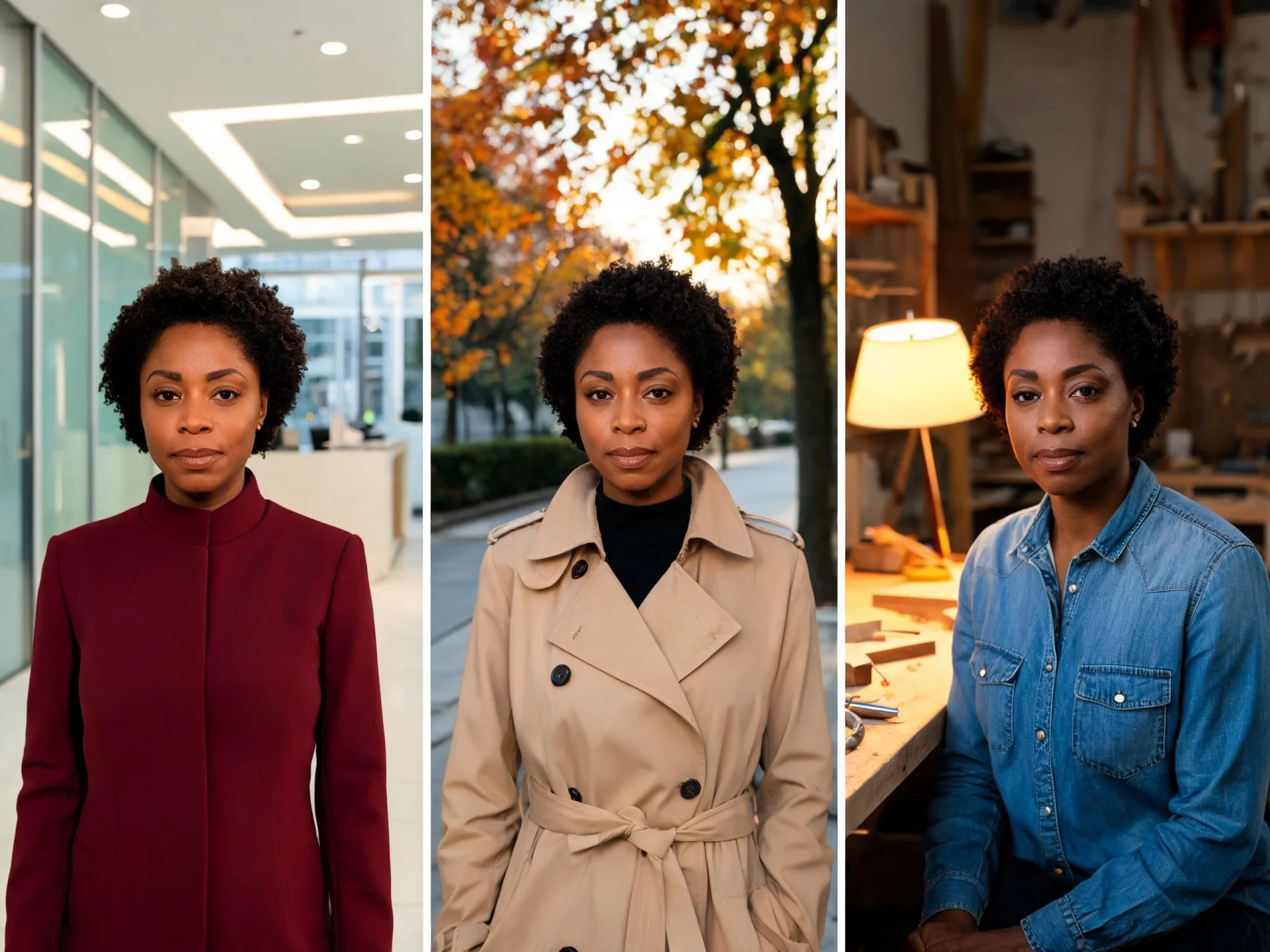
Consistent character faces across a series
Reuse the same reference image run after run when one character has to appear more than once. A consistent character face is what this workflow aims for rather than something it guarantees: the model, the prompt, and the source image all move the result. Example: one invented spokesperson across three posts.
Why creators use the ZenCreator AI face maker
Two inputs, one studio
A written prompt and an uploaded reference are two routes into the same generator. When the brief moves from "invent a face" to "match this one", you change the input rather than the tool, and the settings you learned still apply.
Controls, not re-rolls
Model, aspect ratio, width and height, and the number of results are all yours to set, and supported models add a negative prompt for what should stay out of frame. Re-rolling becomes one option among several instead of the only lever you have.
References that steer identity
Uploaded references guide identity, clothing, style, lighting, and composition, which is what makes a look repeatable across runs. Results still move with the model, the prompt, and the source material, so a reference is direction rather than a template.
Results that keep moving
A finished face is a starting point. A generated face can carry on into variations, upscaling, and image-to-video without leaving ZenCreator, so the face you approved is the one that gets a higher-resolution version or a clip.
How to create a face with AI in four steps
The short version of how to generate AI faces in ZenCreator: choose the input, set the controls, generate, then take the result further.
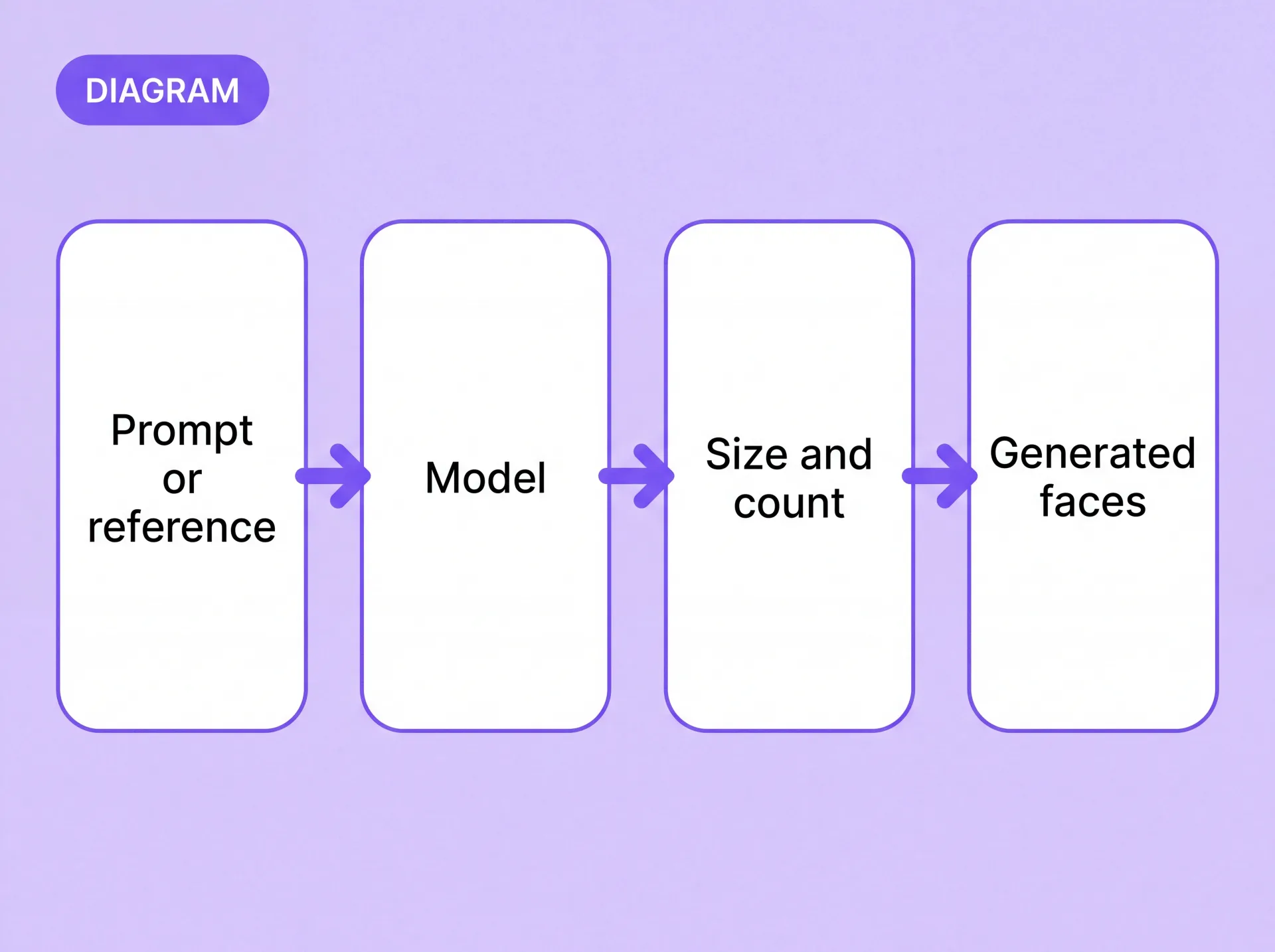
Models, size, and output settings
A face creator is only as good as the controls it gives you. These settings change a ZenCreator result, and each one carries a condition worth knowing.
Model
Sets the style range, the settings you see, and the resolution ceiling for the run; output runs up to 4K depending on the model you choose.
Prompt and negative prompt
Describe the face you want; on supported models, a negative prompt names what should stay out of it.
Aspect ratio
Pick a portrait, square, or landscape frame before the run starts.
Width and height
Set dimensions directly when a placement needs an exact frame; for a custom face generator run, these two fields matter more than a preset.
Number of images
Return several faces from one run, then compare facial features across them before choosing.
Style templates
LoRA templates on compatible models keep one look consistent across a set of faces.
Text prompt or reference photo: which workflow to choose
Both routes end in a generated face. They differ in what you supply, what you control, and what you can rely on.
Conclusion Only upload images you have the right and permission to use. If an image includes another person, make sure you have the consent required for your intended edit and use. Start from a prompt when the brief is open, and generate a face from a reference when it has to match something that already exists.
Start with a prompt or your own reference
Both routes open in the same studio, so you can switch between a written brief and an uploaded reference from one run to the next.
Who uses ZenCreator to generate faces
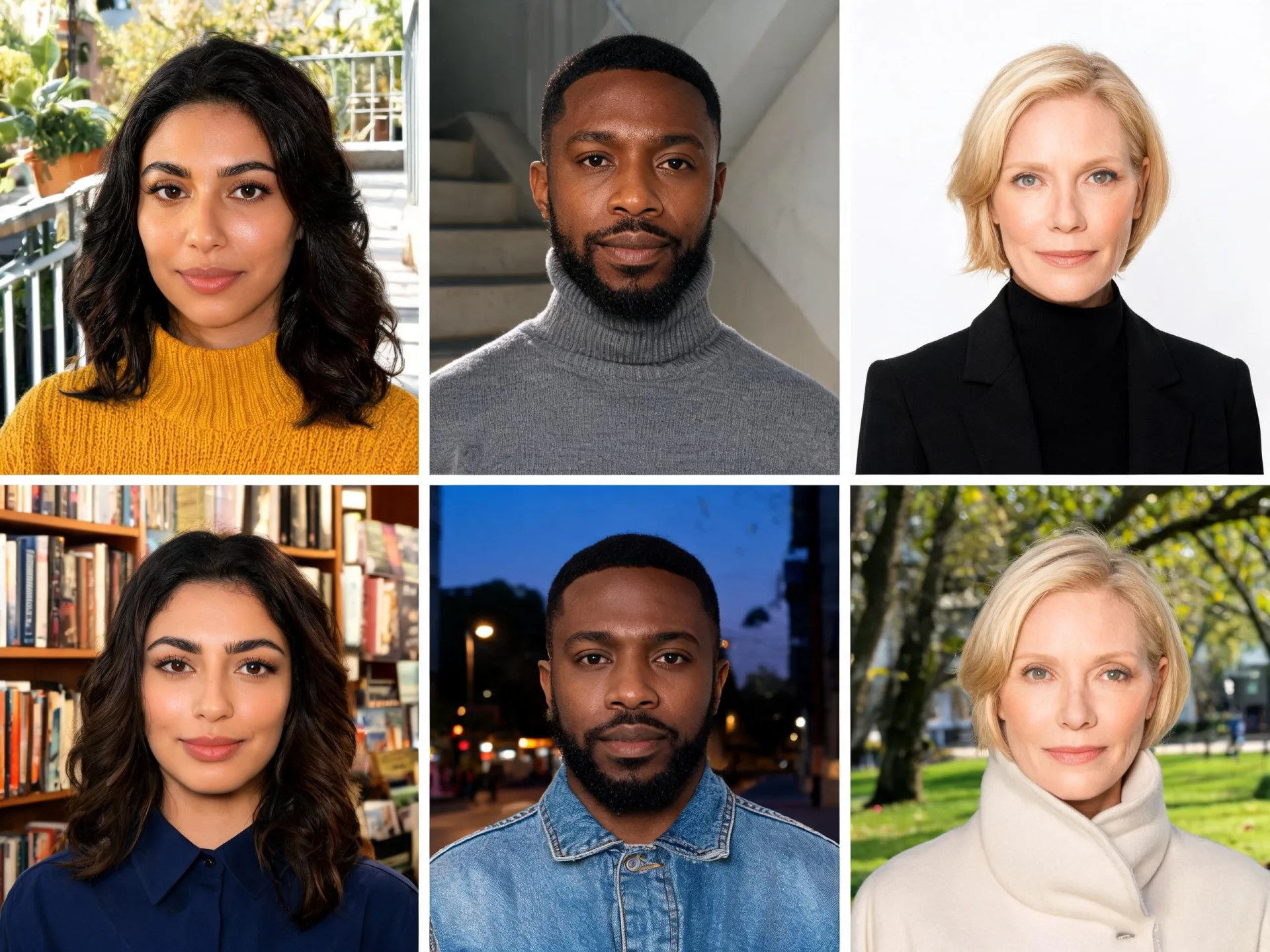
Virtual character and AI influencer builders
You need a cast that stays recognizable from one post to the next. Reusing a single reference across runs, then generating variations from the approved result, keeps a character usable for longer than one image.
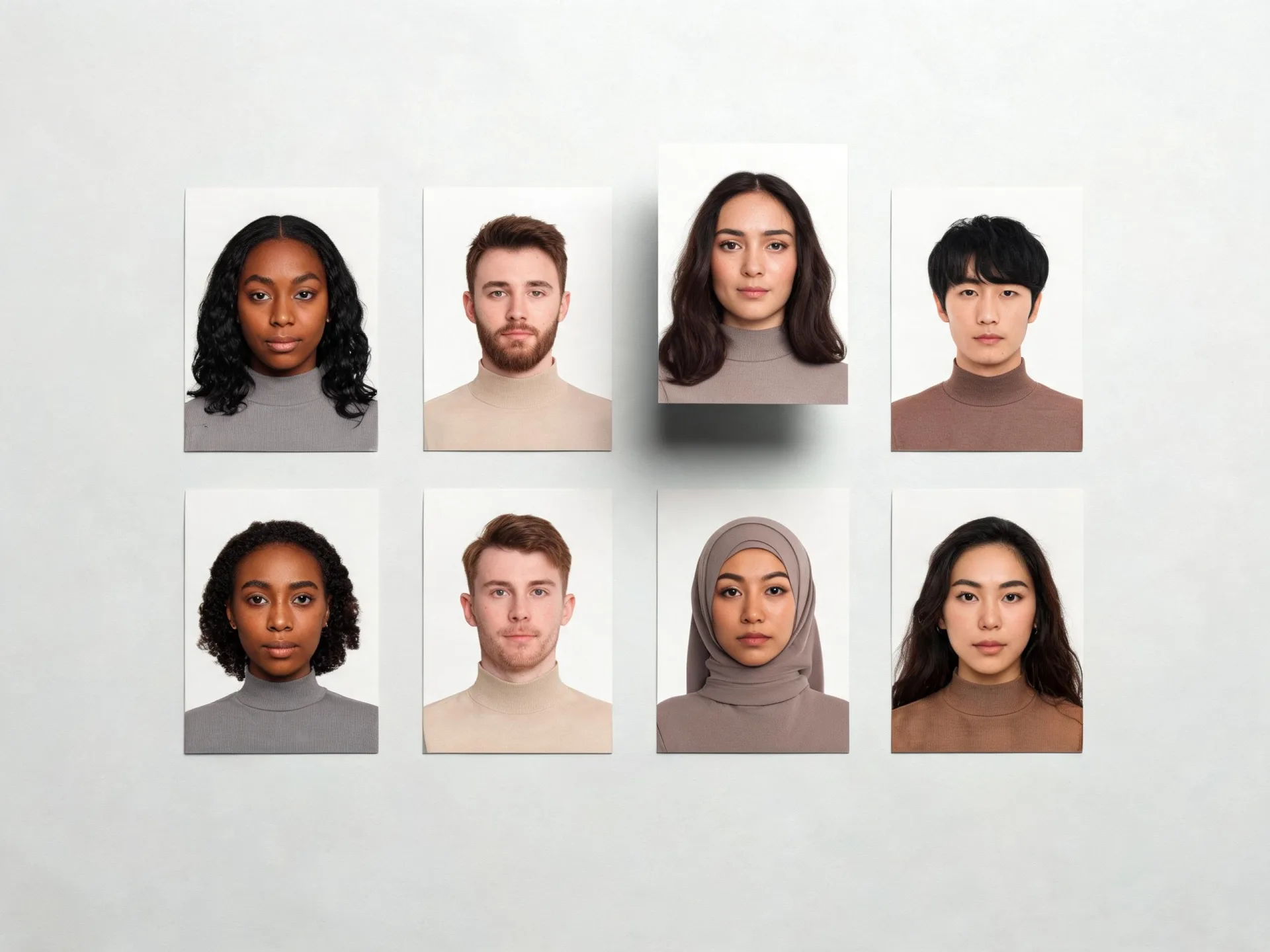
Performance marketers
You need several faces for one creative round, not a single hero shot. Set the number of images per run and the aspect ratio per placement, then compare generated faces side by side before anything goes live. One brief at three frame sizes covers feed, story, and display placements.
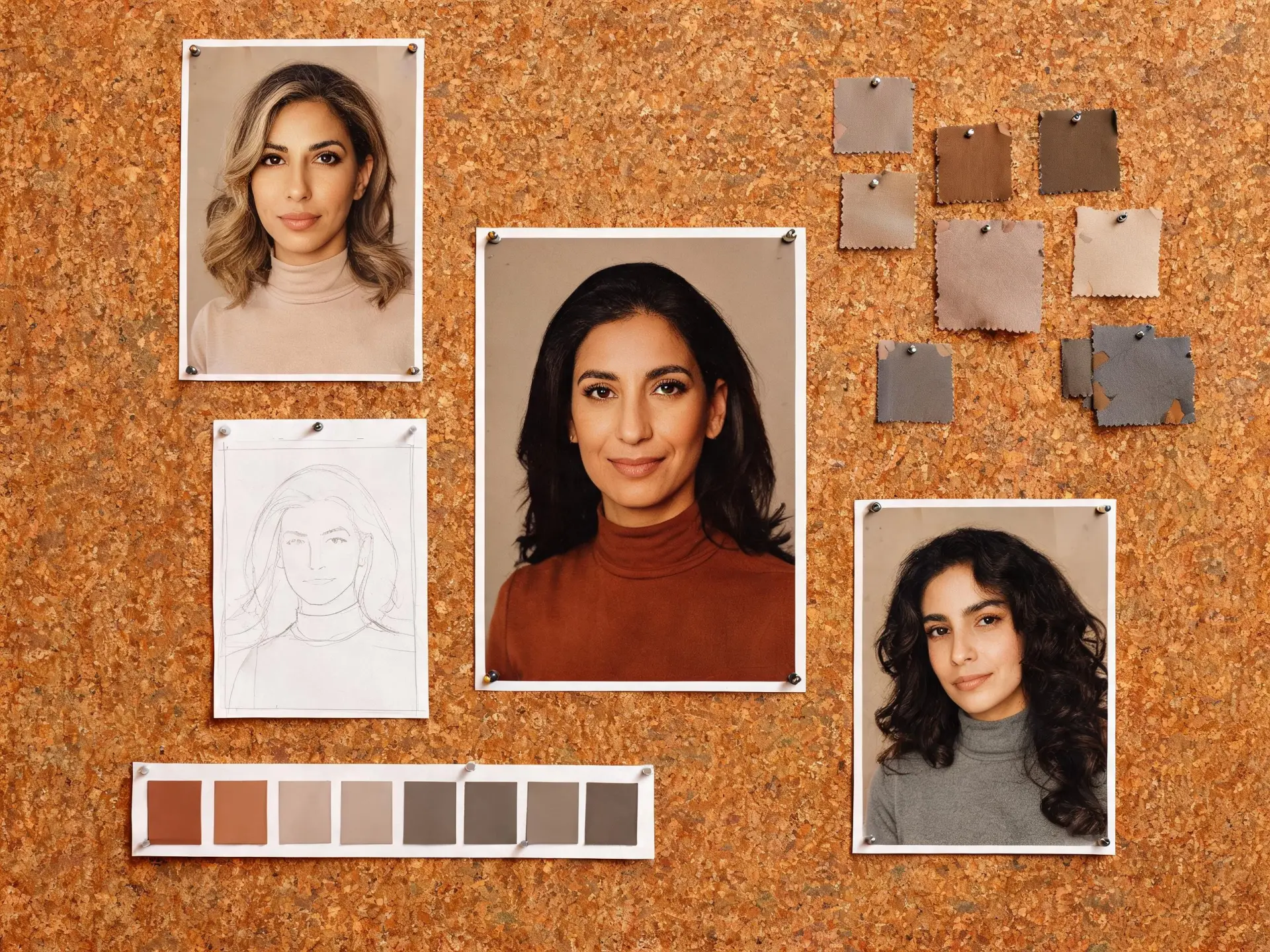
Social and UGC teams
You need a face for a concept before there is budget for a shoot or a licensed model. A prompt and a frame size are enough to produce something a stakeholder can react to, and on supported models a negative prompt keeps unwanted detail out of the concept.
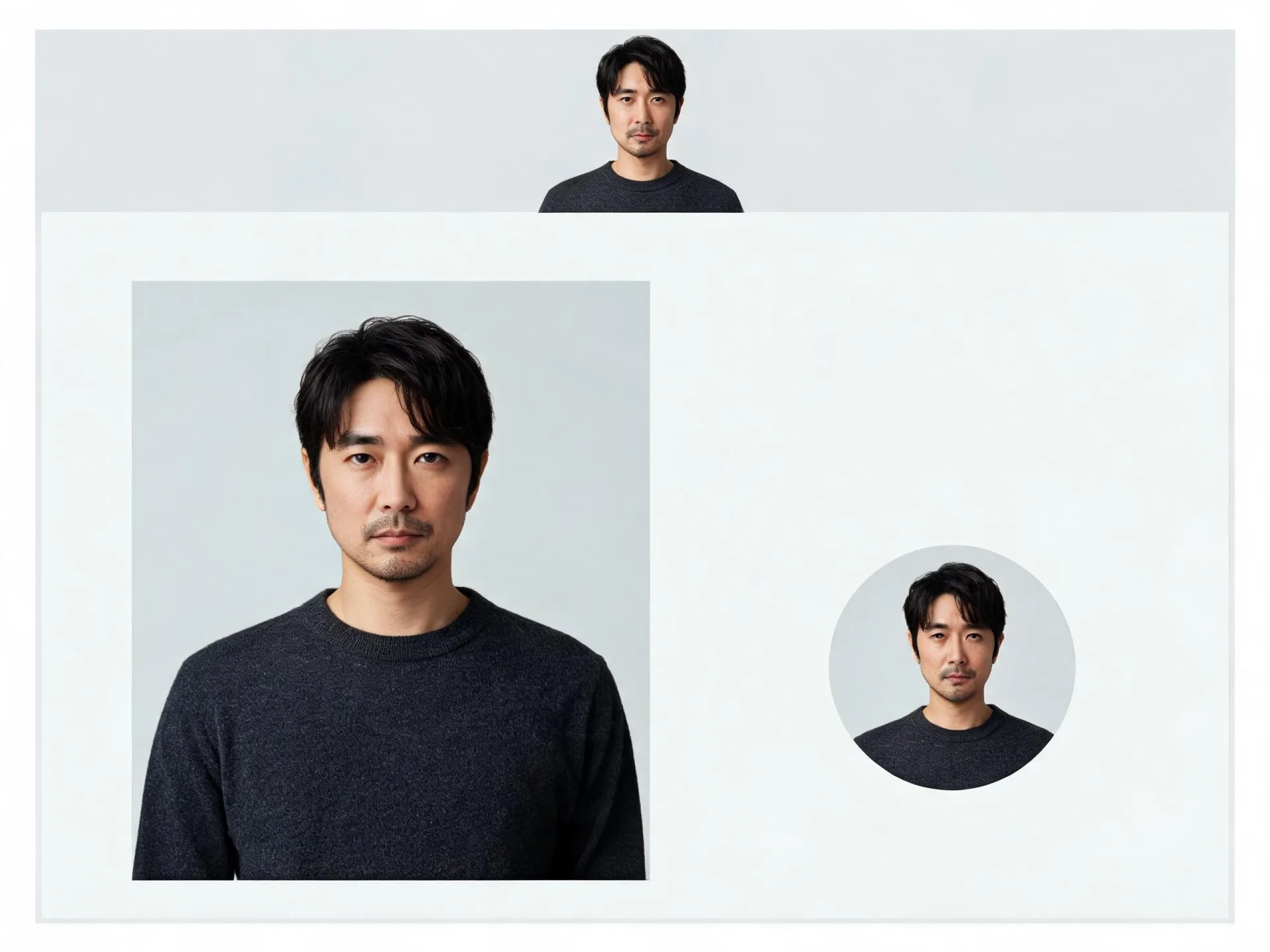
Product and web designers
You need portrait placeholders that survive design review. Setting width and height directly means the same generated face fits a card, a hero band, and an avatar without a re-crop.
Rights, consent, and how outputs can be used
What you upload
Only upload images you have the right and permission to use. When an image includes another person, you need the permissions and consents that applicable law and your intended use require.
What you can do with the output
Commercial use is permitted under the Terms and Conditions, subject to your compliance, the rights you hold in your source material, and the terms governing the service. Similar or identical outputs can be generated for other users, so a concept or a style is not exclusive to you.
What happens before a face is generated
Prompts and uploaded images are screened automatically before generation, using multiple detection systems. The Content Policy sets out what is allowed and what is not.
AI face generator FAQ
Do AI generated faces look like real people?
They are generated images, not photographs of a particular person, and a resemblance to any real individual is neither intended nor guaranteed. Because the same model can produce similar or identical results for other users, a generated face, concept, or style is not exclusive to you.
Can I use the generated faces commercially?
Yes, under the ZenCreator Terms and Conditions. The license is non-exclusive and worldwide, and it is subject to your compliance with the Terms, the rights you hold in anything you uploaded, and the terms governing the service and its source materials. It is a license to use the output, not exclusive ownership of the idea behind it.
Can I create several variations of the same face?
Two ways. Within a single run, the number-of-images setting returns several faces from the same prompt and settings. Once one result is right, sending it to Variations generates a separate set from that reference, which keeps the approved face as the starting point.
How consistent is the same face across several images?
Reusing one reference image across runs is the main lever, and on a supported model a run can aim for a more consistent series. Results still shift with the model, the prompt, and the source image, so plan on choosing from a set rather than expecting an exact match.
Can I turn a generated face into a video?
Yes. A generated face can be sent to Image to Video, where output runs from 480p to 1080p depending on the model, and a clip can then go on to the Video Upscaler for a higher-resolution version. Motion, framing, and identity are not guaranteed to carry over unchanged.
Do you review prompts and uploaded images?
Yes. Prompts and uploaded images are automatically screened before generation using multiple detection systems, and the Content Policy defines what is allowed. Screening applies both to what you write and to the reference photos you upload.
Start generating AI faces in ZenCreator
Give the generator a description or a reference photo, create your own face, and download the result.