AI Headshot Generator
AI Headshot Generator:Professional Headshots From Photos You Already Have
Upload a photo you already have, describe the look you need, and generate work-ready headshots — with control over the model, the size and how many versions you get.
Credits never expire
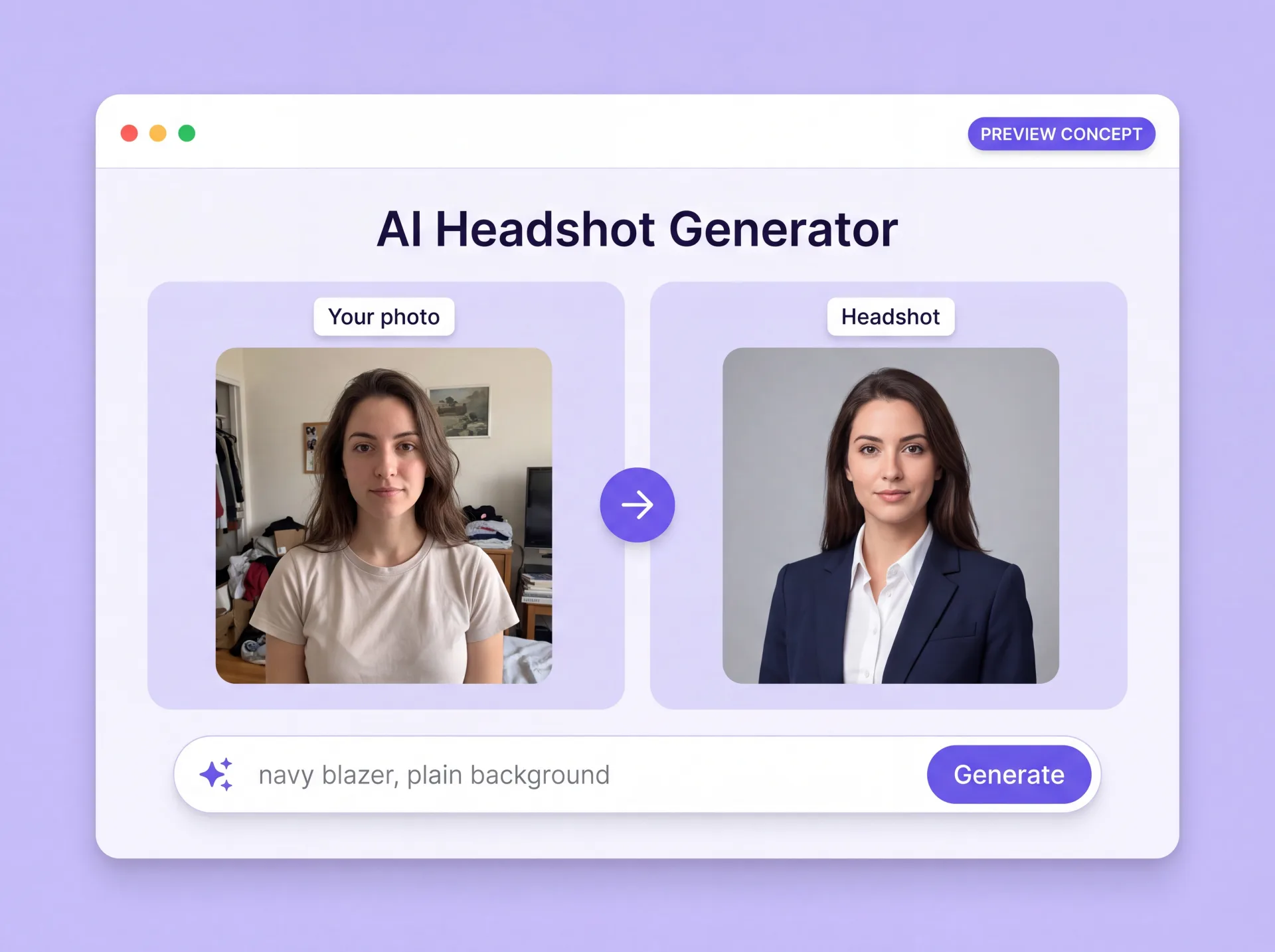
What an AI headshot generator does
An AI headshot generator takes a photo of a real person and produces a new portrait from it. In ZenCreator you upload a reference photo, pick a model, and describe what should change — the outfit, the background, the lighting, the framing. The result is a newly generated image guided by your reference, not a retouched copy of the original file.
That difference is what gives you control. Instead of waiting on a fixed package of finished shots, you choose the look, set the aspect ratio and the exact dimensions, generate several versions in one run, then download what works or send a result into another ZenCreator tool.
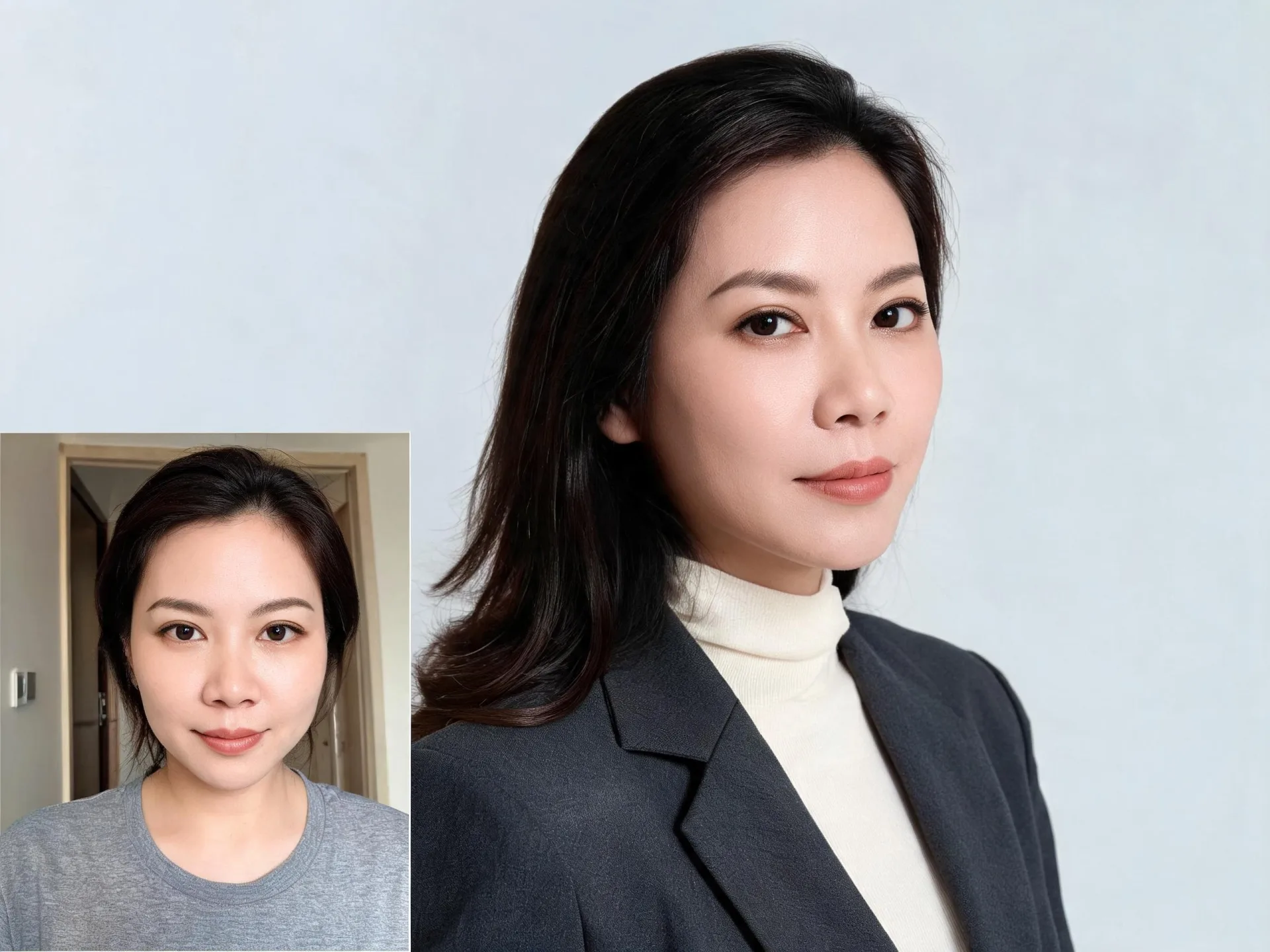
Why people use ZenCreator for headshots
One photo is enough to start
Begin with a single clear picture of yourself. Add more references when you want them to guide clothing, style, lighting or composition, and the Image Editor can combine them into one result.
Say what should change
A prompt can add, remove, replace or modify elements of the image: a blazer instead of a t-shirt, a plain wall instead of a kitchen, softer light on the face.
Sized for the profile you are filling
Choose an aspect ratio and set width and height in Resize before you generate, so the framing already fits the profile, directory row or company page it is going on.
The next step stays in one place
Used as an AI headshot creator, ZenCreator does not stop at the download. A generated result can go straight into Variations, Upscaler, Head & Face Swap or Image to Video.
What you can create with AI headshots
Every job below starts from the same input — a photo of you that already exists. What changes is what the prompt and the settings do with it.
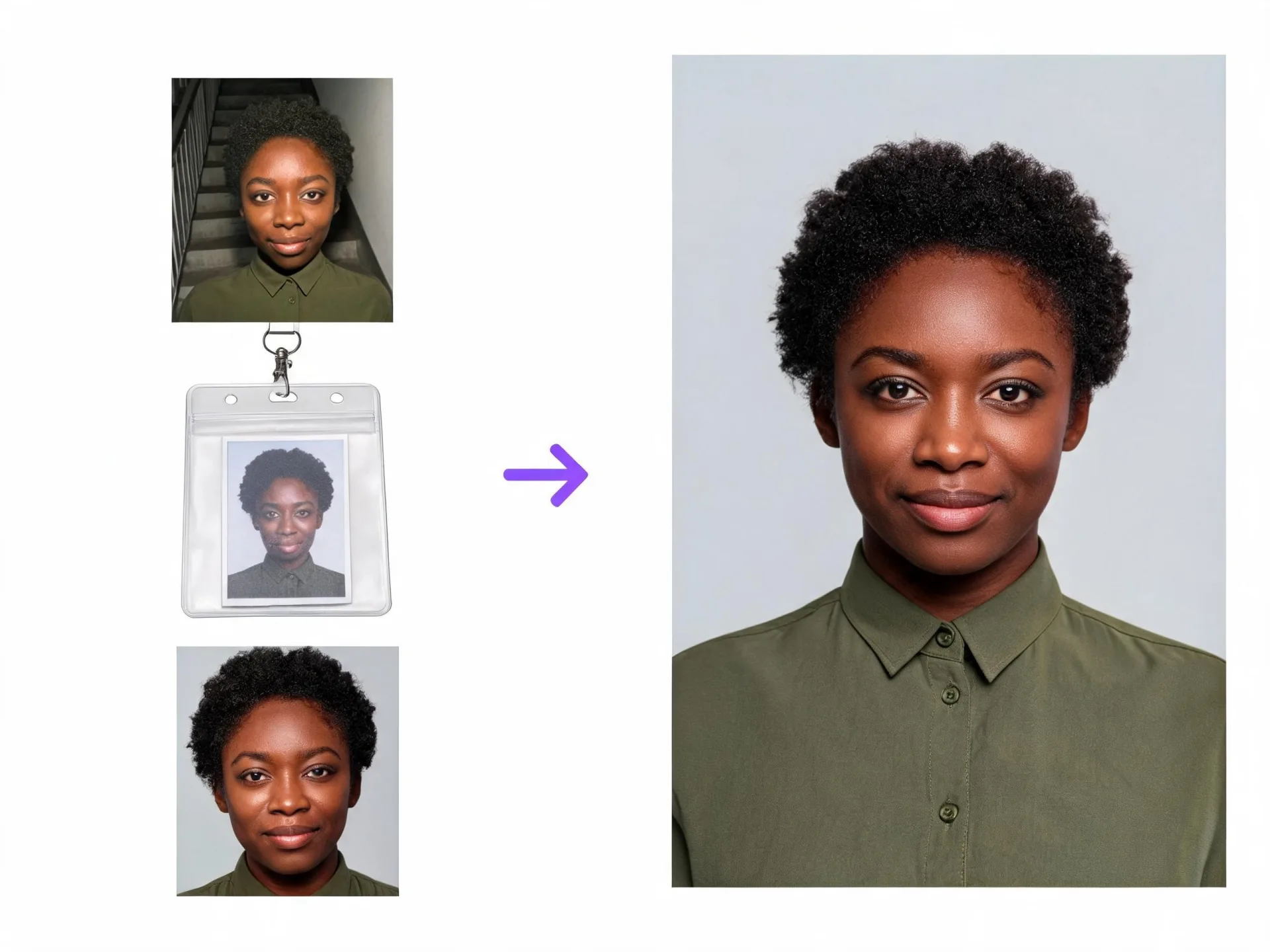
Create a headshot from a photo you already have
Point the Image Editor at an existing portrait — a phone photo, an old badge picture, a cropped group shot — and generate a cleaner version framed as a headshot.
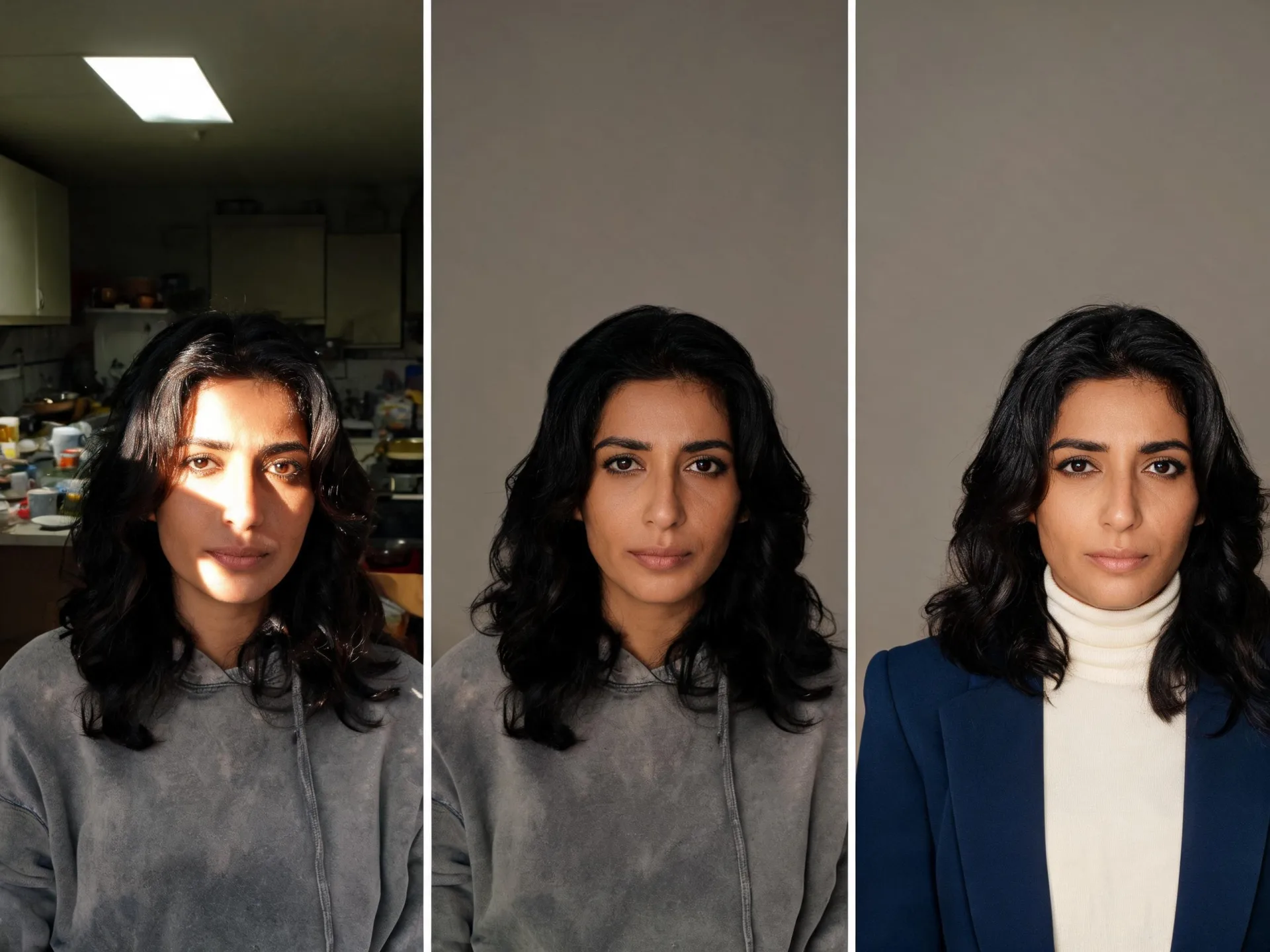
Turn a photo into a polished headshot
A casual photo becomes a work-ready one when the prompt handles the parts that are wrong: the clothing, the background behind you and the light falling on your face.
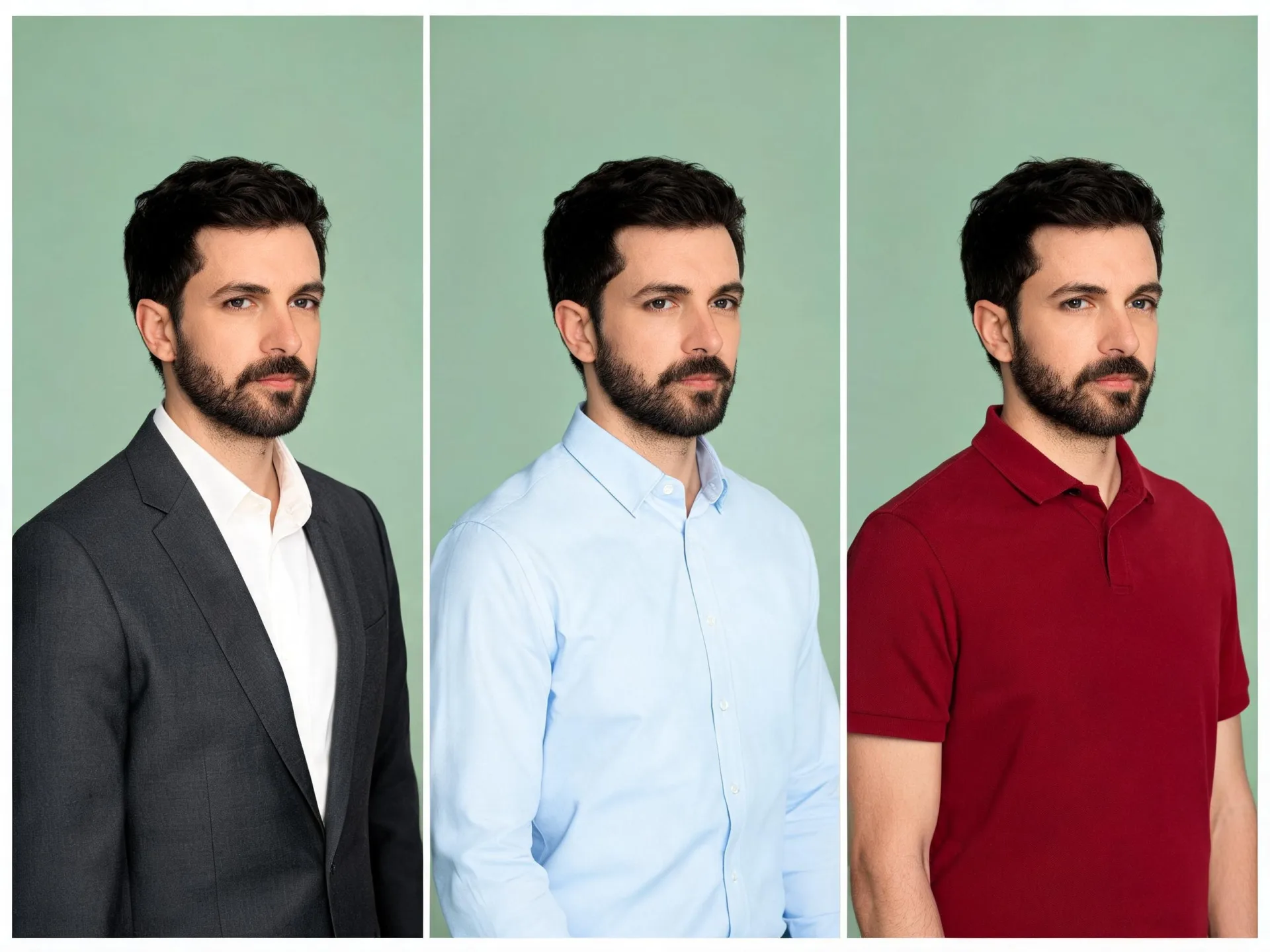
Change the outfit without another shoot
Describe the clothing you need — a blazer, a shirt, a uniform in your brand color — and the generator replaces what you were wearing in the reference photo.
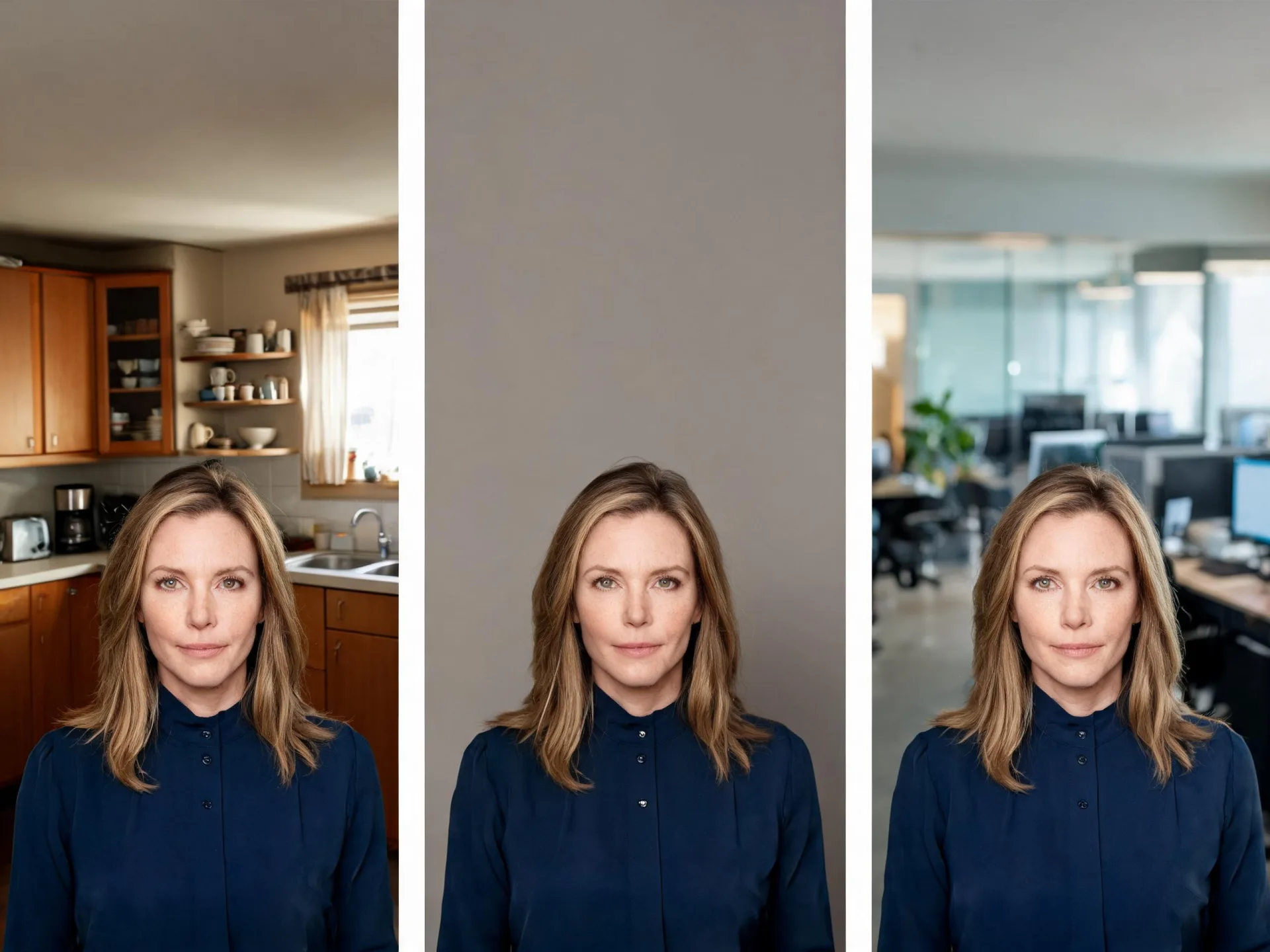
Replace a distracting background
Swap a kitchen, a car seat or a busy street for a plain wall, an office setting or a neutral studio backdrop, described in the prompt rather than masked by hand.
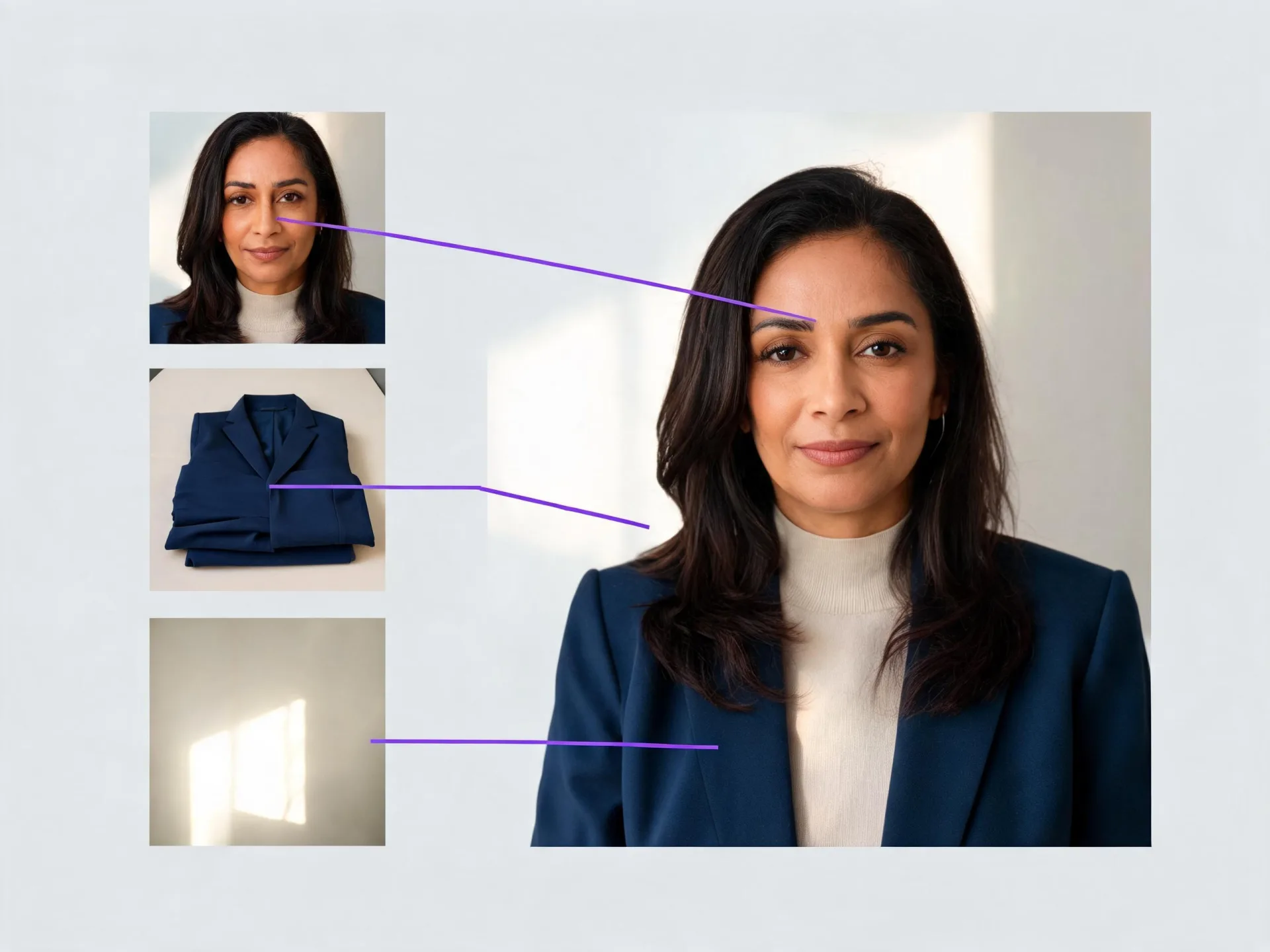
Combine several references in one result
Upload your photo alongside references for clothing, lighting or scene direction. The Image Editor can merge multiple reference images into one generated image, so the look you have in mind does not have to be described from scratch.
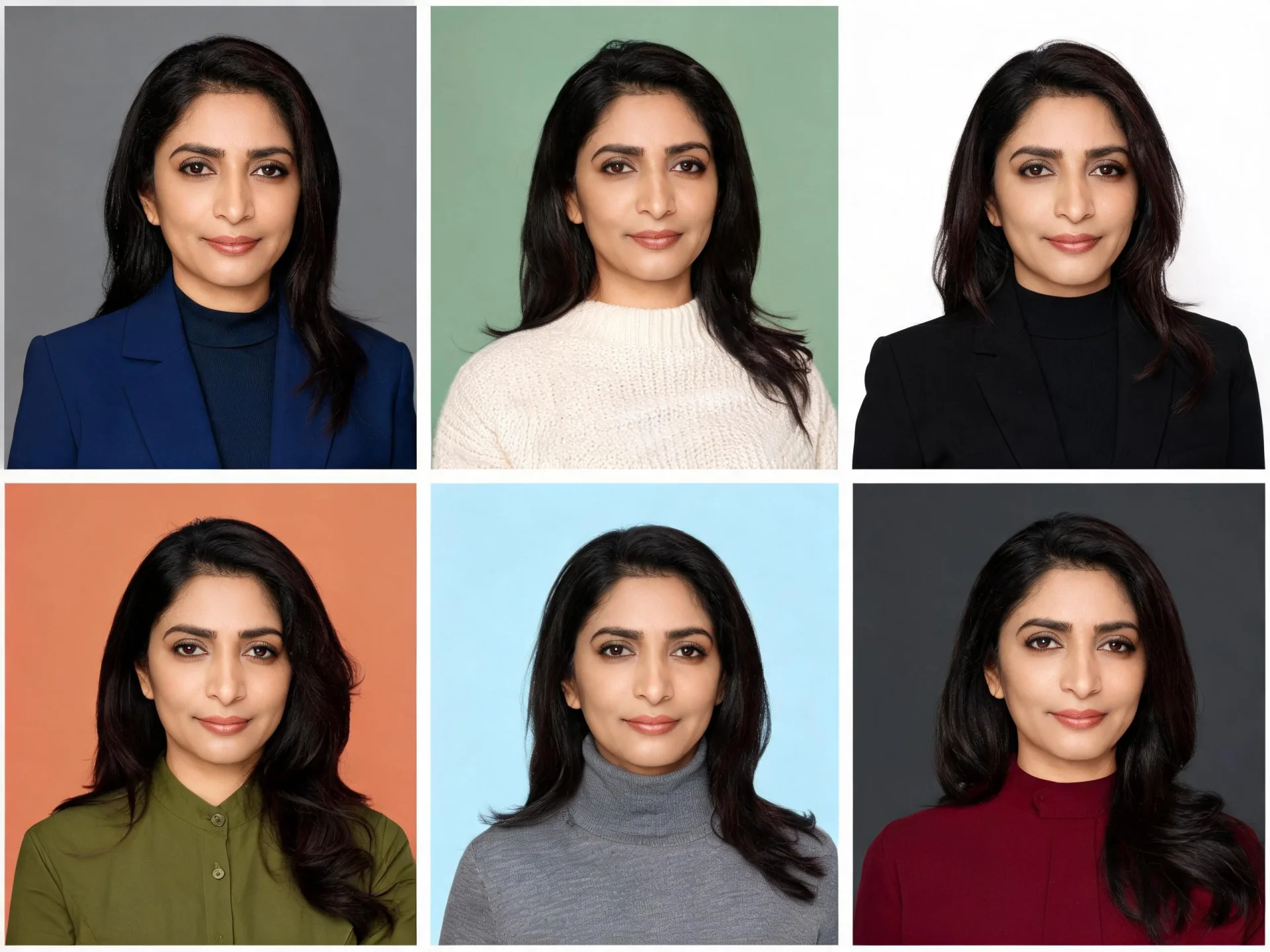
Generate several looks in one pass
Set how many images the run should return, compare them side by side, then send the strongest one into Variations for a further set built from it.
Make an AI professional headshot for work profiles
Used as a professional headshot generator, ZenCreator works from your own reference: the photo carries identity and framing, and the prompt sets the clothing, background and lighting a work profile needs.
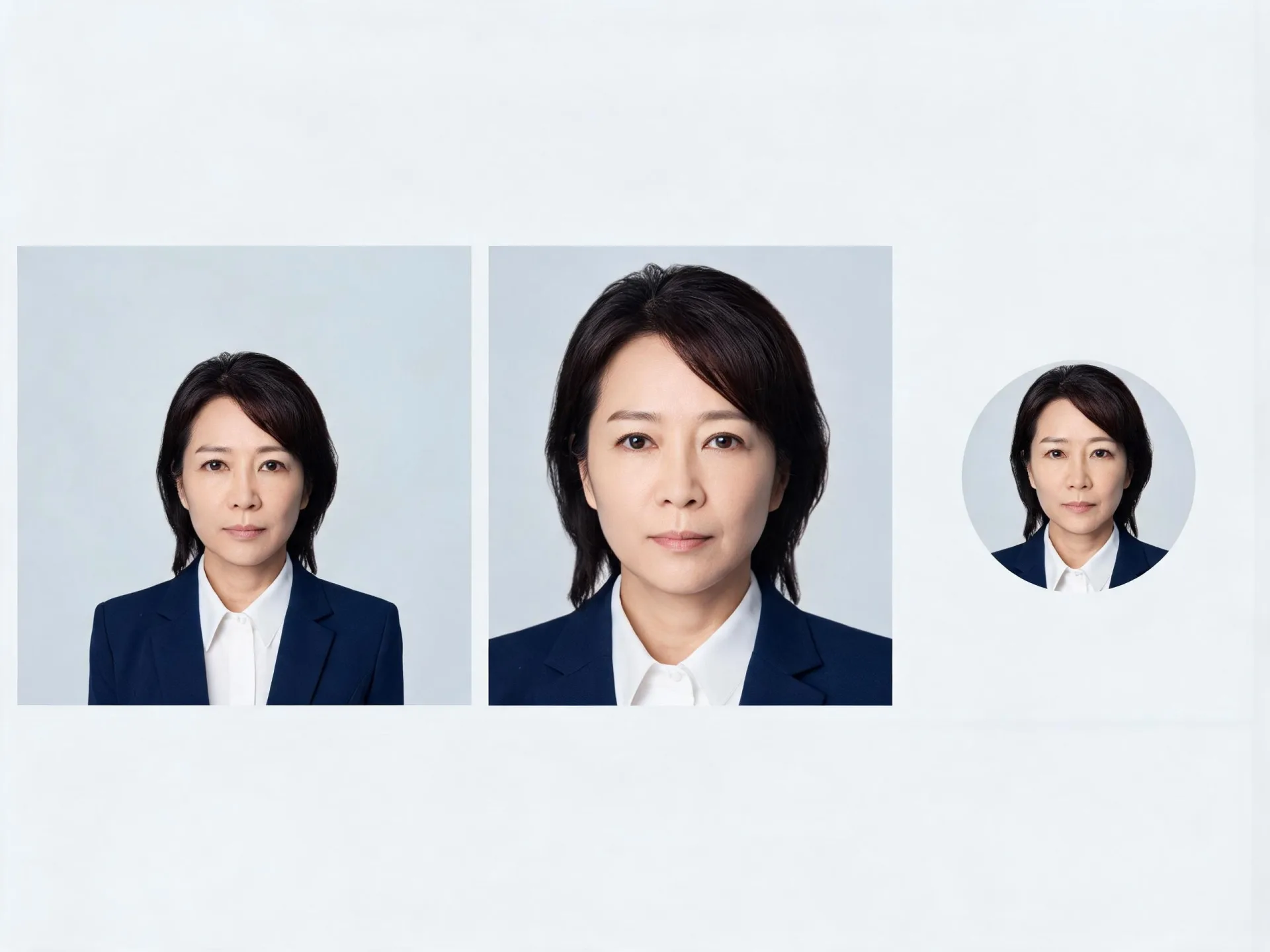
LinkedIn headshot
Set the aspect ratio and the exact width and height before generating, so the framing still reads when a profile displays it small. Ask the prompt for plain clothing and an uncluttered background.
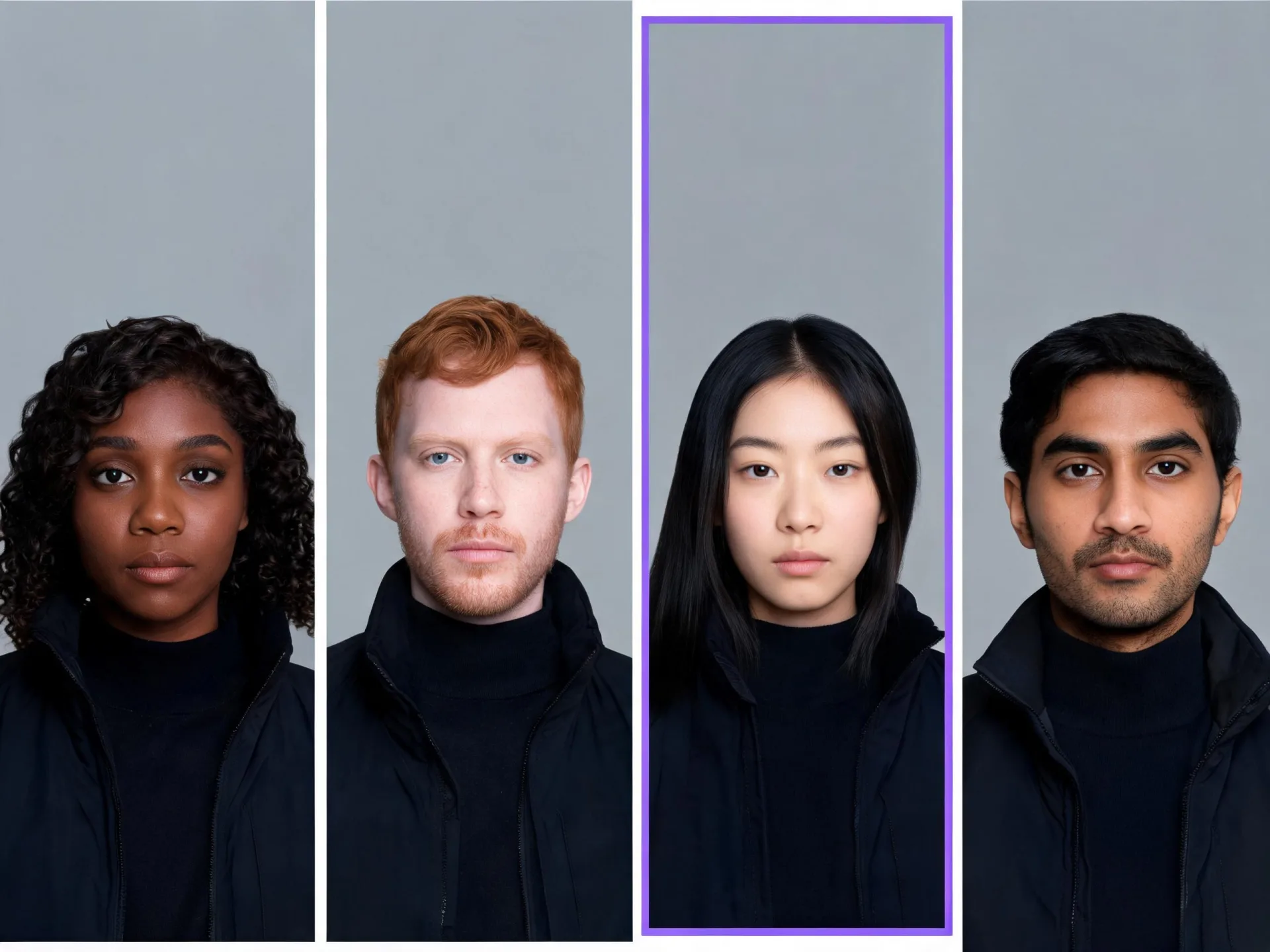
Business and corporate headshots
An AI business headshot has to sit beside your colleagues' photos without looking out of place. Describe the dress code, background and lighting your about page already uses — an AI corporate headshot for a law firm needs a different prompt from one for a startup team.
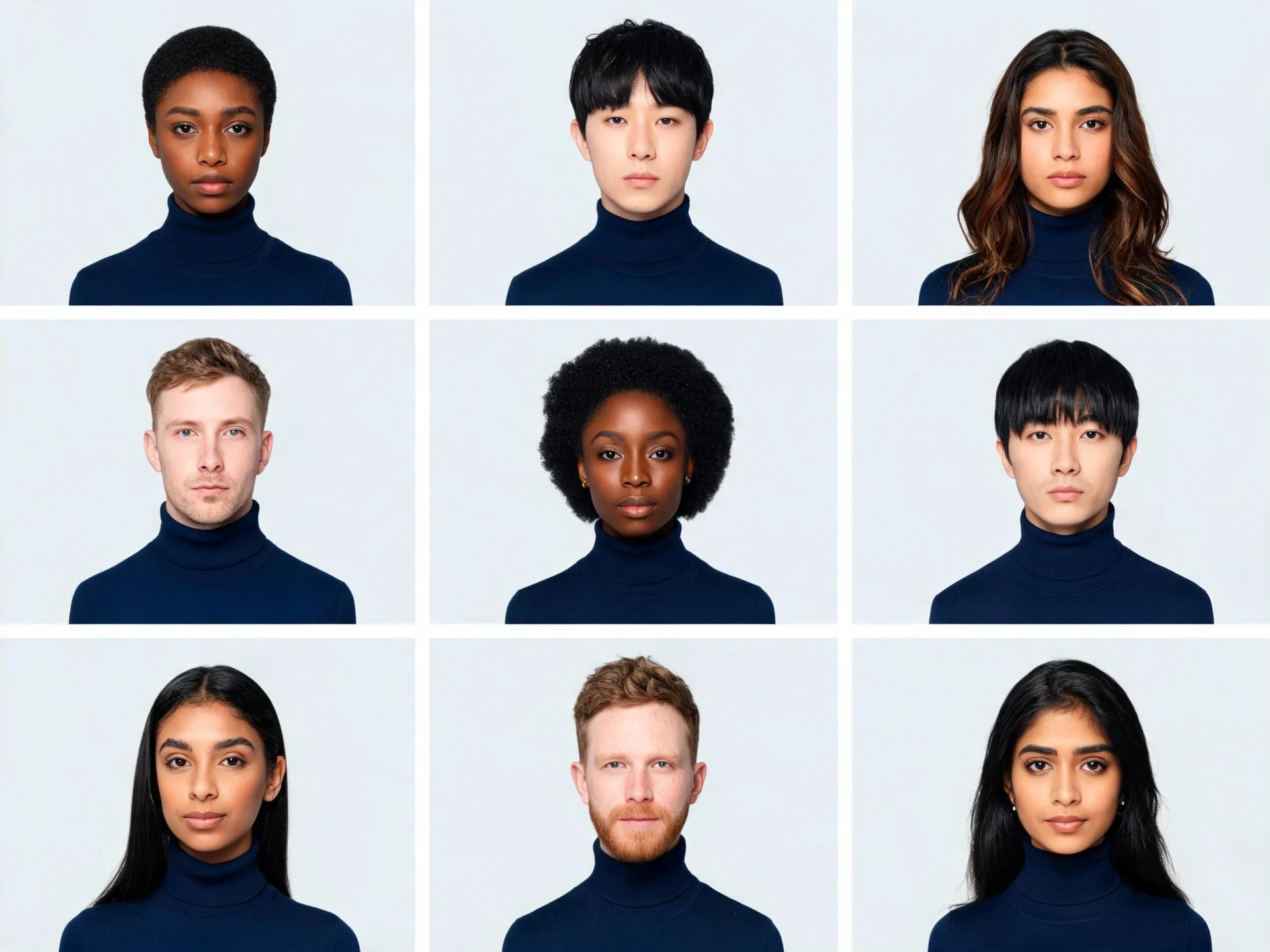
Team and company pages
Batch Mode processes each uploaded reference separately, so a team can run under one set of instructions instead of one person at a time. Used as an AI business photo generator, it keeps each person as their own result.
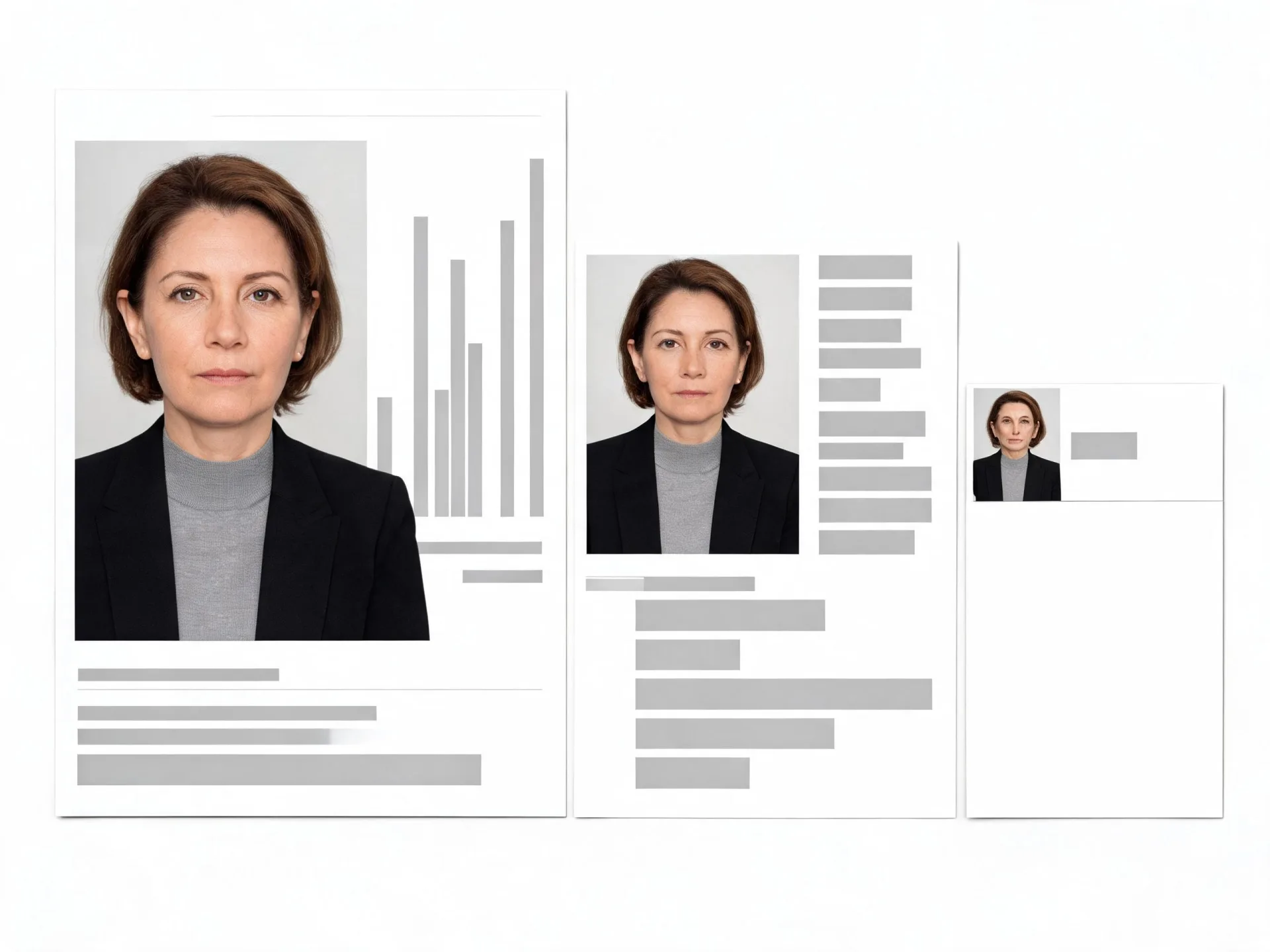
Freelancers, founders and speaker profiles
One photo can serve a pitch deck, a conference bio and a client proposal if you generate it at more than one size. An AI professional photo that still reads at thumbnail size is worth regenerating rather than cropping down later.
How to create an AI headshot from your photo
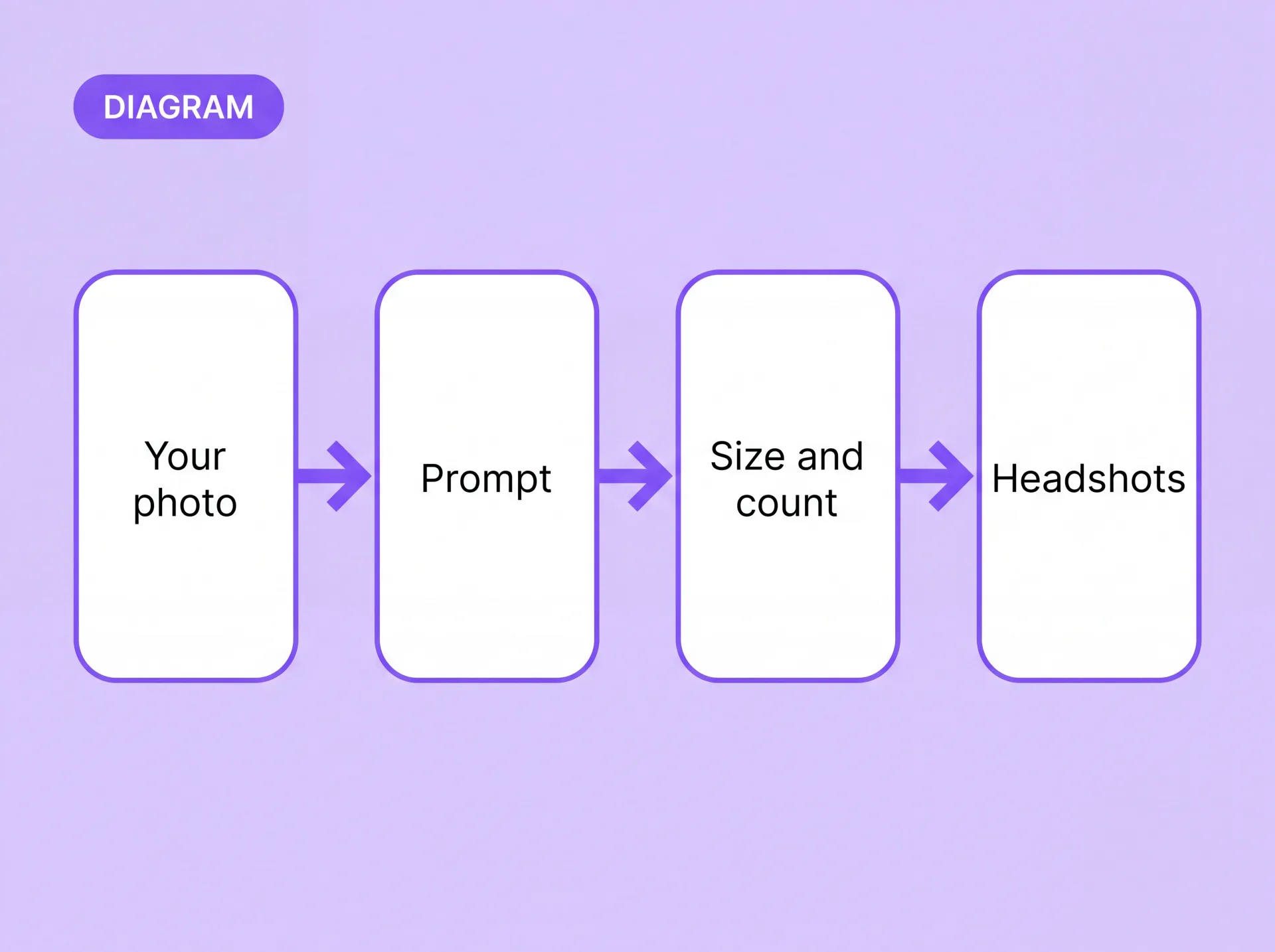
Four steps from upload to download. You can create a professional headshot in one session and repeat the run whenever a profile needs a different size or a different look.
Controls that change the result
These are the settings that do the real work in an AI headshot tool. Each one changes something you can see in the output.
Model
Different models handle prompts differently and produce different output ranges. Switching model is the fastest way to change the character of a result.
Prompt
The prompt adds, removes, replaces or modifies elements: clothing, background, lighting, scene direction. Most of the direction happens here.
Aspect ratio and size
Pick an aspect ratio, then set width and height in Resize so the headshot fits its destination before you generate it.
Number of images per run
Ask for several versions in one run and choose between them instead of regenerating one at a time.
Batch Mode
Uploaded references can be processed separately rather than combined, which is what makes multi-person runs practical.
Sequential Generation
On a supported model, Sequential Generation aims for a more consistent series across several images.
None of these settings guarantees an exact likeness. How close a result comes to your source photo depends on that photo, the model and the prompt.
Choose the right ZenCreator workflow
Conclusion If you already have a photo of yourself, the Image Editor is the headshot generator to open first. The other two rows are for when you have no usable reference, or when you are working on a result you already like.
If you already have a photo of yourself
Open the Image Editor — it's the headshot generator to start with.
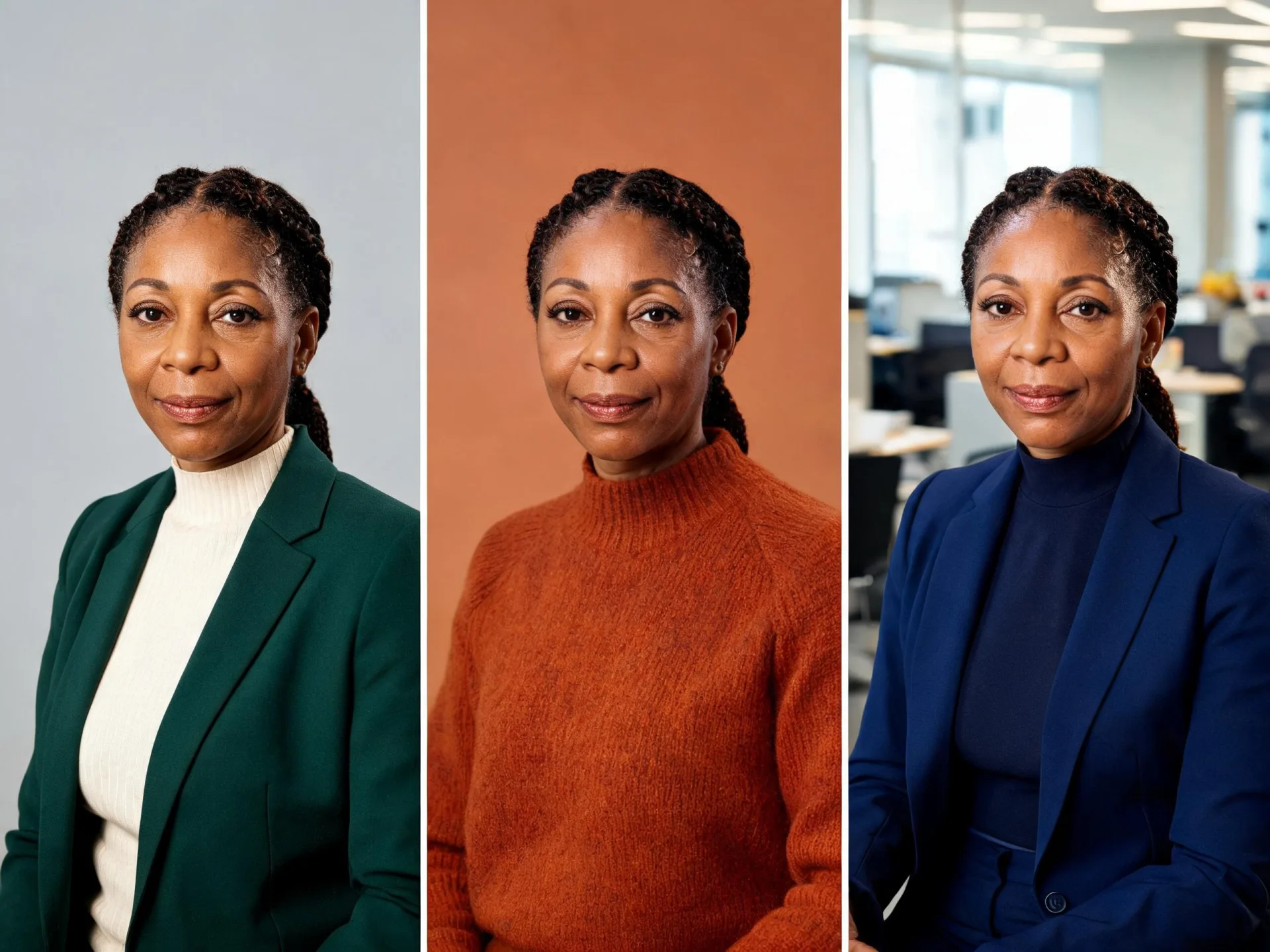
Real results from real photos

Your photo, your permissions
Rights and permissions
Only upload images you have the right and permission to use. If an image includes another person, make sure you have the consent required for your intended edit and use. Results vary with the source photo, the model and the prompt — references guide identity and styling rather than reproducing them exactly. ZenCreator is available to users aged 18 and over.
Full detail
Questions people ask before they start
What do I need to create a headshot?
One clear photo of the person in the result. Extra reference images are optional and useful when you want to guide clothing, style, lighting or composition — the Image Editor can combine them in a single result, or process each one separately in Batch Mode. A prompt describing what should change makes the output more predictable than leaving it blank.
Can I use ZenCreator as a headshot editor for a photo I already have?
Yes, with one thing worth knowing up front. The Image Editor is generative: it creates a new image guided by your reference rather than retouching the original file. Used as an AI headshot editor it can change clothing, background, lighting and composition through the prompt, but it does not work like a manual editor with layers, brushes or local retouching tools.
Will the headshot look like me?
References guide identity, clothing and lighting, and how close the result comes depends on the source photo, the model and the prompt. There is no guarantee that a generated face matches yours exactly. The practical answer is to generate several versions in one run and keep the closest one, then try again with a sharper or better-lit source photo if none of them work.
How realistic are AI headshots, and what affects the result?
Four things do most of the work: the quality of the source photo, the model you select, how specifically the prompt describes clothing, background and light, and the output size you set before generating. Realistic AI headshots usually come from a sharp, evenly lit reference and a prompt that names the details instead of asking for a "professional look".
What size are the headshots, and can I get a larger version?
You choose the aspect ratio and set width and height in Resize before the run, so the output arrives at the dimensions its destination needs. The maximum size depends on the model you select. A generated result can also be sent into Upscaler from the editor.
Can I use the headshots for work profiles and commercial purposes?
Commercial use is permitted under the ZenCreator Terms, subject to your compliance, applicable rights, and the terms governing the service and source materials. One point to keep in mind: similar or identical outputs may be generated for other users, so you do not receive exclusive rights to a generated concept or style.
Do I need permission to upload a photo of someone else?
Yes. You need the rights, licenses, permissions and consents that applicable law and your intended use require for that person's image, likeness or identity. That applies to a colleague's photo for a team page exactly as it applies to any other real-person content. The Content Policy sets out what is and is not allowed.
Do I need to install anything?
No. The tools run in your browser as part of the ZenCreator studio, and processing happens in the cloud rather than on your machine. You can create professional headshots online with nothing to install and nothing to keep updated. The rest of the toolset — text to image, variations, upscaling and image to video — sits in the same place.
Your next profile photo starts with one you already have
Upload the photo, describe the version you need, and generate several headshots to choose from in the ZenCreator Image Editor.