Image Variations
AI Image Variation Generator:Turn One Image Into a Full Set of Variations
Upload the image you already have, set the shape and number of results, and generate a set of image variations you can download or send into upscaling or video.
Credits never expire

What an AI image variation generator does
The tool takes an image you already have and returns a set of alternative versions of it. Upload one or more reference images, choose how many results you want for each one, set the aspect ratio and output dimensions, then generate. Each reference comes back with its own set, so two uploads return two separate sets rather than one mixed batch.
In ZenCreator this is the Variations tool, and it is built for one job: producing AI variations of an image you already own, without asking you to describe that image in words first. The reference carries the brief. Your settings decide how many alternatives come back, what shape they are, and how large.

Why creators use ZenCreator to generate image variations
The tool is built around one assumption: the image already exists, so the work should start there.
Your reference does the briefing
You already have the image, so there is nothing to describe from scratch. Upload it and the file itself sets the starting point for every result in the set — your settings, not a written description, decide what comes back.
One run, one set per reference
Upload several references together and each one returns its own separate set. Nothing merges, so you compare options per source image instead of untangling one mixed batch. That matters when the references are five different products rather than five takes of one.
Output shaped for the placement
Aspect ratio, width, and height are chosen before you generate. Results arrive in the proportions the listing, story, or banner needs, rather than as a crop you fix afterwards. Same reference, different output shape.
Results stay in your workflow
Download what you want individually or take the whole set, then send a promising result on to upscaling or video instead of exporting it and re-uploading it somewhere else.
What you can do with AI image variations
Every job below starts from a file you upload. What changes is how many sets come back, what shape they are, and where they go next.

Turn one reference into a set of alternatives
Upload a single image and generate several versions of it in one run, then keep the ones that work. Use it when the original is close to right but not final and you want several options to choose between.

Generate a separate set for every reference image
Upload several references and each is processed on its own, returning its own set. Useful when you are producing options for a batch of products or a batch of posts rather than for one hero shot.

Choose the aspect ratio and output size
Set the aspect ratio before the run and use the output dimension controls for width and height. Square for a catalog tile, vertical for a story, wide for a banner — one reference covers all three.

Send a variation into upscaling or video
A result you like does not have to stop at download. Supported results can continue into the next step — upscale the result or turn a variation into video — without leaving ZenCreator.
How to generate variations of an image
Four steps: upload your file, choose the output you want, and let AI generate variations of an image you already have.
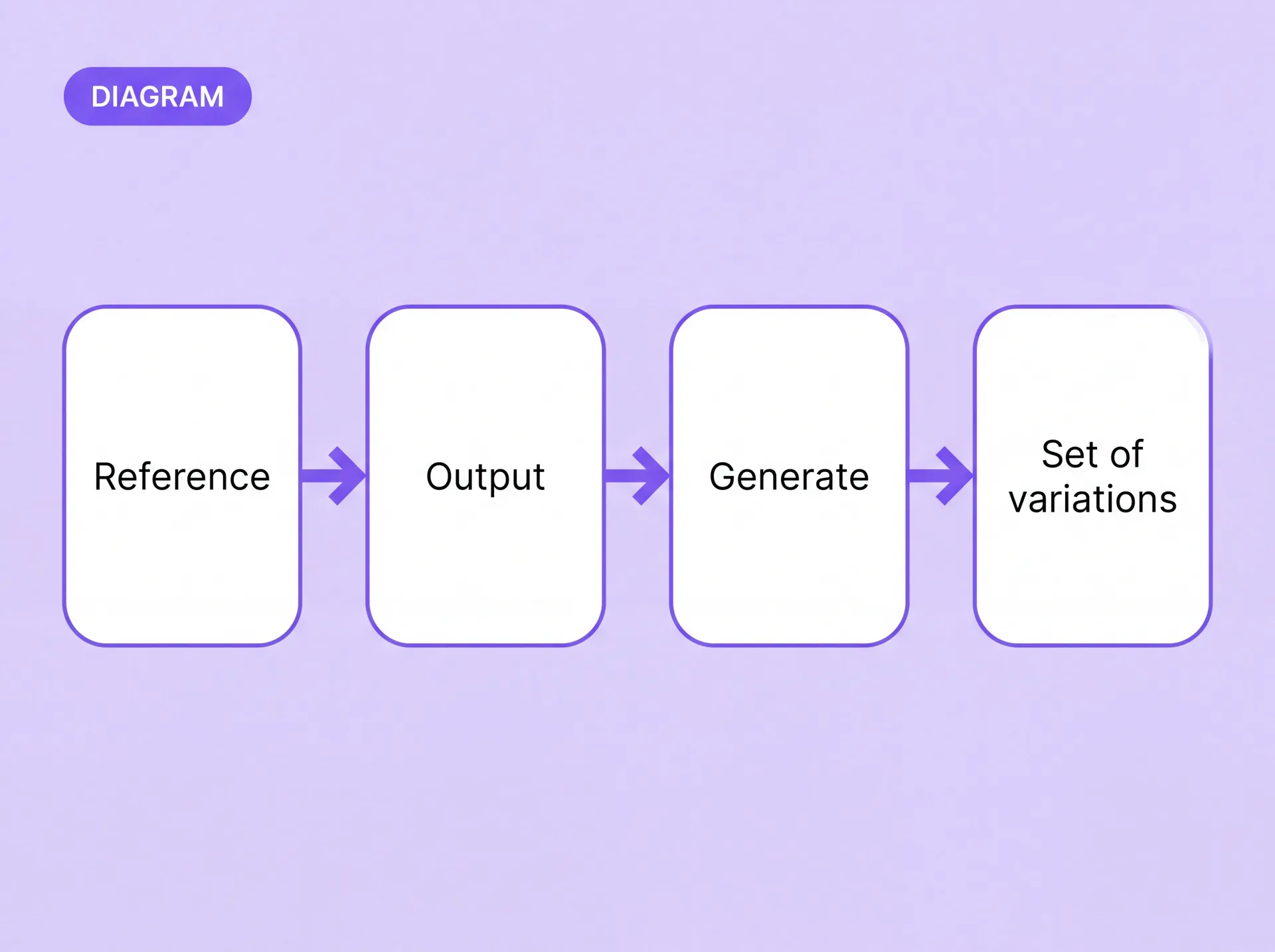
Image variation settings you control
Five controls decide what comes back when you generate variations of an image.
Reference images
Upload one image or several. Each file becomes its own reference with its own set of results.
Images per reference
You choose how many results to generate for each reference before the run starts; the count is a setting, not a fixed product number.
Aspect ratio
Select the output shape — square, portrait, or landscape — to match where the image will be used.
Output dimensions
Set width and height directly when a placement needs specific dimensions.
Model
Where a model choice is available, it changes the character of the results, so the same reference can return a different look.
Where image variation generation helps
Four situations where the image already exists and the work is to produce options from it.

Product listings and catalog images
You have one clean product shot and need alternatives for a listing, an ad set, and a seasonal banner. Generating variations of one product image returns a range of options in a single run, each in the proportions that placement needs.

Character and persona work
A character reference already exists and you need more frames of it, not a new character. Each run returns a fresh set from the same reference, and you keep the frames that hold up rather than commissioning the look again.

Social and performance testing
Performance testing needs several variations of a picture that already works, not one new idea. Upload the hero image, generate a set, and take enough options into the test without booking another shoot.

Client review and studio work
Clients choose between directions, so arriving with a single take slows the review down. Upload the approved reference, generate a set, and bring several credible options to the same meeting.
Variations, image editing, or text to image: which one do you need?
Three ZenCreator tools start from different places. Pick by what you already have and how you want to steer the result.
Conclusion If the file already exists and you want more options like it, the image variation generator is the right entry point. Choose the Image Editor when the change has to be described in words, and Text to Image when there is no source file to start from.
Start with the image you already have
Upload a reference, set how many results you want, and see what the first set looks like.
What image variations can and can't preserve
Every result is generated from your reference, not copied from it. Plan for that before your first run.
01
Results vary
Output changes with the reference you upload, the settings you choose, and the model where one is selectable. The same file can return a different set on a second run.
02
Close is the goal, not identical
The workflow is designed to follow your reference, but subject, face, clothing, background, and composition can shift between variations. Treat the output as new images that aim to follow the source, not as edits.
03
The reference matters
Results depend on the source image as much as the settings, so start from the strongest version you have.
04
If a set misses, adjust and run again
Change the settings and generate another set from the same reference.
Your reference, your permissions
01
Rights and permissions
Only upload images you have the right and permission to use. If an image includes another person, make sure you have the consent required for your intended edit and use. Content Policy · ZenCreator Terms
AI image variation generator FAQ
How many variations can I generate from one image?
How many you get for each reference is a setting you choose before the run, not a fixed number built into the tool. Set it per reference, and every reference you uploaded comes back with its own set. The highest number available depends on the current tool settings, so check the panel when you set up the job. More detail is on the Pricing page.
Do I need a prompt to create image variations?
No prompt is required. Variations is built around your reference image and its settings — how many results per reference, the aspect ratio, and the output dimensions. When you need to describe a specific change in words, the Image Editor is the prompt-driven workflow for that job.
Can I use the generated variations commercially?
Commercial use is permitted under the ZenCreator Terms, subject to your compliance, applicable rights, and the terms governing the service and source materials. Similar or identical outputs may be generated for other users, so you do not receive exclusive rights to a generated concept or style.
Can I download all the variations at once?
You can download selected results or all of them. Supported results can also continue into downstream ZenCreator tools such as upscaling or video, so a result you want to develop further does not need to be exported and re-uploaded.
What if a variation isn't close enough to my reference?
Results vary with the reference, the settings, and the model where one is selectable. Adjust what you can control — a different aspect ratio, different output dimensions, a different model — and generate another set. When you need to direct one specific change instead of exploring picture variations, use the Image Editor.
Do I need permission to upload a photo of someone else?
Yes. You must have the rights and consents required for what you upload and for how you use the result, including where an image shows a real person. The Content Policy sets out what may be uploaded and generated, and the ZenCreator Terms cover your responsibility for the content you provide.
Turn one image into a set of variations
Upload a reference, choose your settings, and generate AI image variations you can download, compare, or send into the next tool.