AI Lip Sync
AI Lip Sync for Video:Match Mouth Movement to Your Voice Track
Upload a clip you already have, add the voice track it should follow, and generate a version where the mouth movement matches the audio.
Credits never expire
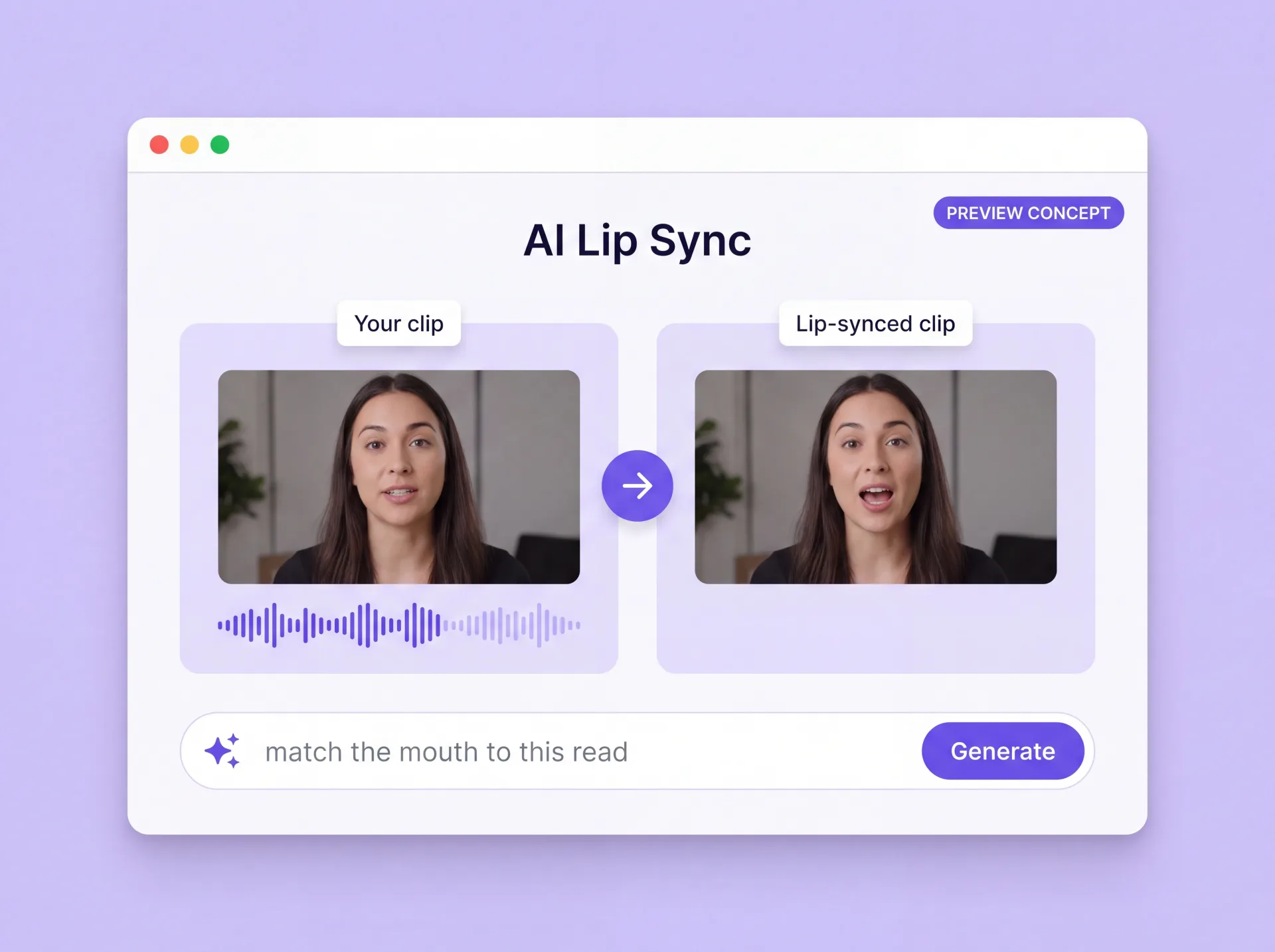
What AI lip sync does
Lip sync in ZenCreator takes the clip you already have plus the voice track you want it to follow, and returns a new version whose mouth movement matches that audio. Timing is generated against your audio rather than keyed by hand, so there is no mouth-shape set to build and no waveform to scrub. You will also see it written as one word, lipsync.
This is a generative workflow rather than a frame-by-frame editor: the tool produces a new clip instead of adjusting pixels in the old one. That is why the result depends on the source footage, the audio, and the settings you choose — a clear, well-framed face and a clean read give the tool more to work with than a soft, heavily compressed shot. Review the generated version before it goes into your edit.
Why the ZenCreator AI lip sync generator fits how you already work
Every reason below comes down to the same trade: the footage stays, the speech changes.
Keep the footage, change the voice
You are not rebuilding a performer or booking a reshoot. The shot you already have becomes the source, the new read becomes the target, and the generated version carries mouth movement that follows it. When the script changes again, the footage is still usable.
Timing you don't keyframe
Mouth movement is generated against the voice track you supply, so nobody places mouth shapes against a waveform or chases a drift that only shows up on playback. That removes the manual timing stage rather than making it quicker.
Nothing to install
Lip syncing happens in the ZenCreator studio in a desktop browser, on the same machine you already edit on. There is no plugin to maintain and no local build to keep in step with your operating system.
You set the run, then generate
You choose the settings the tool exposes for your clip and voice track, then start the generation. Because the result depends on the source, the audio, and those settings, a second run with a different read or a cleaner source take is a normal part of the job — not a sign something went wrong.
What a lip sync AI can do with your footage
Turn existing footage into a lip sync video
Load the shot, add the read it should follow, and generate. The new version is built from your original clip, so framing and setting are designed to carry over while the mouth movement follows the audio you supplied. This is the core job: same shot, different words.
Change the dialogue without reshooting the scene
A line gets rewritten after the shoot, or the location audio does not survive the mix. Supply the replacement read against the same footage and generate a version whose mouth movement follows the new words instead of the old ones. The performer does not need to be recalled.
Give a generated character a speaking take
If the clip came out of a generation rather than a camera, it can still be the source. Load the character clip, supply the read, and the mouth movement is generated against that audio the same way it would be for filmed footage.
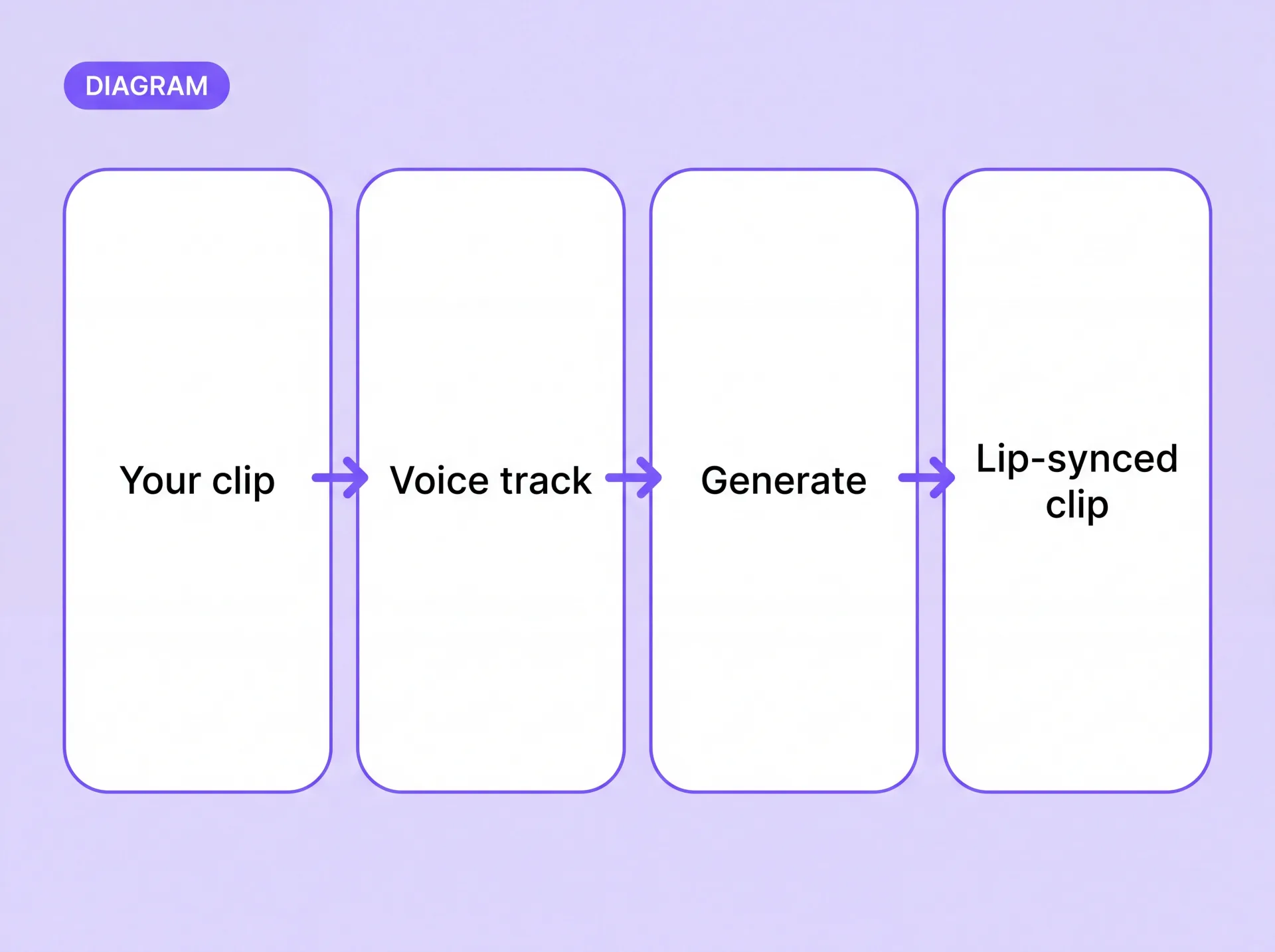
How lip sync works in ZenCreator
Where creators use it
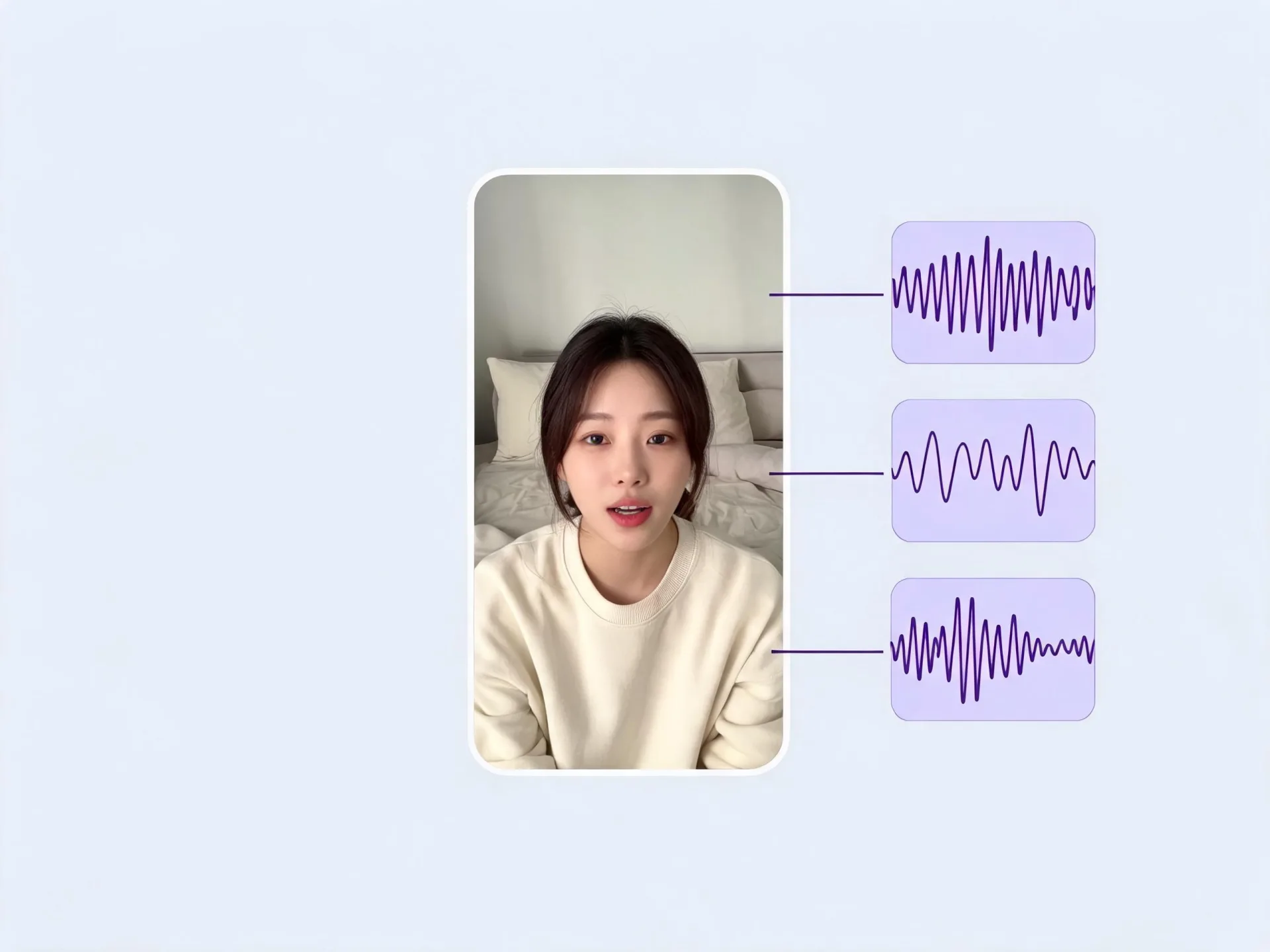
Short-form and UGC
A hook that already performs needs new copy. Keep the winning shot, record the new line, and generate a lip sync video that carries the new script — no second shoot day, no re-lighting, and the framing your audience already responded to stays in place.
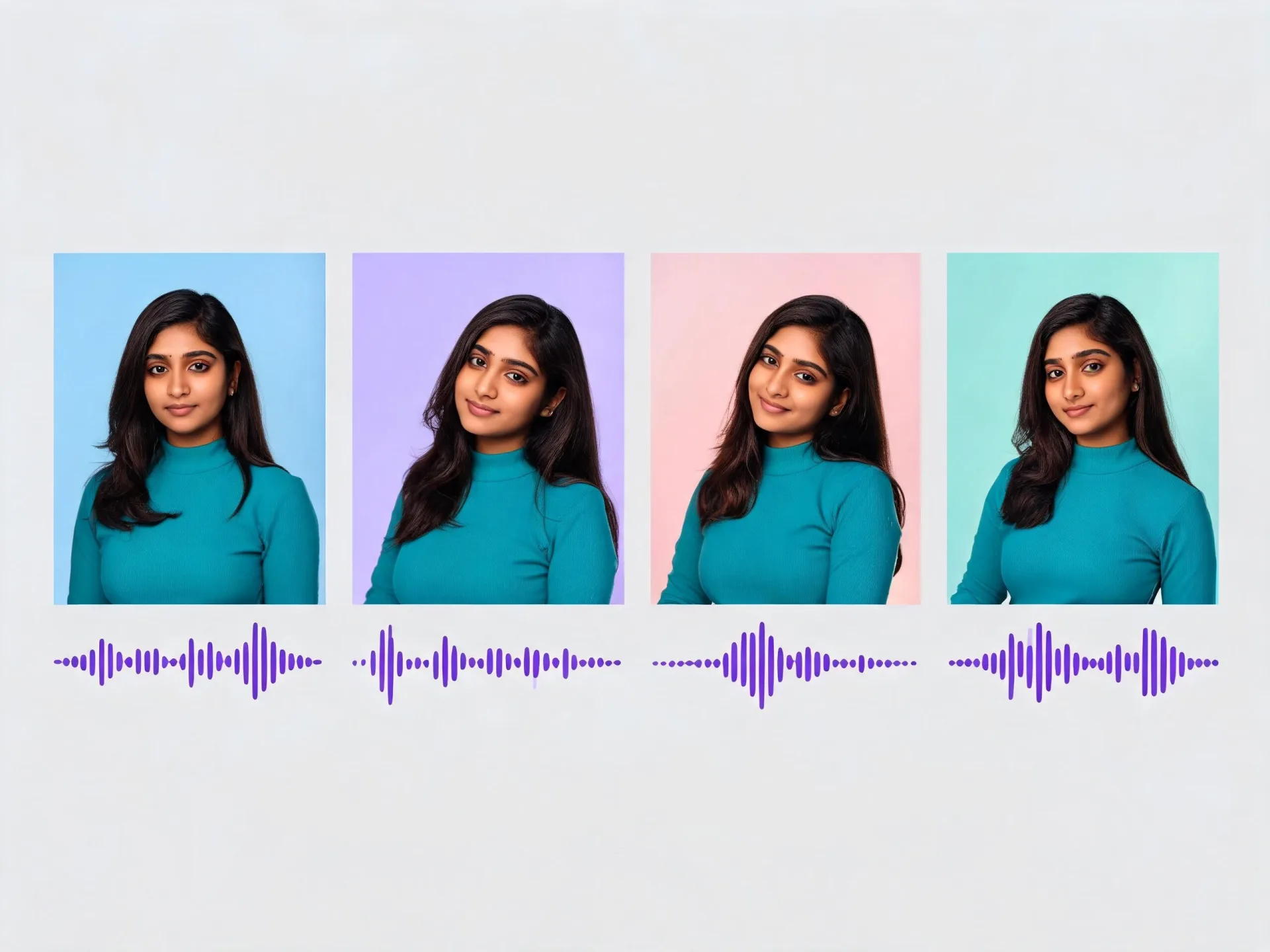
AI characters and virtual influencers
A recurring character has to speak on camera. Supply the character clip and the read you wrote for that episode, and the mouth movement is generated against your audio, so the character's speaking takes come out of the same workflow every time rather than being animated by hand for each new line.
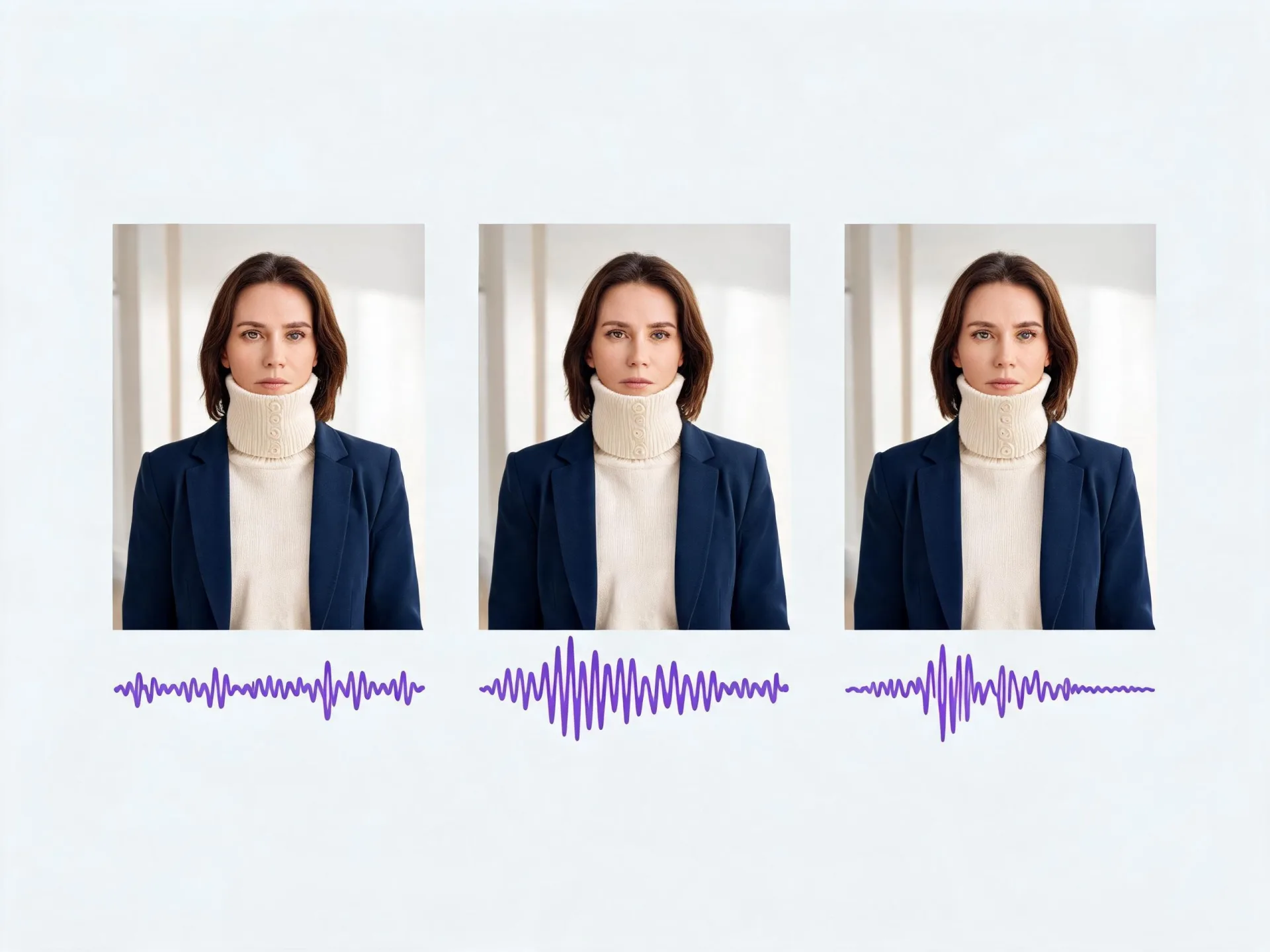
Social and performance marketing
Three script variants, one hero shot. Run the same footage against each read and take three matching cuts into testing instead of producing three separate shoots — the variable under test stays the copy rather than the production.
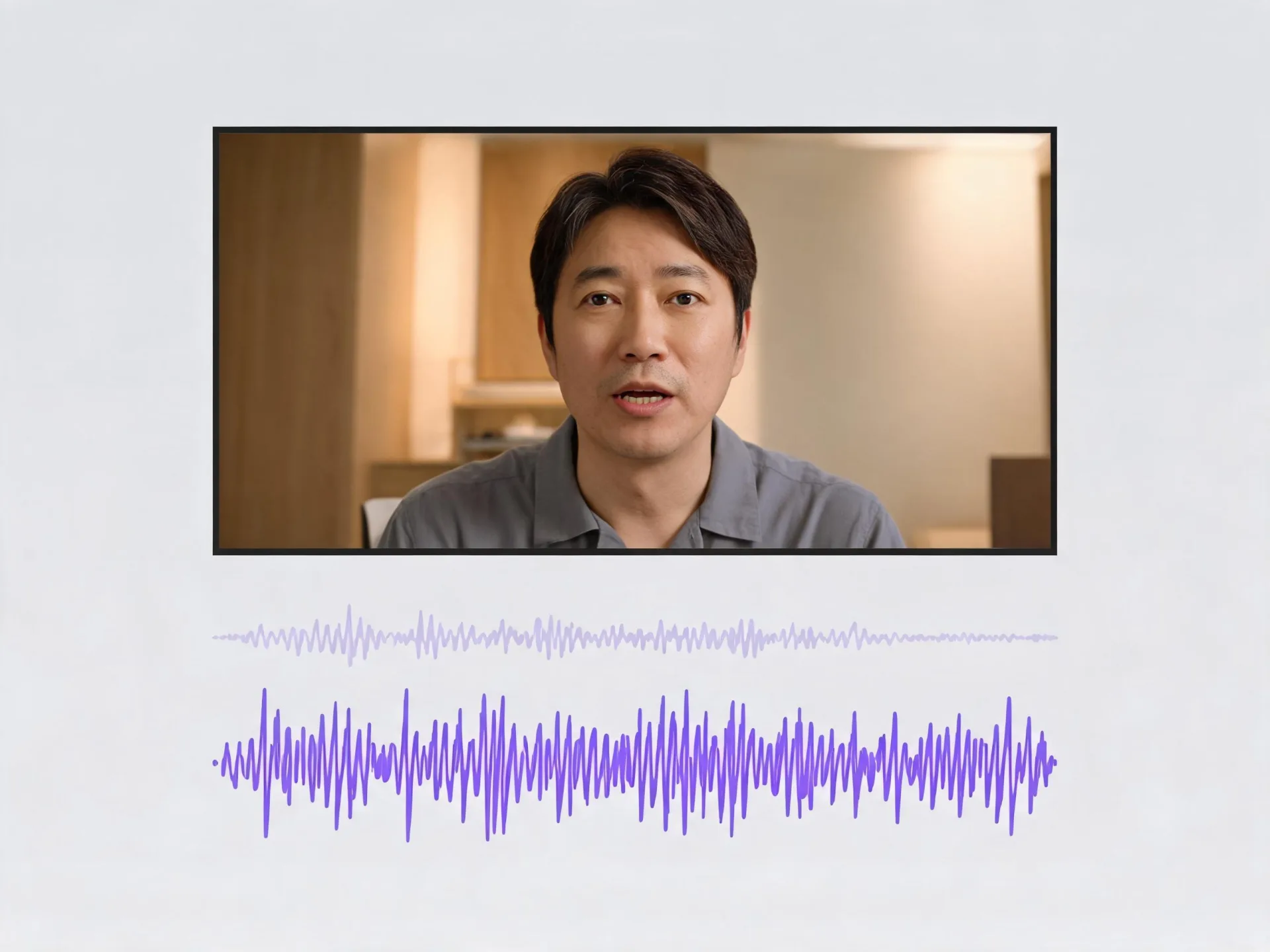
Dubbing and re-voicing passes
A line was rewritten, or the location audio did not survive the mix. Use the replacement studio read as the target and generate a version whose mouth movement follows it, without recalling the performer or rebuilding the scene around a new take. The cut you already approved stays the cut you ship.
Lip sync or another ZenCreator video tool?
Which tool fits your input.
Generated pass or manual pass
The control row is the real trade: a manual pass gives you frame-level correction and a generated pass does not, so work needing phoneme-by-phoneme direction belongs in an animation timeline. If the clip does not exist yet, generate it in Text to Video or Image to Video first.
Rights, consent, and what you can publish
Rights and consent
Lip sync work involves someone's face and voice, so rights come first. You must own or hold the rights, licenses, permissions, and consents for what you upload and how you intend to use it. Where a real person's image, likeness, voice, identity, or personal attributes are involved, you need the permissions and consents required by applicable law and by that intended use. Prompts and uploaded images are screened automatically before generation.
Commercial use and policies
Commercial use is permitted under the ZenCreator Terms and Conditions, subject to your compliance, applicable rights, and the terms governing the service and source materials; outputs are non-exclusive. The ZenCreator Content Policy sets the boundaries. ZenCreator is operated by Dimeris Ltd.
Lip sync online in your browser
Nothing to download and nothing to configure on your machine — open the tool, load a clip and a voice track, and see what the first generation gives you before you plan an edit around it.
Questions before your first run
Do I need to download a lip sync app?
No — the lip sync generator runs inside the ZenCreator studio in a desktop browser, so there is nothing to install and nothing to keep updated on your own machine. You open the tool, upload your media, and work in the browser you already have open. What you need locally is a current desktop browser and the source files you want to use.
What do I need to upload?
Two things: the source media you want changed, and the voice track its mouth movement should follow. What you upload matters more than how much you upload — a clear, well-framed face and a clean read give the tool more to work with than a long take does, so start with your best shot rather than your longest one.
Can I use a real person's face or voice?
Only where you hold the rights to it. You need the permissions and consents required by applicable law and by your intended use for that person's image, likeness, voice, identity, and personal attributes, and you are responsible for the content you upload and for how you use, share, store, or distribute the output. The ZenCreator Content Policy sets out the rules that apply, including those covering real people.
Can I publish lip sync clips commercially?
Commercial use is permitted under the ZenCreator Terms and Conditions, subject to your compliance, applicable rights, full payment of applicable fees, and the terms governing the service and source materials. The license is non-exclusive: similar or identical outputs may be generated for other users, so a generated concept or style is not exclusively yours. Read the Terms and Conditions before you publish commercially.
How are generations charged?
Generations are charged in ZenCreator credits. Current credit costs are on the Pricing page rather than here, because they change. If you are planning a run of variants, check the cost of a single generation there first and scale from that.
Can I increase the resolution of the finished clip?
Yes, as a second step. Upload the finished clip to ZenCreator's Video Upscaler, choose the available engine and output setting, and it processes the video frame by frame to raise resolution and visible detail. Motion-aware enhancement is designed to keep motion smooth rather than to guarantee an identical result, and heavy blur or strong compression in the source will limit what any upscale recovers. Plan it as two runs.
Your next clip can say something else
Load the shot you already have, add the read it should follow, and generate an AI lip sync video you can take straight into your edit — no reshoot, no keyframing, and the same footage is ready to run again the next time the script changes.