Video to Video
Video to Video AI Generator:Transform Footage You Already Have
Get a new AI video from a video you already filmed: transfer motion to a different subject, replace the character, or restyle the whole scene from a prompt.
Credits never expire
What ZenCreator's video-to-video workflow does
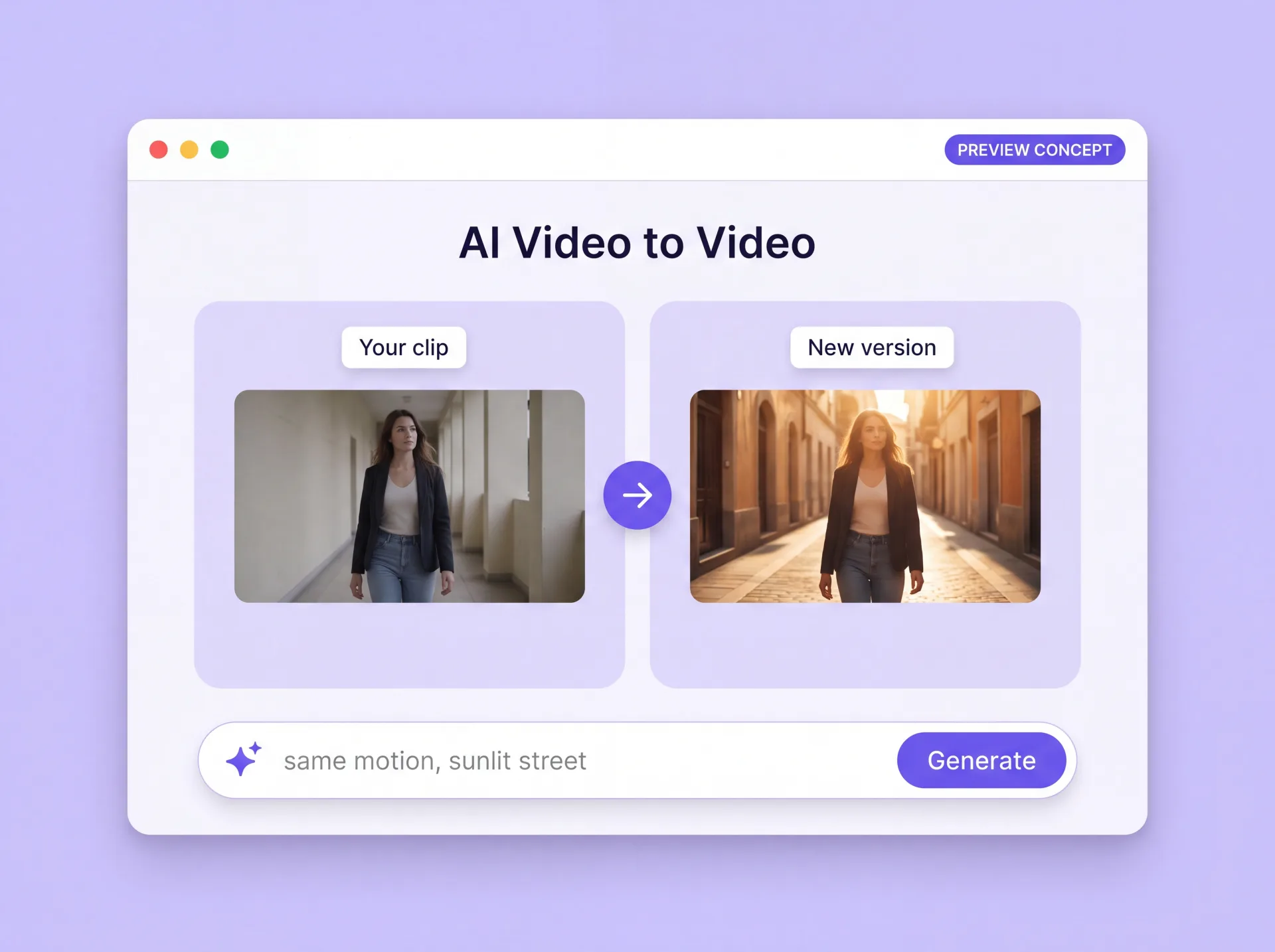
ZenCreator's video-to-video workflow takes an existing clip and generates a new version of it with AI, guided by your chosen model and, depending on the workflow, a prompt or a reference image.
That makes it an AI video generator from video rather than from a blank prompt: the model starts from your footage instead of inventing a scene. Three workflows cover the main jobs: transferring motion to a new subject, replacing the character in a scene, and re-rendering a clip from a written instruction. Results vary with source quality, model, prompt, and settings, so treat the first run as a starting point rather than a finished master.
What you bring: an MP4 or MOV clip, plus a reference image where the workflow uses one. What you set: workflow, model, output resolution, and sound. What you get: a new clip to preview, download, or send to another ZenCreator tool.
Video transformation modes
Three transformation workflows run on footage you already have, and the one you pick decides what else you need to bring.
Motion transfer
Take the movement in one clip and apply it to a different subject. You supply the source video that holds the motion, plus the reference that defines who or what should move. The workflow transfers that movement and is designed to follow the source timing, which helps when the performance is right but the subject needs to change.
Character replacement
Change who appears in a scene you have already shot. You supply the existing clip and a reference for the replacement subject, and the model regenerates that subject inside the original setting. Footage of a real person needs the rights and consent set out in Rights, consent, and content rules below.
Prompt-directed transformation
Describe the change in words and let the model re-render the clip. You supply the source video and a prompt covering style, environment, lighting, or overall look. The result is a new clip built from your instruction, which is the route to reach for when the footage cannot be reshot.
Why creators choose the ZenCreator video to video AI generator
Four reasons to bring existing footage here rather than generating a new clip from scratch.
Three transformation modes in one place
Motion transfer, character replacement, and prompt-directed transformation all work from the same source clip. Taking a second approach to the same footage means a new run, not a different tool.
Inputs that match where your footage lives
Bring MP4 or MOV video and JPG or PNG references. In supported workflows you can point the tool at a public Instagram or TikTok link instead of uploading a file.
Original sound, where the workflow supports it
One workflow offers optional preservation of the original audio track. A restyled clip can keep the voice or music it was cut to, so there is no mix to rebuild afterwards.
Higher resolution when a placement needs it
Preview and download results in the interface, or send a clip onward to Video Upscaler when a placement needs more resolution than this generator's own output range.
How a video-to-video run works, step by step
Five steps turn a video into an AI video, and none of them requires an editing timeline.
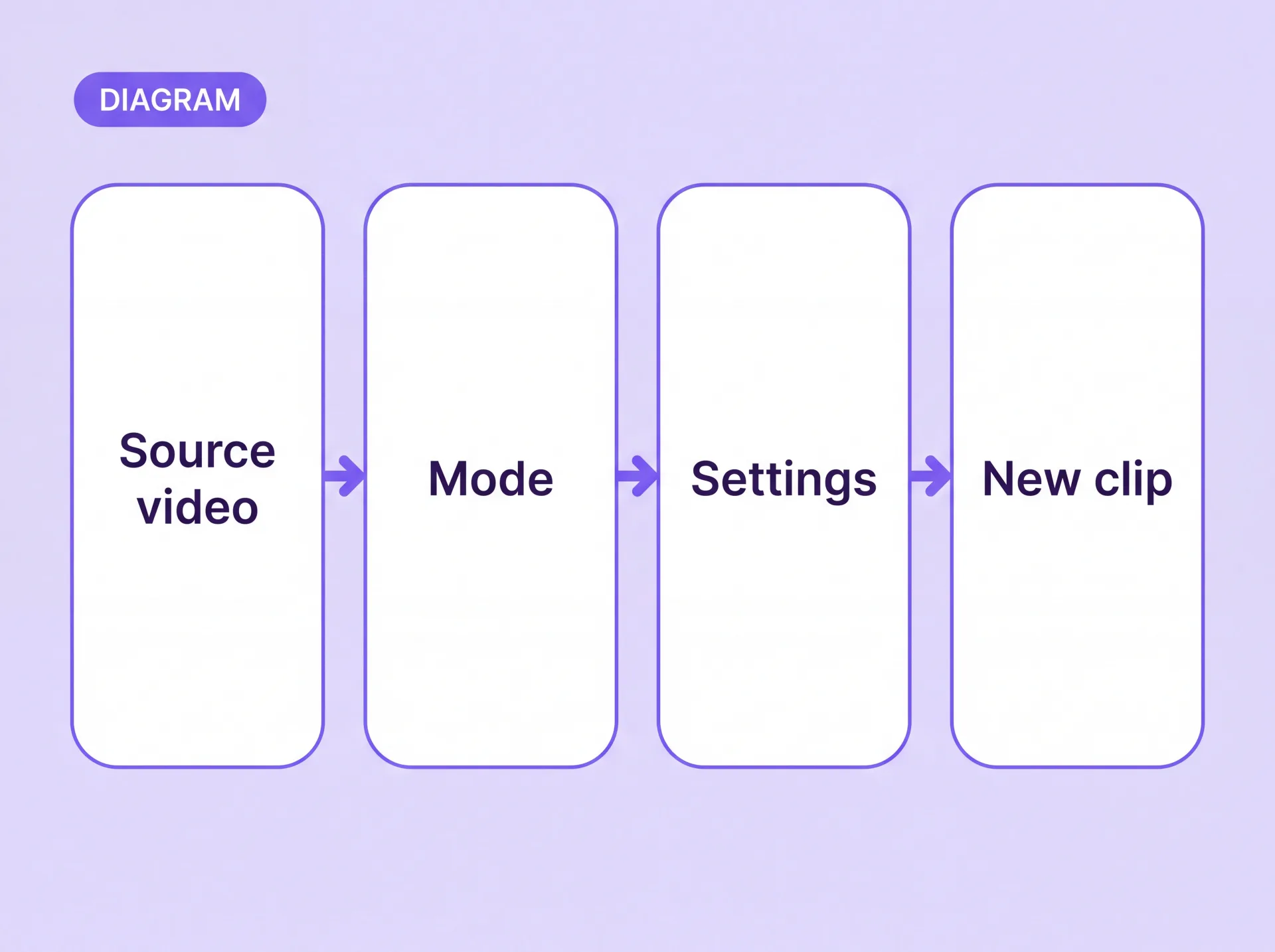
What you can upload, what you can set, what you get back
Available settings depend on the selected workflow and model, and results vary with source quality, prompt, and settings.
Video input
MP4 and MOV files are documented for the relevant workflows.
Image input
JPG and PNG references are documented where a workflow uses a still.
Public social link
Some workflows accept a public Instagram or TikTok link instead of a file upload. Availability depends on the workflow you choose.
Workflow and model selection
Your two opening choices decide which controls appear and how the transformation behaves.
Output resolution
Model-dependent, documented from 480p through 1080p.
Original sound
Optional in a supported workflow, not across every mode. Check the setting before a run whose audio matters.
Results
Preview in the interface, download the file, or send it to a documented downstream tool.
Where video-to-video work pays off
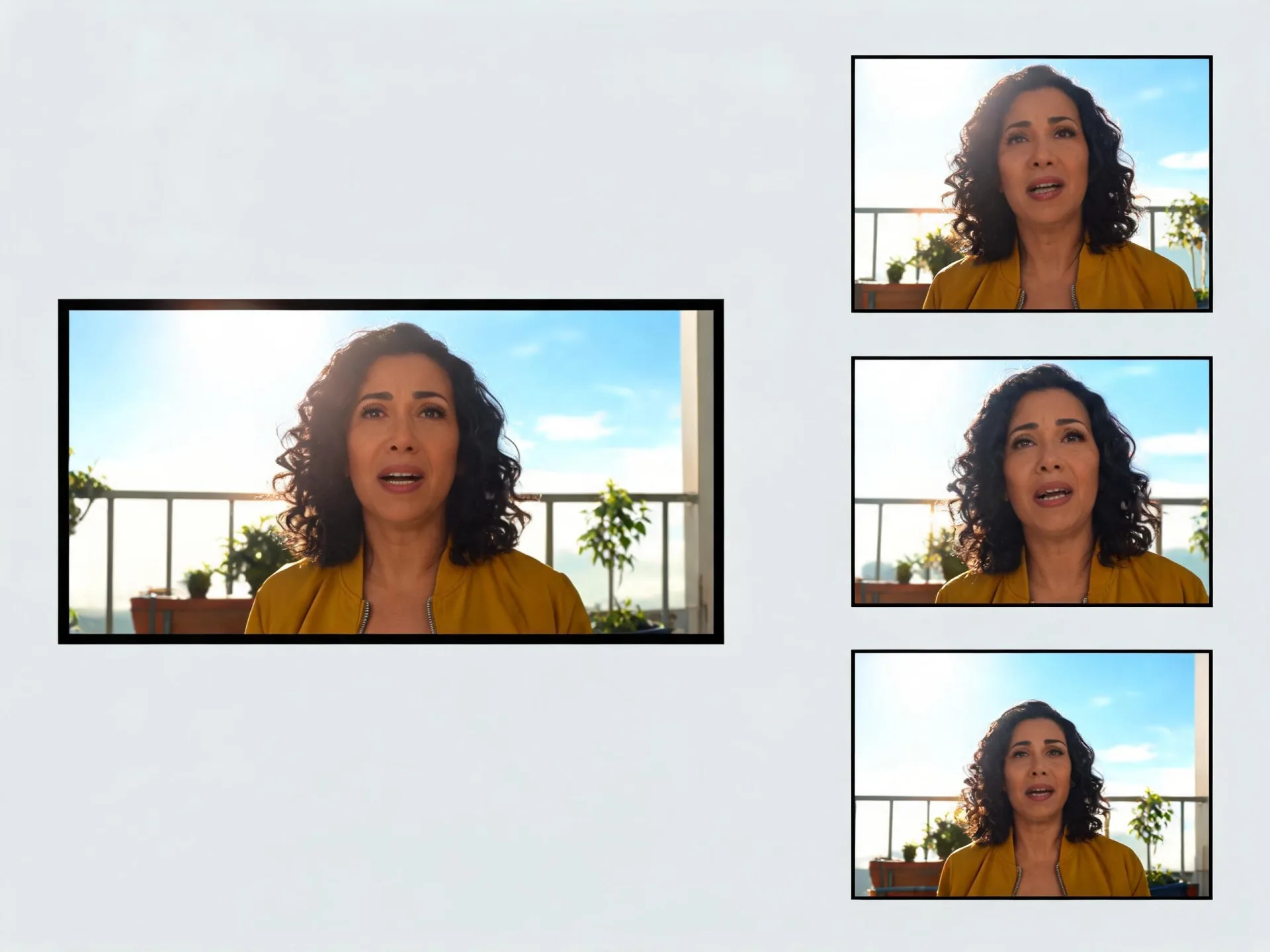
Repurposing one clip for several placements
Social and UGC teams usually have one clip that performed and now need three more versions for different placements. Prompt-directed transformation re-renders that footage in a new style or setting, so every version starts from the take that already worked.
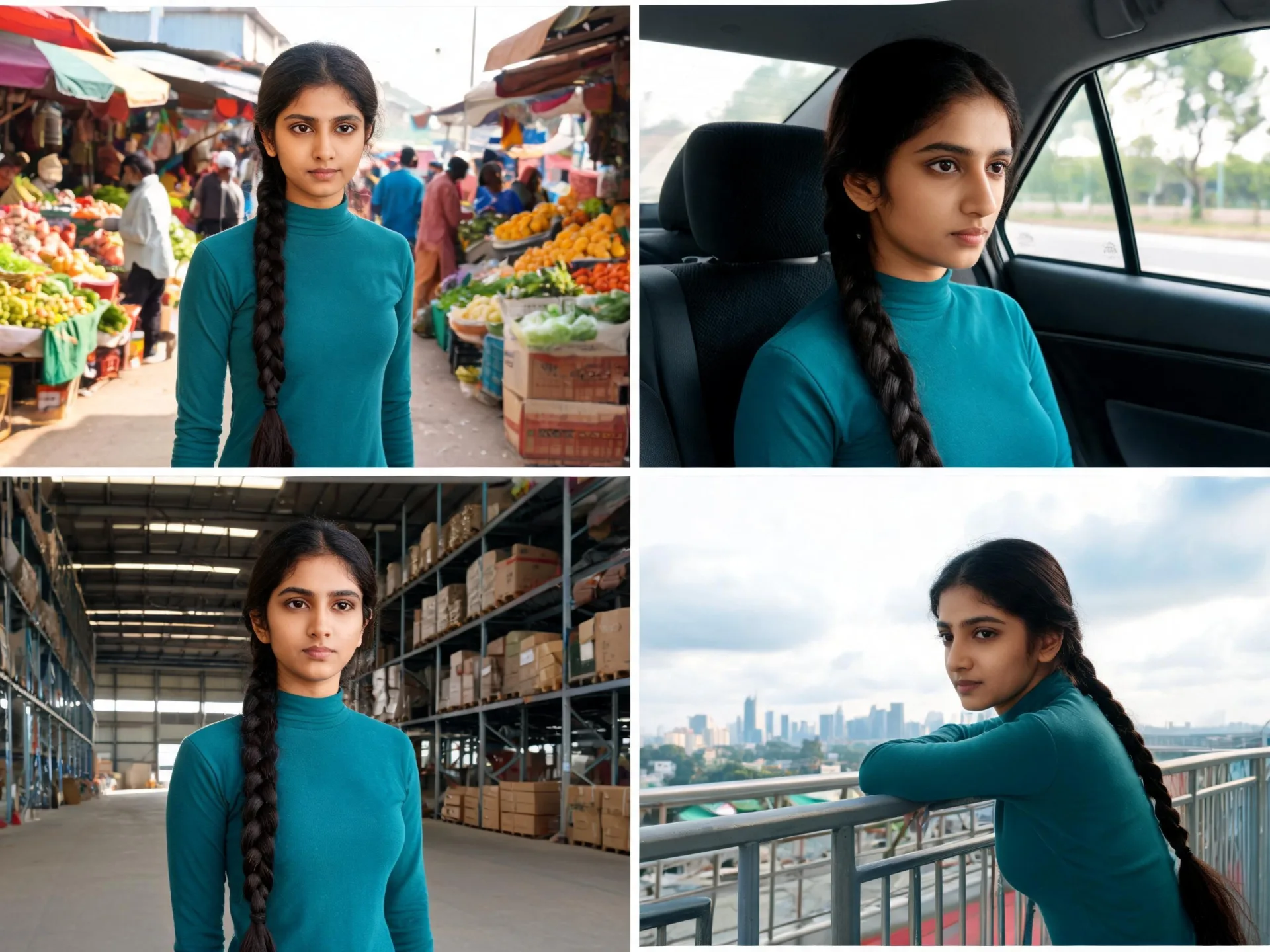
Holding one persona across a series of clips
Virtual-character creators need a subject that reads as itself from clip to clip. Character replacement puts that subject into footage you have already shot, using a reference image to guide identity. The workflow guides the result rather than locking it, so plan review time into the schedule.
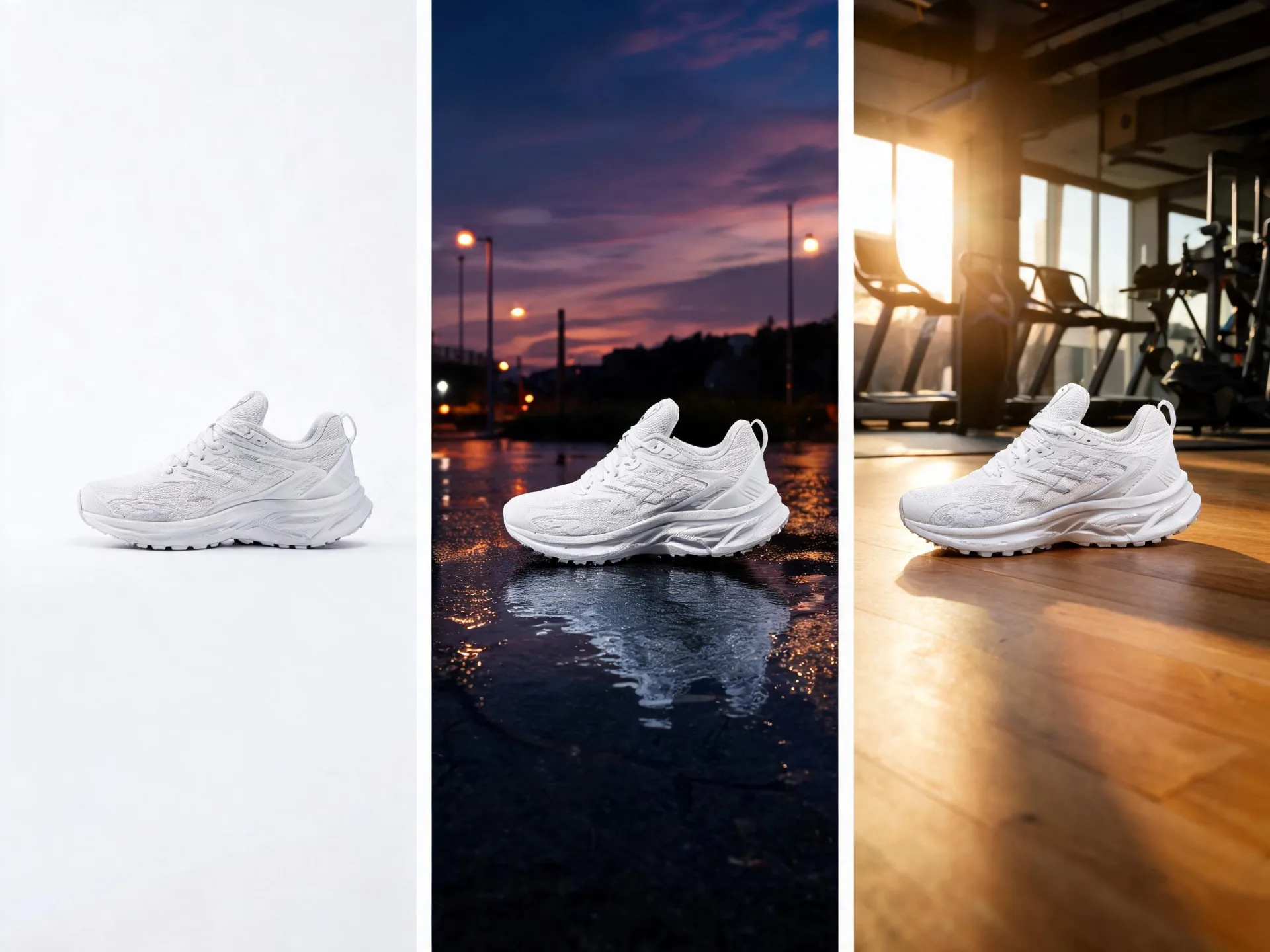
Product clips for several audiences
E-commerce and lifestyle teams need one product clip to work in several contexts. Prompt-directed transformation changes the environment and styling around the product, and Video Upscaler covers delivery when a placement calls for higher resolution.
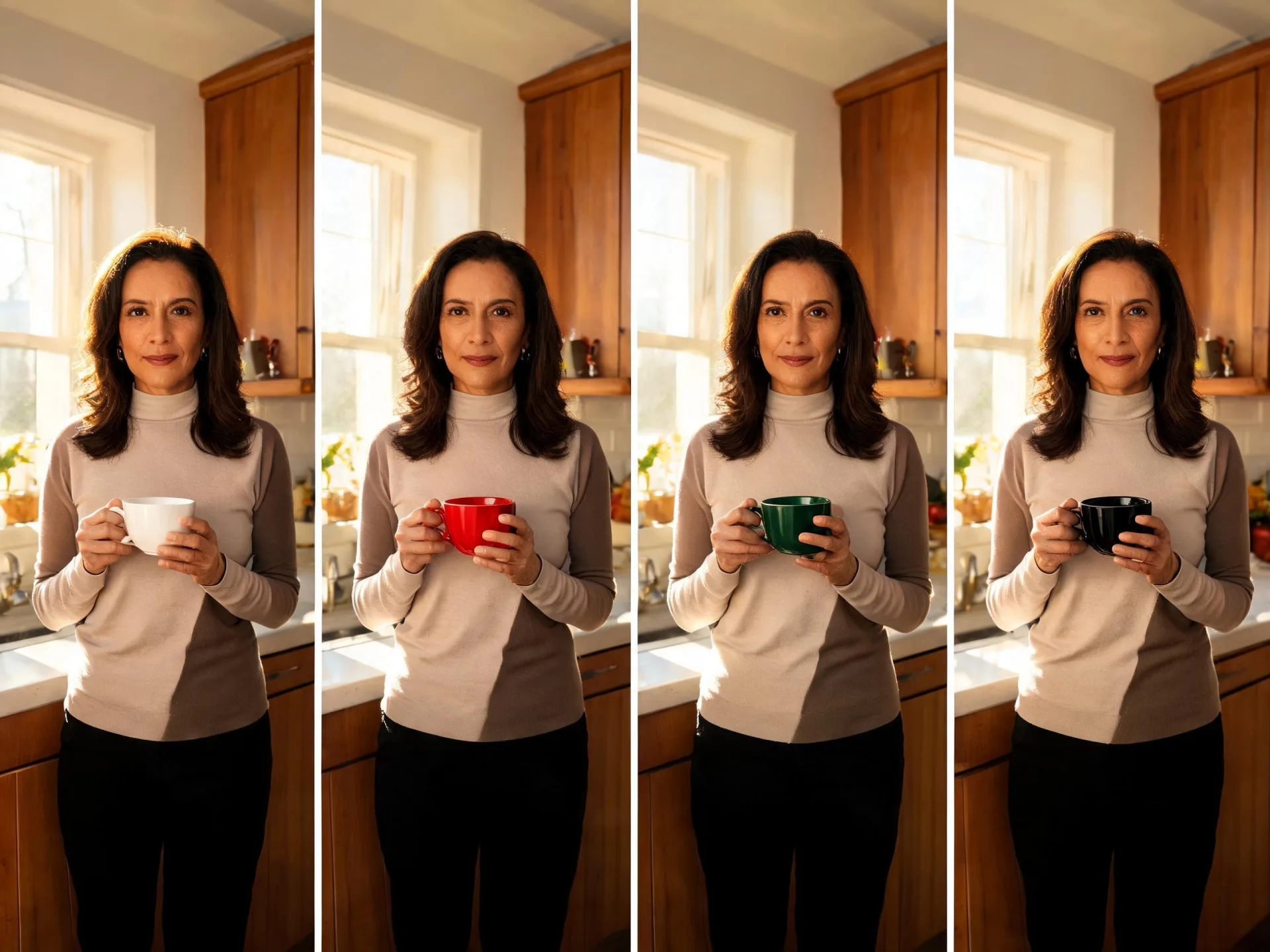
Ad variants without booking a reshoot
Studios and performance marketers testing creative want one variable to move at a time. Motion transfer starts from a movement that already tested well and changes the subject on top of it, which gives you comparable variants without a new shoot day.
Your footage is already the hard part
Upload it, choose a workflow, and see what one run gives you back.
Choose the right AI video workflow
Conclusion Your starting point decides the tool: footage means AI video-to-video workflows, a single still means Image to Video, and nothing but an idea means Text to Video. When the content is already right and only the resolution is too low, Video Upscaler is the last step rather than another generation. This workflow regenerates what happens inside a video — it is not a timeline editor for cuts, trims, or subtitles, and it does not change file formats or codecs.
Rights, consent, and content rules
Rights and consent
ZenCreator is available to users who are at least 18 years old. Only upload footage you have the right and permission to use. If a clip includes another person, make sure you hold the consent required for the edit you intend and for the way you plan to publish it. That applies most directly to character replacement and motion transfer, where a recognisable person ends up in a result you did not originally film.
Screening and policies
Prompts and uploaded images are automatically screened before generation using multiple detection systems. The full rules are in the ZenCreator Content Policy and Terms and Conditions.
Video to video AI: common questions
What is video to video AI?
It is generative transformation of a clip you already have, rather than generation from a blank prompt. A model reads your source footage, applies your prompt or reference images, and renders a fresh video. It is not a timeline editor — there is no cutting, trimming, or subtitling — and it is not a file converter.
Can I use a clip from Instagram or TikTok?
Some Video to Video workflows accept a public Instagram or TikTok link instead of an uploaded file. The rights and consent requirement does not change with the input method: you still need permission for the footage and for anyone appearing in it, whether you upload the file or link to it.
Will my result keep the same faces, motion, and background as the source?
No workflow guarantees that. Your prompt and reference images guide the generation, but identity, motion, timing, and background can all shift depending on the model, the prompt, and the source clip. Plan on reviewing a run and adjusting your direction rather than expecting an exact match first time.
Can I keep the original audio?
Optional preservation of the original sound is documented in a supported Video to Video workflow, not across every mode. Whether the option appears depends on the workflow and model you select, so check the setting before running a clip whose audio has to survive into the final edit.
What if I need a higher-resolution result?
Output here is model-dependent up to 1080p. For anything larger, send the result to Video Upscaler: the Legacy engine documents output up to 5K with a 30-second source maximum, and BytePlus documents 1080p, 2K, and up-to-4K output with a 180-second source maximum. Heavy blur, extreme compression, or watermarks in the source limit what upscaling can recover.
Is ZenCreator Video to Video an AI video converter?
It changes what happens in the video, not the file the video is stored in. Style, motion, and subject are what this tool works on; containers and codecs are not. Inputs are MP4 and MOV, and finished results download as video files.
Can I use the results commercially?
Commercial use is permitted under the ZenCreator Terms, subject to your compliance, applicable rights, and the terms governing the service and source materials. Similar or identical outputs may be generated for other users, so you do not receive exclusive rights to a concept or a style.
Your next clip is already on your drive
Open the AI video to video generator, upload what you have, and take your first run at the version you actually wanted.