AI Video Upscaling
AI Video Upscaler:Upscale Video Up to 4K in Your Browser
Upload a clip you already have, choose an engine and a target resolution, and get a higher-resolution version back. Nothing to install.
Credits never expire
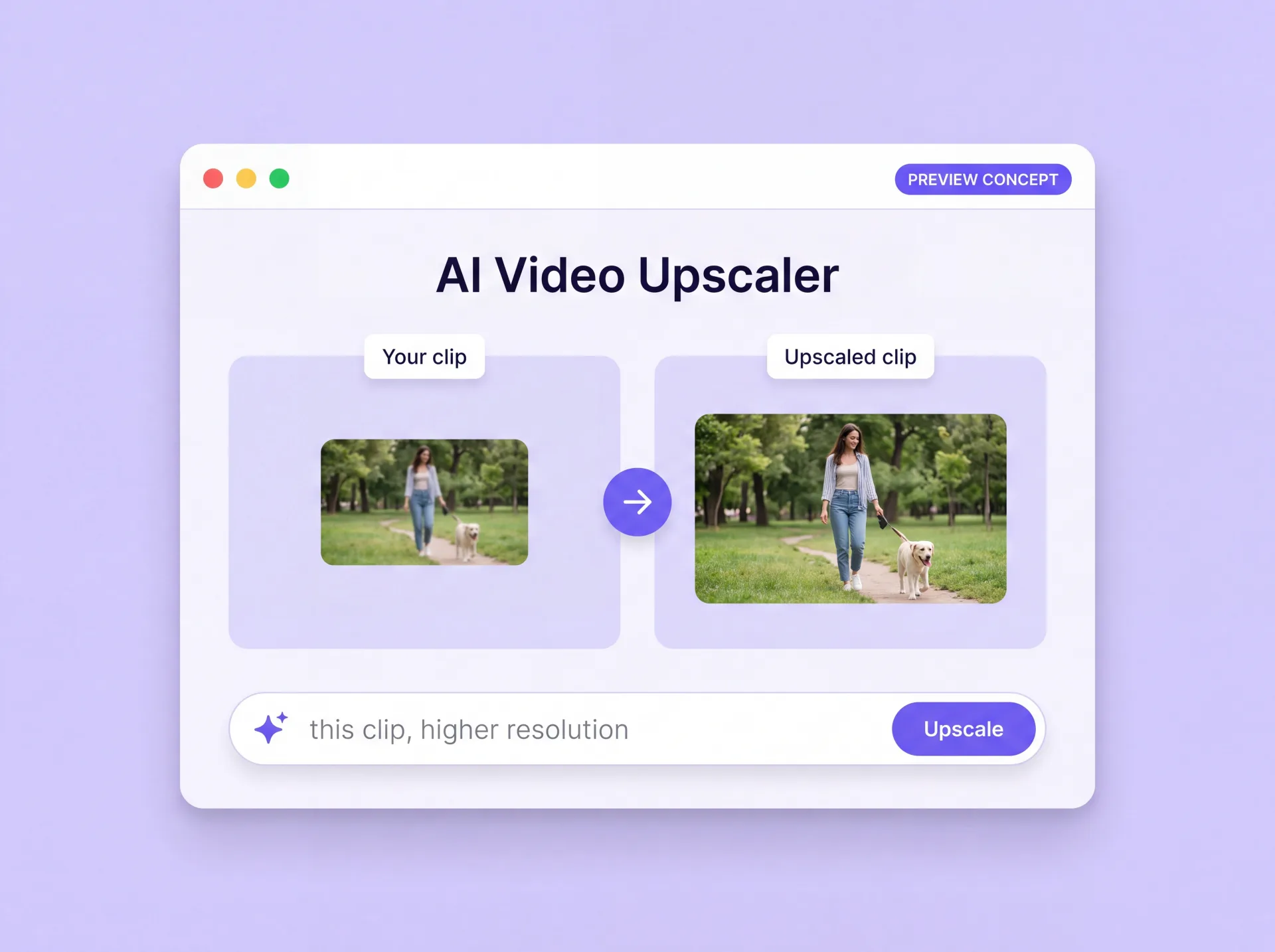
What the ZenCreator video upscaler does
A video upscaler rebuilds a low-resolution clip at a higher resolution instead of stretching the pixels you already have. ZenCreator processes your file frame by frame with motion-aware enhancement, so the result is designed to hold steadier motion and more visible detail than a straight resize.
You upload an existing clip, pick an engine and the output settings that engine offers, then preview and download the finished file. It runs in the cloud, and how much a clip improves depends on the source quality and the mode you choose.
Why ZenCreator
Why upscale video with ZenCreator
Engine choice, resolution control, and processing that rebuilds detail instead of stretching it.
Two engines, one workspace
Legacy suits very short clips that need a large jump in scale. BytePlus takes longer sources to a specific target resolution. Both sit in the same tool, so you pick per clip.
Upscale video resolution, don't just stretch it
Processing runs frame by frame with motion-aware enhancement, which is designed to reduce flicker and keep motion smoother than a simple resize does.
Choose your output resolution
Set the target instead of accepting one fixed export. BytePlus offers 1080p, 2K, and up to 4K; Legacy works from scale factors between 2× and 100×.
Nothing to install
Processing happens in the cloud, so the job doesn't depend on your own machine and there's no application to download or keep updated.
Upscale video to 4K — and up to 5K on the Legacy engine
Used as a 4K video upscaler, ZenCreator lets you set the target instead of accepting one fixed output. The ceiling depends on the engine you pick, and the two engines have different limits on source length.
How to upscale video to 4K
Choose the engine that reaches your target: BytePlus offers a 4K option, and Legacy's scale factors reach higher still.
Set the enhancement mode — Standard or Pro on BytePlus — or the scale factor on Legacy.
Check your clip against that engine's maximum source duration before you start, because length rules the engine choice more often than resolution does.
How to use AI to upscale video
Here's how to upscale video with AI in the ZenCreator workspace — four steps from upload to download.
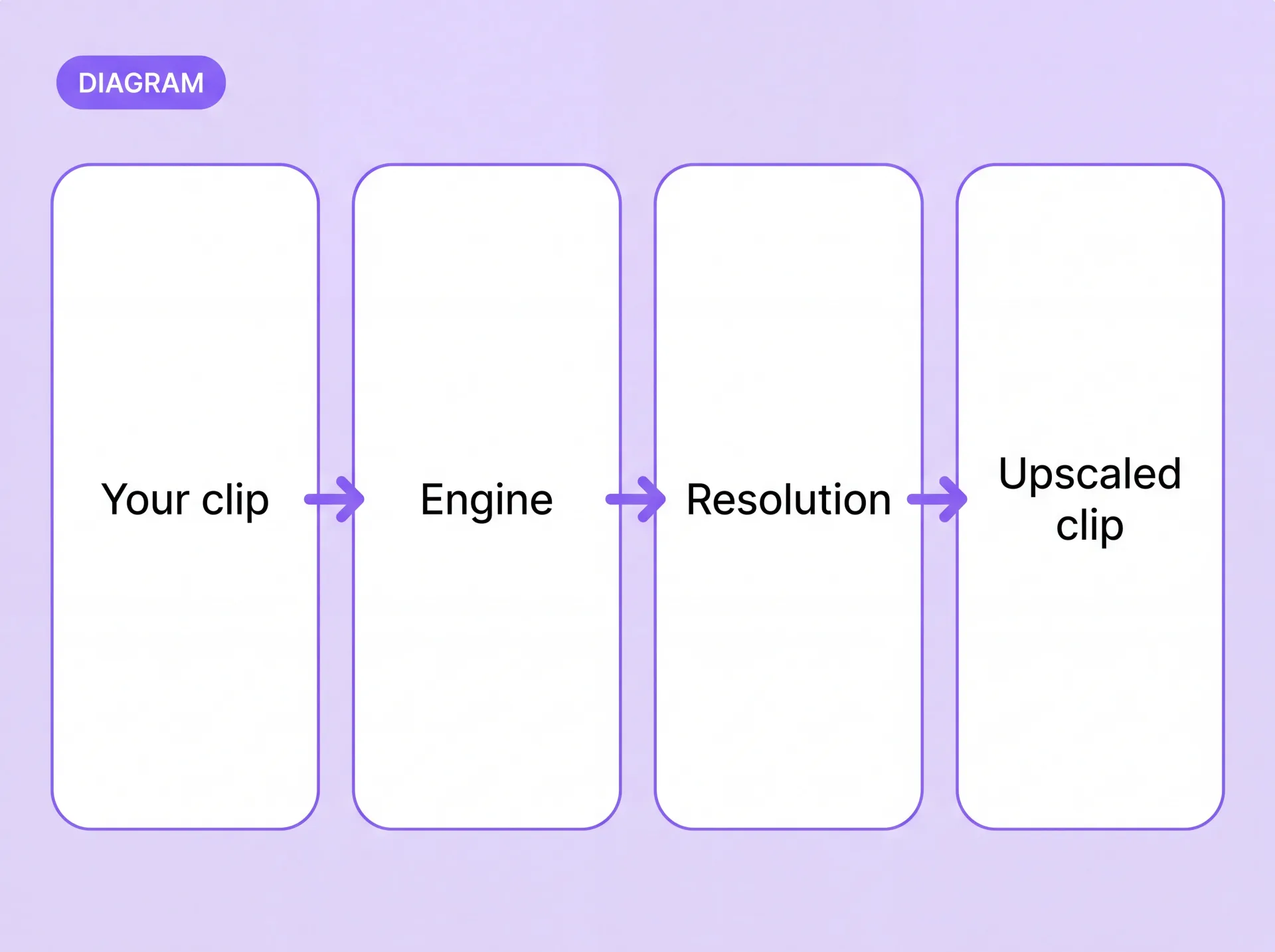
Video upscaling software vs upscaling in the browser
Same job, two delivery models. The difference is where the processing happens and how much you set up first.
If you need offline processing on hardware you control, a local application is the better fit. If you want a higher-resolution clip without setting anything up first, start in the browser.
Who uses it
What creators upscale
Four situations where a higher-resolution master changes what you can publish.
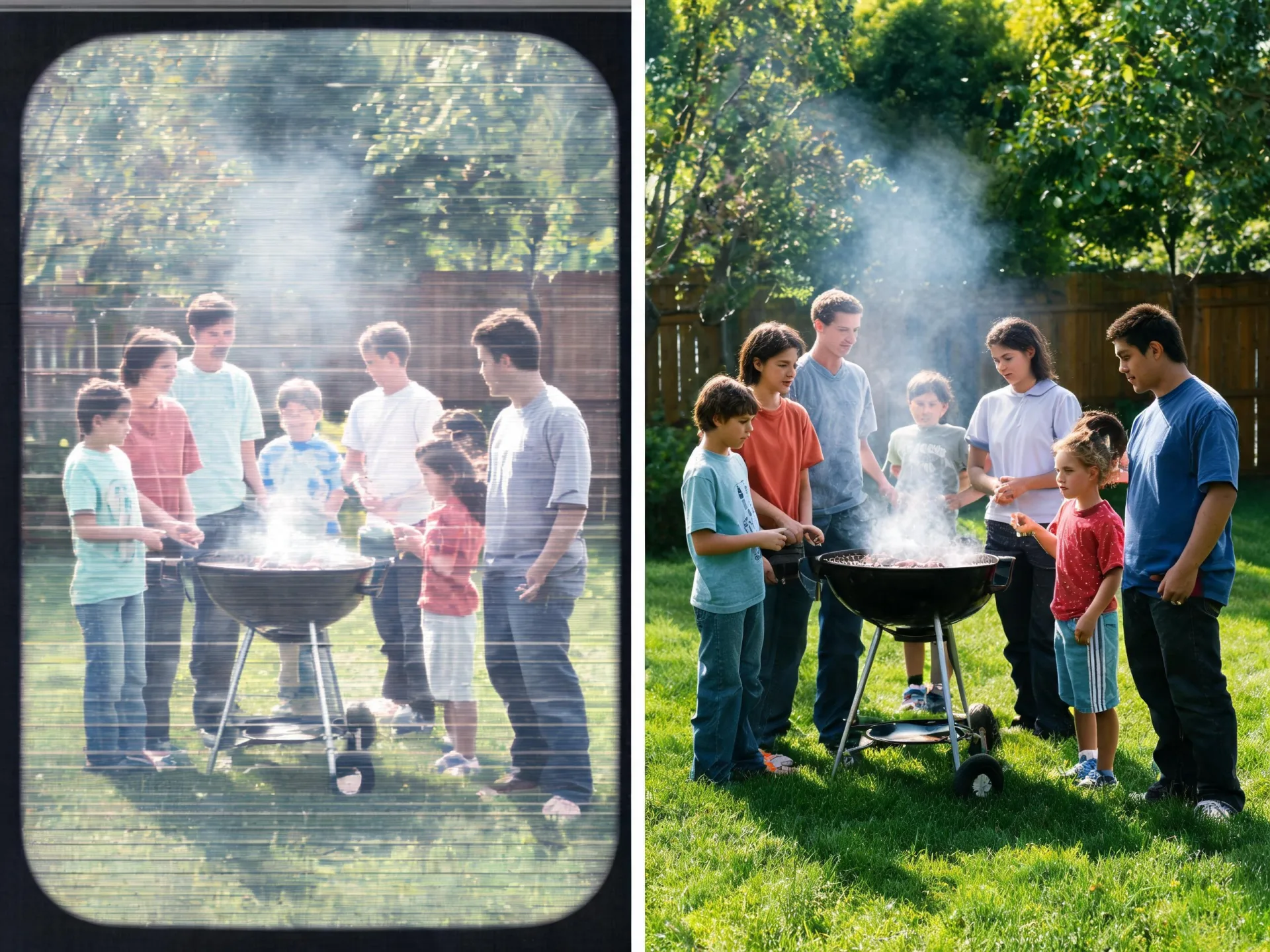
Old phone and camcorder footage
Short archive clips shot at low resolution rarely hold up on a modern timeline. Upscaling brings them closer to a current delivery resolution before you cut them in.

Clips that only exist as a compressed export
The master is gone and all you have is a re-compressed download. Re-processing it gives you a cleaner file to work from, within the limits of that source.
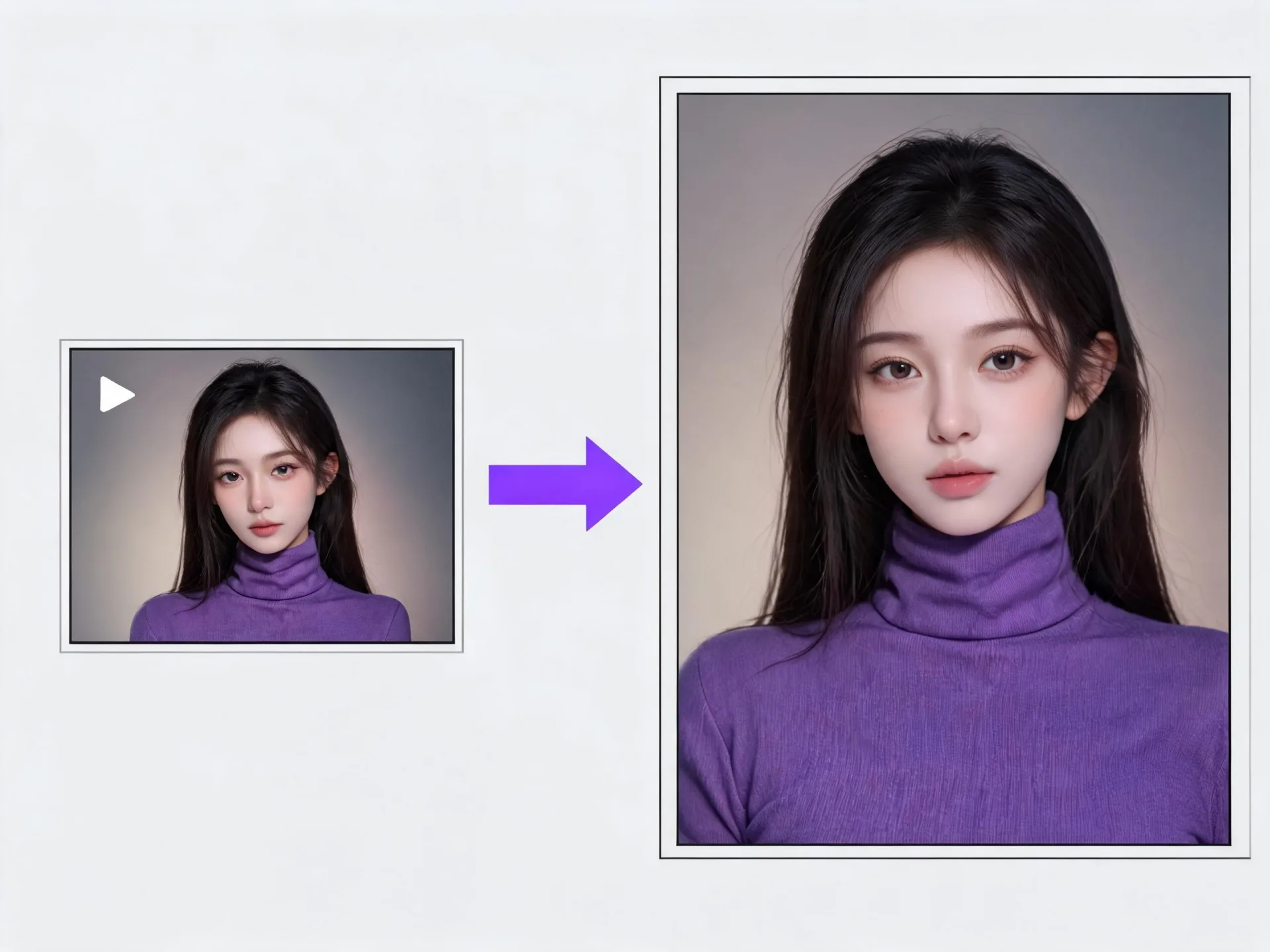
AI-generated clips before you publish them
Generate a clip from a prompt in Text to Video, then bring the result here for a higher-resolution version before it goes out.

Short product and ad clips for large screens
Small-format product footage often has to run where more resolution is expected. Pick the engine that reaches your target and check the clip against its duration cap.
You already have the clip
Choose an engine and a target resolution, and the rest happens in the cloud.
What AI upscaling can and can't fix
Upscaling reconstructs detail; no video upscaler can add information the source never captured. A soft, low-resolution original gains clarity, not footage that was never shot.
Heavy blur, extreme compression, and watermarks in the source limit the result. Start from the cleanest version of the file you have.
Frame-by-frame, motion-aware processing is designed to reduce flicker and keep motion smoother. It aims to hold the scene together rather than guarantee it — results vary with the source, engine, and mode.
Each engine has a maximum source duration. Check your clip's length against the engine you plan to use before you process it.
Only upload video you have the right to use. If your clip includes another person, make sure you have the consent your intended use requires — see the ZenCreator Terms and Content Policy for details.
Where upscaling fits in your ZenCreator workflow
Upscaling is usually the last step. Here's what tends to come before it.
Start from a prompt
Generate a clip in Text to Video, then send a supported result straight to the upscaler.
Start in Text to VideoStart from a still image
Animate a still image in Image to Video, then bring the finished clip here for a higher-resolution version.
Start in Image to VideoStart from an existing video
Transform an existing clip in Video to Video, then upscale the export once the edit is settled.
Start in Video to VideoVideo upscaler FAQ
Do I need to install AI video upscaling software?
No. Upscaling runs in a browser session and the processing happens in the cloud, so the work doesn't depend on your own hardware. You upload the clip, choose the engine and output settings in the tool, and download the finished file from the same screen.
How long can the video I upload be?
Each engine sets its own limit: Legacy accepts sources up to 30 seconds, BytePlus up to 180 seconds. Check the length before the resolution, because a two-minute clip rules out Legacy whatever scale factor you wanted. If your clip runs longer, trim it to the section you need before uploading.
Which video formats can I upload?
Common video formats are supported. There is no published list covering every container and codec, so if your file is unusual, run one clip through first and confirm it's accepted before you queue several. If a file isn't accepted, re-export it from your editor in a standard format and try again.
Can AI upscaling fix a blurry or heavily compressed clip?
It can improve clarity and visible detail, but heavy blur, extreme compression, and watermarks limit what any upscaler can reconstruct. Expect a modest gain from a badly damaged source, and start from the cleanest version you can find rather than a social-media re-download. Run a short test section before you commit the whole clip.
How long does upscaling take?
It depends on the engine, the enhancement mode, the output resolution, and the length of the clip, so there's no single figure worth quoting. The tool shows the task while it processes, which means you can leave it running and download the result when it's finished.
Can I use the upscaled video commercially?
Commercial use is permitted under the ZenCreator Terms, subject to your compliance, applicable rights, and the terms governing the service and source materials. You also need the rights to the footage you upload, including consent from anyone identifiable in it — and that applies to the upscaled export as much as to the original.
What does upscaling cost?
Upscaling runs on ZenCreator credits, and the credit cost for a task may be shown before you start it, so you can check it against the engine and output resolution you picked. Current figures live on the Pricing page rather than here, because they change.
Give your footage a higher-resolution master
Upload a clip to the ZenCreator AI video upscaler, pick an engine and an output resolution, and download the result.