Image Upscaling
Image Upscaler:Increase Image Resolution and Detail in Your Browser
ZenCreator's AI image upscaler takes a file you already have and produces a larger version with more visible detail, without leaving the studio where the rest of the work happens.
Credits never expire
What is image upscaling?
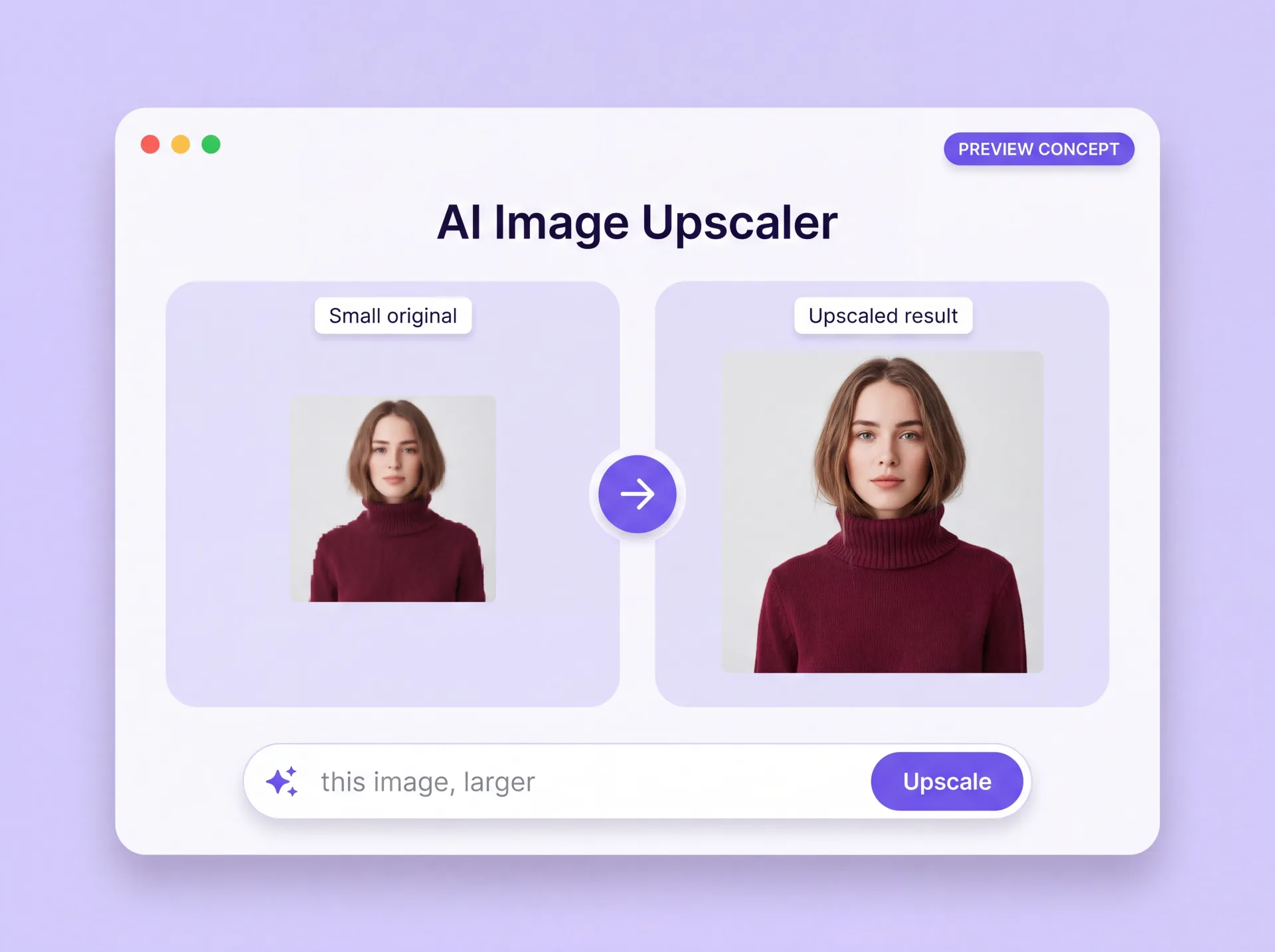
An image upscaler increases the pixel dimensions of a file you already have and reconstructs fine detail as it enlarges, instead of stretching the pixels you started with. The technique is sometimes called super resolution, and the practical result is a larger file that still holds up at full size instead of turning soft and blocky.
That is the difference between an upscaler and an ordinary image scaler. A scaler resamples the pixels already in your file; AI upscaling estimates the detail that should sit between them. The source still sets the ceiling: heavy blur, strong compression, and watermarks limit what any upscaler can recover, and nothing restores detail the original never captured. It is worth checking before you upload, because the cleanest copy you can find beats the largest damaged one.
Why creators upscale in ZenCreator
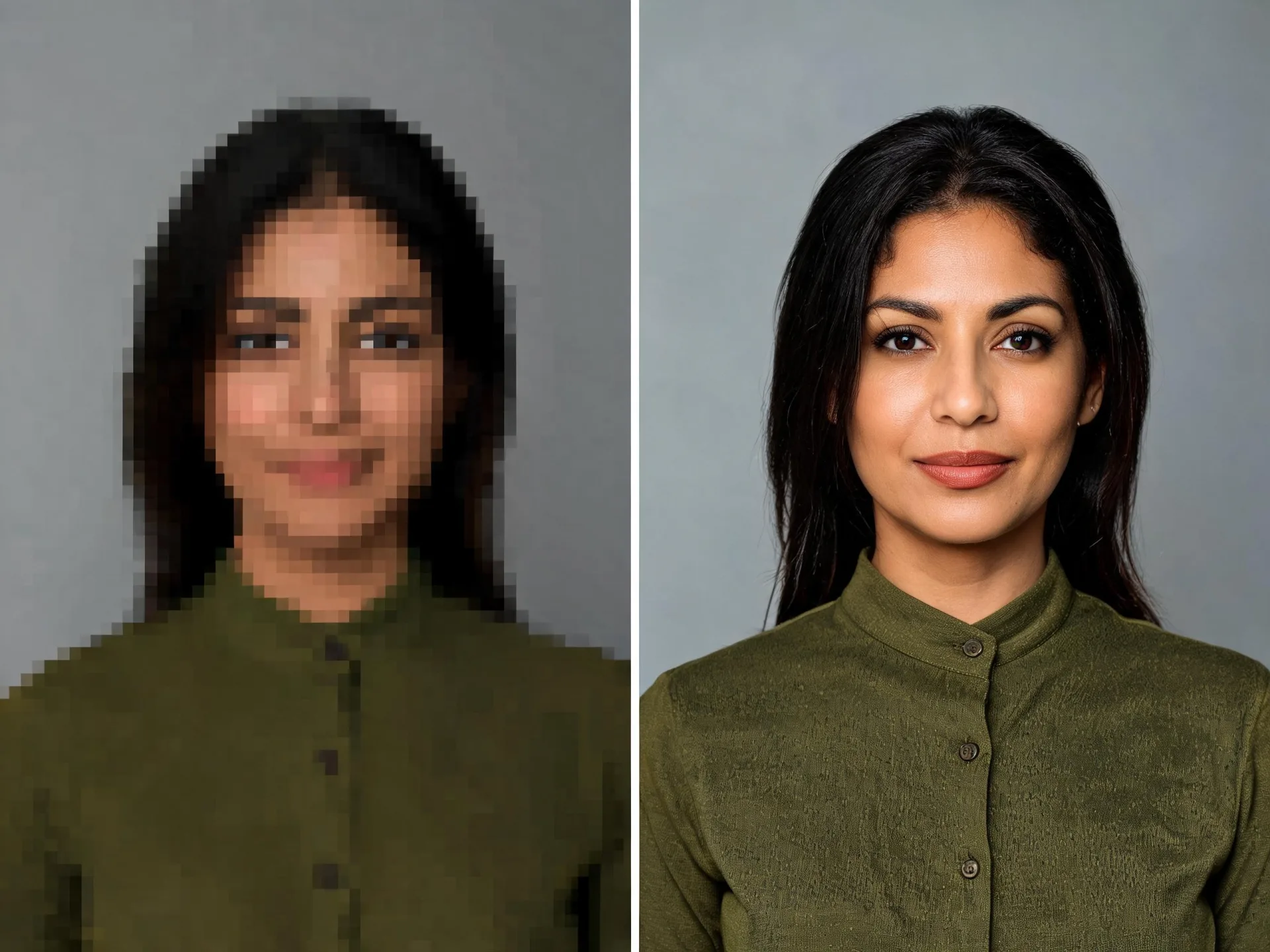
Upscaling is rarely the last thing you do to an image. Four reasons to run it where the rest of the work already happens.
Nothing to install
The upscaler runs in your browser and processes in the cloud, so there is no software to download, no local render, and nothing to keep updated. Sign in from any machine and work from the file you have.
The result stays in the studio
An upscaled image does not have to leave ZenCreator. Send it into the Image Editor, into Variations, or into an image-to-video step without exporting it and uploading it somewhere else — the rest of the ZenCreator toolset picks it up where the upscaler left off.
Honest about what it recovers
Upscaling is designed to preserve what is already in the frame; it does not invent a face or a label the source never captured. The conditions that decide a result — source quality, what is in the frame, and the settings you pick — are set out below rather than left for you to find out afterwards.
Clear rules for what you upload
Prompts and uploaded images are screened automatically before generation. What you may upload, including photographs of other people, is set out in the Content Policy rather than left to guesswork.
What you can do with the image you already have
Three jobs this handles well, and the conditions that decide how well.
Increase image resolution
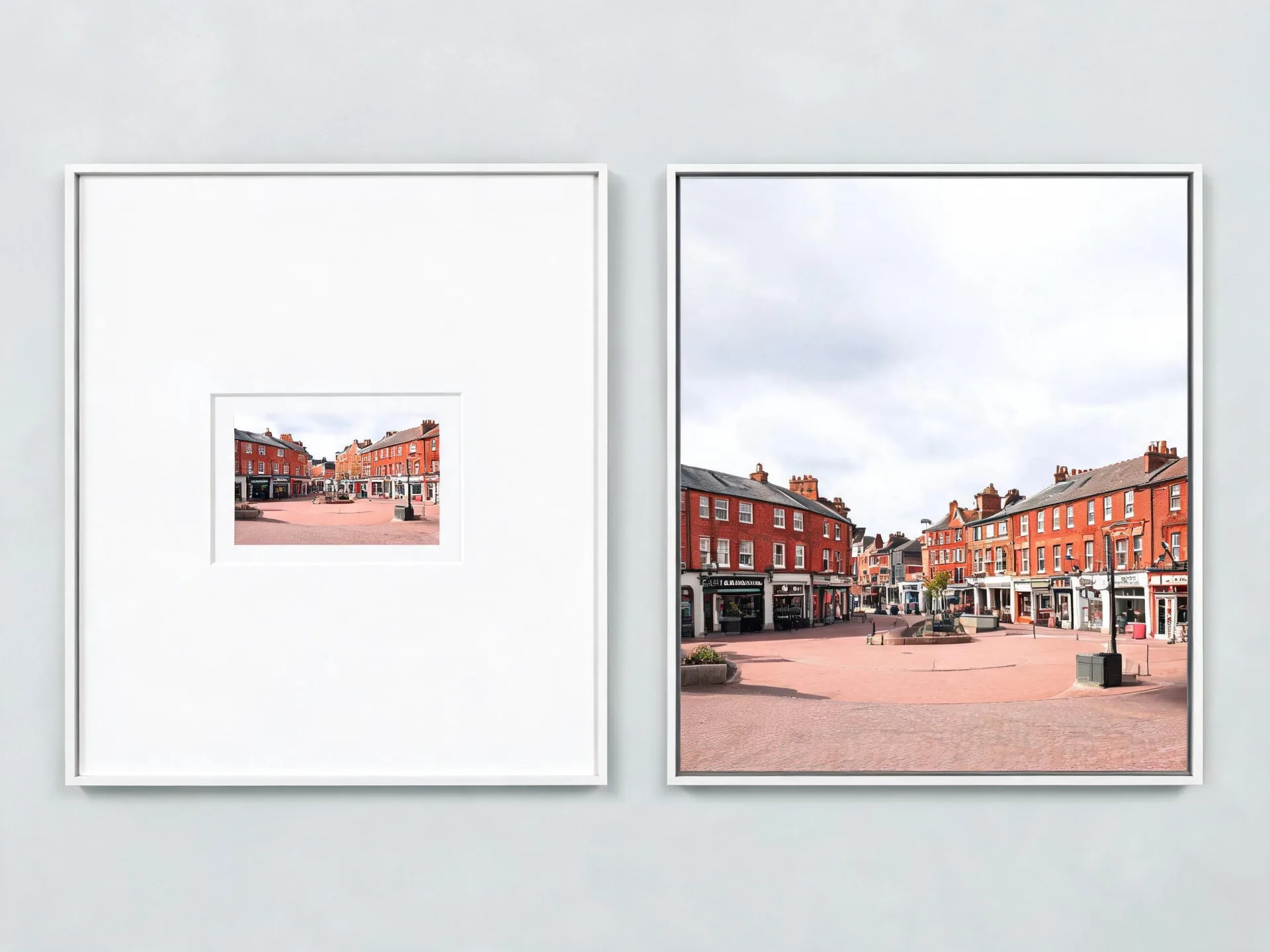
The export was saved too small, the only surviving copy is a thumbnail, or the original came off a phone six years ago. Upload it and increase the resolution of an image that was never large enough for the placement you need now.
Increase image quality
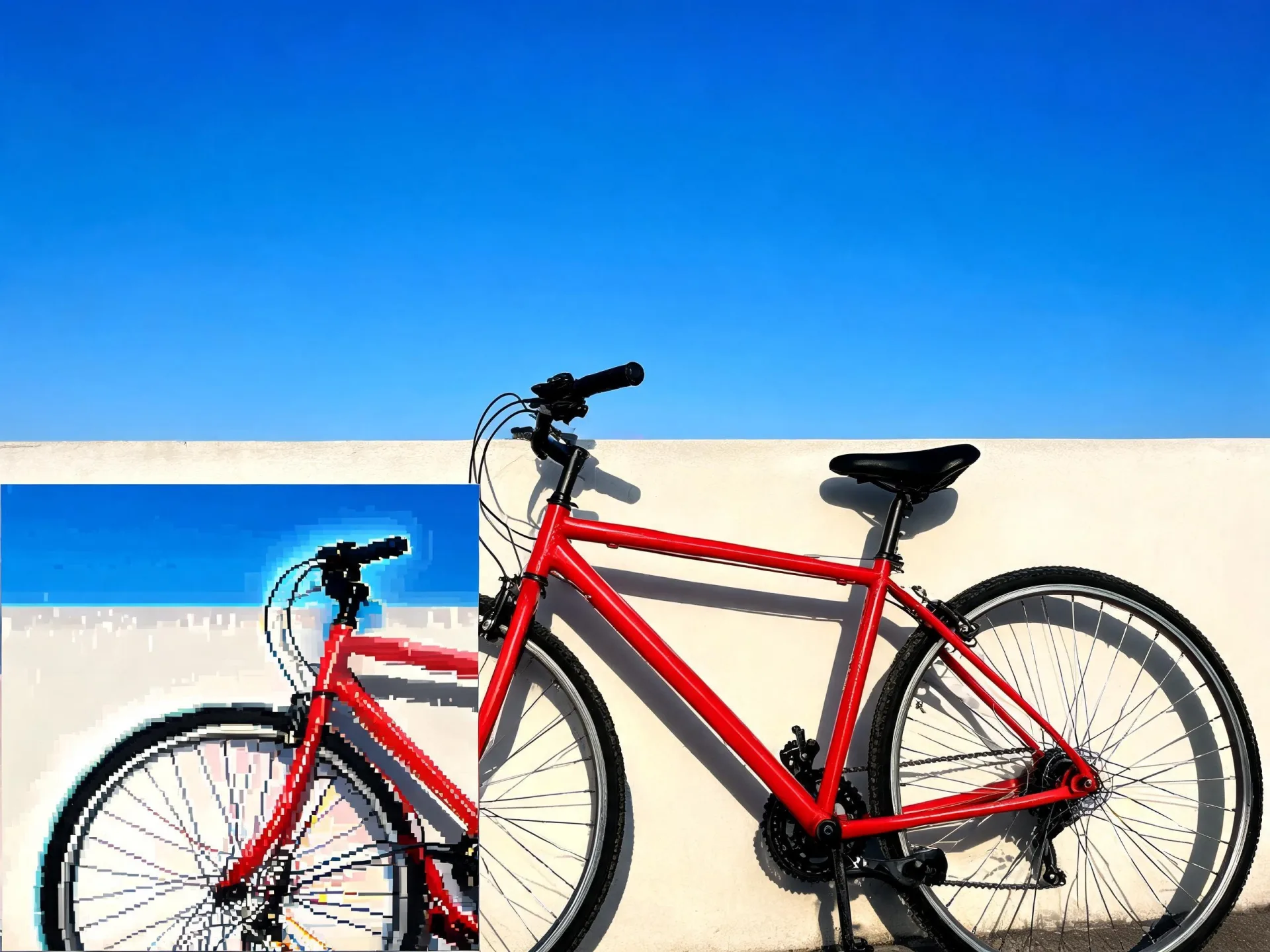
Some files are already large and still look mushy: soft focus, heavy compression, or years of re-saving. Upscaling can make an image higher quality by rebuilding edges and texture, though visible compression artifacts and watermarks limit how far that goes.
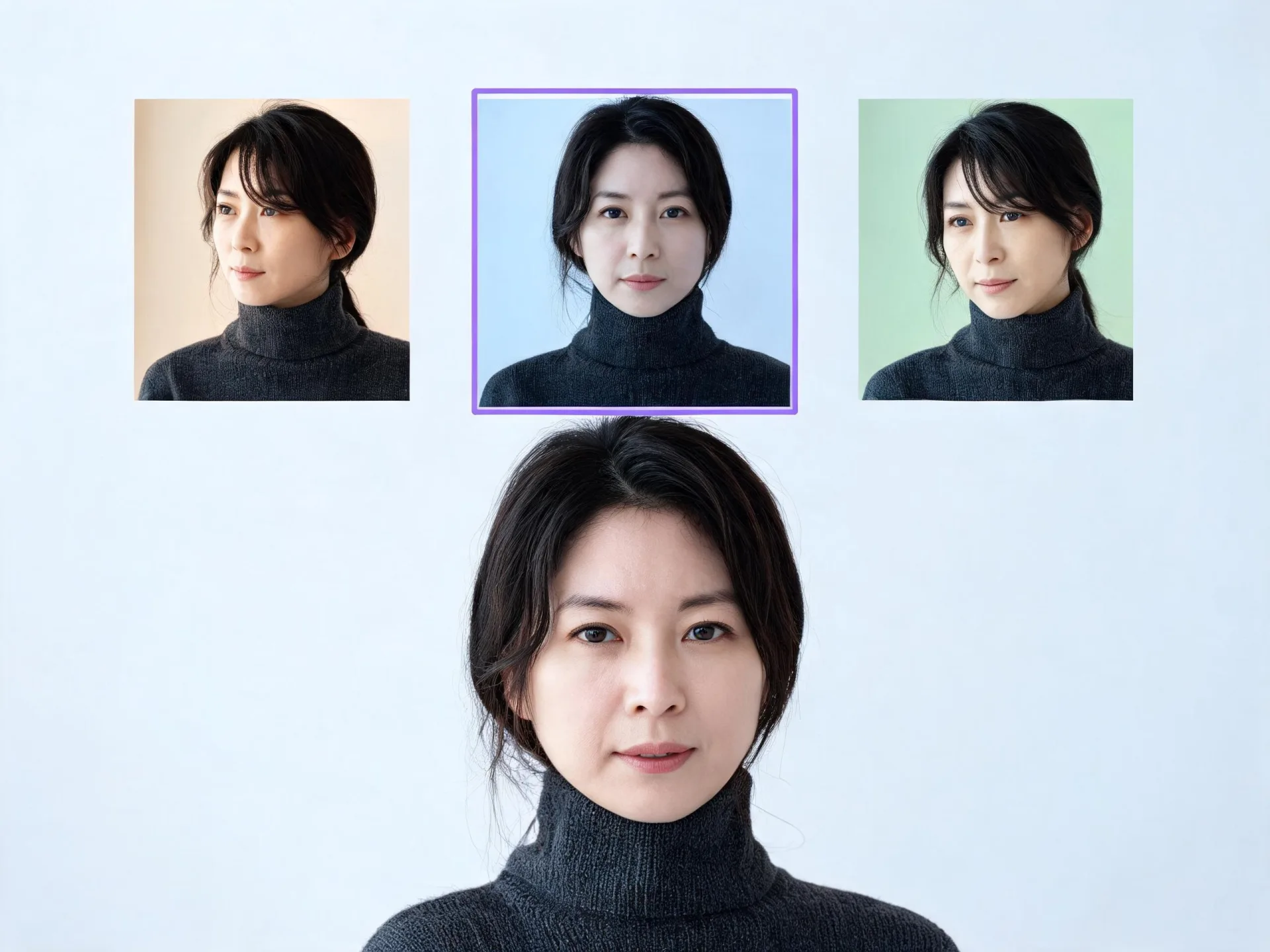
Upscale the images you generated in ZenCreator
Text to Image, the Image Editor, and Variations all produce results you can carry forward. Upscale the version you picked before it reaches a client, a storefront, or an image-to-video step, without an export-and-reupload detour.
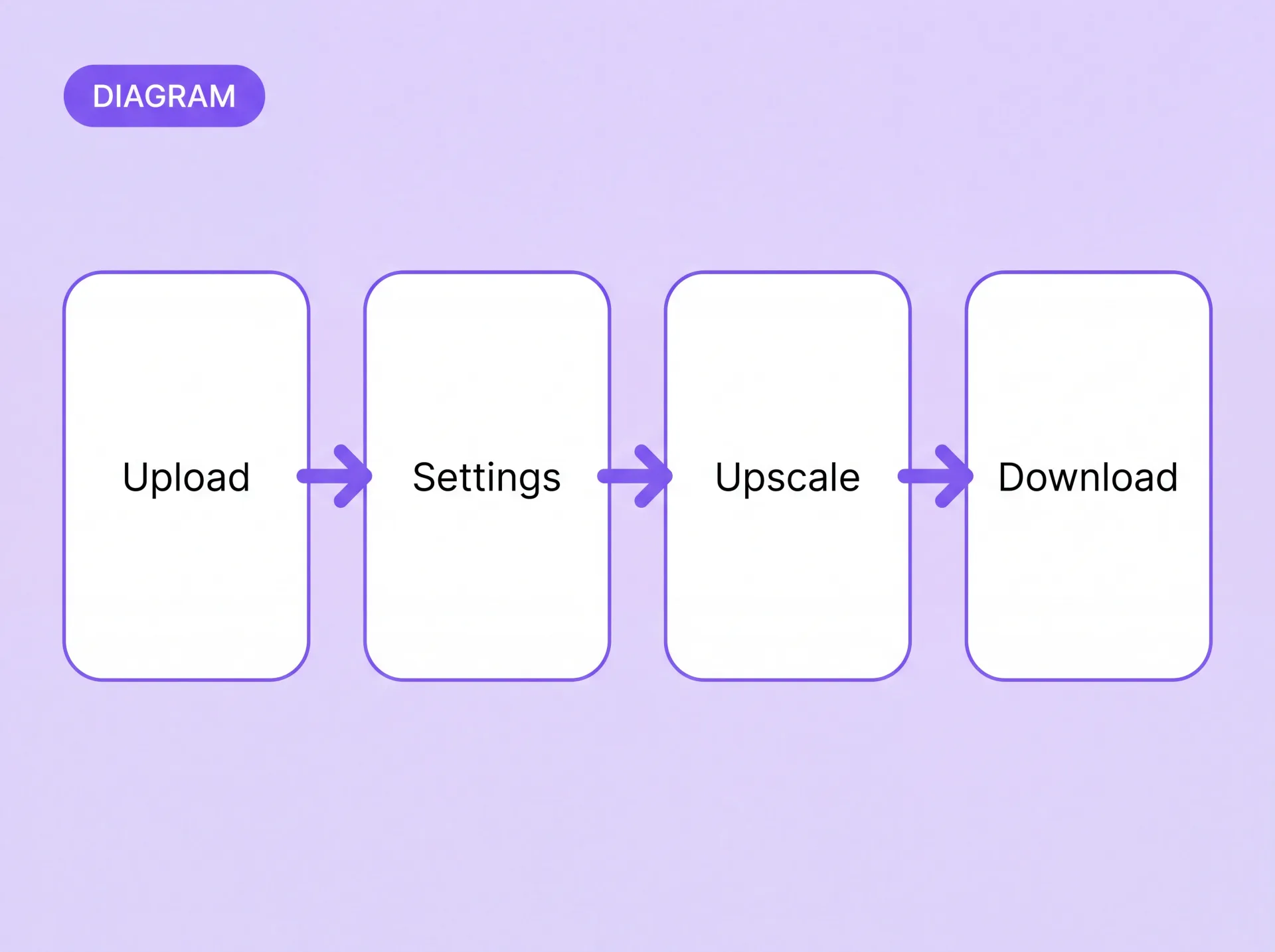
How to upscale an image in ZenCreator
Four steps from upload to download. It is the same sequence whether you are enlarging a product shot or working out how to make a photo higher resolution for a full-width banner.
What affects your result
Four things decide how much detail comes back.
Source quality
Blur, strong compression, and watermarks limit what any upscaler can recover. A small clean file usually beats a large damaged one.
What is in the frame
Faces, small text, and fine repeating patterns are the hardest things to reconstruct. Check those areas first when you review a result.
The settings you choose
Available options depend on the tool and the model selected for the run.
What upscaling aims to do
It is designed to preserve the composition, subject, and color you uploaded while adding resolution. That is an aim rather than a guarantee, so review the result at full size before you publish it.
You already have the file
Upload it and see what the larger version looks like at full size.
Upscale the image you have, or generate a new one
Both routes are in the same account. The question is whether the picture in front of you is the right picture.
If the file is right and only the size is wrong, upscale it. If the picture itself is wrong, start in the Image Editor or Text to Image, pick the version you like, and upscale that.
How to choose the best image upscaler
Five questions worth asking of any photo upscaler, including this one. They separate a tool that adds detail from one that only makes the file bigger.
Conclusion The best way to upscale an image is to start from the strongest source you hold, then judge the result at full size rather than in a thumbnail.
Where creators use it
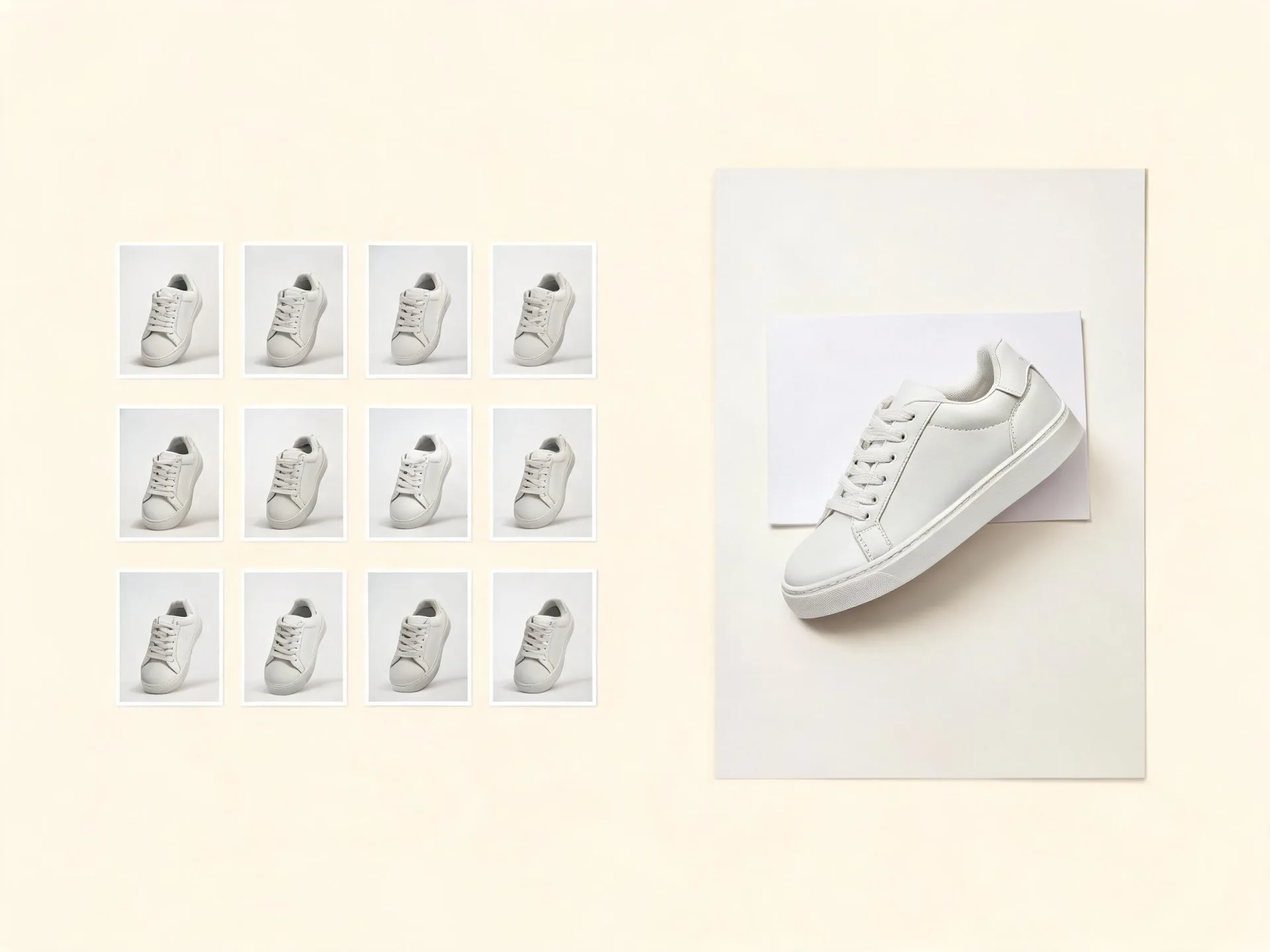
Product images that arrived too small
A supplier sends a catalog photo at thumbnail size and the listing needs something larger. Upscale the file you were given instead of waiting on a reshoot.
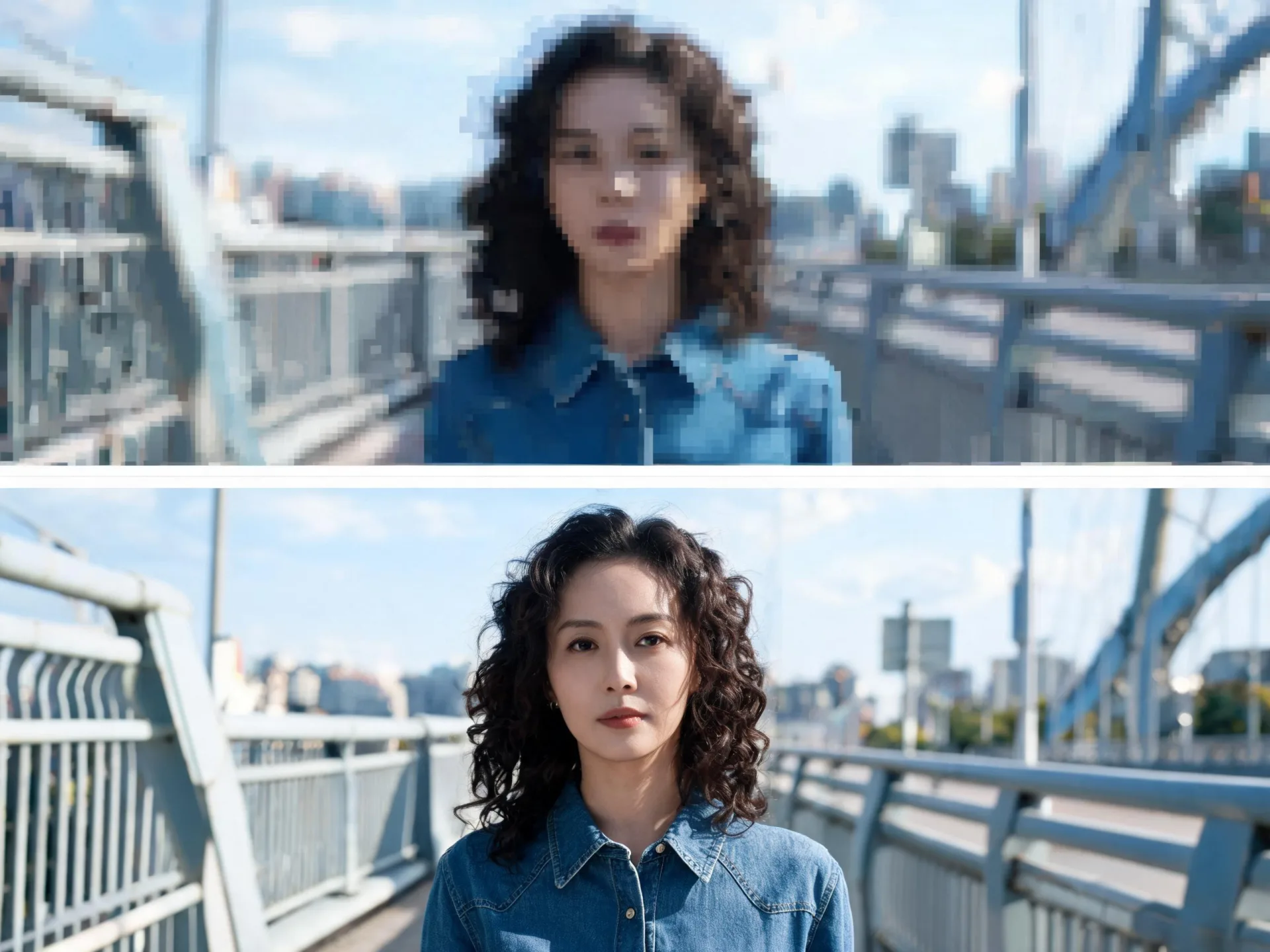
Old uploads at full width
A photo that looks fine in a feed falls apart in a full-width hero. Improve photo resolution on the copy you still have rather than losing the shot.
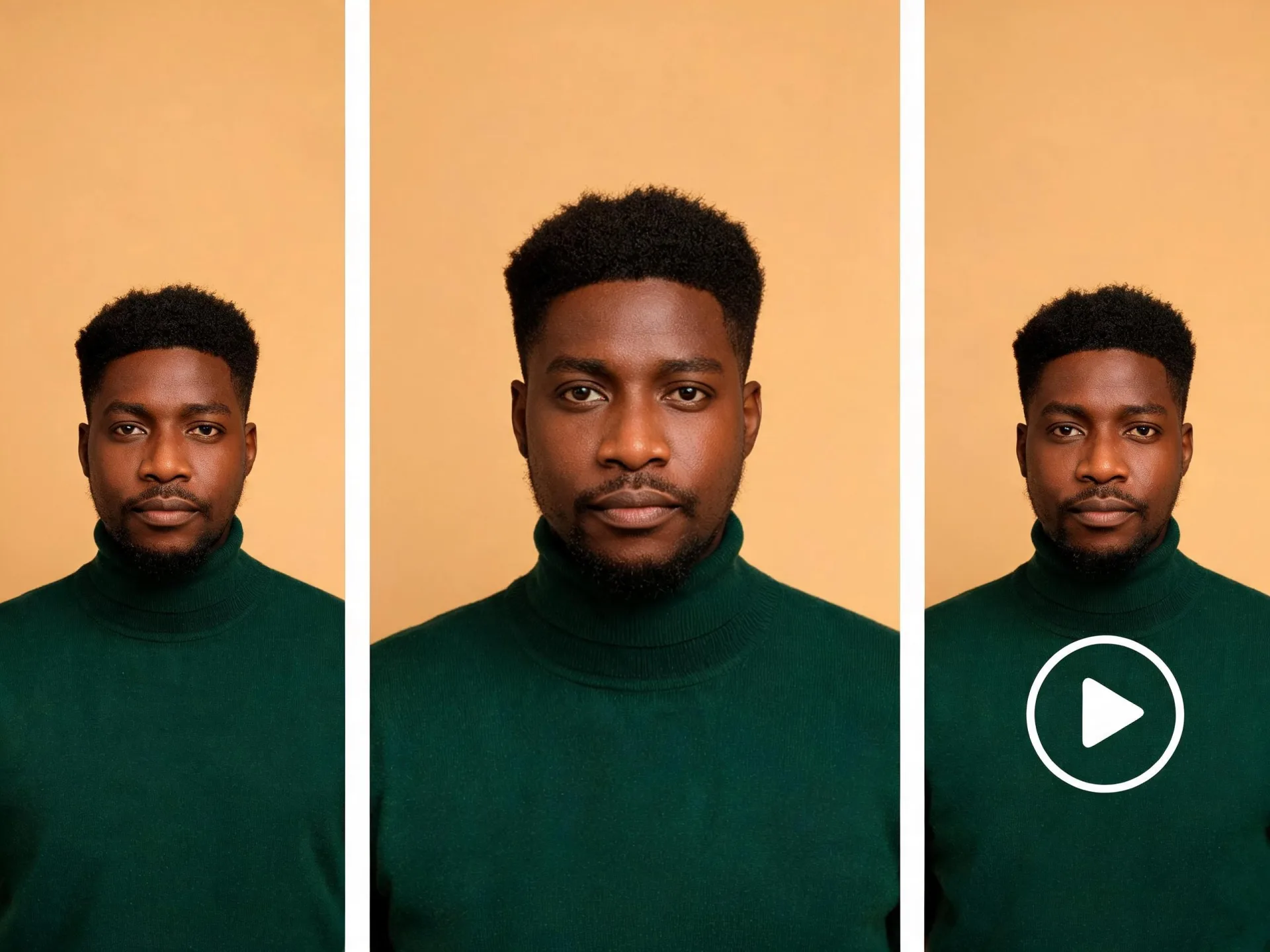
Generated images, published at size
Upscale the character or scene you generated in Text to Image or Variations before it goes out, then send it on to an image-to-video step if the campaign needs motion.
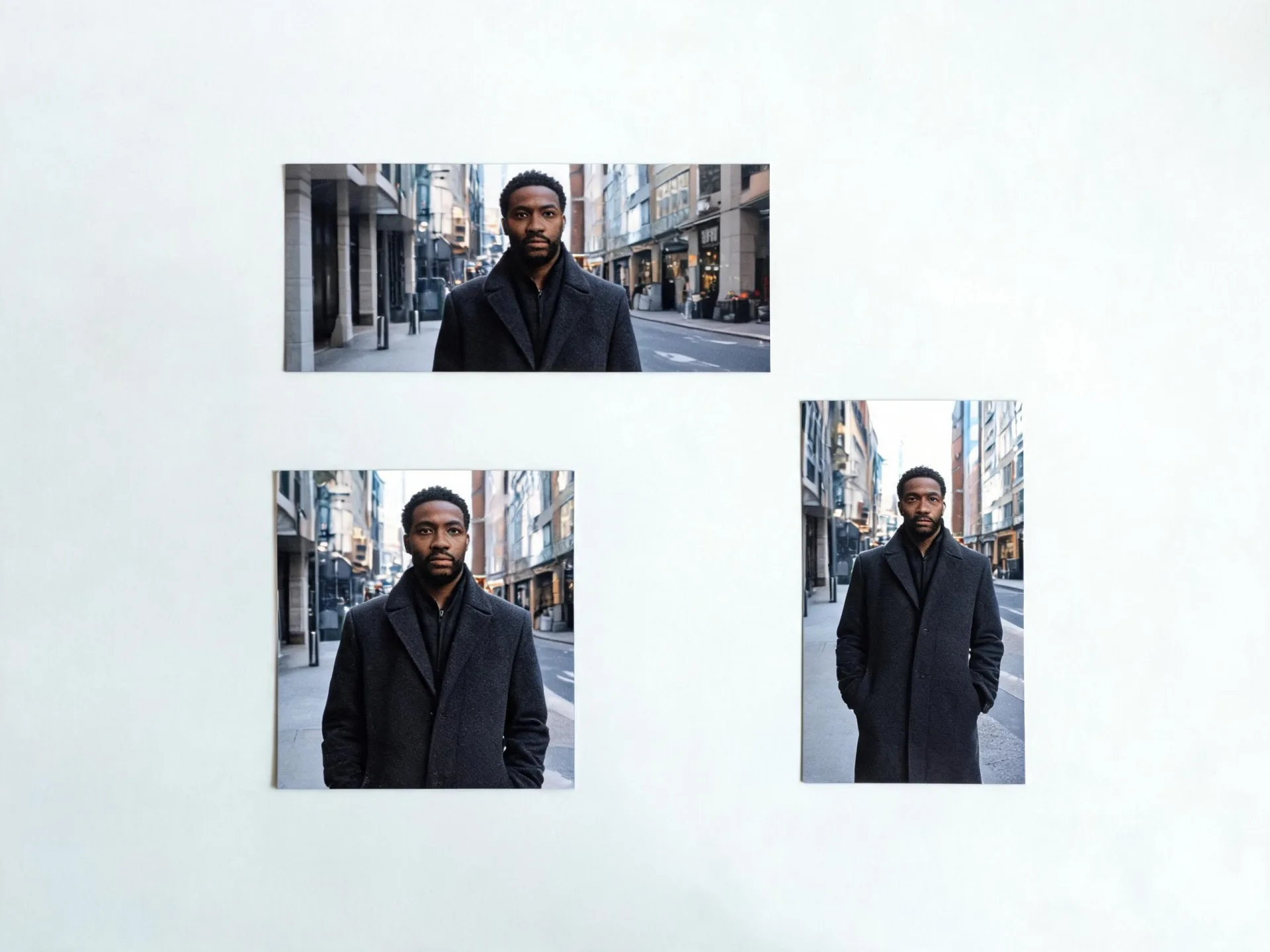
One approved asset, more placements
The hero image cleared review at one size and is now needed larger. Upscale the approved file instead of restarting the approval cycle.
Before you upload someone else's photo
Rights and consent
Only upload images you have the right and permission to use. If an image includes another person, make sure you have the consent your intended edit and use require. The Content Policy sets out what is allowed, and the Terms and Conditions cover your responsibilities for what you upload and how you use the result.
Automatic screening
Prompts and uploaded images are screened automatically before generation using multiple detection systems. Requests that fall outside the Content Policy do not run.
Your account and your files
Your uploads and generated media sit in your account, and you can remove both along with the account itself. Removal is permanent once it completes, so download anything you want to keep first. ZenCreator is a brand operated by Dimeris Ltd.
Questions about upscaling images
Do I need image upscaling software or an app?
No. ZenCreator runs in your browser and processes in the cloud, so you can upscale an image online from any machine you can sign in on. An account is required, and users must be at least 18 years old.
Can I upscale an image without losing quality?
Upscaling is designed to preserve what is already in your frame while it adds resolution, but it cannot restore detail the source never captured. Heavy blur, strong compression, and watermarks all limit the result. Start from the cleanest copy you hold and judge the output at full size rather than in a preview.
Can I use upscaled images commercially?
Commercial use is permitted under the ZenCreator Terms, subject to your compliance, applicable rights, and the terms governing the service and source materials. Outputs are non-exclusive: similar or identical results may be generated for other users, so you do not receive exclusive rights to a concept or a style.
Can I upscale a photo of a real person?
Yes, if you hold the rights and consents your intended use requires. Content involving a real person's image or likeness is governed by the Content Policy, and uploads are screened automatically before generation.
How do I delete the images I uploaded?
Open Settings, choose Delete Account, or email [email protected] from the address on your account. Deletion is initiated immediately and completed within 30 days. Limited legal, transaction, safety, and moderation records may be retained, and deleted data cannot be recovered. The Data Deletion page describes the process.
Can I upscale video the same way?
No — video runs through a separate tool. The Video Upscaler works on existing clips with its own settings; the upscaler on this page works on stills.
Start with the image you already have
The ZenCreator image upscaler works on the file in front of you — upload it, and see the result at full size before you use it anywhere.