Updated September 2026
AI Hairstyle Changer:Try New Hairstyles on Your Own Photo
Upload a clear photo, describe the cut you have in mind or pick a template, and see yourself with different hairstyles before you book the salon.


One photo, four looks. The original portrait and three hairstyle edits (bob, long waves, pixie) made in the Image Editor.
Try on hairstyles on your own photo before you commit
Upload a photo of yourself, describe the new cut or choose a ready-made template, and the ZenCreator Image Editor returns an AI hairstyle preview on that same picture. Add what should stay the same, such as "keep my face, pose and background unchanged"; with a clear face photo, the result still looks like you rather than a stranger.
A preview answers what a reference picture of someone else can't: how that bob, fringe or fade looks with your face, hairline and features. Generate several versions, compare them side by side, and take the favorite to your stylist, or use it to refresh a profile or content photo.
AI hair style generator for any cut, length or texture
Use it as a haircut generator for the style you already have in mind, or as a hairstyle filter you steer with words. Every prompt below follows the same simple pattern: what to change, and what to keep the same. Copy one, swap in your details, and run it on your photo.
Six AI-generated hairstyles from the prompts below. Five share one source portrait; the men's cut uses a separate male portrait.


Classic bob
A clean, chin-length shape that works with straight or slightly wavy hair.Change her hair to a chin-length classic bob with a soft side part. Keep her face, expression, clothing and background unchanged.


Pixie cut
The biggest length change, worth previewing before it happens for real.Give her a short textured pixie cut with slightly longer layers on top. Keep her face and pose exactly the same.


Long beach waves
Adds length and volume without changing the rest of the photo.Change the hair to long, loose beach waves falling past the shoulders with natural volume. Keep the face, lighting and background unchanged.


Curtain bangs
A face-framing fringe you can test while keeping your current length.Add soft curtain bangs parted in the middle and keep the rest of the hair at its current length. Do not change the face or makeup.


Men's low taper fade
Short sides, texture on top, and a clean neckline.Change his hair to a low taper fade with a textured crop on top. Keep his face, facial hair and clothing unchanged.


Copper hair color
Try a new shade and keep the cut you already have.Change the hair color to a warm copper red, keeping the same cut and length. Keep the face and skin tone unchanged.
Why ZenCreator for your next haircut

Describe the cut in your own words
You aren't limited to a fixed menu of styles: type the length, texture, parting or color you want. If you'd rather not write a prompt, start from a ready-made template in the Templates library.


Change your hairstyle, keep your face
The Image Editor preserves facial identity, especially with a clear face image and a prompt that avoids extreme or conflicting instructions. That makes it an AI hair changer for your own photos, so you judge a cut on your face rather than on a model's.


Try different hairstyles side by side
Set the number of images to get several variations of one cut in a single run, then change the prompt for the next style. Batch Mode applies the same edit to several of your photos at once, which helps you check a cut from more than one angle.


Finish the photo in the same studio
Send the favorite to the Image Upscaler for a sharper, larger file, or animate it with Image to Video. Your credits work across every ZenCreator tool and never expire.
How the haircut simulator works
An AI haircut preview takes four steps and runs in your browser on desktop, tablet or phone.
Upload a clear, front-facing photo
Use a well-lit JPG or PNG where your face and hairline are visible. The better the photo, the more convincing the result when you try hairstyles on your face.
Pick a template or a model
Start from a ready-made template, or choose one of the Image Editor's 10 models and write your own instruction.
Describe the new hairstyle and what to keep
Name the cut, length, texture, parting and color, then add what must not change: "keep my face, expression and background unchanged". Leave Aspect Ratio on Auto to keep your photo's original aspect ratio.
Generate, compare, download
Choose how many versions to create; the credit cost appears on the Generate button before you confirm. Compare the results side by side, rerun any that need work, and download one image or all of them from the task, My generations or the tool's Gallery.

The Image Editor with a photo uploaded, a hairstyle prompt entered and the credit cost shown on the Generate button.
Have a cut in mind? See it on your own photo before the appointment.
Who uses a virtual hairstyle try-on


Find your hairstyle before the salon
Torn between a lob and long layers? Generate both on the same photo, compare them side by side, and show your stylist exactly what you mean instead of a stranger's reference picture.


Try on men's hairstyles
Check a fade, taper, textured crop or extra length on top before the barber starts. Describe the grade and the length on top, and ask the editor to keep your face and facial hair as they are.


Test a big change first
Going from long to short, adding bangs or switching color is hard to undo. A short hair simulator run shows the result on your own face while the decision is still reversible.


Hairstyle makeover for your content
Give a profile photo, creator shot or recurring persona a new look without a reshoot. The edit works on photos you already have, and you can tell it to keep the outfit and scene.
Change the hair, swap a head, or design a new face?
ZenCreator has three ways to put different hair on a face. Pick the one that matches the photo you start with.
- Start from
- Your photo
- What changes
- The hair you describe: cut, length, texture or color
- What stays
- Your face, pose and background when the prompt asks to keep them
- Best for
- Trying a new cut or color on an existing photo
- Start from
- A source portrait and a target photo
- What changes
- The whole head, hair included, moves onto the target photo; see AI Head Swap with Hair
- What stays
- The target photo's body, pose, clothing and scene
- Best for
- Moving a complete look, head and hair, into another photo; needs Trusted Status, which any credit-pack purchase unlocks
- Start from
- Settings only, no photo needed
- What changes
- You choose the hairstyle (straight, wavy, curly, kinky/coily, braided, bun or ponytail) and hair color of a new face
- What stays
- Nothing to keep: every portrait is new
- Best for
- Designing a new synthetic portrait or persona
For a new haircut on a photo of yourself, start with the Image Editor; use the other two when you need a whole-head swap or a face that doesn't exist yet.
Get a realistic result: photo and prompt tips


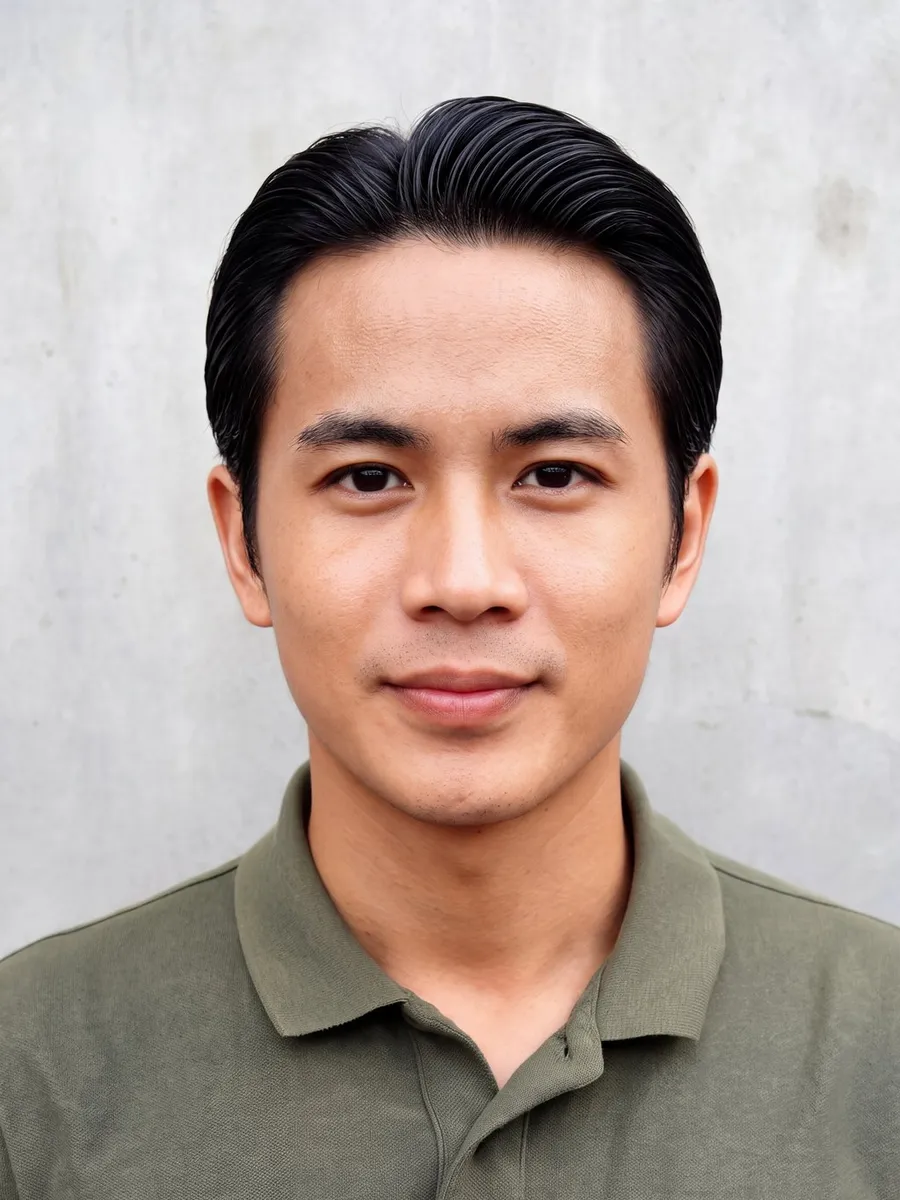
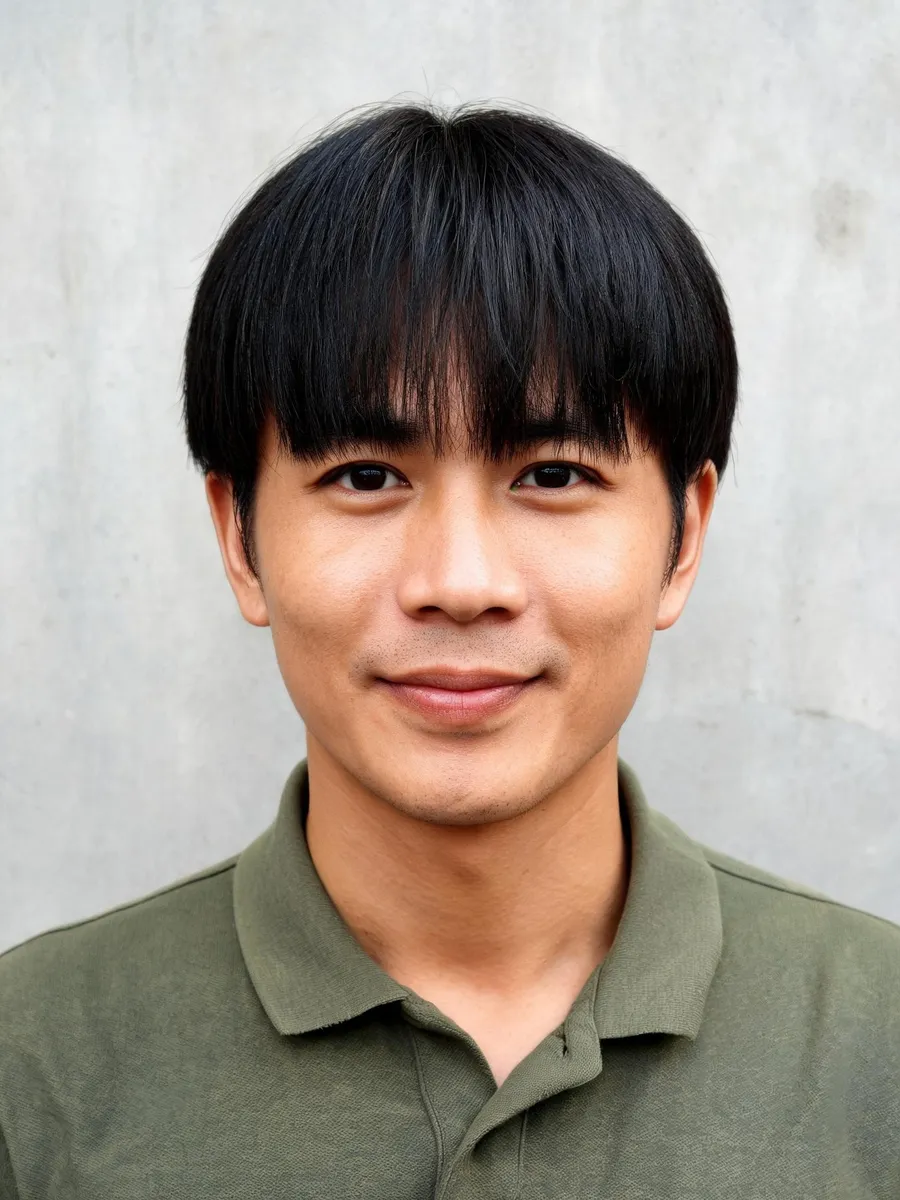
Left: a clear, front-facing source photo. Right: the same photo after a hairstyle edit.
Show your face and hairline clearly. Use a front-facing photo in even light, without a hat, sunglasses or hands near the face; hair crossing the face and accessories are known weak spots for AI.Describe length, texture and parting. "Shoulder-length, wavy, middle part" gives the model far more to work with than "something trendy".Change one thing at a time. Get the cut right first, then change the color in a separate run.Generate several versions. Results vary from run to run, so compare a few before you decide.
AI results aren't always perfect: some may include artifacts or small inconsistencies. If that happens, run the edit again or simplify the prompt.
Only upload images you have the right and permission to use. If an image includes another person, make sure you have the consent required for your intended edit and use. Read the Content Policy for details.
Frequently asked questions
Can I use it like a haircut filter on my phone?
Yes, it works on a photo you upload. Open ZenCreator in your phone's browser (there is a mobile and tablet version, plus a mini-app inside Telegram), upload a JPG or PNG selfie and describe the cut. Instead of scrolling through presets, you type the style you want or start from a template.
Which hairstyle suits my face?
The most reliable test is seeing the options on your own photo. Generate three or four candidate cuts on the same picture, compare them side by side, and take your favorites to a stylist, who can judge how each one will work with your hair type.
How much does a hairstyle edit cost?
Each image costs credits, and the amount depends on the model you choose. The cost per image and the total appear on the Generate button before you confirm. Credits come in packs with no subscription, work across all ZenCreator tools and don't expire. See Pricing for current packs.
How long does it take?
Most tasks finish within 1–5 minutes. At peak load or with some models it can take longer. Finished results appear in the task and in My generations, where you can download them.
Will my face stay the same?
The Image Editor preserves facial identity, especially with a clear face image and a prompt that avoids extreme or conflicting instructions, so say "keep my face unchanged" explicitly. Some results may still contain artifacts; if you see them, run the edit again or simplify the prompt. If the likeness drifts, you can run Head & Face Swap on the result afterwards.
Can I upload a photo of someone else?
Only if you have the rights and consent required for your intended edit and use. Users must be at least 18, and prompts and uploaded images are automatically screened before generation. The Content Policy explains the rules for real-person content.
Can I use the edited photos commercially?
Commercial use is permitted under the ZenCreator Terms, subject to your compliance, applicable rights, and the terms governing the service and source materials. The license is non-exclusive, and similar outputs may be generated for other users. Details are in the Terms and Conditions.
Try the AI hairstyle changer on your own photo
See your next cut before the salon does. The cost of every run is shown before you generate, and your credits never expire.