AI Halloween Filter: Turn Your Photo Into a Halloween Look
A Halloween filter for photos you already have: upload a portrait, describe the look — witch, vampire, skeleton paint — and Image Editor returns edited versions of your picture.
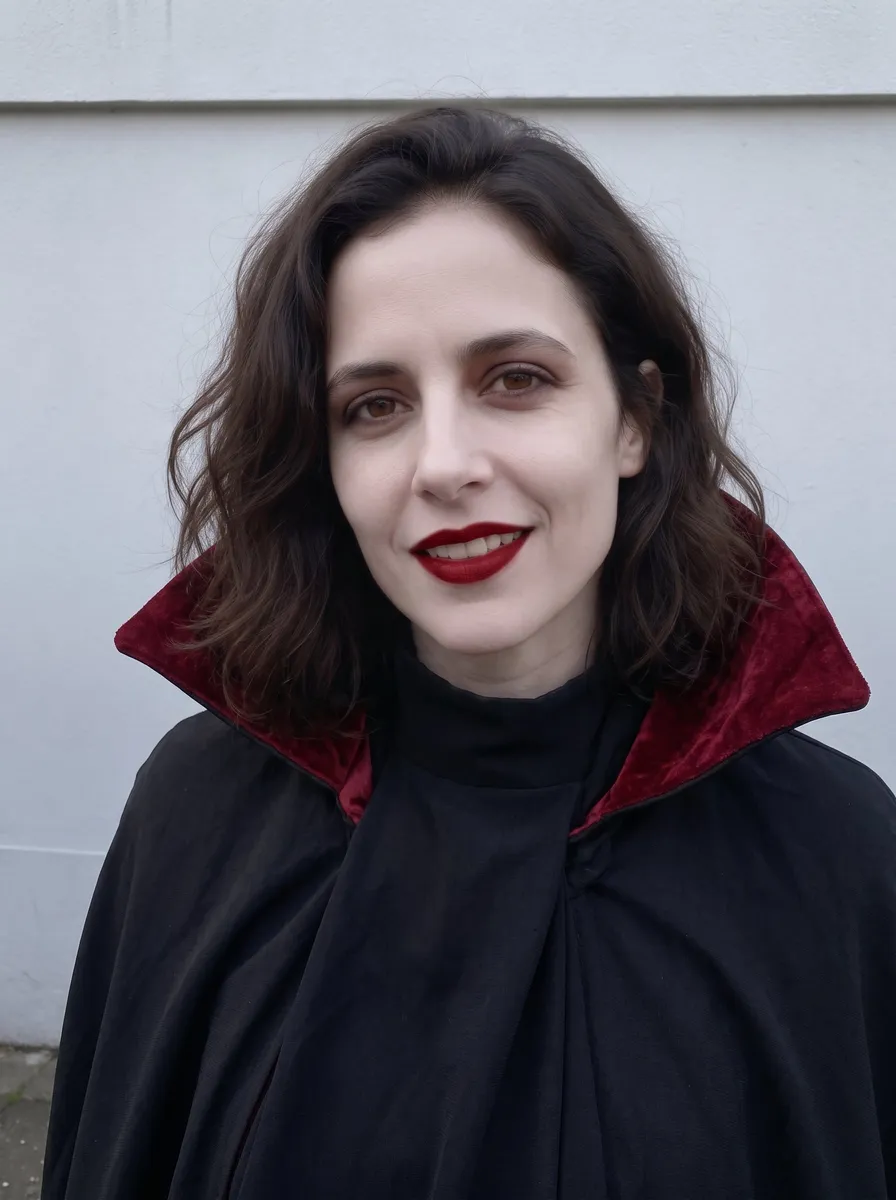
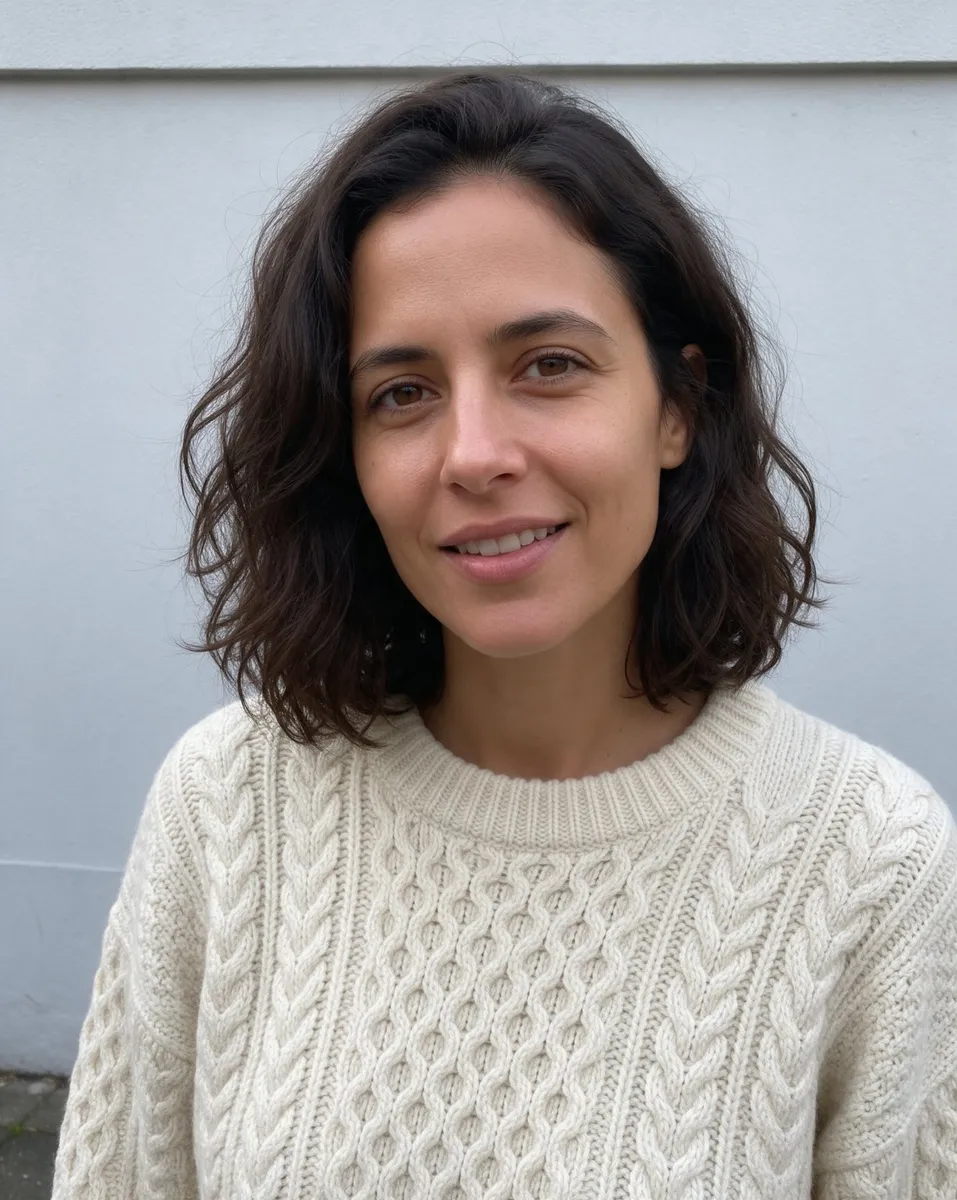
Same portrait, gothic vampire look. The source photo and one result from Image Editor.
What this Halloween filter does to your photo
This Halloween filter is an AI edit of a photo you upload. You open Image Editor, add your portrait, write the look as a change — "turn my outfit into a witch costume, keep my face and pose" — and an AI model returns a new, edited image.
You can change the costume or outfit, add face paint or makeup, swap the background for a haunted house or a pumpkin patch, or restyle the whole shot. Say in the prompt what must stay the same; a clear, well-lit face in the photo gives the model the best chance to keep your likeness. For everyday edits outside Halloween, there is the AI Photo Editor.
Good to know: this is not a live camera lens. It works on a photo you already have, and instead of tapping a ready-made effect, you describe the look in your own words.
Three Halloween looks from one portrait
One source portrait, three prompts, three different results — all made in Image Editor from the same photo.


Halloween filters for photos: looks you can describe
Each card is a starting prompt, not a preset. Change the details until the look is yours — results vary with the photo and the wording.
Moonlit witch costume
A pointed hat, a dark cloak and a full moon behind you."Change my outfit to a black witch costume with a pointed hat, add a full moon in the background, keep my face and pose."
Vampire by candlelight
Pale makeup, a red-lined black cape and a candlelit hall."Give me gothic vampire makeup and a black cape with red lining, candlelit castle hall behind me, keep my face recognizable."
Painted skull face
Black-and-white skeleton makeup, with your outfit left as it is."Paint a black and white skeleton face on me, keep my eyes, hairstyle and clothes the same."
Haunted backdrop or pumpkin glow
You stay as you are; only the scene around you changes."Replace the background with a foggy haunted house lit by jack-o'-lanterns, keep me and my outfit unchanged."
Cartoon Halloween style
The whole photo becomes an illustrated Halloween card."Restyle this photo as a colorful Halloween cartoon illustration with bats and pumpkins, keep my pose and expression."
Monster-movie makeup
Classic film-monster looks — green tint, neat stitches — without gore."Give me classic monster-movie makeup with a green skin tone and neat stitches, no blood, keep my face shape."
Why use ZenCreator as your Halloween image editor
This Halloween photo editor works from your words: you write the costume, the makeup and the scene, and the edit follows your idea rather than a fixed set of effects.
Costume, makeup and scene in one edit
One prompt can ask for a new outfit, face paint and a different background together. For a bigger change, split it: the outfit in one run, the background in the next.
Several versions per run
Set how many images you want before you generate, then compare the variations and keep the one that looks most like you.
The same look across a set
Turn on Batch Mode and each uploaded photo is edited separately with the same prompt — one result per picture, all in a matching style.
Halloween text that stays readable
Need "Happy Halloween" on a sign or a banner? Choose Nano Banana 2 in Image Editor: it handles words in a picture reliably, so the lettering stays legible.
Kept in My Generations
Expect results within seconds to a couple of minutes. Every image is saved to My Generations, ready to download or send to another tool.
How to use the Halloween editor on your photo
To edit your photo for Halloween, you need one clear picture and an idea of the look. The rest happens in Image Editor in five steps.
01
Pick a model for realistic edits
Open Image Editor and choose a model. Nano Banana 2 gives the most realistic, precise prompt-driven edits; switch models if the look needs a different strength.
02
Add your own photo and any references
Upload the photo you want to change — a sharp, well-lit face works best. If you have a costume or backdrop image, add it as a reference.
03
Say what changes and what stays
Describe the look as a change: "add vampire makeup and a dark cape, don't change my face or pose." Vague prompts like "make it spooky" give unpredictable results.
04
Decide on the frame and image count
Aspect ratio Auto keeps your original frame; pick another ratio when the image is meant for a post or a profile picture. Then enter how many images each run returns.
05
Generate, compare, download
Generate and review the results in My Generations. Download your favorite, or adjust the prompt and run again if a detail is off.
Have a photo and a Halloween look in mind? Write it down and see it on your own picture.
Animate your Halloween look into a short clip
Once you have a result you like, send it from My Generations to Image to Video. The clip keeps the subject and general styling of your edited photo and adds motion and camera moves; how long it runs depends on the model. Use it to turn one Halloween picture into a story or a short post — more in Image to Video.
Edit your own photo or generate a new Halloween picture?
- Start with:
- a photo you upload to Image Editor
- Best for:
- you, your friends or your group in a Halloween look
- Faces:
- taken from your photo — most reliable with a clear, well-lit face
- Then:
- animate the result or upscale it
- Start with:
- a written description in Text to Image; Magic Prompt can expand a short idea
- Best for:
- a Halloween scene, poster or invite background made from scratch
- Faces:
- generated from the description, not taken from a photo
- Then:
- animate the result or upscale it
Want yourself in the picture? Edit your photo. Want a new scene from words? Start with the AI Photo Generator.
What to make with a Halloween picture editor
Use it as a Halloween photo maker for the pictures you actually need in October — from one profile shot to a whole party album.
Profile pictures and seasonal posts
Give your profile picture a Halloween look for the month, or make a themed post. Choose the aspect ratio that fits the place you share it.
The whole party in one style
Upload the group's photos with Batch Mode on and write one look: each picture is edited separately with the same prompt. Include only people who agreed to it.
A costume idea, tried on you first
Not sure about a costume yet? Try the idea on your own photo before you put it together. For costume-focused looks, see the AI Halloween costume generator.
Invites and greetings with readable text
Make a Halloween invite or greeting from your photo with the party date or "Happy Halloween" written in. Use Nano Banana 2 so the lettering renders reliably.
Halloween photo editing questions
Will people still recognize me after the edit?
Usually, yes — especially with a clear, well-lit face in the photo and a prompt that says what to keep, such as "keep my face unchanged". Extreme or conflicting instructions, such as heavy makeup, make likeness harder. Nano Banana 2 gives the most realistic edits but is slightly weaker at facial likeness than some other models, so try another model if the face drifts.
What kind of photo works best?
A sharp, well-lit picture with a clear face that is not covered. If the costume or pose matters, a full-body photo helps the model keep pose and proportions right.
Can I add a costume or backdrop reference image?
Yes. Upload a reference next to your photo — an outfit, a mask, a backdrop — and say in the prompt how to use it, for example "dress me in the outfit from the second image". Images from different sources can be combined; how many references you can add depends on the model.
Can I give my friends' photos a Halloween look too?
Yes, for adult friends, a partner or adult family members who agree to it. Only upload images you have the right and permission to use, and make sure you have the consent required for your intended edit and use. Prompts and uploads are screened before generation — see the Content Policy.
What do I need to start?
A ZenCreator account and credits: generating requires credits from a credit pack. The available packs are on Pricing. Then open Image Editor and start with one photo.
Where do my Halloween pictures go, and can I make them bigger?
Every result is saved to My Generations. From there you can download it, or send it to Image Upscaler to sharpen and enlarge it before you post or print.
Give your photo a Halloween look
Upload one portrait, describe the look, and keep the version that feels most like Halloween — and most like you.
Generating uses credits from a credit pack — see Pricing.