Updated October 2026
AI Movie Maker: Turn One Idea Into a Multi-Shot Film
Describe your story once. Video Builder plans the scenes, shots and recurring cast, shows you a still of every shot before filming, then films the clips and assembles one video from 15 seconds to 3 minutes.
- 15 s to 3 min films
- Recurring cast
- Stills before filming
- Title and chapter cards
One brief in, one finished film out
ZenCreator's AI movie maker is Video Builder: you describe a story, and it plans, films and assembles a multi-shot video. Write the brief in up to 4,000 characters, then add up to 8 reference images, where the first one sets your character's style, or a single video whose movement every shot copies.
Before anything is generated, the planner writes a title, scenes, shots and a description of each recurring character, and the plan comes with a quote. You review a still of every shot, then Video Builder films the clips and joins them into one video. Films run from 15 seconds to 3 minutes; results are best between 30 seconds and 2 minutes.
Watch a film made in Video Builder
This short film was planned, filmed and assembled in Video Builder from one written brief, with the same lead character carried through its scenes.
The Last Ferry. A courier in a yellow raincoat races through a harbor town at dusk to catch the last boat. Settings: 31 s · 16:9 · MiniMax 3.0 Turbo · 480p
An AI film maker that plans before it films
To make a film with AI, scenes have to connect, characters have to stay recognizable, and problems are easier to fix before filming than after.
A plan of scenes, shots and cast first
The planner turns your brief into a title, scenes, shots and a description of each recurring character. Every shot is an editable card: add a shot after it, start a new scene from it, or delete it.
A recurring cast that stays recognizable
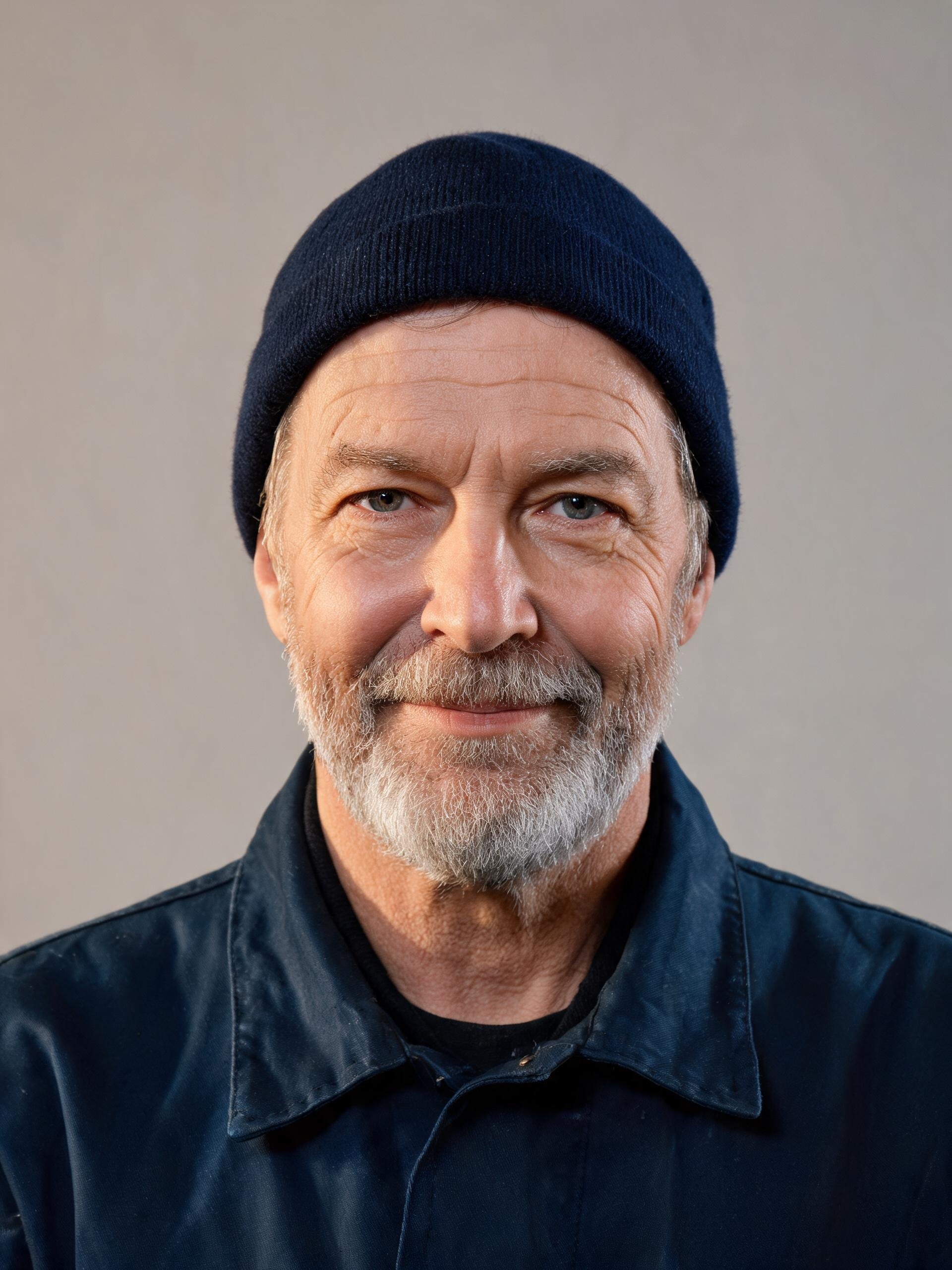
Describe a character once and the planner builds a portrait to keep them consistent across shots. Pin faces to the portrait, or use Fix the face on a single still; framing, hands and light stay as they were.
Review every shot as a still first
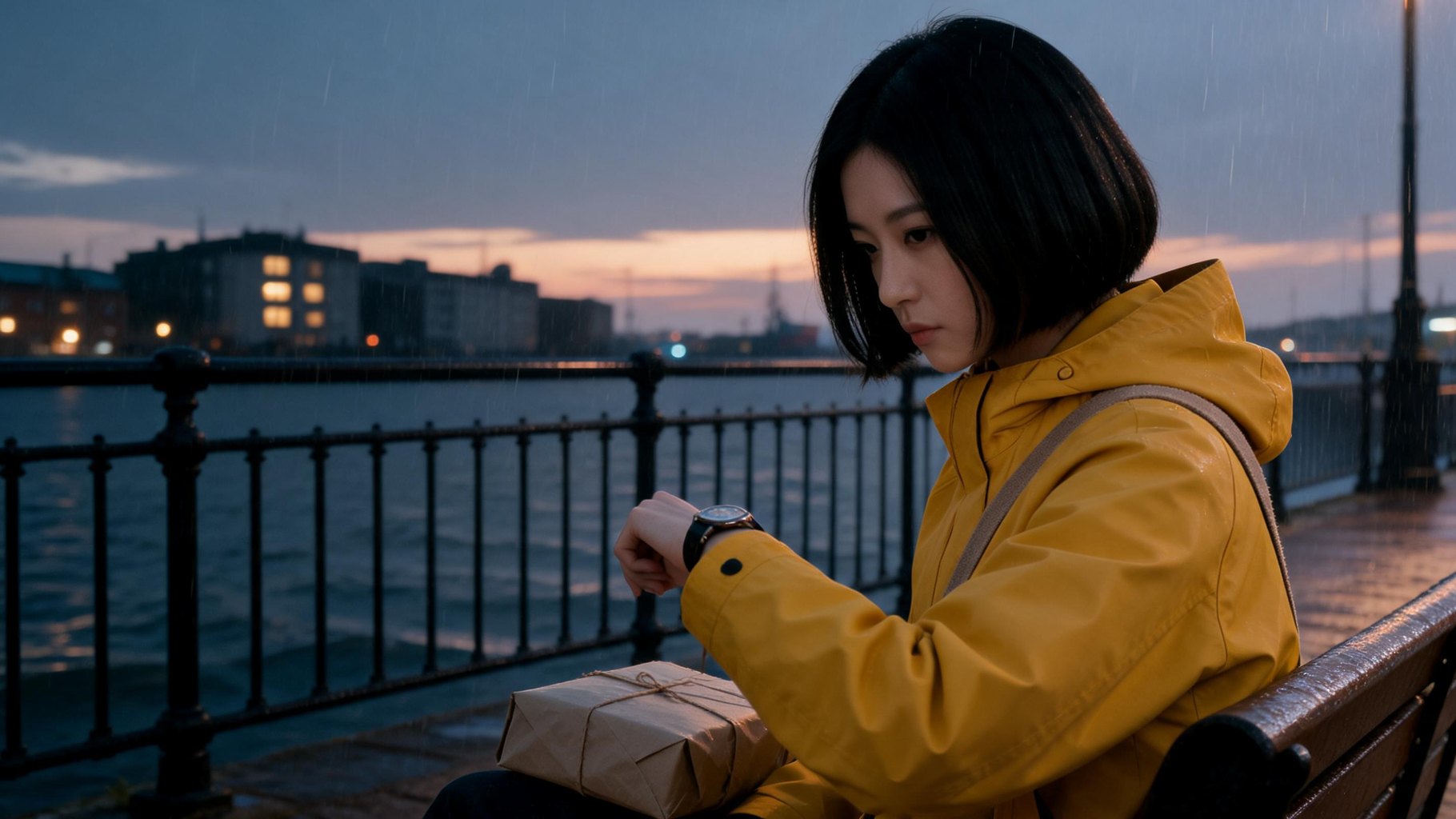
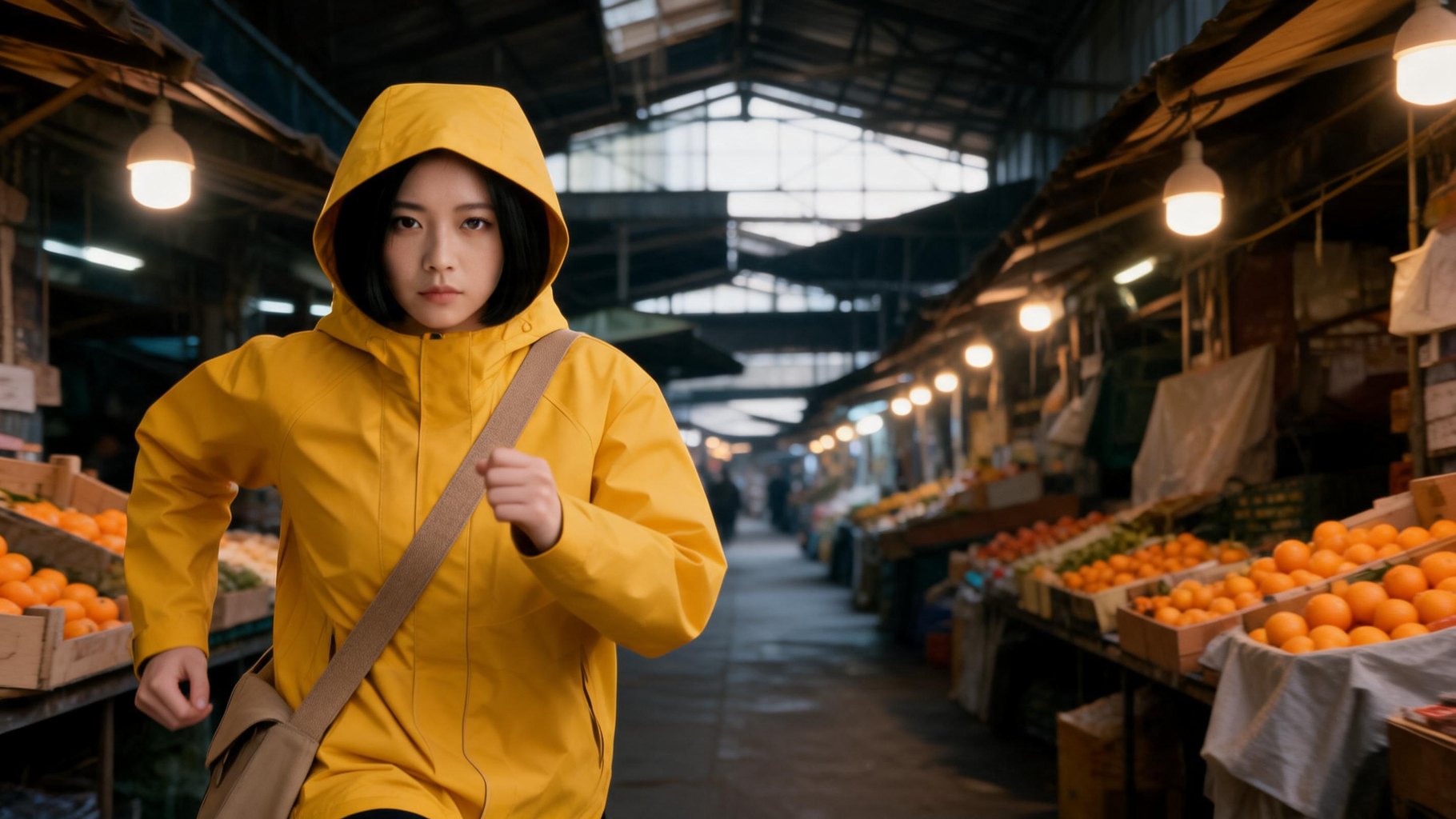
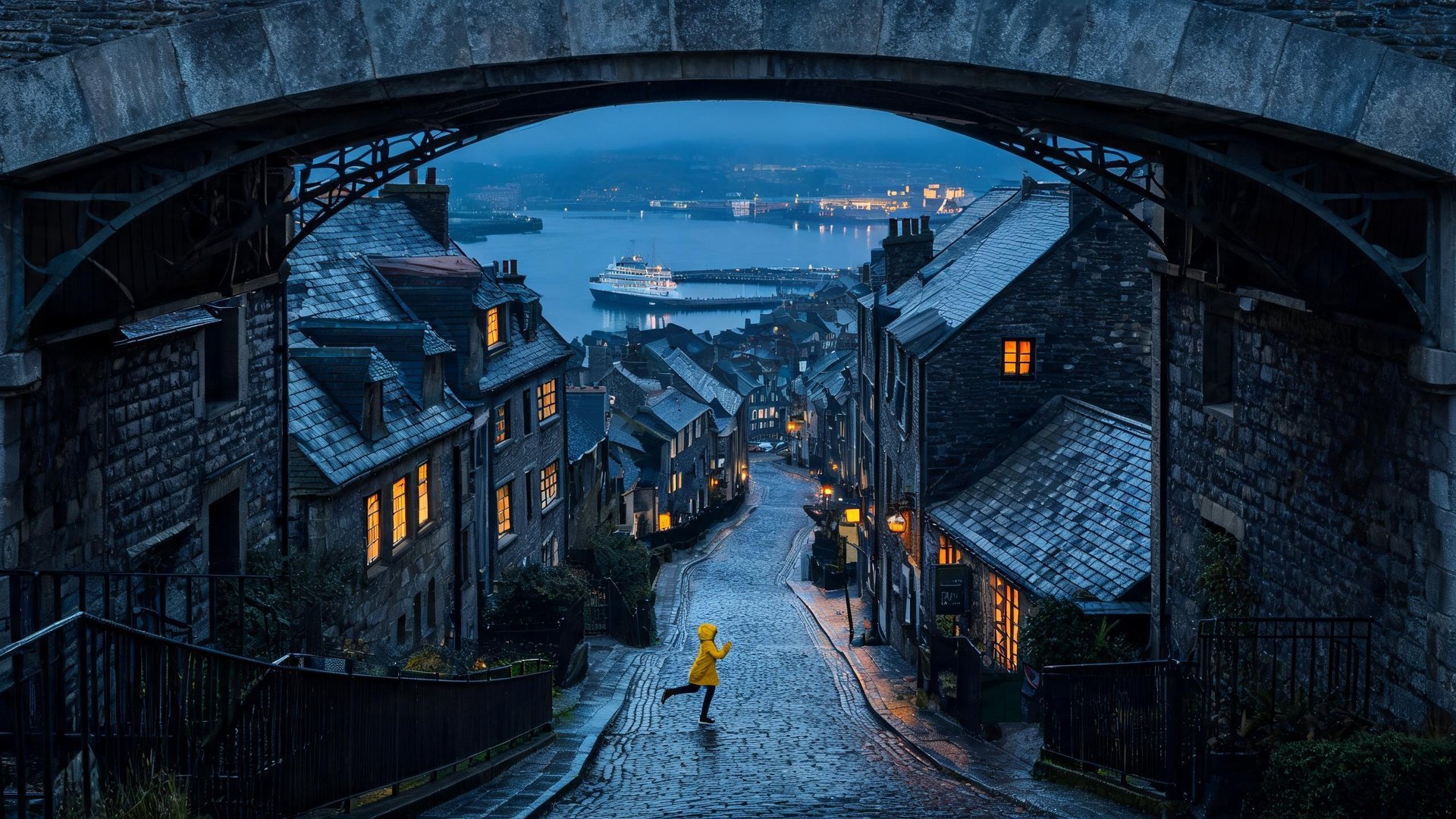
Before any clip is filmed, you get one still per shot and a portrait of each recurring character. Try another look, add four alternative camera positions with Another angle, or fix a face.
Model, length and resolution per shot
Choose the video model for each shot. Shots run from 5 to 15 seconds, longer on some models, at 480p, 720p or 1080p depending on the model.
A finished film, not a folder of clips
At assembly, pick a film look (None, Film, Warm or Cool) and add an opening title, scene cards and a closing card in one of six typefaces, then join the clips into one video.
How to make a movie with AI in five steps
Making a movie with AI in Video Builder follows five stages, from a written brief to a finished video, and you check the work at each stage before moving on.
1. Write the brief
Type your idea into What do you want to make? Tell the story from beginning to end, name the scenes and shots, describe the main character once (appearance, hair, clothing), and set the location, light and camera style. Reference images or a video are optional.
2. Set length and aspect ratio
Choose a length from 15 to 180 seconds in 5-second steps and one of six aspect ratios: 16:9, 9:16, 1:1, 21:9, 3:4 or 4:3. Then click Plan the video.
3. Review the plan
Check the title, the cast and every shot grouped by scene, and edit any shot card you want to change. Look over the quote and the optional add-ons, such as pinned faces, a second camera angle or generated sound, then click Generate.

4. Approve the stills
Review every still and character portrait. Redraw a still, pick another angle or fix a face until each shot looks right, then click Looks good — film it. From this point the plan locks, except prompts, model and resolution.



5. Film and assemble
Clips are generated three at a time, and each usually takes around 2–3 minutes. Regenerate any shot with an edited motion prompt, choose a film look and title cards, then click Assemble the video. Play the result and download it from the player's menu.
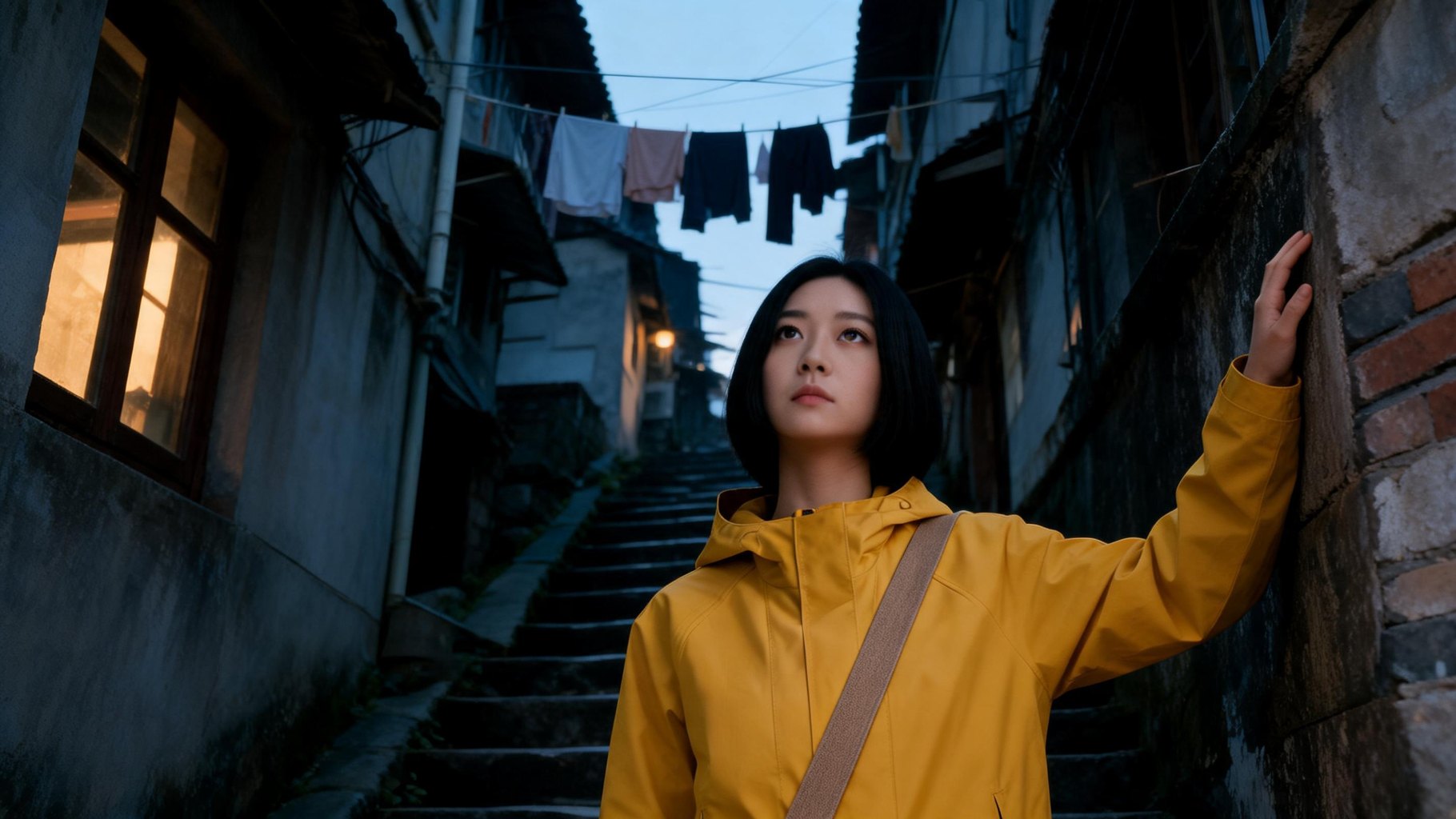
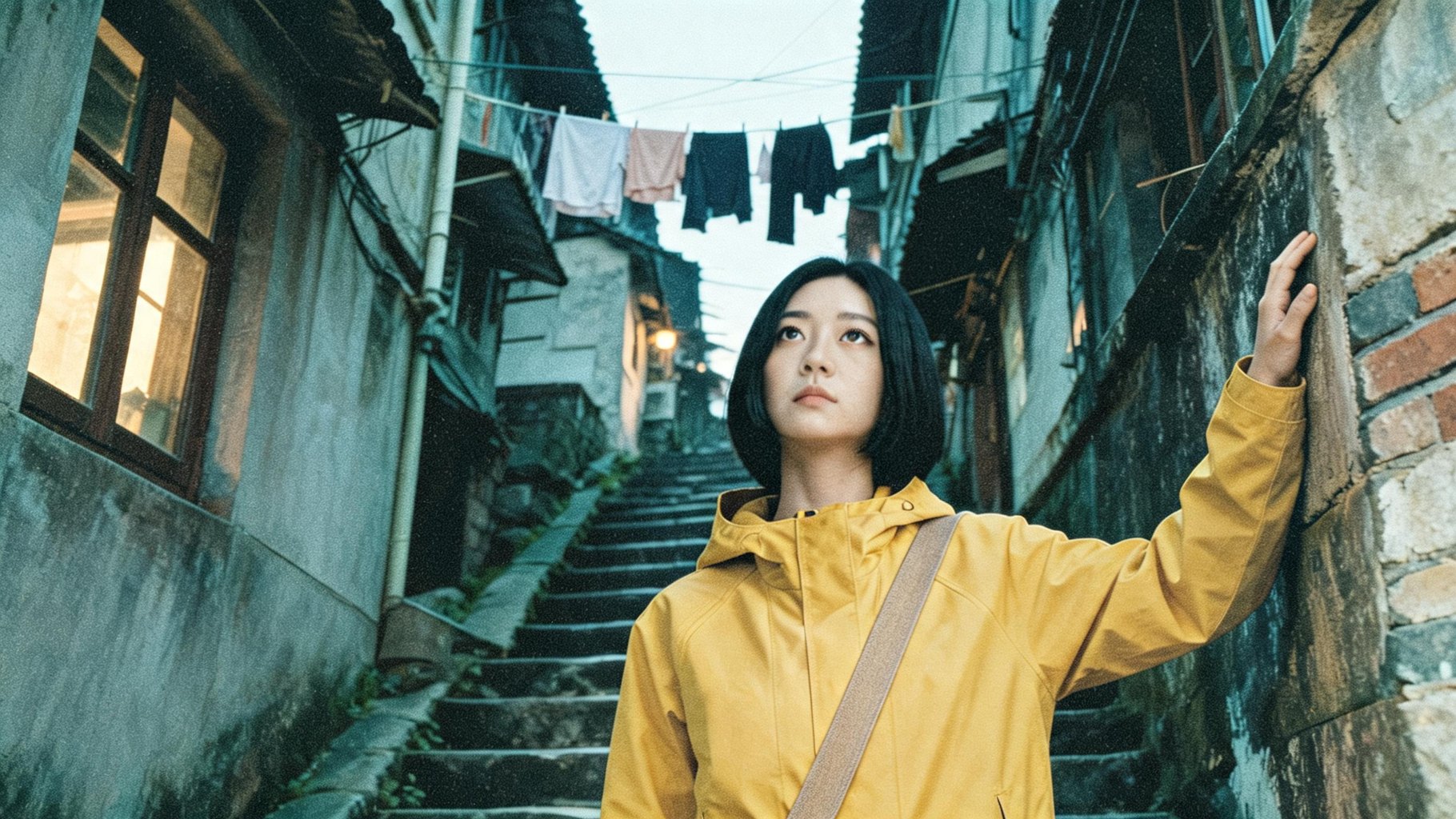
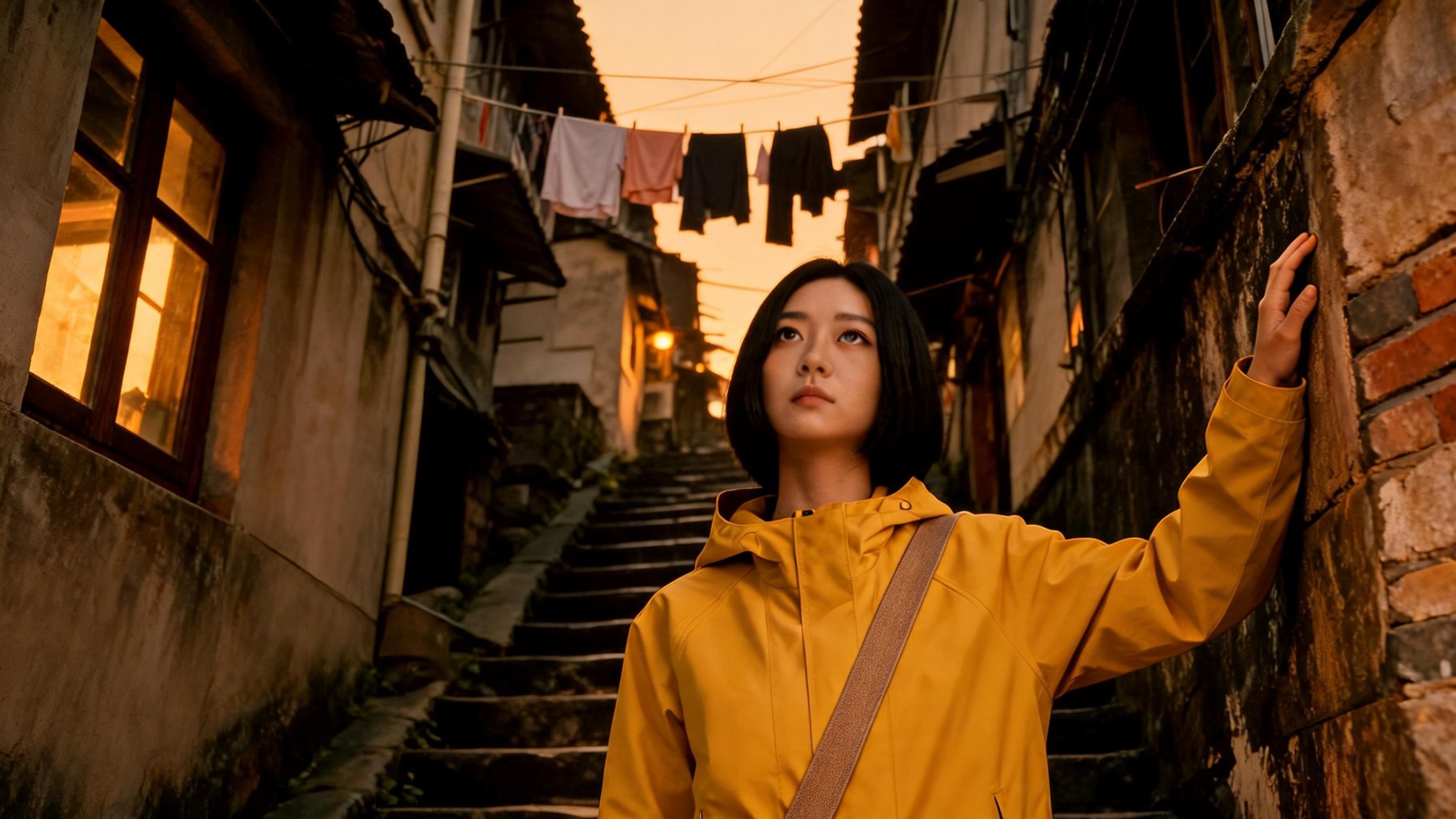
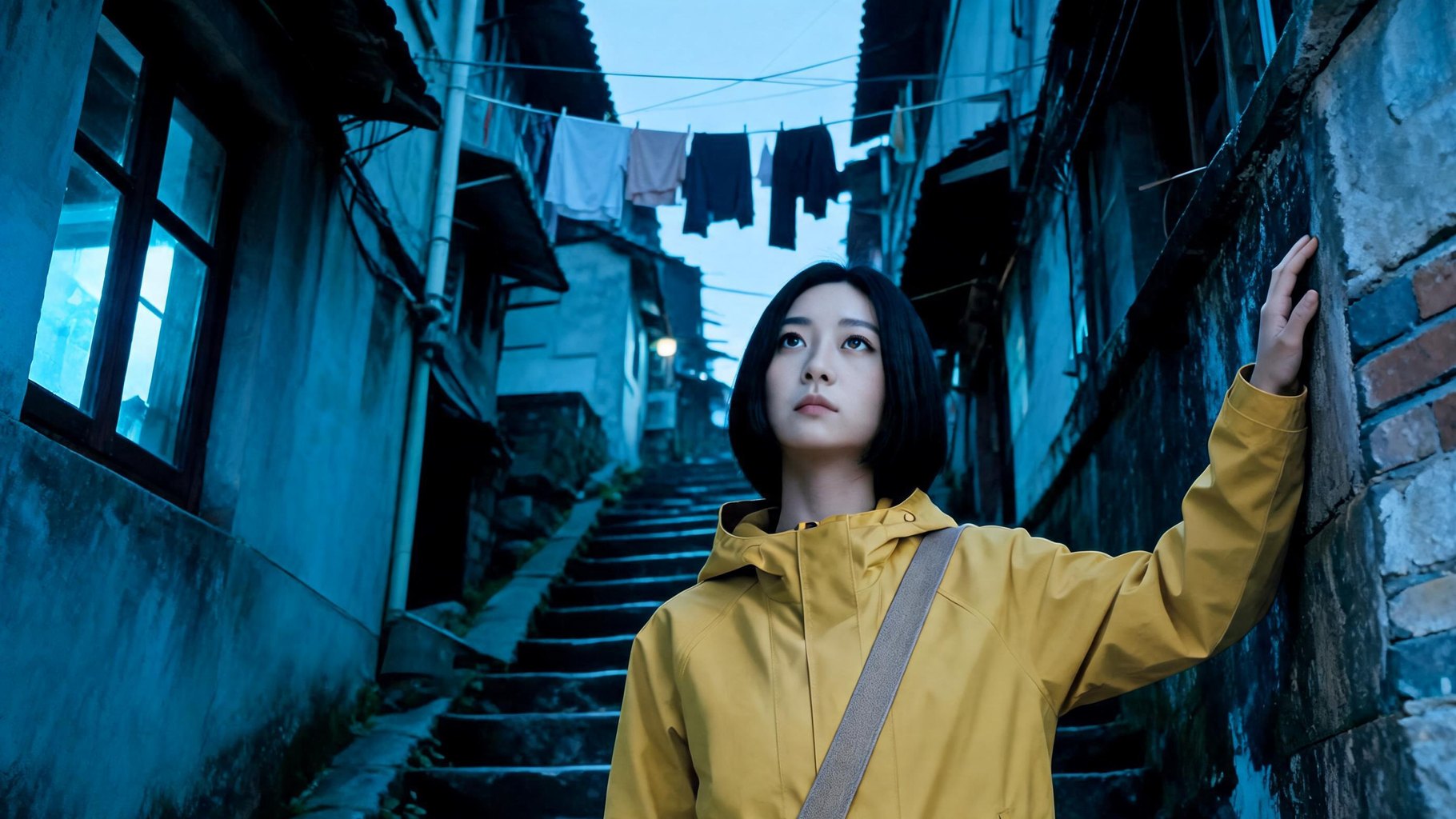
Shot settings you control in the AI movie creator
Every shot in the plan is a card with its own settings, so you direct the film one shot at a time; results can still vary by model and brief.
- What it changes
- What happens in the clip, written as a movement rather than a single moment, such as "she turns from the rail and walks toward the door".
- What it changes
- The still the clip starts from: framing, clothes and light. Leave it blank and the still is built from the motion text.
- What it changes
- How a character differs from their portrait from this shot on, such as a coat taken off. Write it once; it carries into every later shot.
- What it changes
- The model that films this shot, chosen per shot. Switching models can adjust the shot's length and resolution to what that model supports.
- What it changes
- 5, 6, 8, 10, 12 or 15 seconds; 20, 25 and 30 seconds on WAN 3.0 only, which does not support 21:9. Other shots rebalance to keep the total close to your target.
- What it changes
- 480p, 720p or 1080p, depending on the model. Shots that copy movement from a reference video go up to 720p.
- What it changes
- Opens the shot on the last frame of the previous clip, so the two play as one continuous move. Not available on a scene's first shot.
Films and stories you can make
If you want to make movies with AI rather than one clip at a time, these are the projects Video Builder is built around.
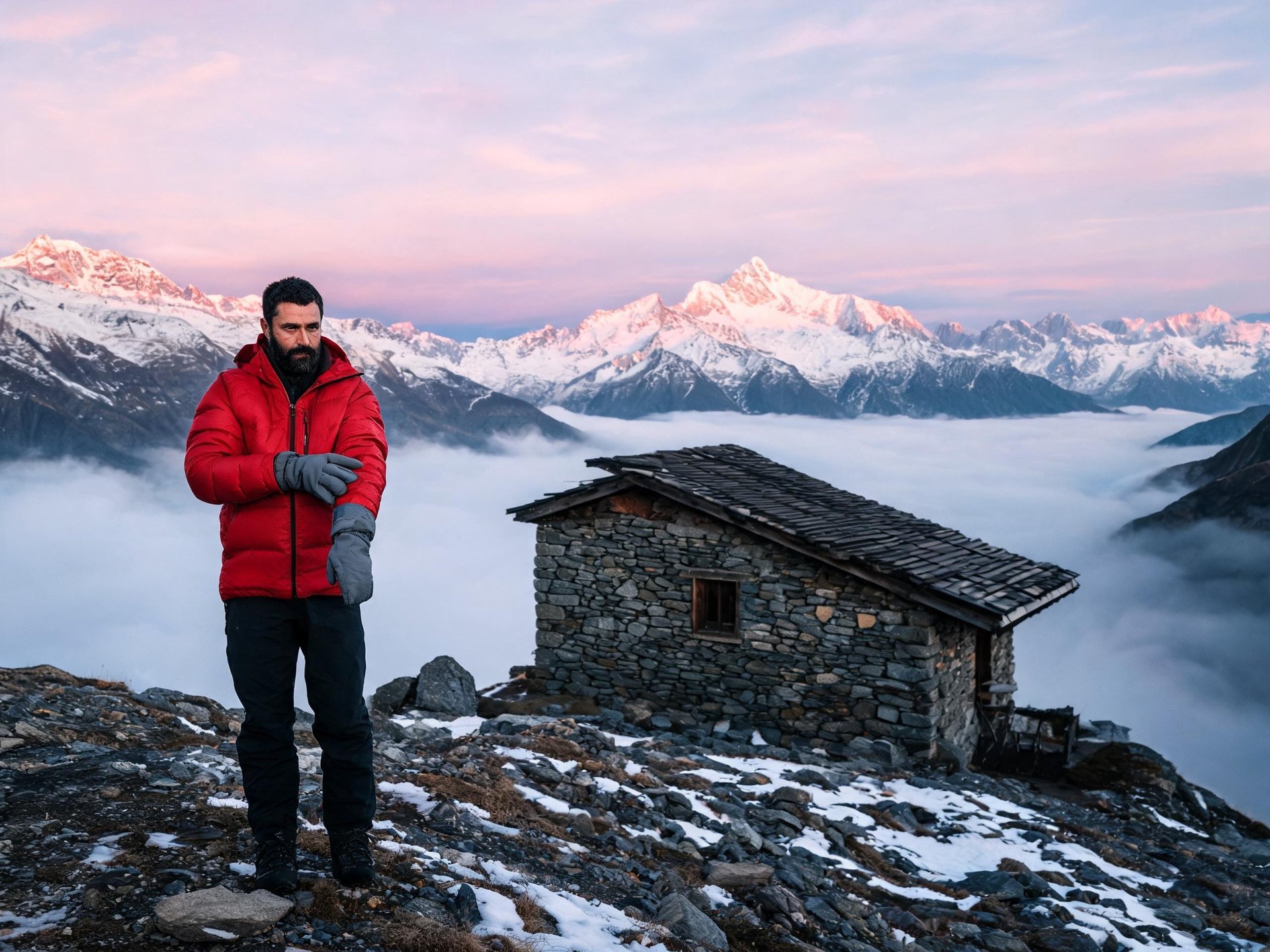
A short film around one lead character
As an AI short movie generator, Video Builder takes a story with a beginning, middle and end and carries your lead through every scene, with landscape shots set to No one when nobody should appear.
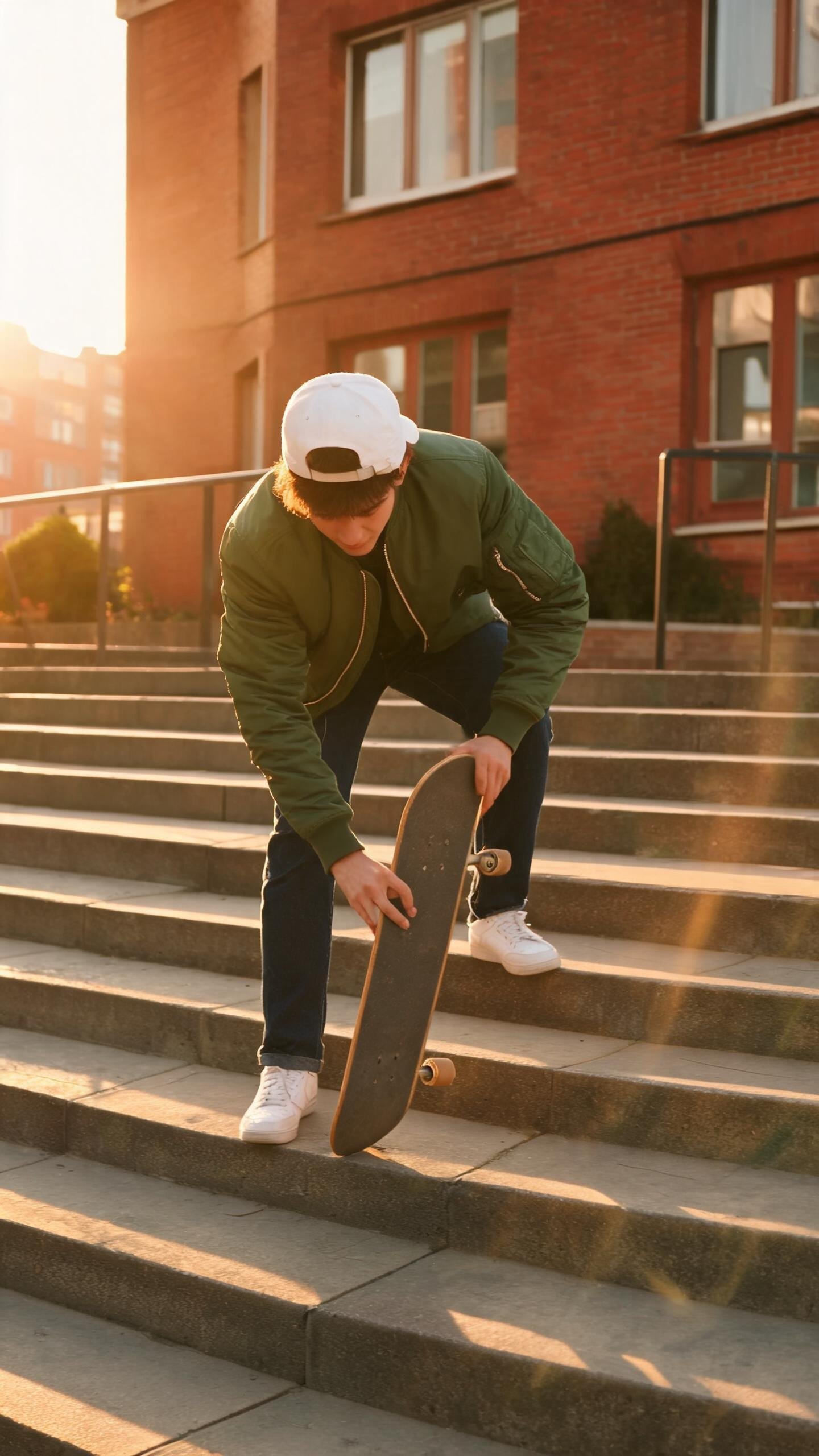
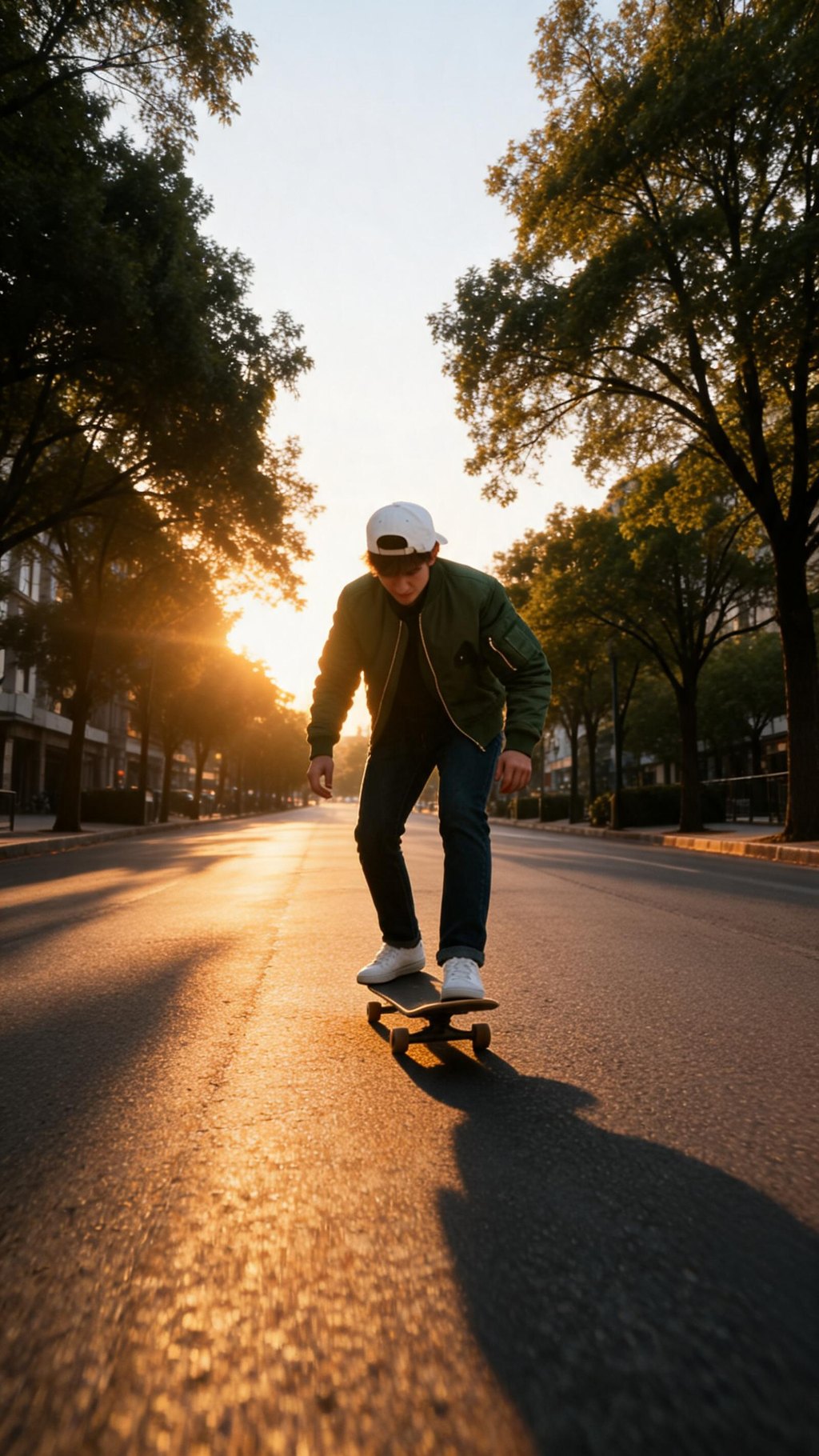
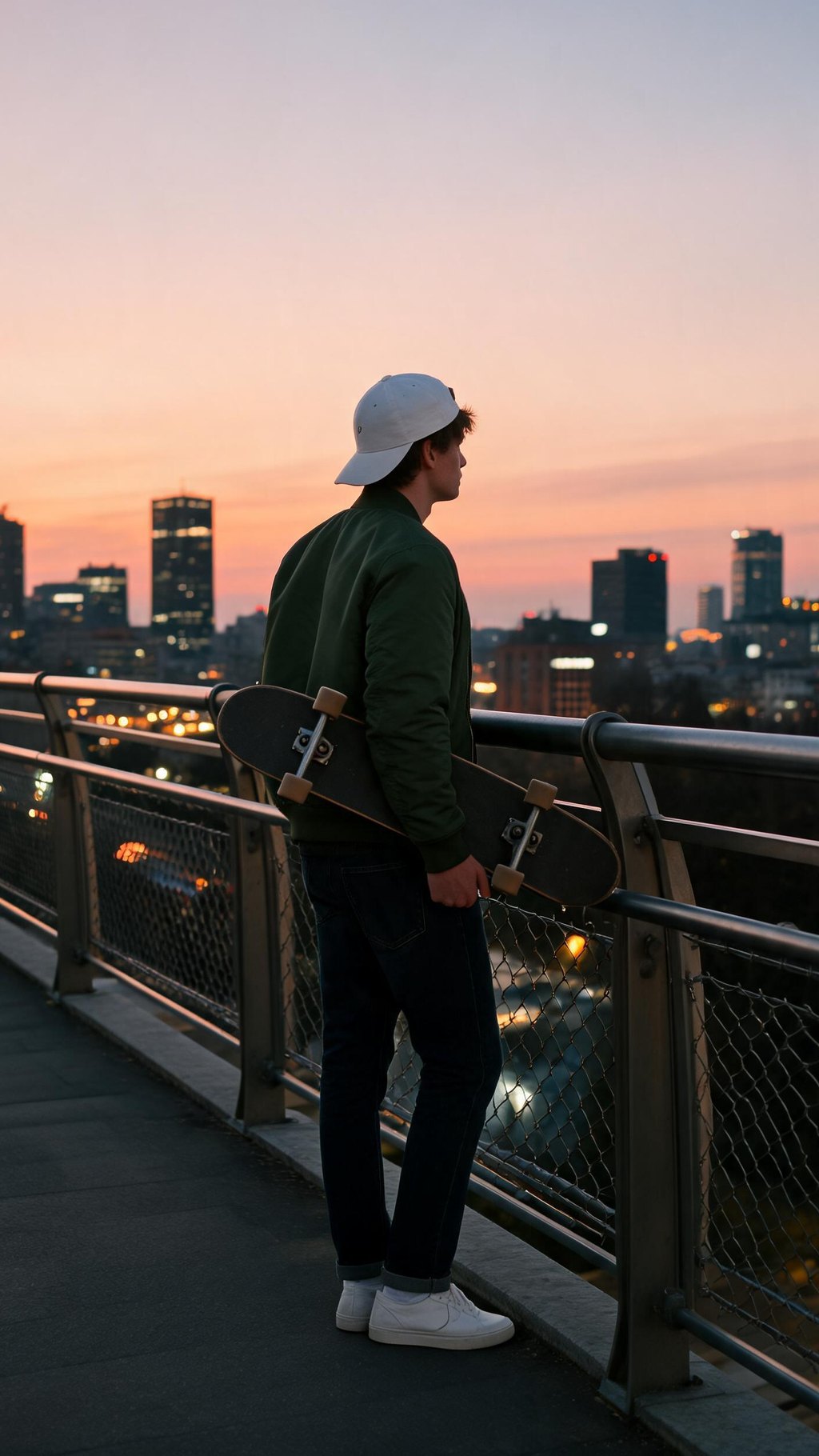
Vertical story videos for social feeds
Keep the default 9:16 aspect ratio and plan a story made for vertical feeds, with the same character from the first shot to the last.

A mood film from your own references
Upload up to 8 images: the first sets your character's style, and the rest can open specific shots as frames. Or add one reference video, and every shot copies its movement.

The next episode with the same cast
Plan a new video from a new brief and reuse the same character reference, so your lead can appear in the next story. Each film stays as its own project under Your videos.
Multi-shot film or single clip: choosing your tool
ZenCreator has three video routes, and the right one depends on whether your shots exist yet.
- Input
- One written brief, plus optional reference images or one reference video
- What you get
- A planned multi-shot video from 15 seconds to 3 minutes
- Characters across shots
- A recurring cast, described once and kept consistent through portraits and face fixes
- Assembly
- Clips joined in the app, with an optional film look and title cards
- Best when
- You want a finished short film from an idea
- Input
- One prompt, photo or clip
- What you get
- A single clip
- Characters across shots
- Set clip by clip, one run at a time
- Assembly
- No assembly step; each clip is its own result
- Best when
- You need one shot or a standalone clip
- Input
- 2 to 5 clips you already have, made in ZenCreator or elsewhere
- What you get
- One video with Cut, Fade, Slide or Dissolve transitions, up to 5 minutes in total
- Characters across shots
- Whoever already appears in your clips
- Assembly
- Clips joined in the order you set
- Best when
- Your shots already exist and only need joining
If you are using AI for movie making from a blank page, start with Video Builder; when the shots already exist, join them in Video Merger.
Have a story in mind? See every shot as a still before anything is filmed.
Rights and rules for the films you make
References and fictional characters
Only upload images and videos you have the right and permission to use. Video Builder works with fictional characters, and content involving real people isn't allowed in it.
What the Content Policy covers
The Content Policy prohibits sexually explicit content, content involving minors, non-consensual content and identity misuse. Prompts and uploaded images are screened automatically before generation.
Publishing your film
Commercial use is permitted under the Terms and Conditions, subject to your compliance, applicable rights and the terms governing the service. The license is non-exclusive, so similar outputs may be generated for other users.
ZenCreator is operated by Dimeris Ltd.
AI movie maker FAQ
How long can a movie made with Video Builder be?
From 15 seconds to 3 minutes, and it works best between 30 seconds and 2 minutes. The shortest shot is 5 seconds, so a plan can land a few seconds short of your target; adjust shot lengths by hand if needed. Try a 30-second version first to test a new brief.
Can I put my own character in the film?
Yes. Upload an image of your character as a reference: the first image becomes your character's style reference, and you can add up to 8 images. Each file can be up to 50 MB, with the shortest side at least 512 px. Video Builder works with fictional characters; content involving real people isn't allowed.
Will my film have sound or dialogue?
It depends on the video model. When every shot uses a model that supports sound, you can turn on Generate sound for voices, ambience and effects. Otherwise the film is silent, and you can create a soundtrack in Zen Audio and add it in any video editor. Each shot's sound is generated on its own, so voices can change between shots.
Can I change the film after it is assembled?
Yes. Adjust and re-assemble lets you change the film look and title cards while reusing your clips, so no shot is filmed again. To fix one shot, edit its motion prompt and regenerate it; the old clip stays until the new one is ready. The title comes from the planner and cannot be renamed; plan again from a new brief for a new title.
How do I download and keep my film?
When the video is ready, play it and download it from the player's three-dot menu. Fullscreen is not available in the in-app player, so download the film to watch it full size. Video links last 12 hours; reopen Video Builder to refresh them. Your projects are listed under Your videos, where you can reopen them.
Who holds the rights to a film I make here?
Under the Terms and Conditions, ZenCreator grants you a non-exclusive, worldwide license to use, reproduce, display and commercially exploit your output, subject to the Terms, full payment of applicable fees, applicable law and model provider terms. You do not get exclusive rights, so similar outputs may exist for others. You also need the rights to every reference you upload.
Start your first film
Create an AI movie from your next idea: write the story once, check the plan and every still, and let Video Builder film and assemble the rest.
See Pricing before you start.