Updated October 2026
AI Storyboard Generator: See Every Shot Before You Film It
Write the story or a short script. Video Builder breaks it into scenes and shots, generates a still for each shot and a portrait of every recurring character, and lets you rework any frame before a single clip is filmed.
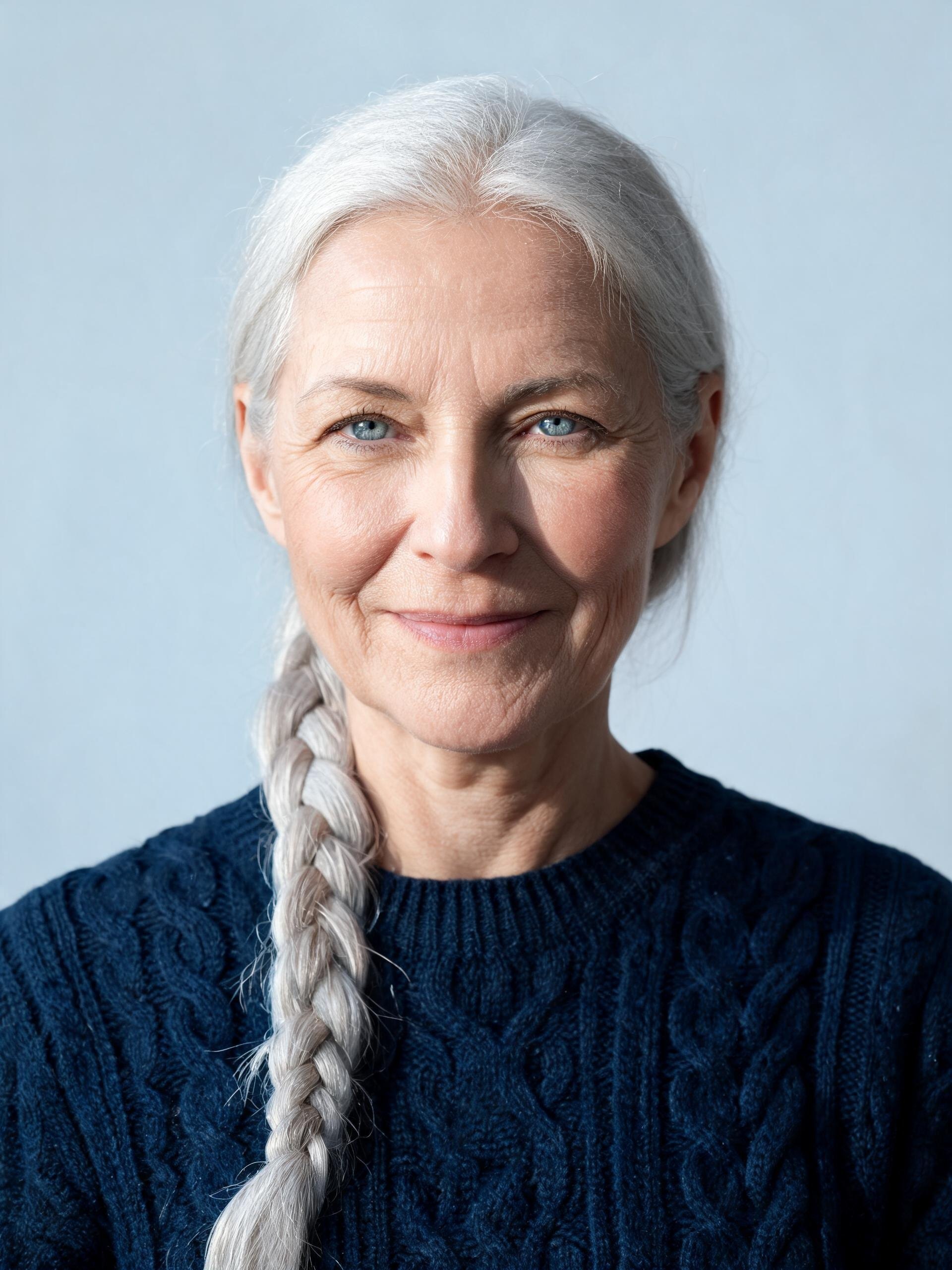

- One still per shot
- Character portraits
- Four alternative angles
- Nothing filmed until you approve
Stills first, video only when the board works
ZenCreator's AI storyboard generator is the stills stage of Video Builder. Paste a story or scene list of up to 4,000 characters into the brief, optionally add reference images or one video, and click Plan the video. The planner returns a title, a note on how it divided your text into shots, the cast with each recurring character described, and the shots sorted under their scenes. Generate then gives you a still for every shot plus a portrait of each cast member.
Each approved still becomes the opening frame of its clip, so the filmed shot starts on the picture you approved. Nothing is filmed until you click Looks good — film it. You describe shots in words; there is nothing to draw.
From video storyboard to filmed clip
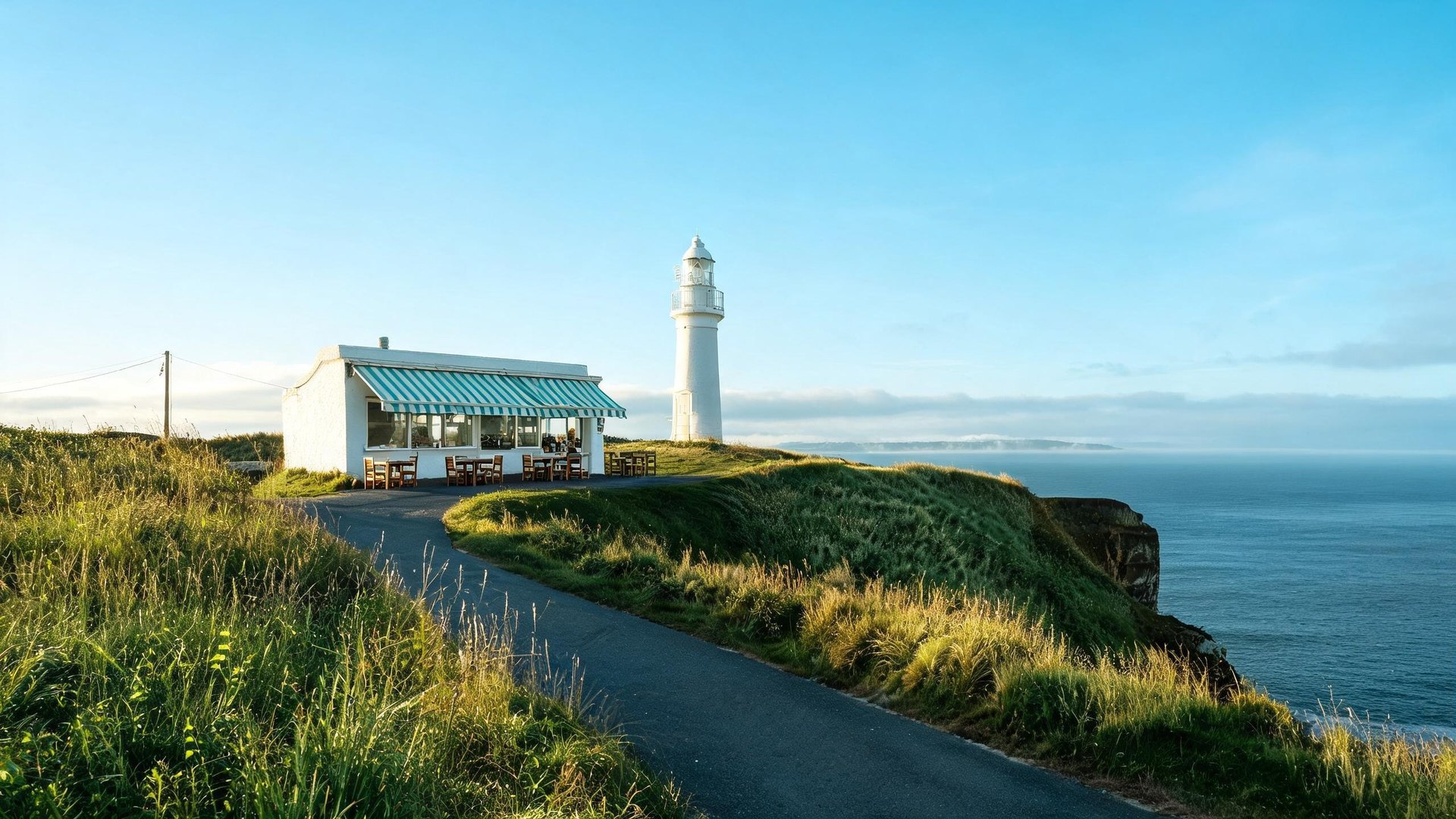
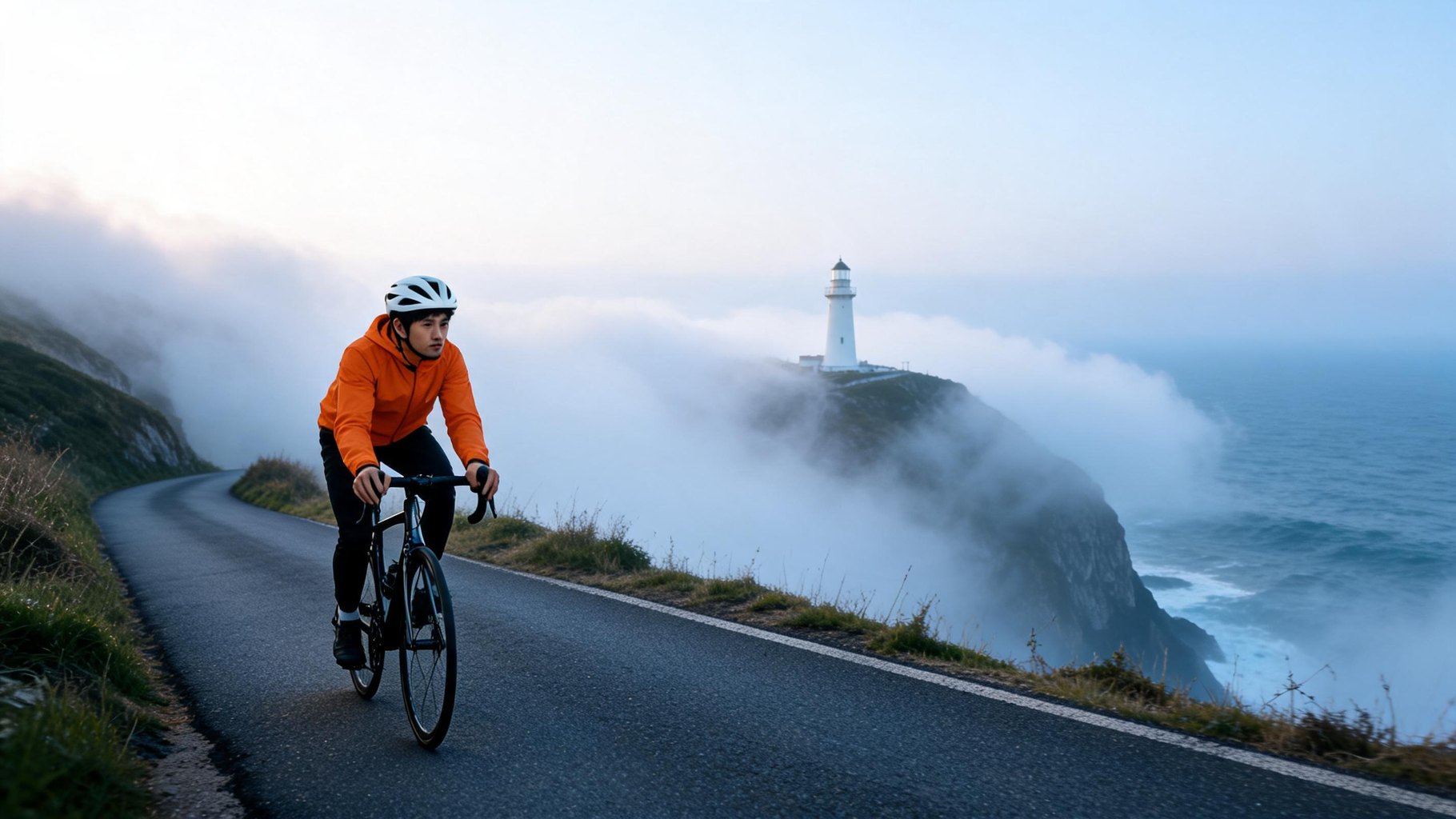
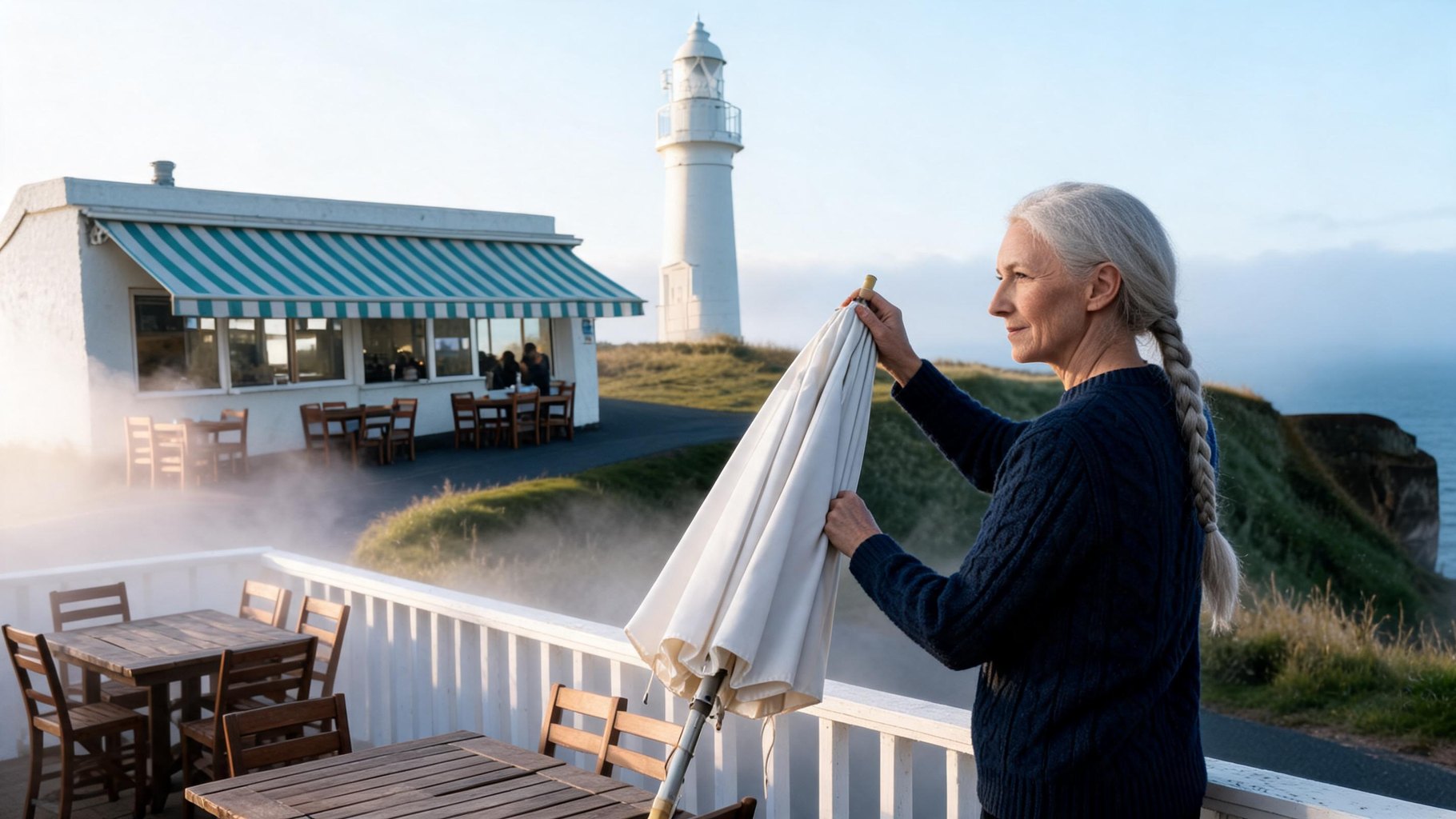
Six shots of one short story, boarded as stills first and then filmed inside the same Video Builder project.
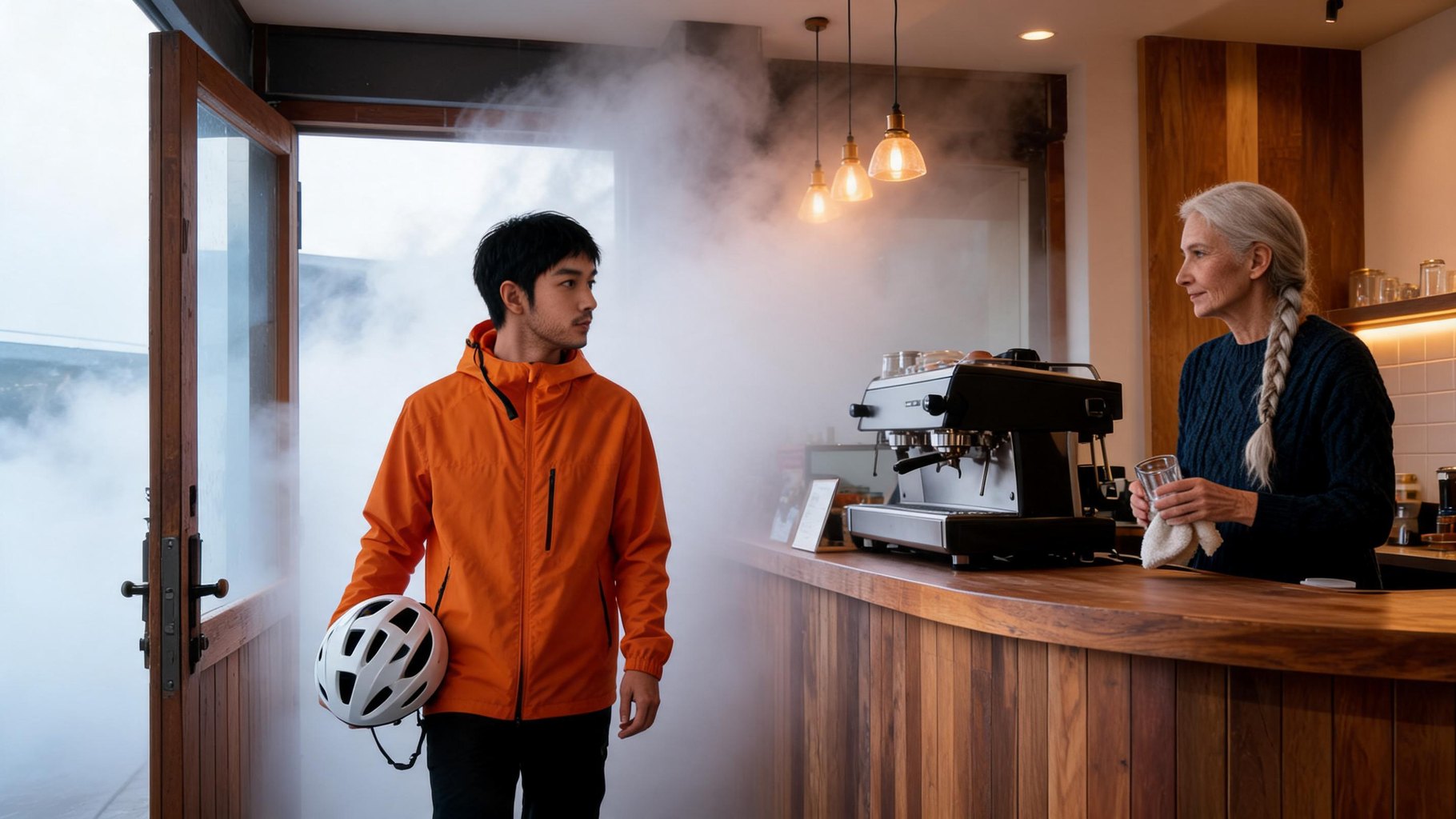
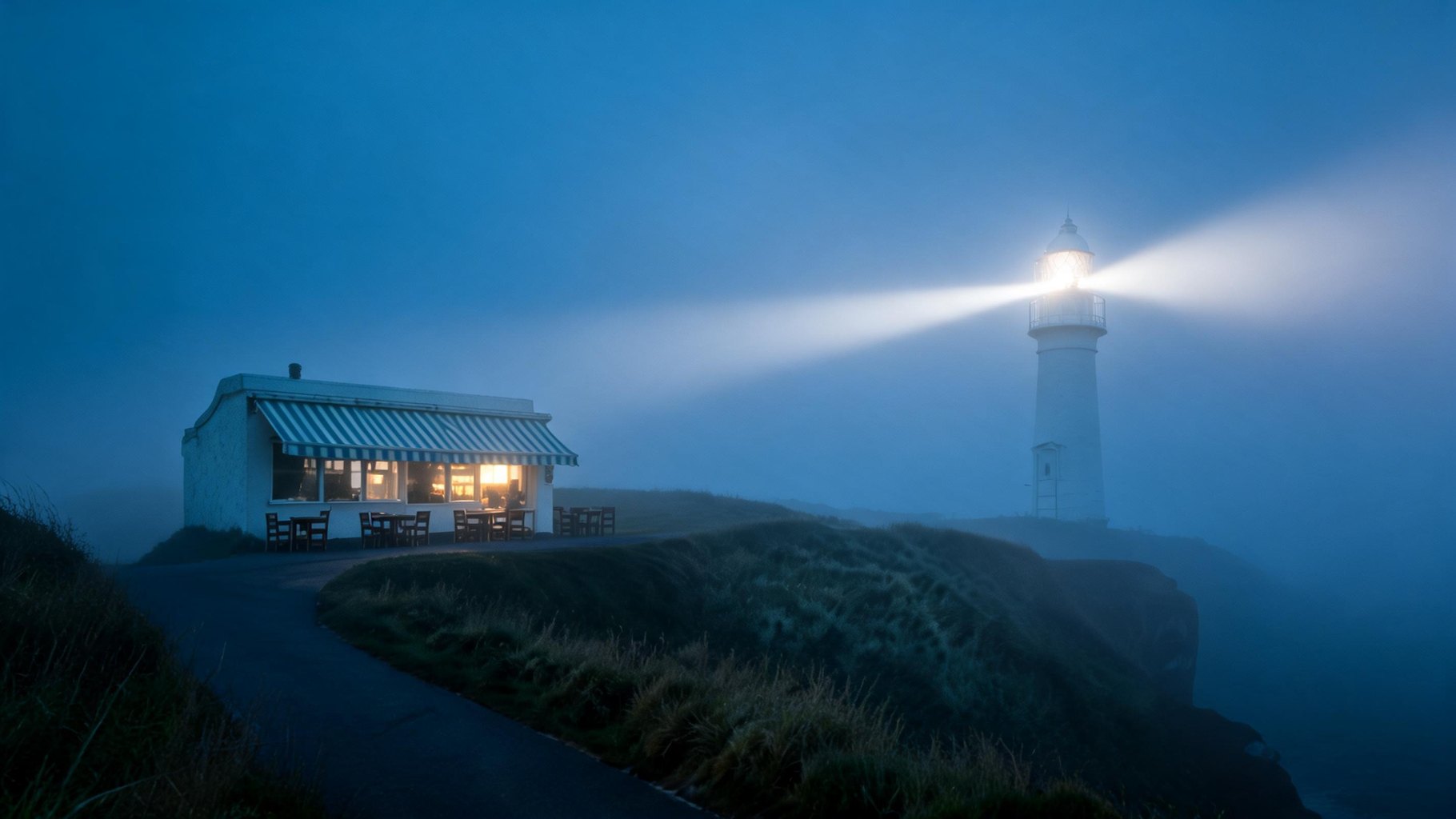
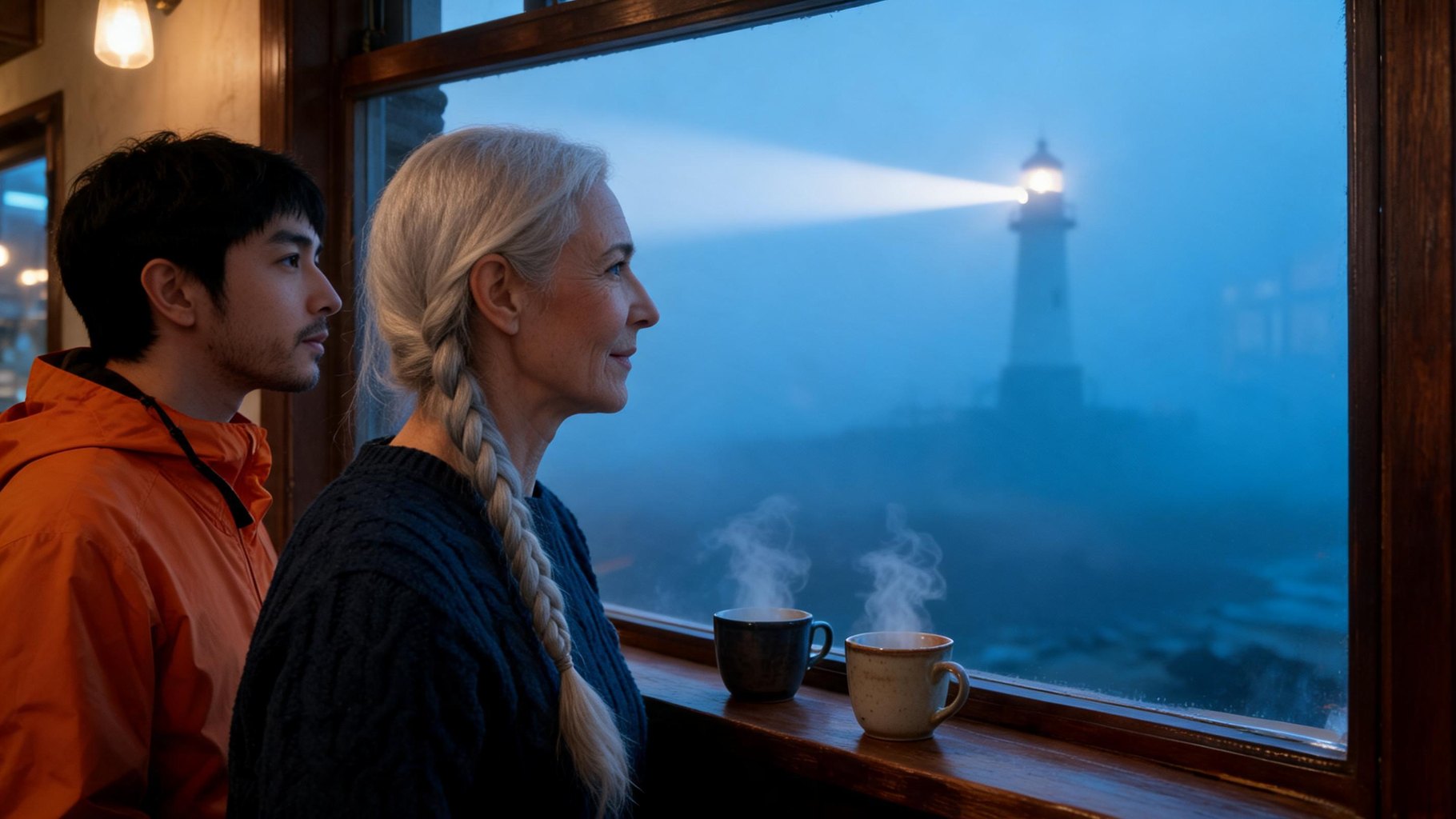
From script to storyboard: what to put in the brief
To use the AI storyboard generator from script, paste a scene list or a short script: the brief field holds up to 4,000 characters, not a full screenplay. The planner then shows how it split your text, so you can check the shots match what you pictured.
How to create a storyboard with AI
Four steps take you from a written idea to a board you can judge frame by frame, whether you design a storyboard for a shoot or for a film you generate later.
1. Lay out the story in words
Open Video Builder from the Apps section and type your brief into What do you want to make? Add reference images or one video if you have them, set the running time (15–180 seconds, in 5-second steps) and the aspect ratio, then click Plan the video.
2. Read and edit the shot list
Check the title, the split note, the cast and the shots under each scene. Rewrite a card's motion or opening frame, switch its model, length or resolution, or reshape the list with Add shot after, Start a scene here, Delete shot and Delete scene.
3. Generate the stills and portraits
Switch on Pin faces to the portrait or Offer a second camera angle first if you want them, then click Generate. Each card shows Styling while its still is being made and Look ready once the image is done.
4. Decide what gets filmed
Rework any frame you are unsure about, and click Looks good — film it only when the whole board holds together. After that, only prompts, model and resolution can change, so settle framing and faces here.
Rework any frame before it becomes a clip
Each still can be changed on its own, so one weak frame never means replanning the story. AI output differs from model to model and brief to brief.
Regenerate a frame that misses the mood
Try another look generates the still again from its current prompt. Edit the shot's opening-frame text first when you want the new version to change framing, clothes or light.
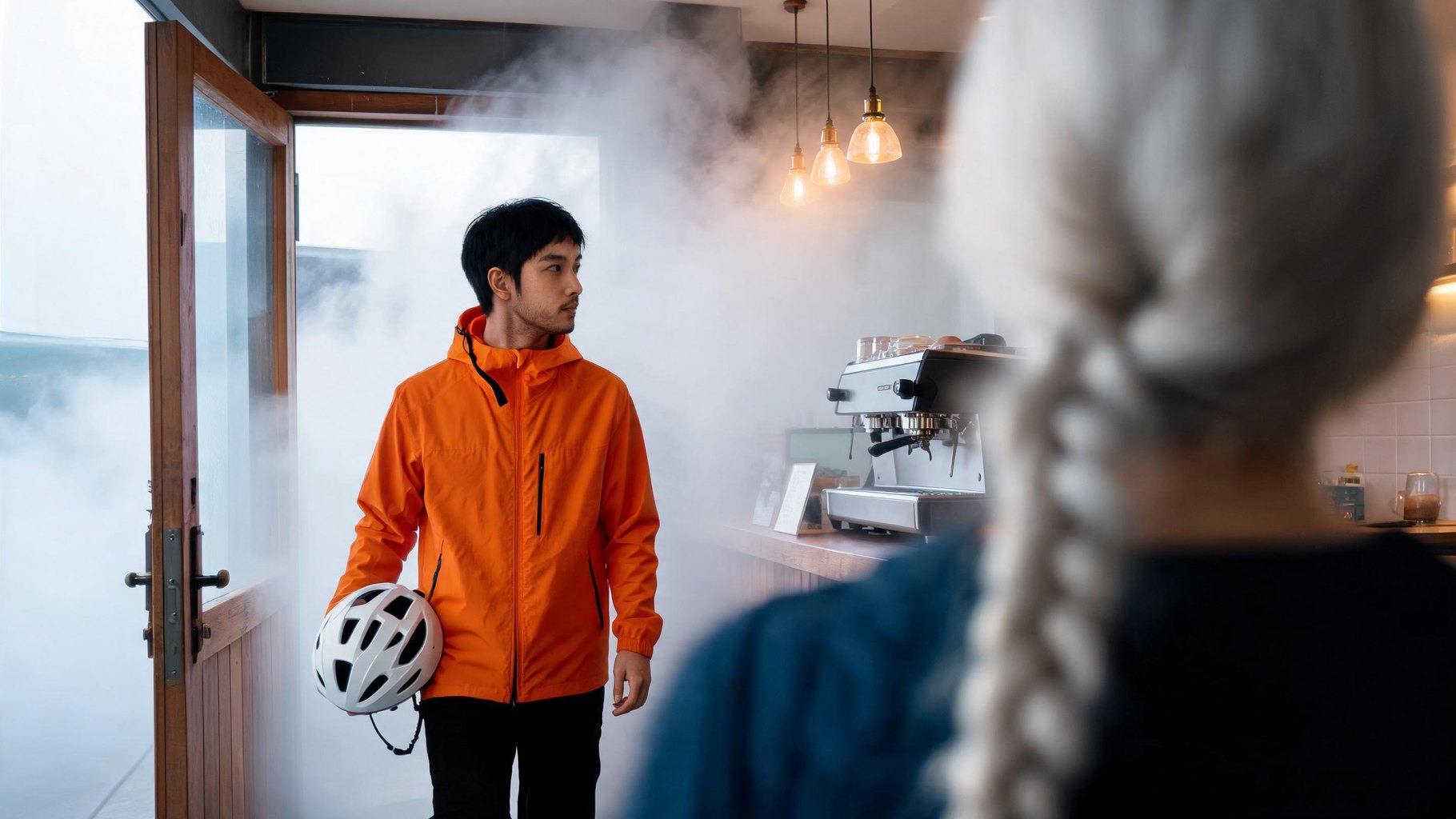
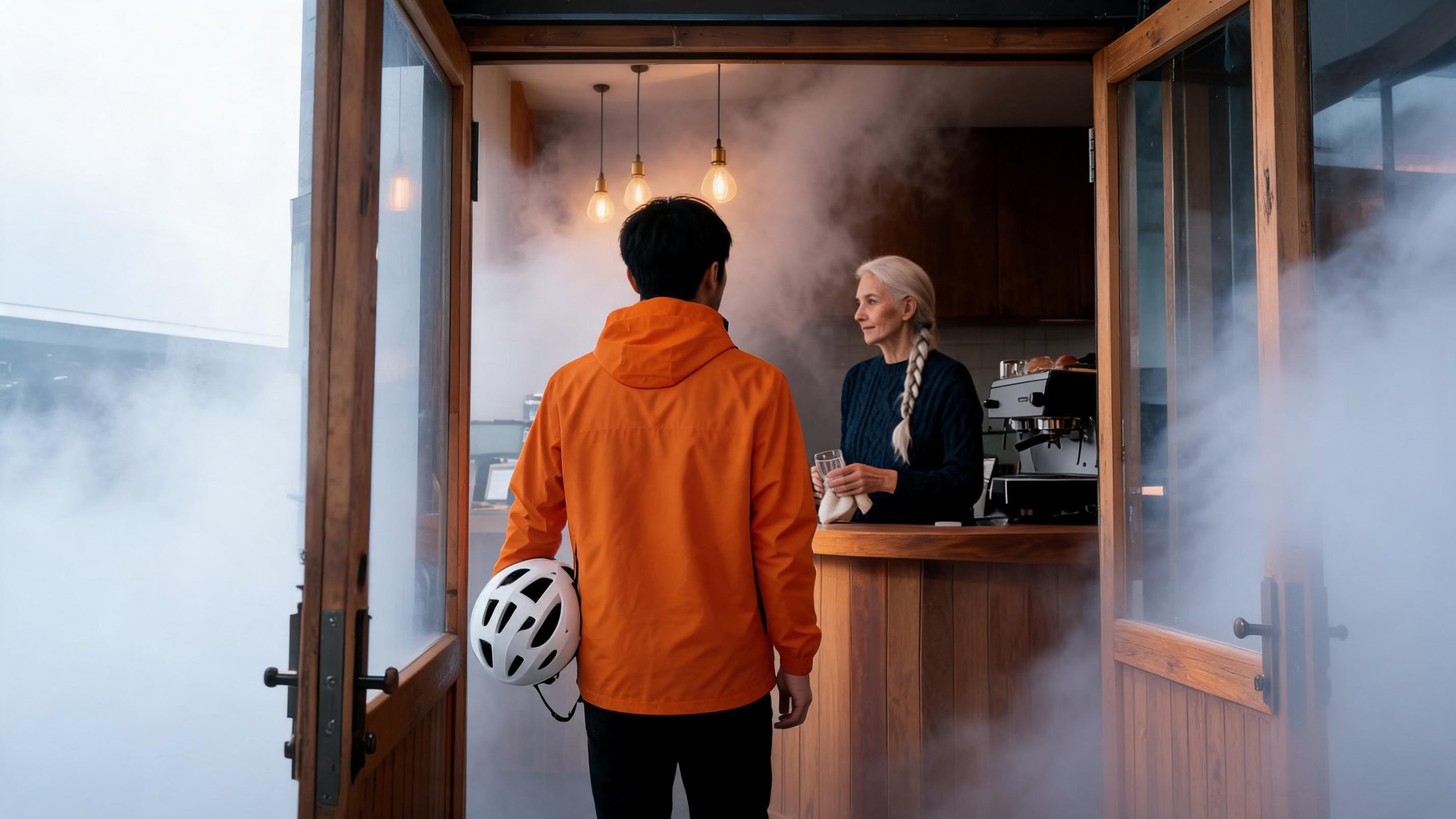
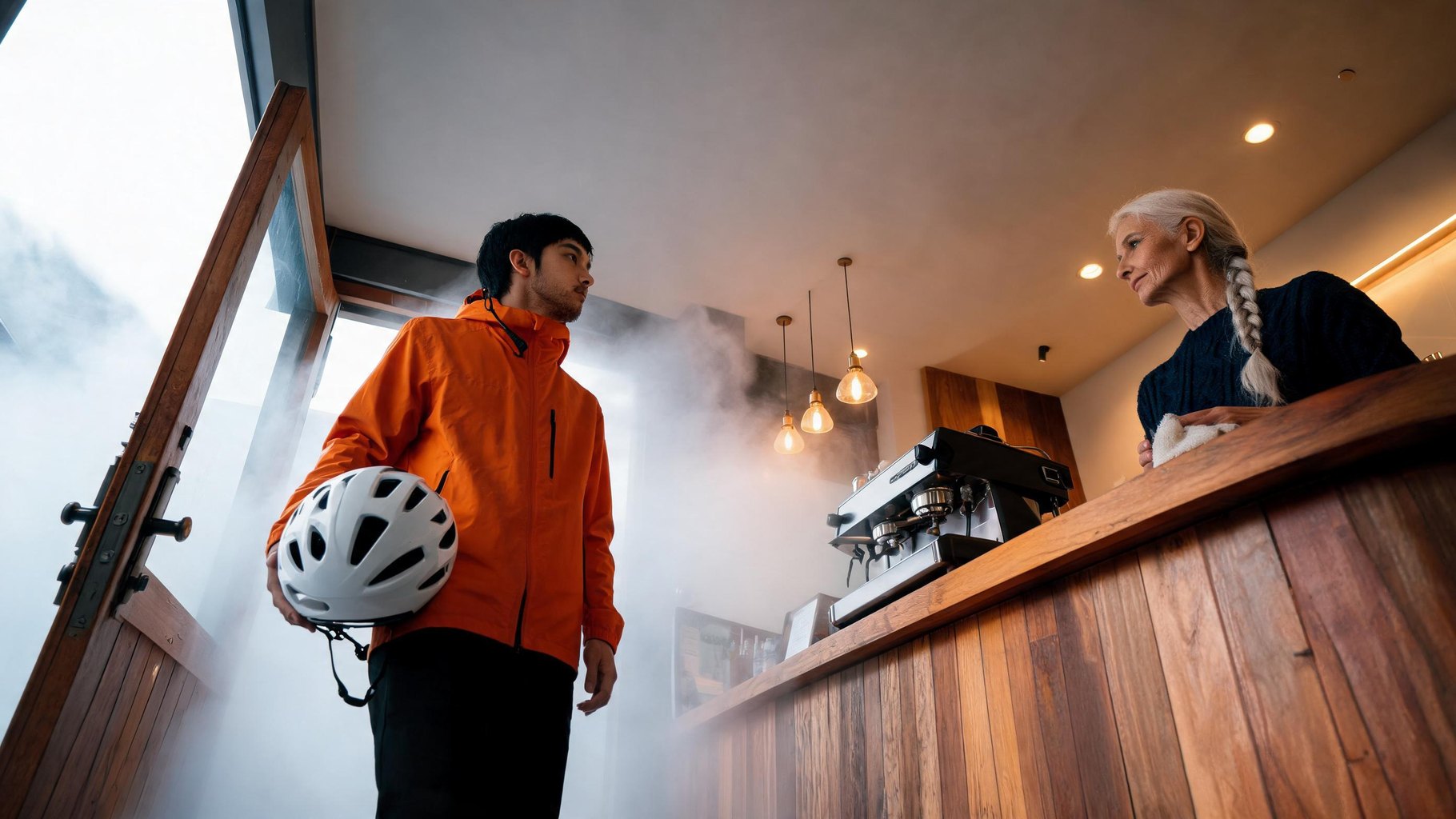
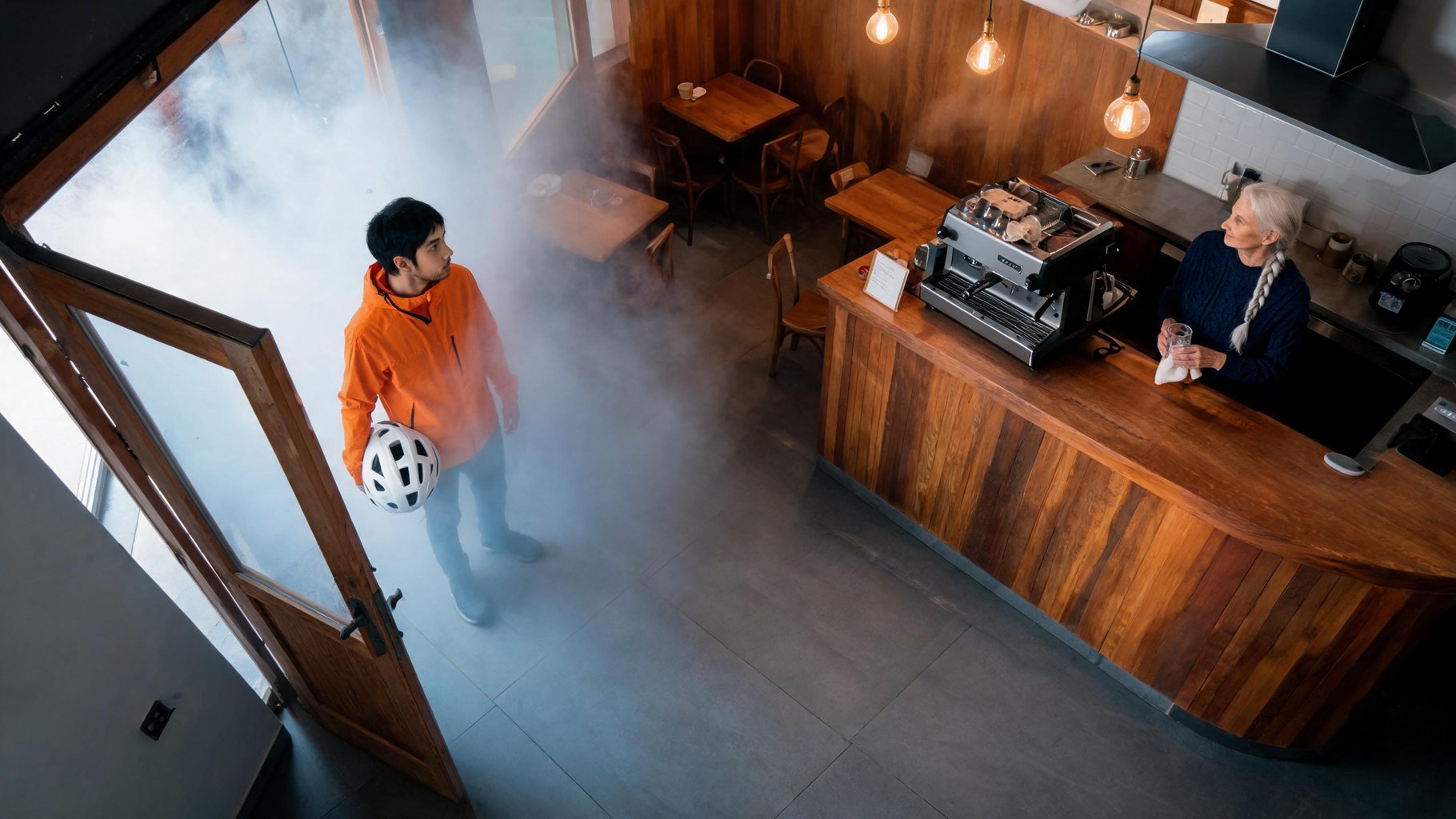
See the same moment from four positions
Another angle adds four alternative camera positions of the same scene to a shot. Use the arrows to choose which position goes forward to filming.
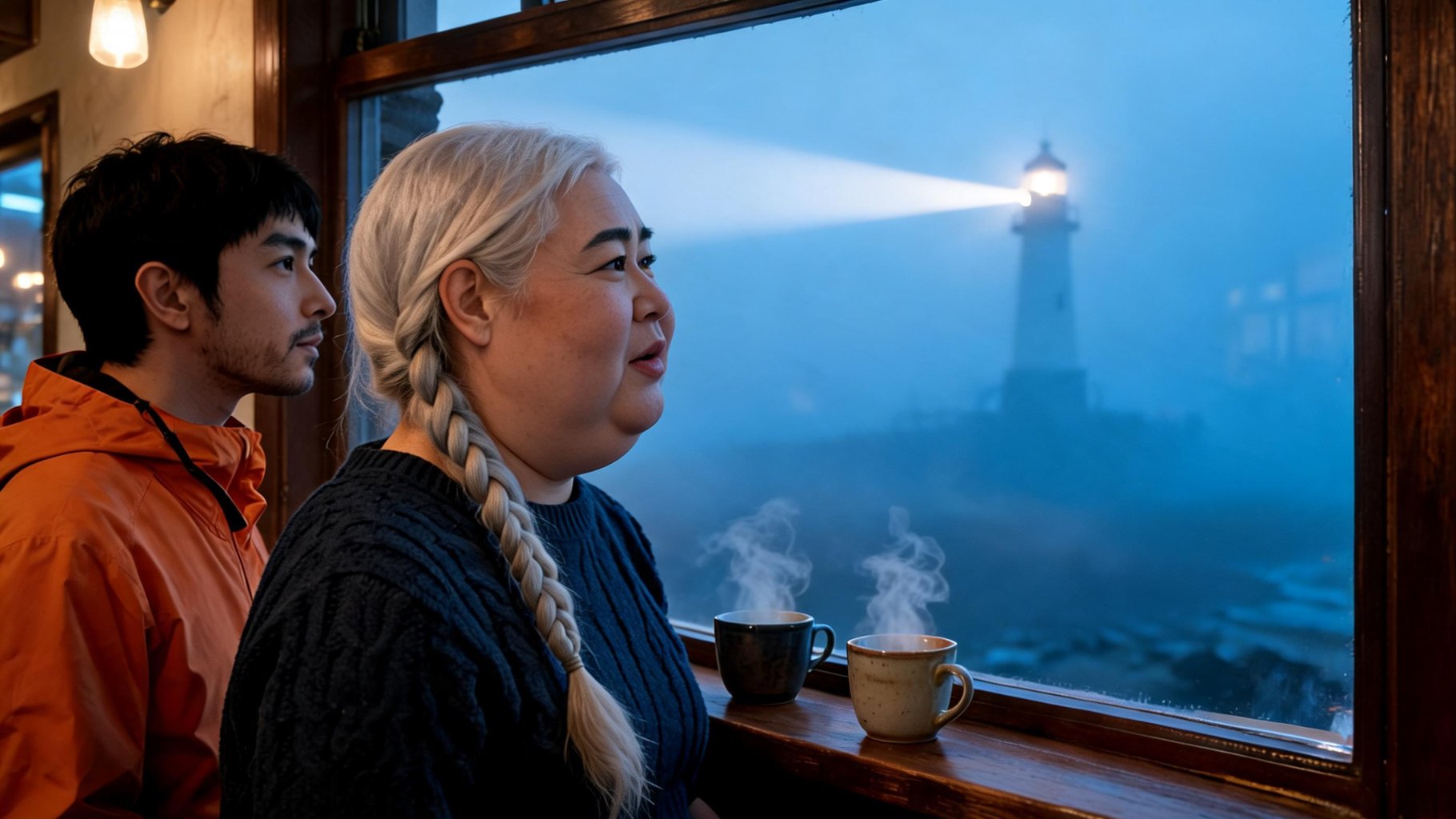
Put the right face back on a character
Fix the face swaps in the character's own face while keeping the composition, the hands and the lighting of that frame. Use it when a single still drifts away from the cast.
Hold every face to its portrait across the board
Pin faces to the portrait places each character's real portrait face into every still, instead of leaving the likeness to the image editor. Turn it on before you click Generate.
Compare a second framing for every shot
Offer a second camera angle prepares an alternative angle for each shot after the first, so you can pick between two framings while everything is still a picture.
Keep the board consistent from shot to shot
Continuity sits in a handful of per-shot settings; match the problem on your board to the control that handles it.
Paste your scene list, get a still for every shot, then decide which ones become clips.
Where a generated storyboard helps
Storyboard making with generated stills pays off wherever seeing the frame early changes what you do next.
Previsualize a live-action shoot
Board the shots you plan to film with a real camera and see each one's framing, light and angle as an image first: a director's storyboard to talk through before the shoot.
Test an AI film before filming it
Use the stills as a movie storyboard: board every shot, rework whatever looks off and film only the version you approve. For the full route from a brief to a finished film, see AI Movie Maker.
Board a short ad around your own images
Add up to 8 reference images. Image one sets the style for your character; the rest are kept as Frames that can open a chosen shot.
Board a scene from a reference clip
Video Analyzer turns a video of up to 30 seconds into timestamped key frames, a timeline of key moments and notes on camera framing. Write your brief from that outline, or attach the clip itself so each shot borrows its motion.
Two ways to create a storyboard online
If you are weighing up an online storyboard tool, the real choice is between frames you make by hand and frames generated from your text.
- How a frame is made
- You draw, upload or arrange each panel yourself
- Keeping characters consistent
- Kept matching by hand, panel by panel
- Trying another camera angle
- Redraw or rearrange the panel
- After the board is approved
- Handed to whoever shoots or animates it
- Suits you when
- You need exact hand-drawn compositions or a board your team marks up together
- How a frame is made
- Each still is generated from your brief and that shot's own text
- Keeping characters consistent
- A portrait per recurring character, plus Fix the face and Pin faces to the portrait
- Trying another camera angle
- Another angle offers four alternative positions of the same shot
- After the board is approved
- The approved stills open the clips if you film in the same project
- Suits you when
- You want to see shots as images and may film them next
Choose by the control you need: hand-drawn precision, or generated frames that can go straight into filming.
Your references and the Content Policy
- Upload only reference images or video you hold the rights and permissions for. Video Builder works with fictional characters: content involving real people isn't allowed.
- The Content Policy bans identity misuse, non-consensual content, content involving minors and sexually explicit content. Automated screening checks prompts and uploaded images before generation.
- The Terms and Conditions permit commercial use of your stills, subject to compliance, the rights you need and the service's terms. The license is non-exclusive, so others may get similar outputs.
The ZenCreator brand is operated by Dimeris Ltd.
Questions about storyboarding in Video Builder
Where are my storyboard stills saved?
Every still Video Builder generates, portraits included, is also stored in the tool that produced it. Open that tool and look under Tasks: each still is listed there with its own task ID.
Do I have to turn the storyboard into a video?
No. Filming begins only when you click Looks good — film it; until then every shot and still stays editable. If you film, length and character state lock while model, resolution and prompts can still change, and nothing is editable during a render. You can reopen any project from the Your videos list.
How many frames will my storyboard have?
As many as the shots you plan: name the count in the brief, then adjust it with Add shot after or Delete shot. A project runs 15 seconds to 3 minutes and each shot 5 to 15 seconds (20, 25 or 30 on WAN 3.0), so length and frame count limit each other. For a quick storyboard, test a 30-second version first.
Can I use my own photos as frames?
Yes. Attach up to 8 images: the first is your character's Style reference, the rest are saved as Frames. Opening frame image starts a shot from your picture exactly as uploaded, but Try another look and Fix the face then don't work on that shot. Uploads can weigh up to 50 MB, with a shortest side of at least 512 px. Content involving real people isn't allowed in Video Builder.
Which frame shapes can the storyboard use?
Six aspect ratios, chosen before you plan: 16:9, 9:16 (the default), 1:1, 21:9, 3:4 and 4:3; WAN 3.0 cannot use 21:9. Each shot renders at 1080p, 720p or 480p, depending on what its video model supports.
Put your next story on a board
Write the story, look at every shot, and film only what works, all in the project that can turn your board into clips.
For account options, visit Pricing.