Finish a clip that ends too abruptly
The shot cuts off mid-gesture, a beat before the action lands. Add five seconds and give the movement time to finish instead of reshooting it.
Updated November 2026
Upload a clip, choose how many seconds to add, and extend a video with AI from the moment it ends. Describe what happens next, or leave it blank and the scene continues its own story.

It adds new footage after the last frame of your clip instead of repeating or stretching what is already there.
Your starting clip. A video from 2 to 60 seconds: something you filmed on your phone, an ad cut or a clip you generated.
What happens next. An optional line that steers the new seconds, such as "she turns and walks out of frame". Leave it empty and the video continues its own story.
Your longer video. The new 5, 10 or 15 seconds pick up from the last shot, so the scene carries on instead of cutting off.
Video Extend adds seconds after your clip ends. To restyle footage you already have, use Video to Video; to join separate clips, use Video Merger; to sharpen a finished video, use the Video Upscaler.
What you set for each run and what you get.
| Setting | Your choice |
|---|---|
| Source clip | One video, 2 to 60 seconds long |
| Extend by | +5, +10 or +15 seconds per run |
| What happens next | Optional: describe how the video goes on, or leave it empty |
| Quality | 480p, 720p or 1080p |
| Result | Your clip, continued for the extra seconds, in your Tasks |
| Cost | Uses your ZenCreator credits and depends on the seconds added and the quality; see Pricing |
What happens next
Optional: describe how the video goes on, or leave it empty
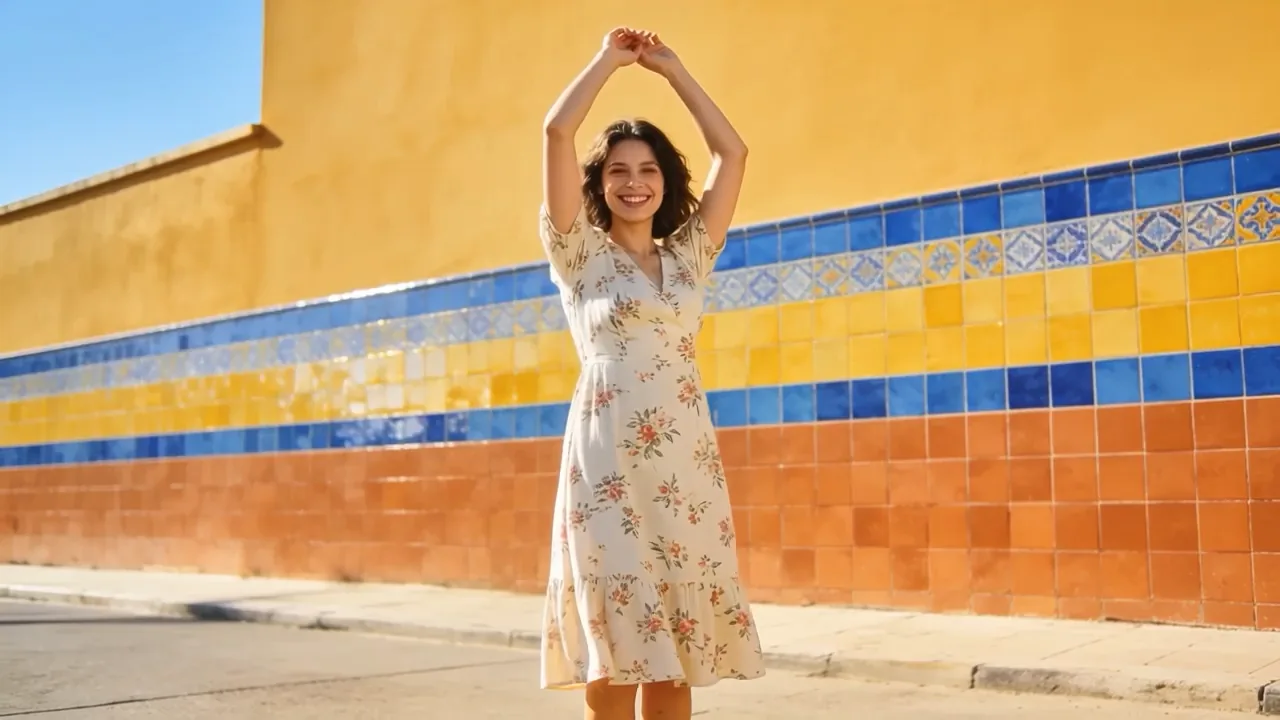 Source clip
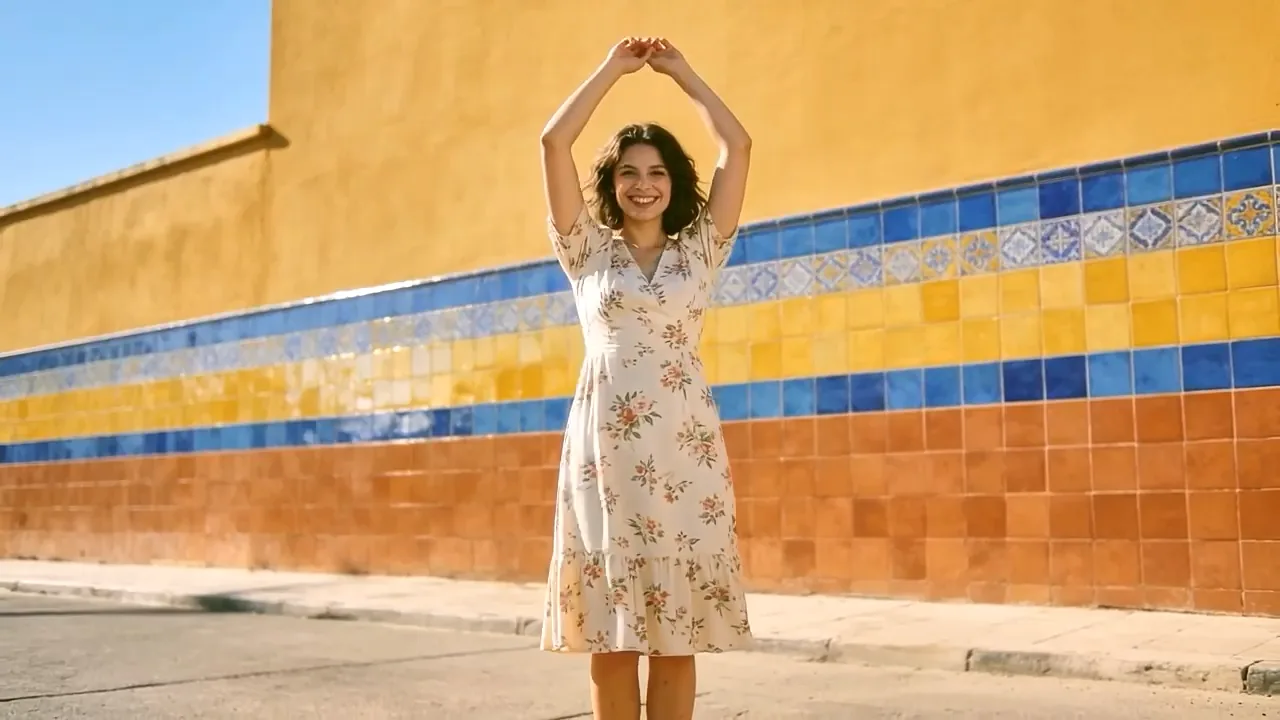 +5 s
Open Video Extend in the Video section of ZenCreator and upload a clip from 2 to 60 seconds that you have the rights to use.
Pick +5, +10 or +15 seconds and the quality. To steer the scene, write one line under What happens next.
Press Extend Video. Your extended clip appears in your Tasks when it is ready.
Each run adds 5 to 15 seconds of the same scene.
The shot cuts off mid-gesture, a beat before the action lands. Add five seconds and give the movement time to finish instead of reshooting it.
A placement asks for a longer clip than you have. Add 10 or 15 seconds to the take you already like instead of starting over.
Extend the closing shot so there is time on screen for a title, a call to action or your logo before the video stops.
Have a 5- or 10-second generation you like? Run it through Video Extend for a few more seconds of the same scene instead of generating a new clip and hoping it matches.
There are four common ways to make a video longer. Only one of them adds footage that was not in the original.
| Extending | Looping | Freezing the last frame | Slow motion | |
|---|---|---|---|---|
| What the viewer sees | The scene carries on past the original ending | The same footage plays again from the start | The final frame holds still on screen | The same footage plays more slowly |
| New footage? | Yes, 5 to 15 seconds per run | No | No | No |
| Use it when | The action or camera move needs to continue | A short repeating motion is the point | A still pause for text is enough | A moment looks good stretched out |
If you need new motion, extend the clip. If repetition or a pause is fine, a loop or a freeze is the simpler fix.
Need new footage rather than a repeat? Upload your clip and add the seconds in one run.
A video extender is worth using when it saves you a reshoot or a fresh generation.
You choose how many seconds you need, and the continuation is generated from the last shot instead of being built by hand.
When you extend video clips, one line under What happens next can steer where the scene goes. Leave it empty and the video continues its own story.
Choose 480p, 720p or 1080p for each run, depending on where the clip will be shown.
Make the starting clip with the AI Video Generator, extend it here, then join clips with the Video Merger.
Only upload videos you have the right and permission to use. If a video includes another person, make sure you have the consent required for your intended edit and use. Content involving minors or non-consensual content is strictly prohibited, and every upload falls under the Content Policy.
The Content Policy covers all three, and ZenCreator may use automated systems and human review to enforce it. ZenCreator is operated by Dimeris Ltd; see About ZenCreator and the Terms and Conditions.
The extension starts from your last shot and follows its scene. Results still depend on the source clip and your prompt, and a clear, simple What happens next line helps. If a run is not right, run it again; each run uses credits.
Video Extend is made to add length, not detail. The Quality setting offers 480p, 720p or 1080p. To raise the resolution of the finished video, run it through the Video Upscaler as a separate step.
Extending uses your ZenCreator credits, the same credits you use across ZenCreator tools. The cost depends on how many seconds you add and the quality you choose. Plans and credits are explained on the Pricing page.
Commercial use is permitted under the ZenCreator Terms and Conditions, subject to your compliance, applicable rights and the terms governing the service and source materials. Before you run the ad, make sure you hold the rights to the original clip for that use.
It runs in your web browser as part of ZenCreator, so there is nothing to install. Sign in to your ZenCreator account, open Video Extend in the Video section and upload your clip.
Video Extend adds new seconds after your clip ends. Video to Video AI changes the footage you already have, such as its style, motion or character, without making it longer.
Upload a clip from 2 to 60 seconds and add 5, 10 or 15 seconds that pick up from its last shot.