AI Product Photography for E-commerce Catalogs

Start from the product photos you already have. Describe a backdrop, scene or format once, and ZenCreator applies it to every SKU in the batch; Variations then adds extra angles without a prompt.

See how a batch works

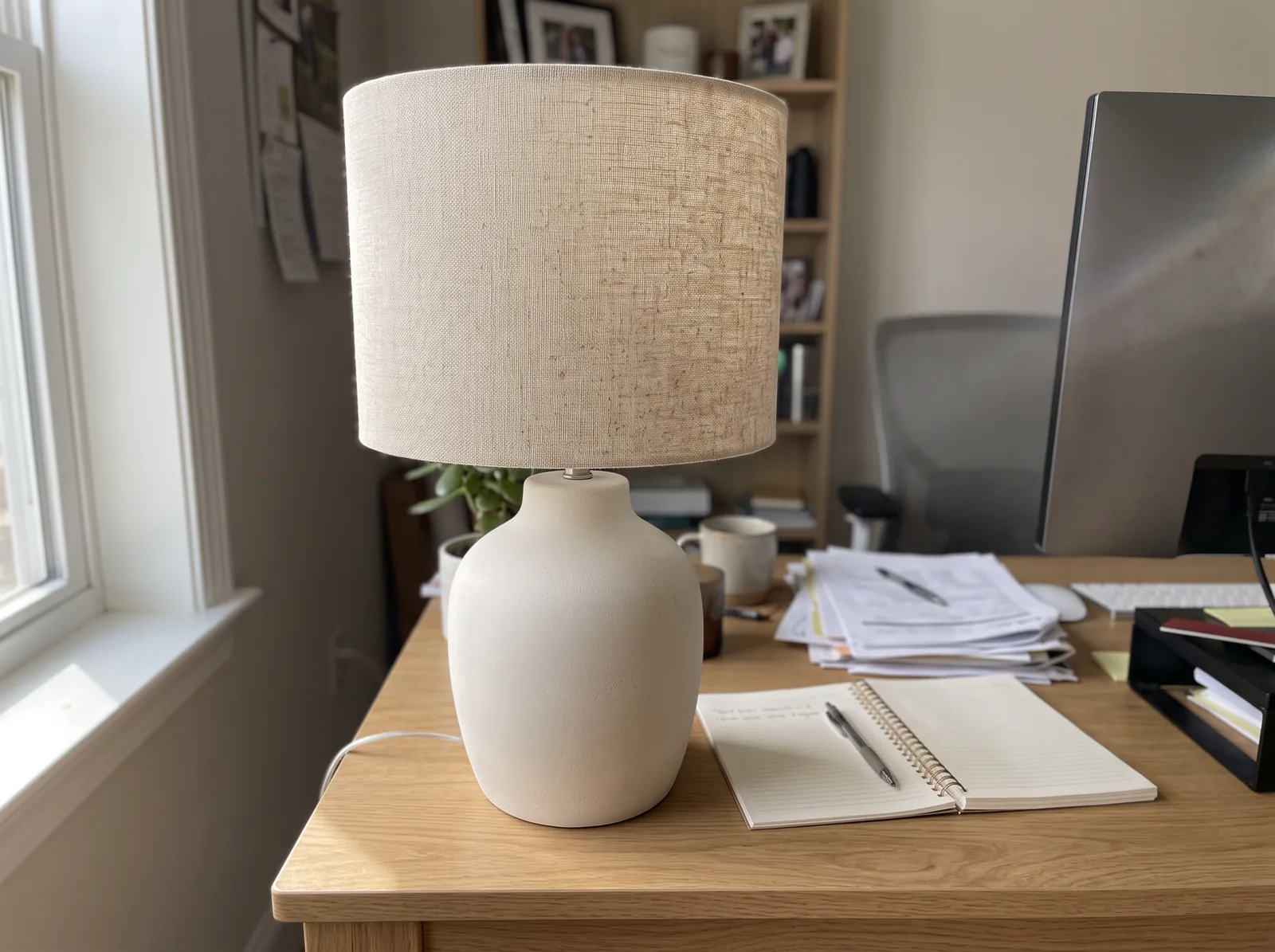
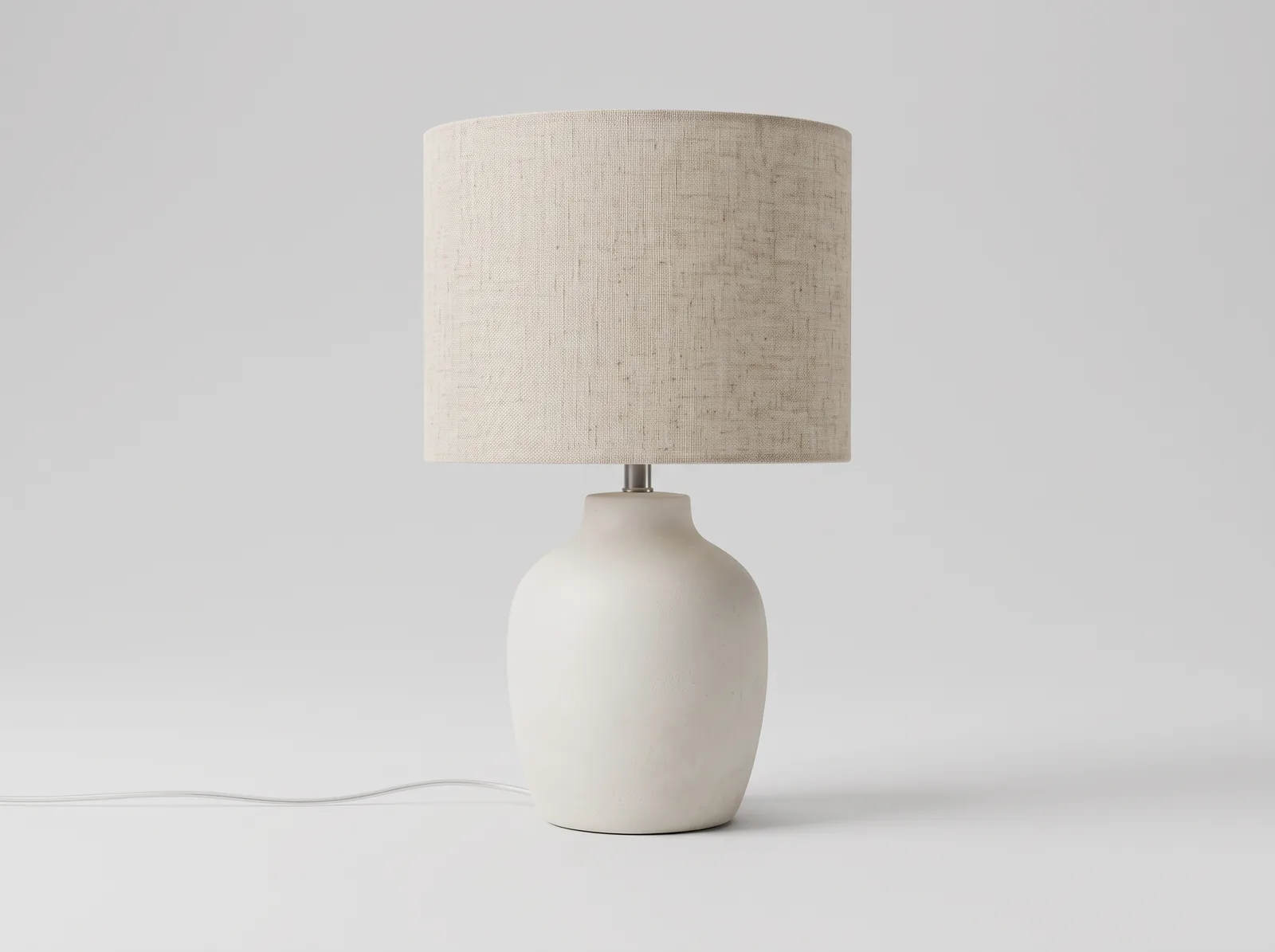
Table lamp photographed on a desk, then shown on a light-gray backdrop after an edit in ZenCreator Image Editor
  • Batch Mode: one result per photo
  • Up to 10 variations per photo
  • Upscale up to 8K
  • Cost shown before you generate

AI product photography that starts from your real product

In ZenCreator, this means editing the photo you already have instead of inventing the product from a text prompt. You upload a shot of each SKU, write the change you want, such as a new backdrop, a room scene or a different format, and Image Editor returns a new image for every photo. Variations and Image Upscaler then round out the set. This page is the e-commerce part of AI Creative Studio, written for catalogs with many SKUs rather than a single hero image.

You bring
One photo per SKU, typically a JPG or PNG.
You describe
The change, plus what must stay as it is: "light-gray backdrop, keep the label and shape".
You get
One new image per photo, ready for variants, upscaling or download.

Six catalog jobs to run on every SKU

Each card is one job from a typical listing brief, with the tool that handles it. Run them in any order your catalog needs.

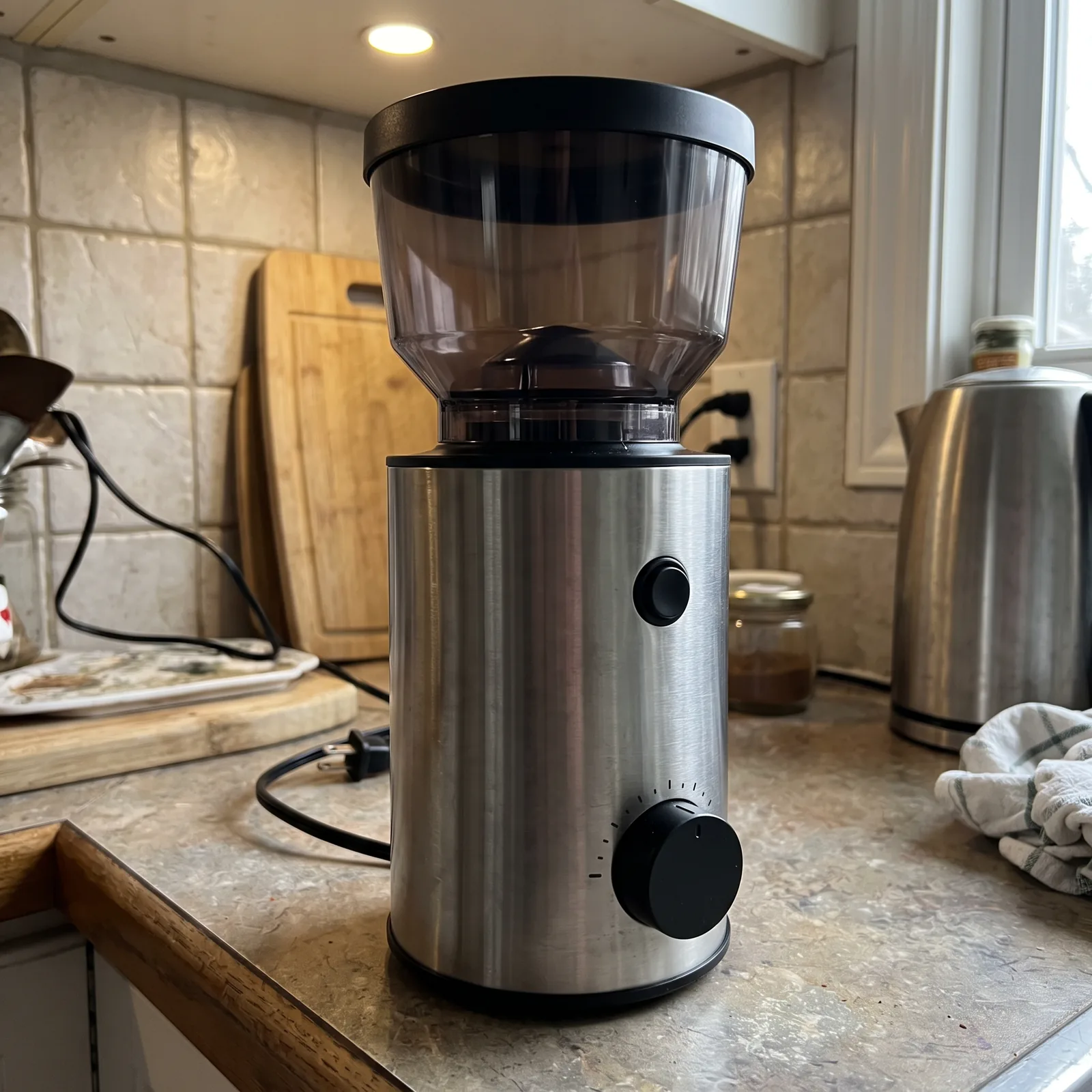
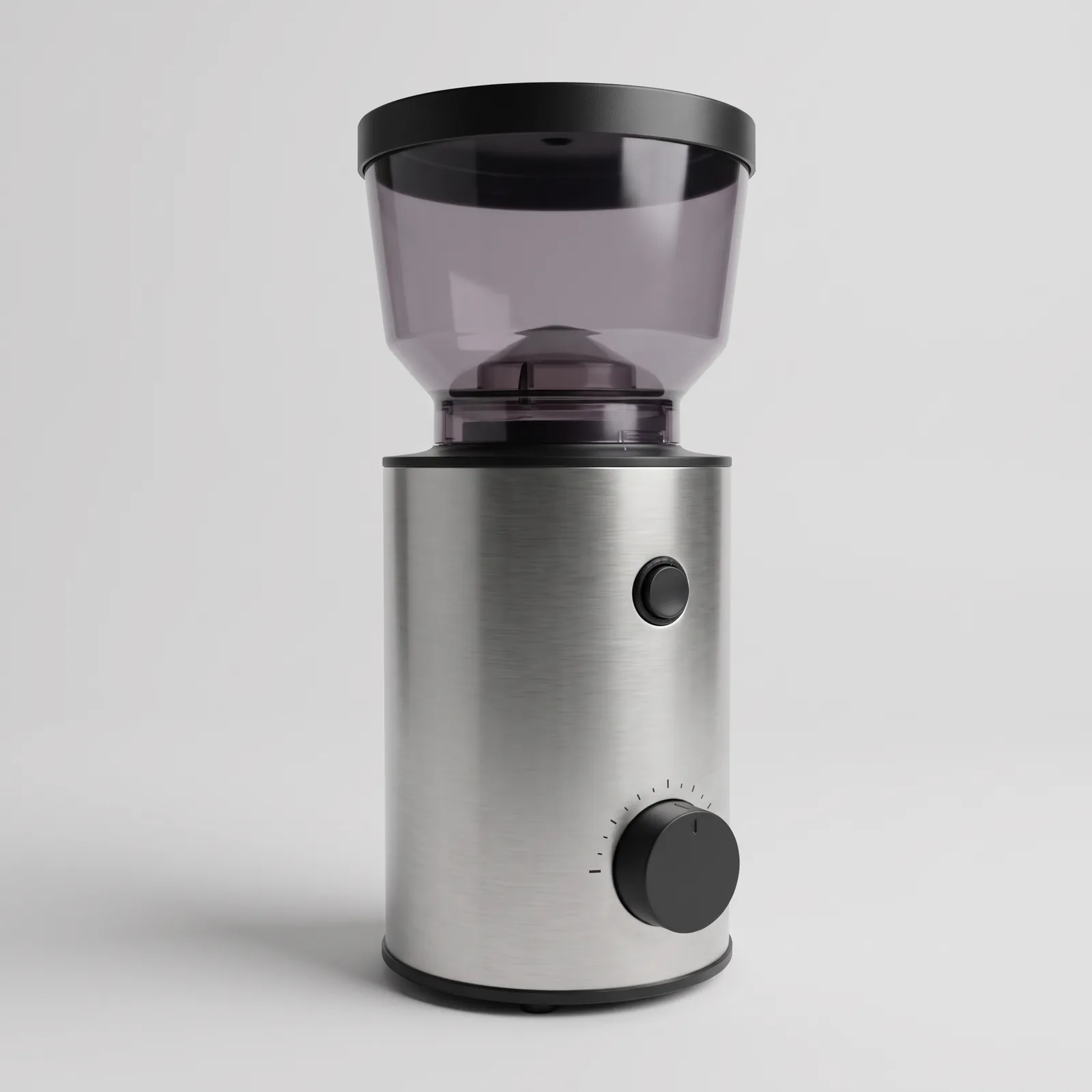
Coffee grinder moved from a kitchen photo onto a light-gray backdrop in ZenCreator Image Editor

Swap the product background with AI

Put every SKU on the same backdrop, whether white, light gray or a brand color, so a category grid looks like one consistent set. Write the backdrop once and Batch Mode applies it to each photo separately.

Tool: Image Editor with Batch Mode
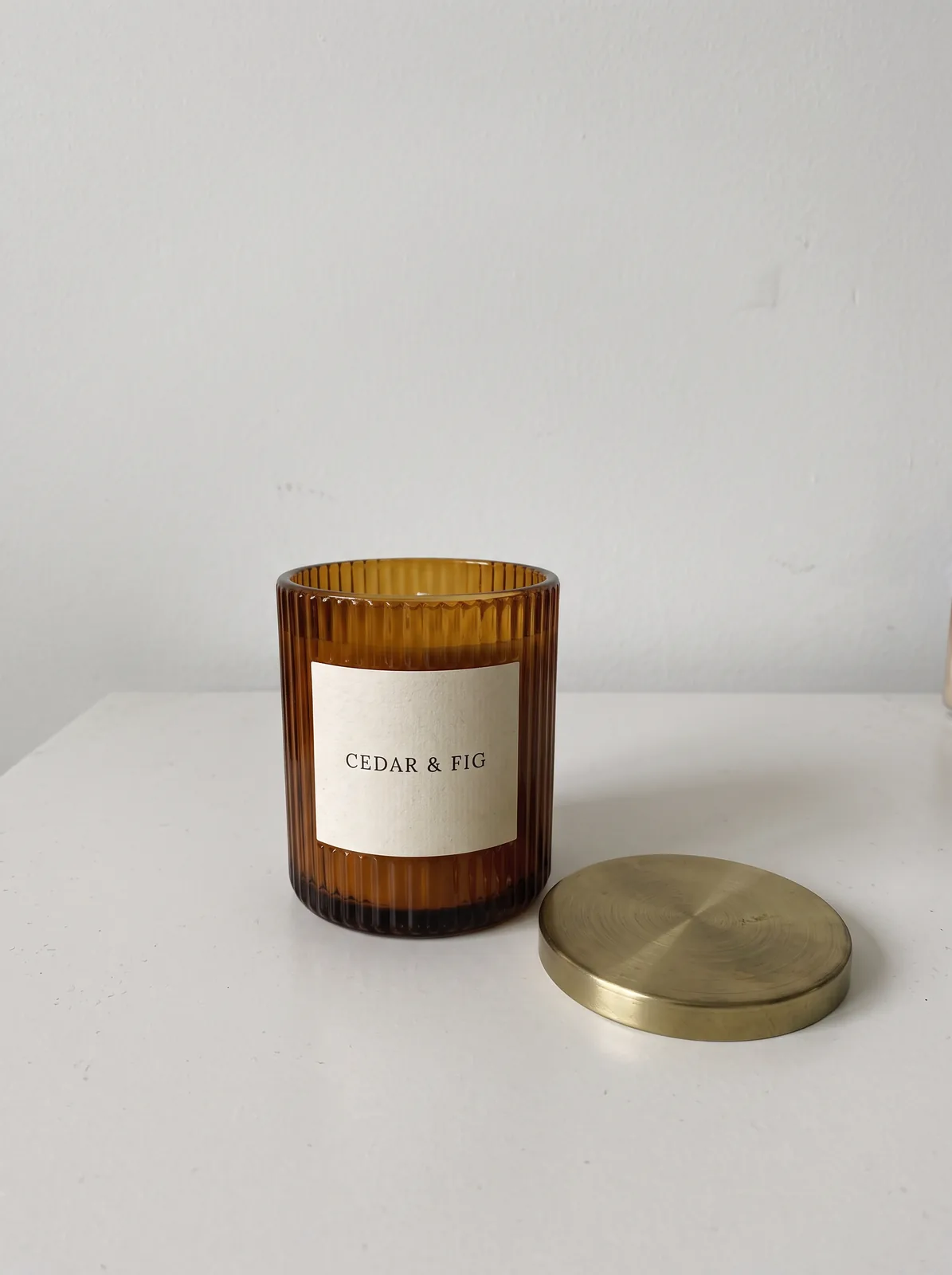
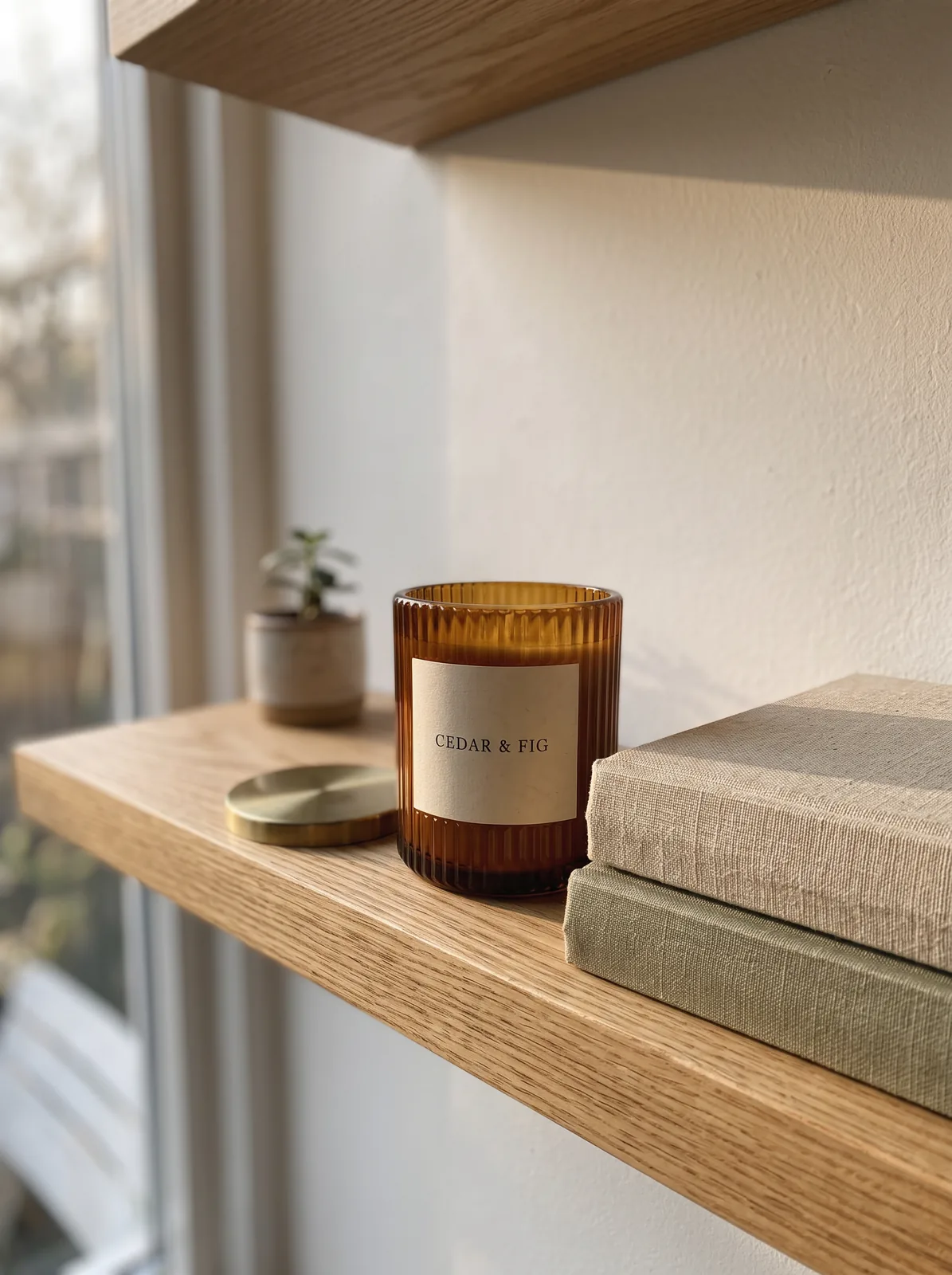
Candle jar on a plain surface, then placed on an oak shelf by a window in ZenCreator Image Editor

Place the product in a lifestyle scene

Describe the setting, for example a candle jar on an oak shelf by a window, or add a second image of the room you want. Image Editor can mix photos from different sources and adapts light and composition to the scene.

Tool: Image Editor

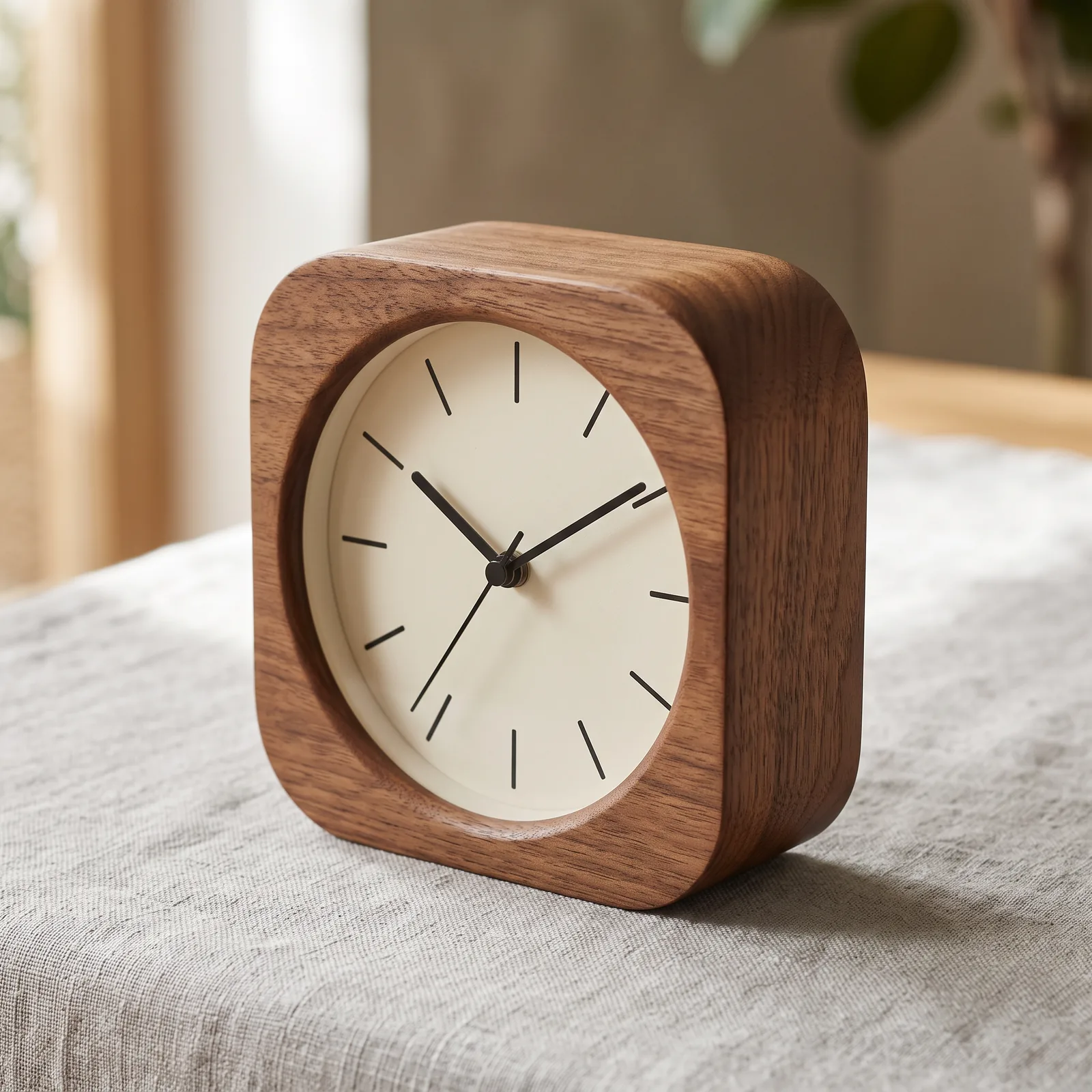
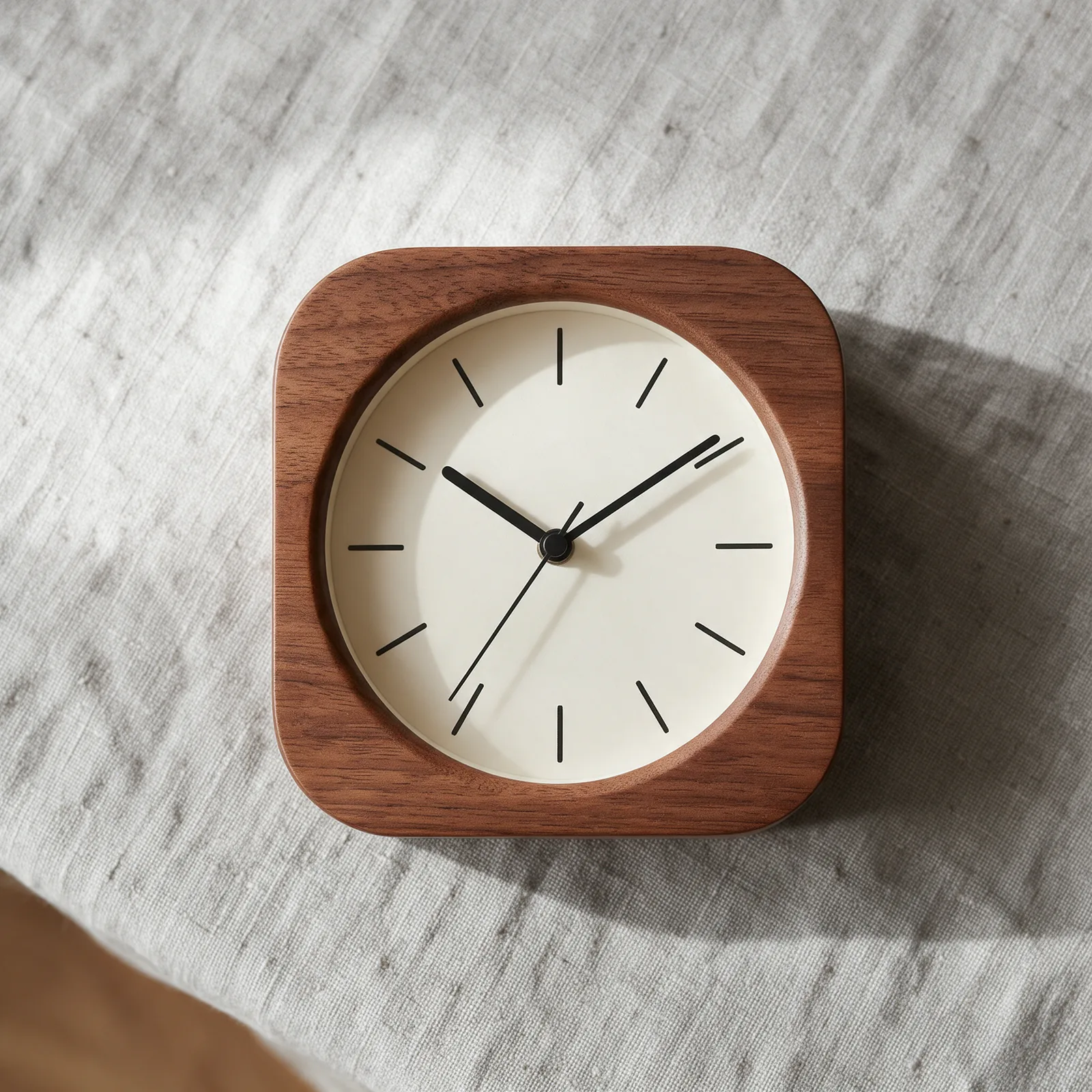
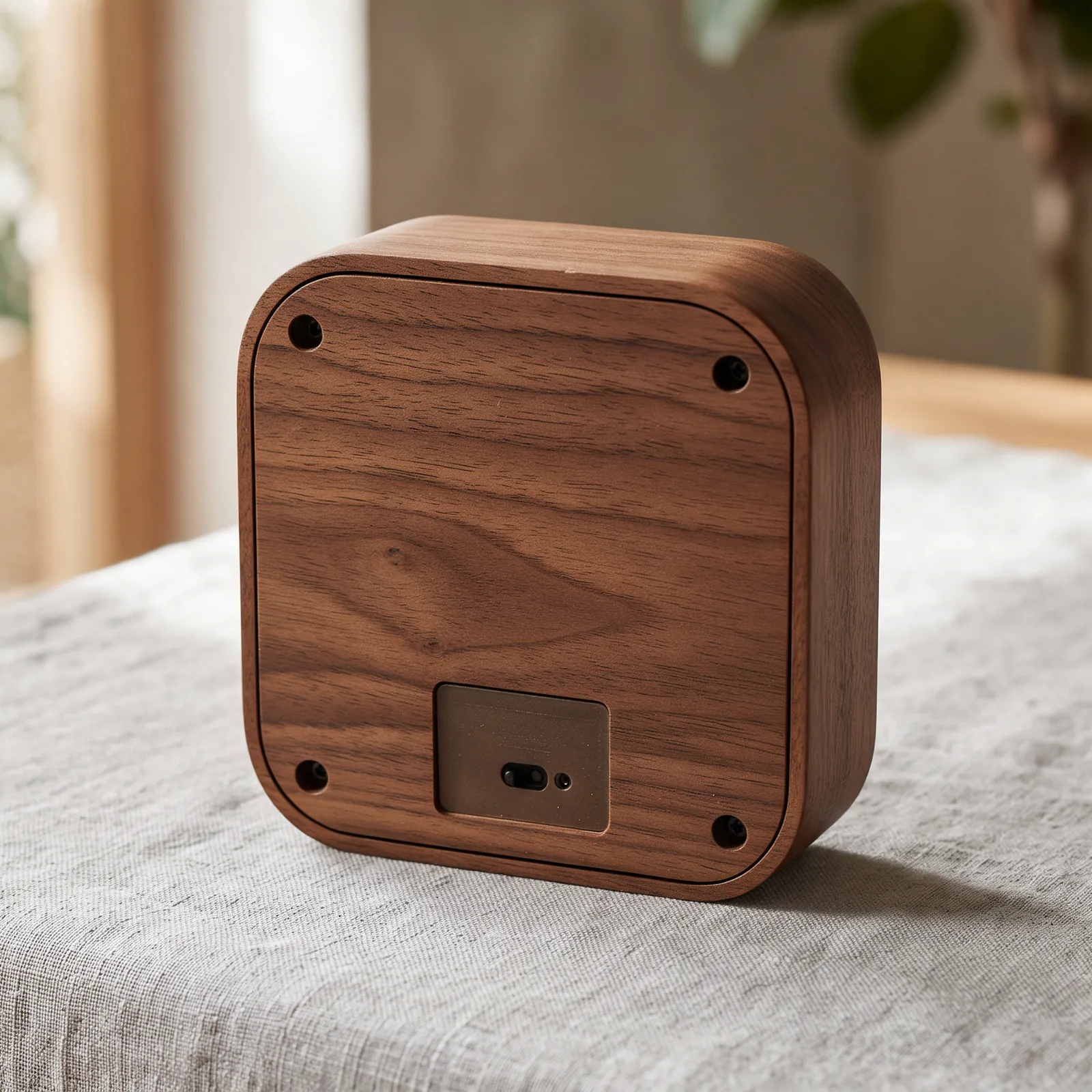
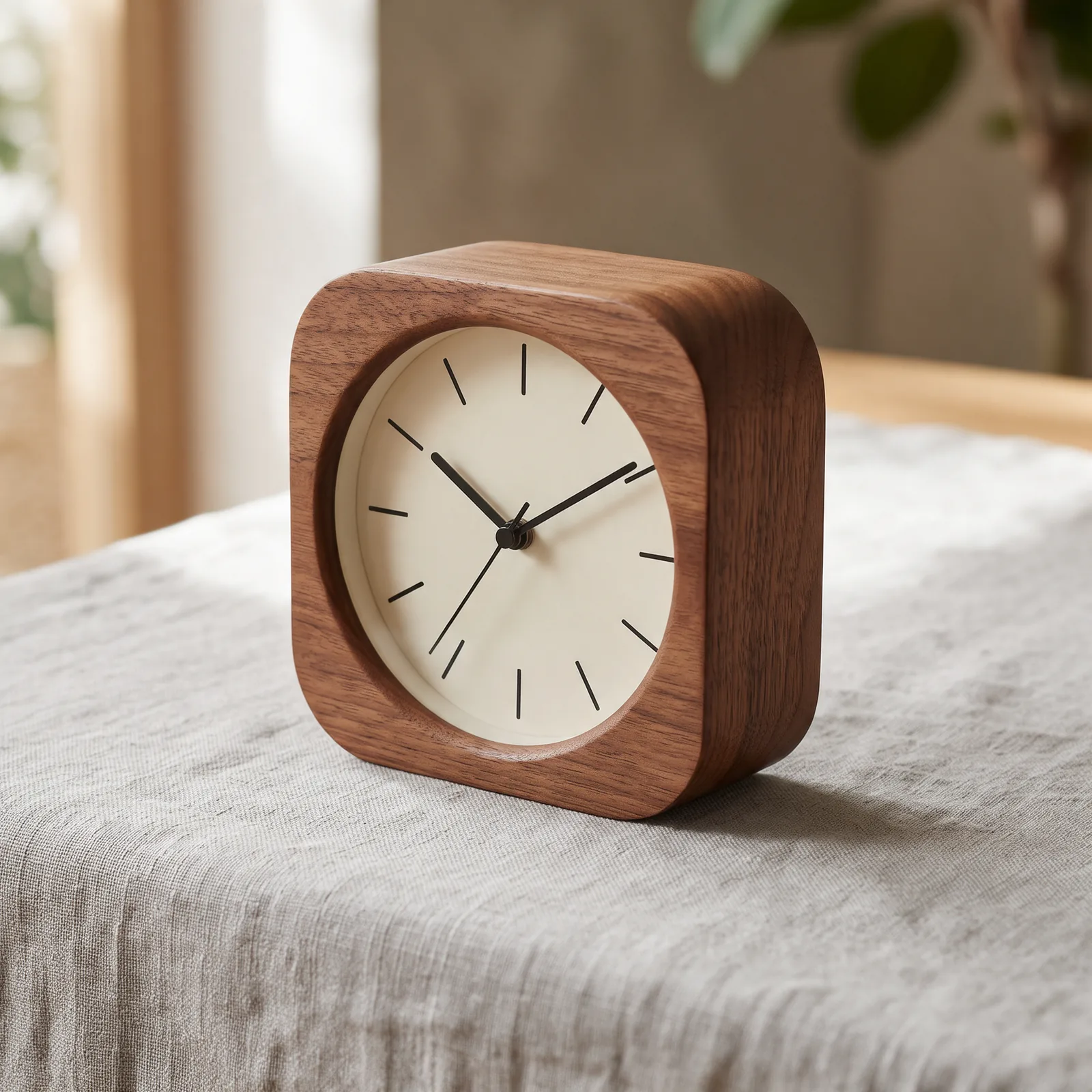
One photo of a wooden desk clock and three new angles of it generated with ZenCreator Variations

Add angles and crops without booking a reshoot

From one product photo, Variations produces as many as ten fresh angles or crops, and there is no prompt to write. Grade, light and the item itself carry over, so a listing gallery reads as a single session.

Tool: Variations

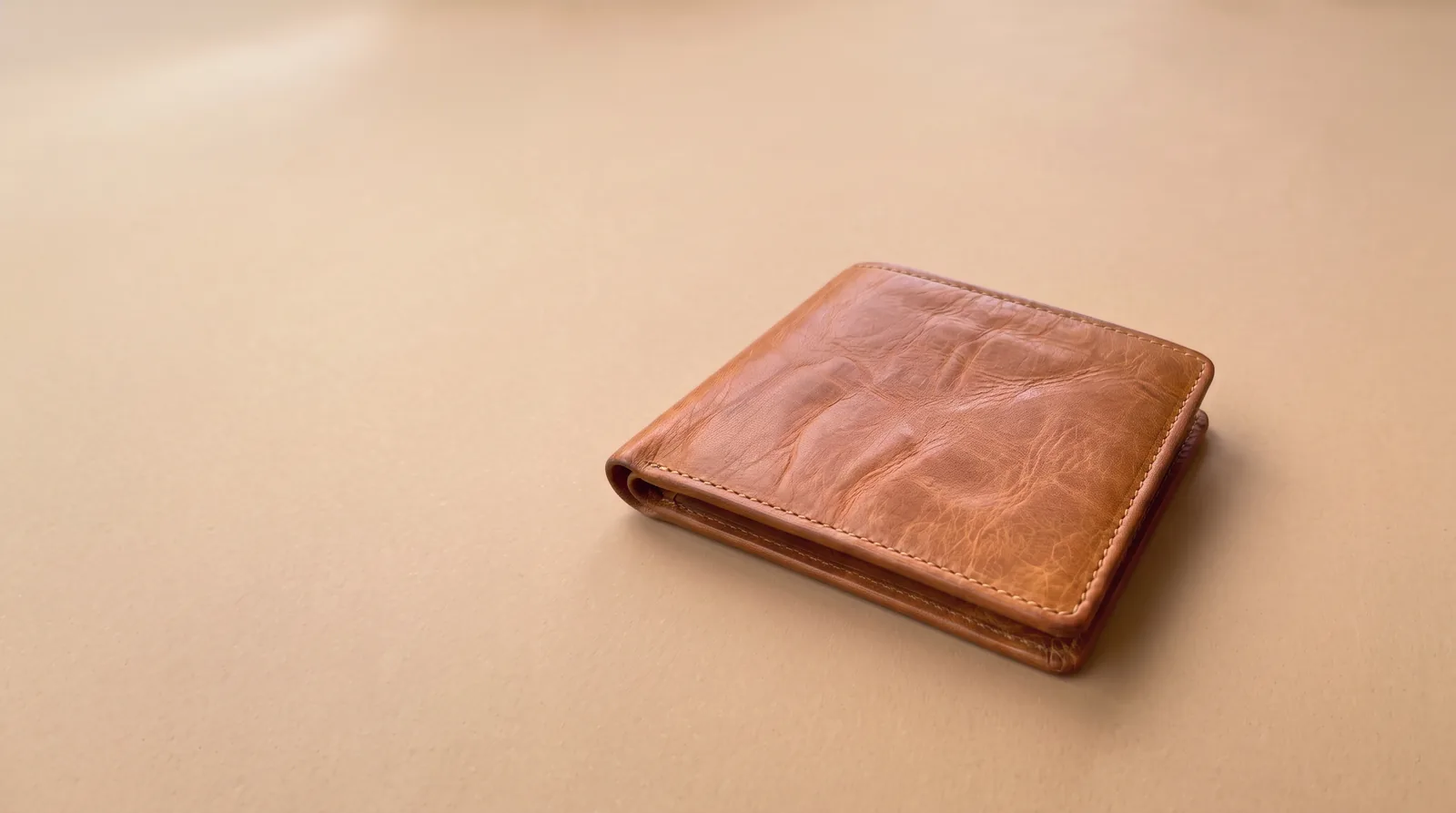
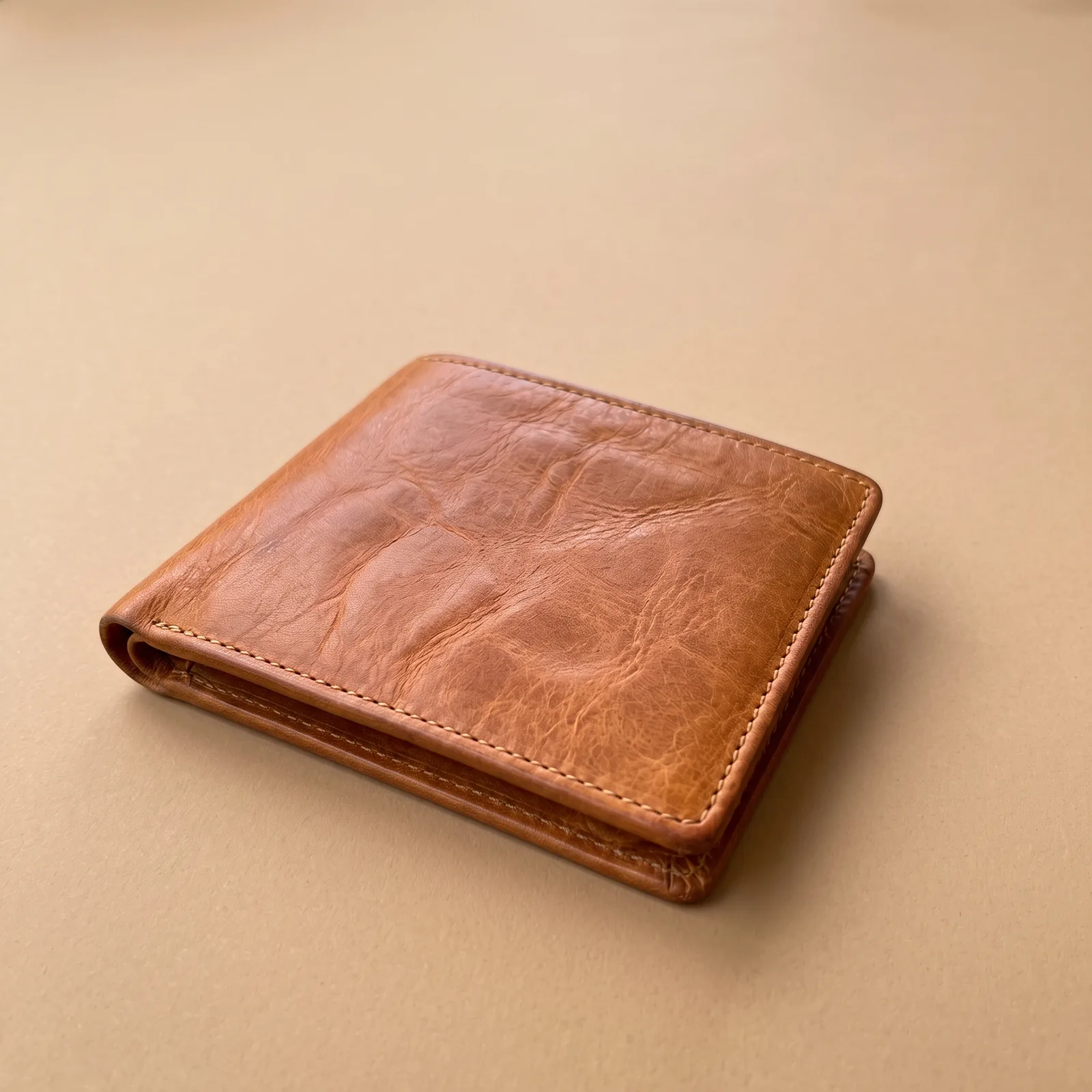
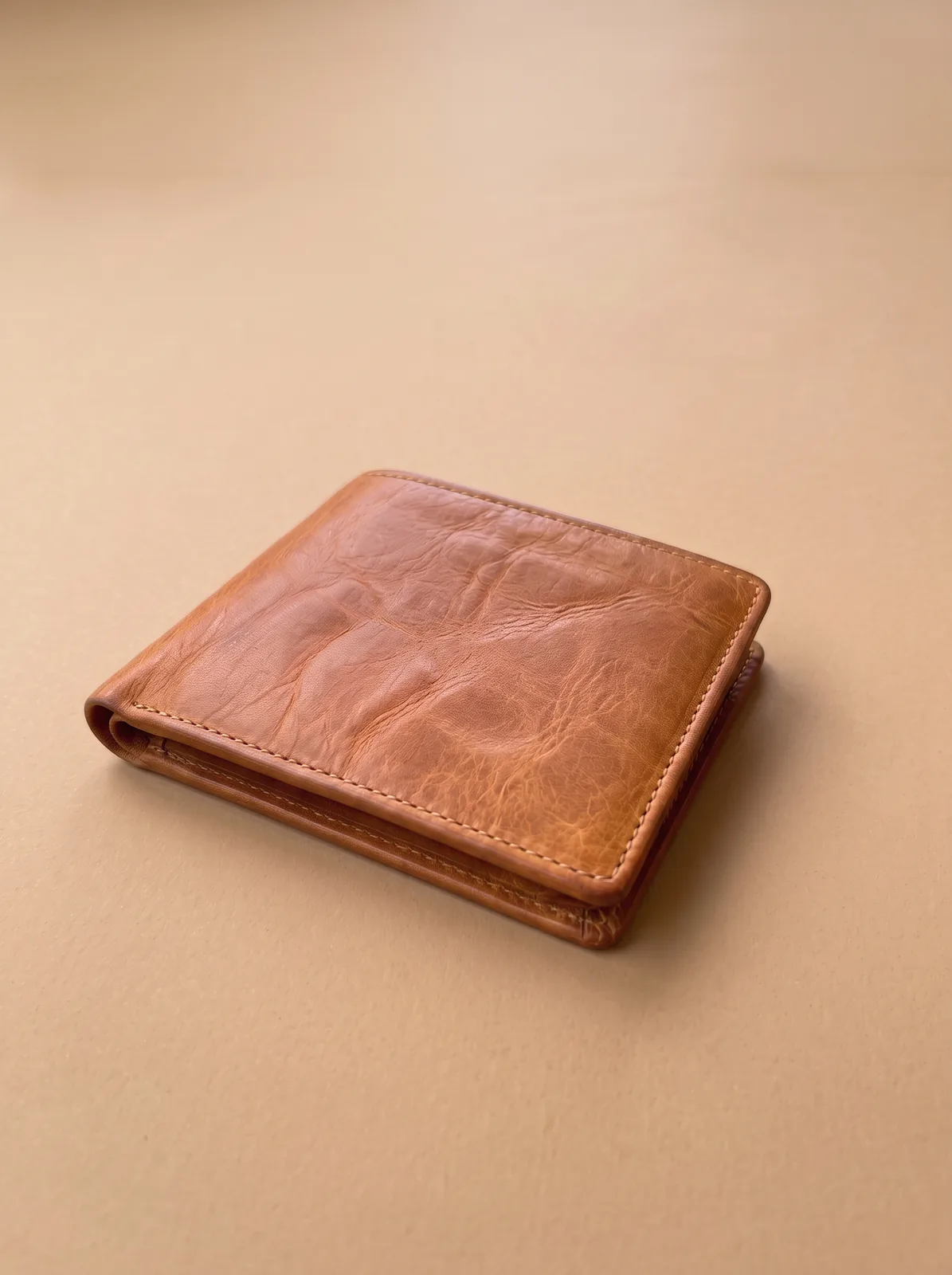
The same leather wallet product shot in square, portrait and wide listing formats

Match every listing's image shape

Set the aspect ratio a marketplace slot or a site banner needs for the run, or leave it on Auto to keep the first photo's shape. Then enlarge and sharpen the shots you keep in Image Upscaler, up to 8K.

Tool: Image Editor · Image Upscaler

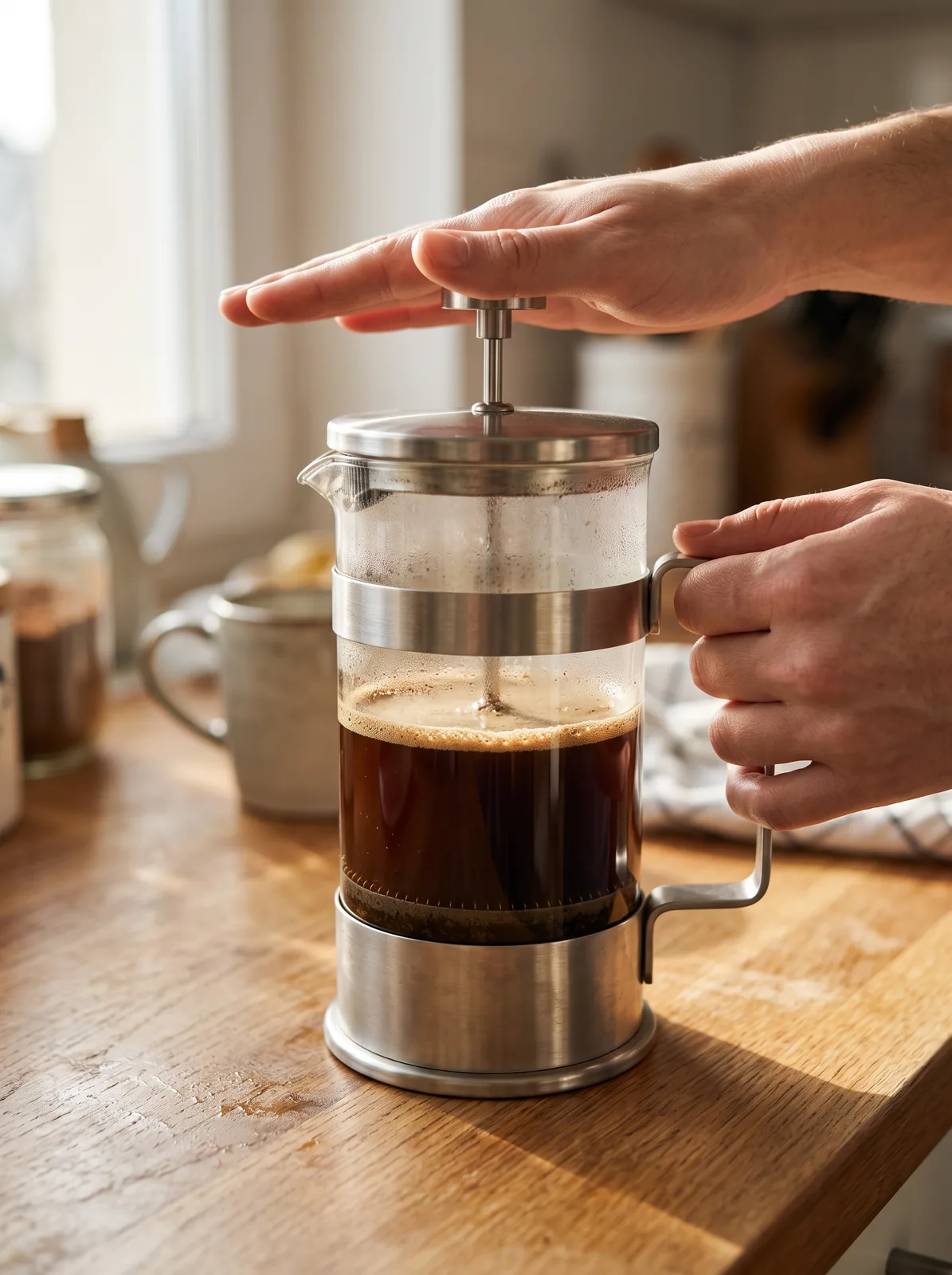
Hands pressing coffee in a glass French press in a home kitchen, image made with ZenCreator

Show the product in use

Describe a use scene, such as hands grinding beans with your grinder, and Image Editor builds it around your photo. On-model clothing sets live on the fashion page, garment try-on on virtual try-on. Anyone real in a photo must consent to the edit and its use.

Tool: Image Editor

Turn a finished shot into a short clip

Send the final image to Image to Video and choose Kling 2.1 for a 5- or 10-second clip; it suits polished product hero shots. Use it for a listing video slot or a launch post.

Tool: Image to Video

Follow one product through the whole set

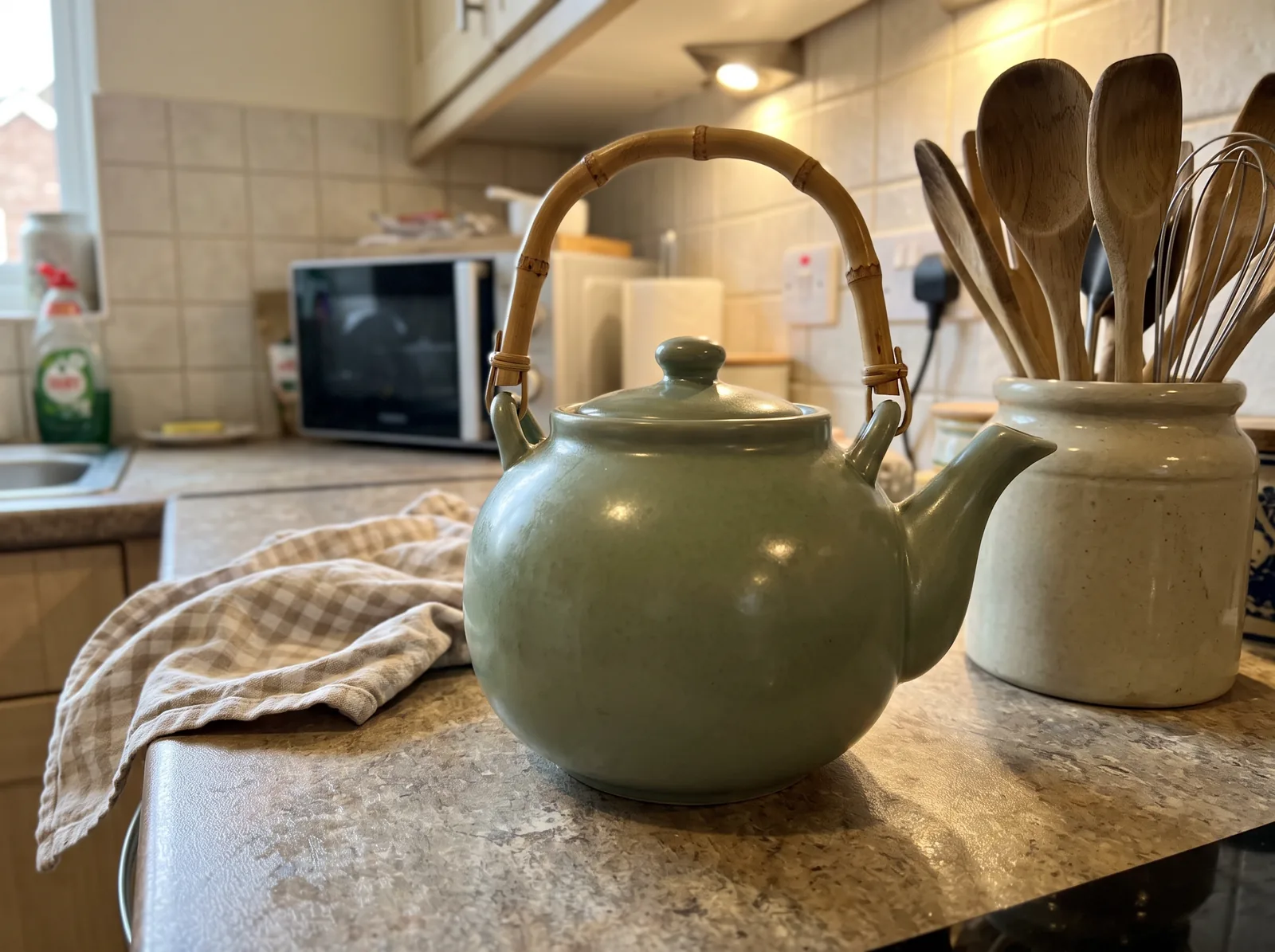
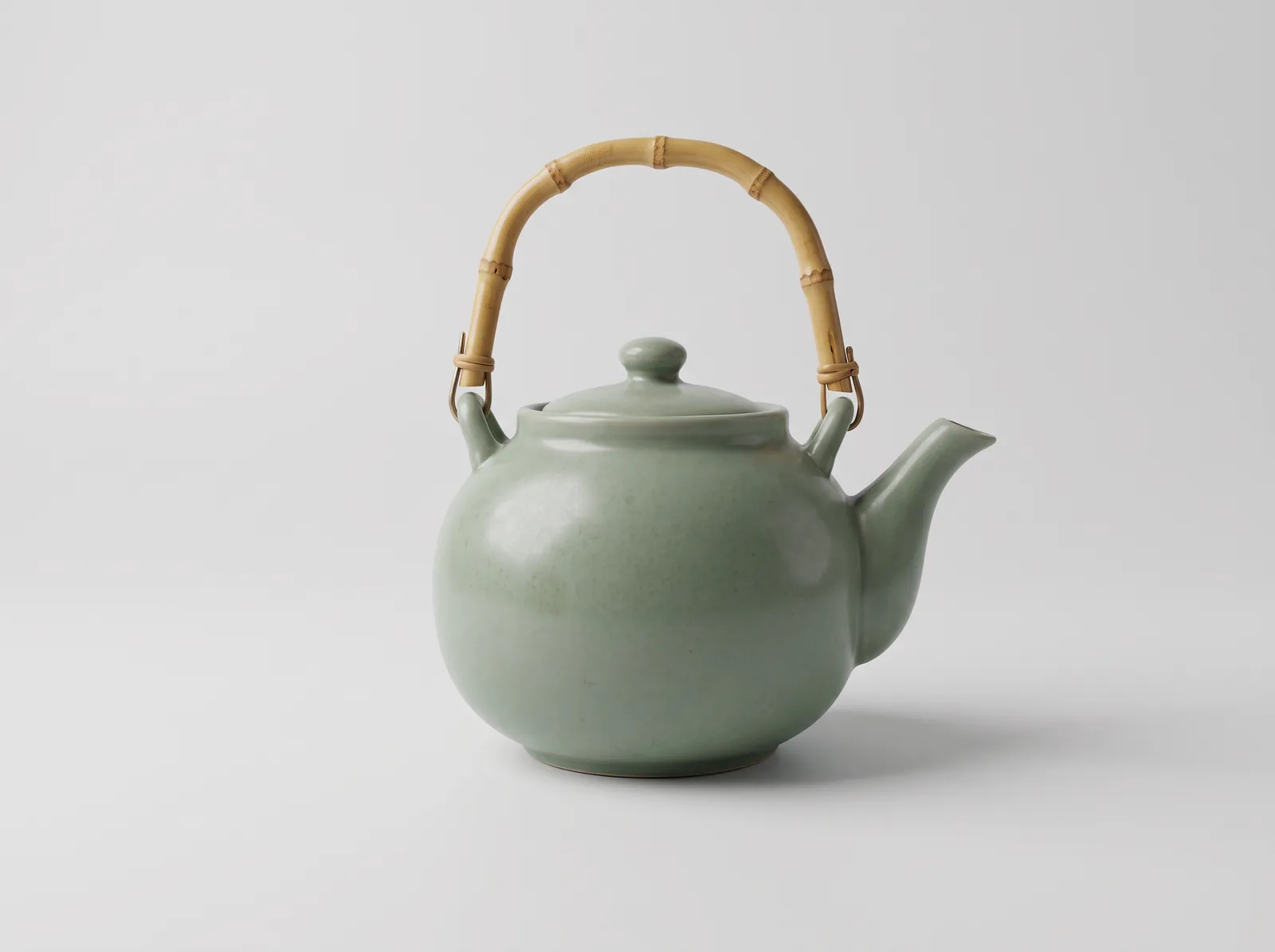
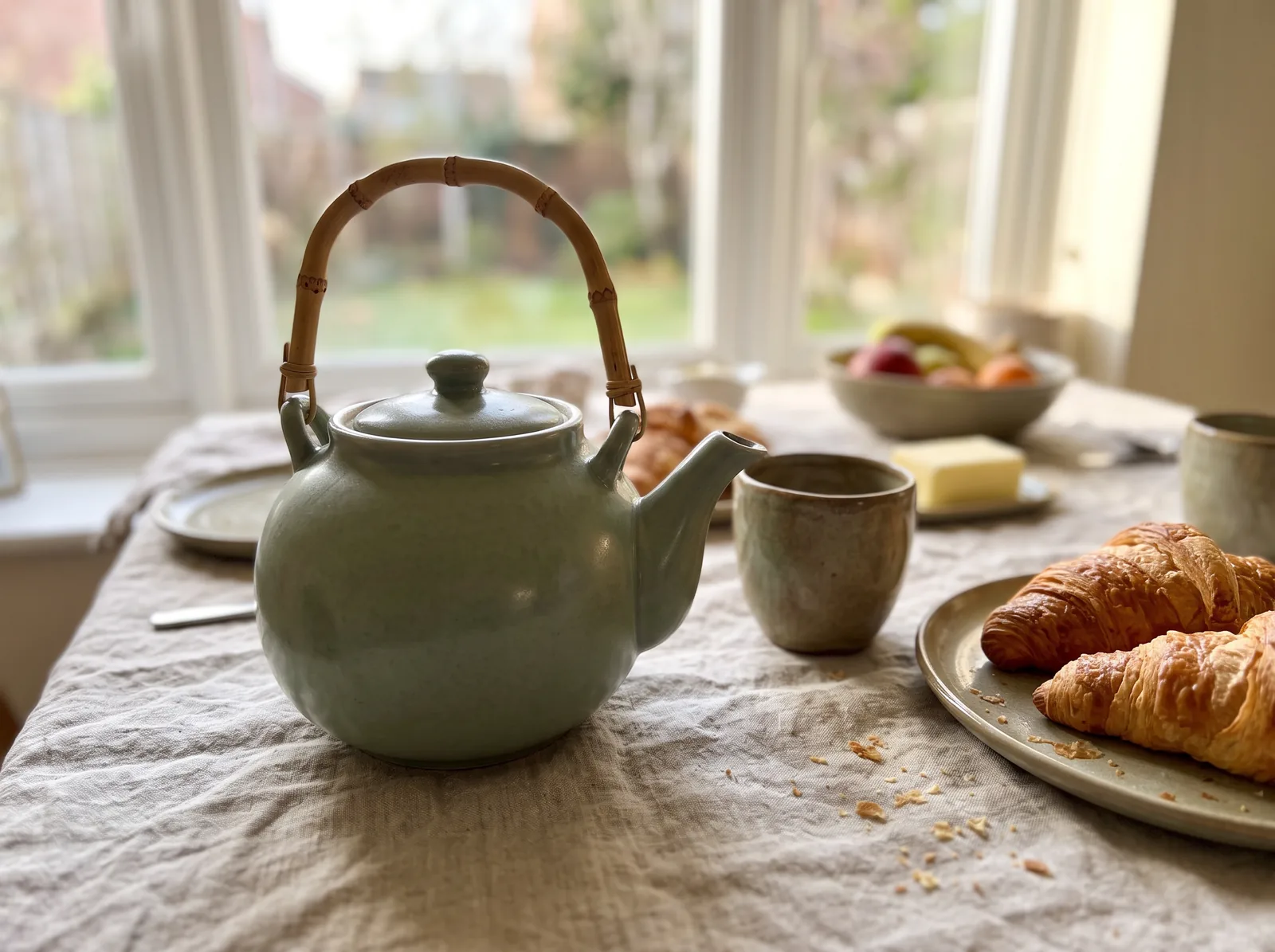
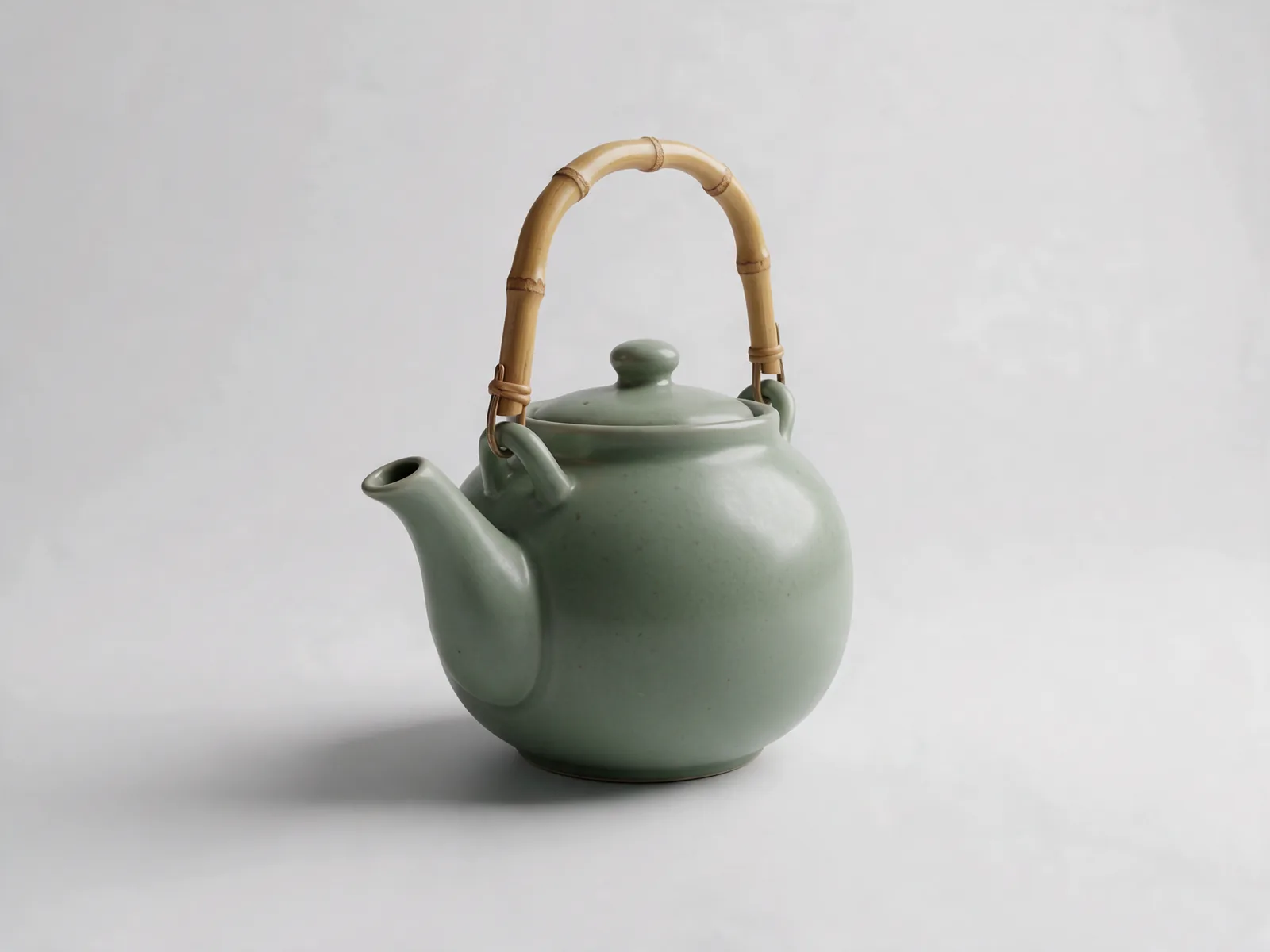
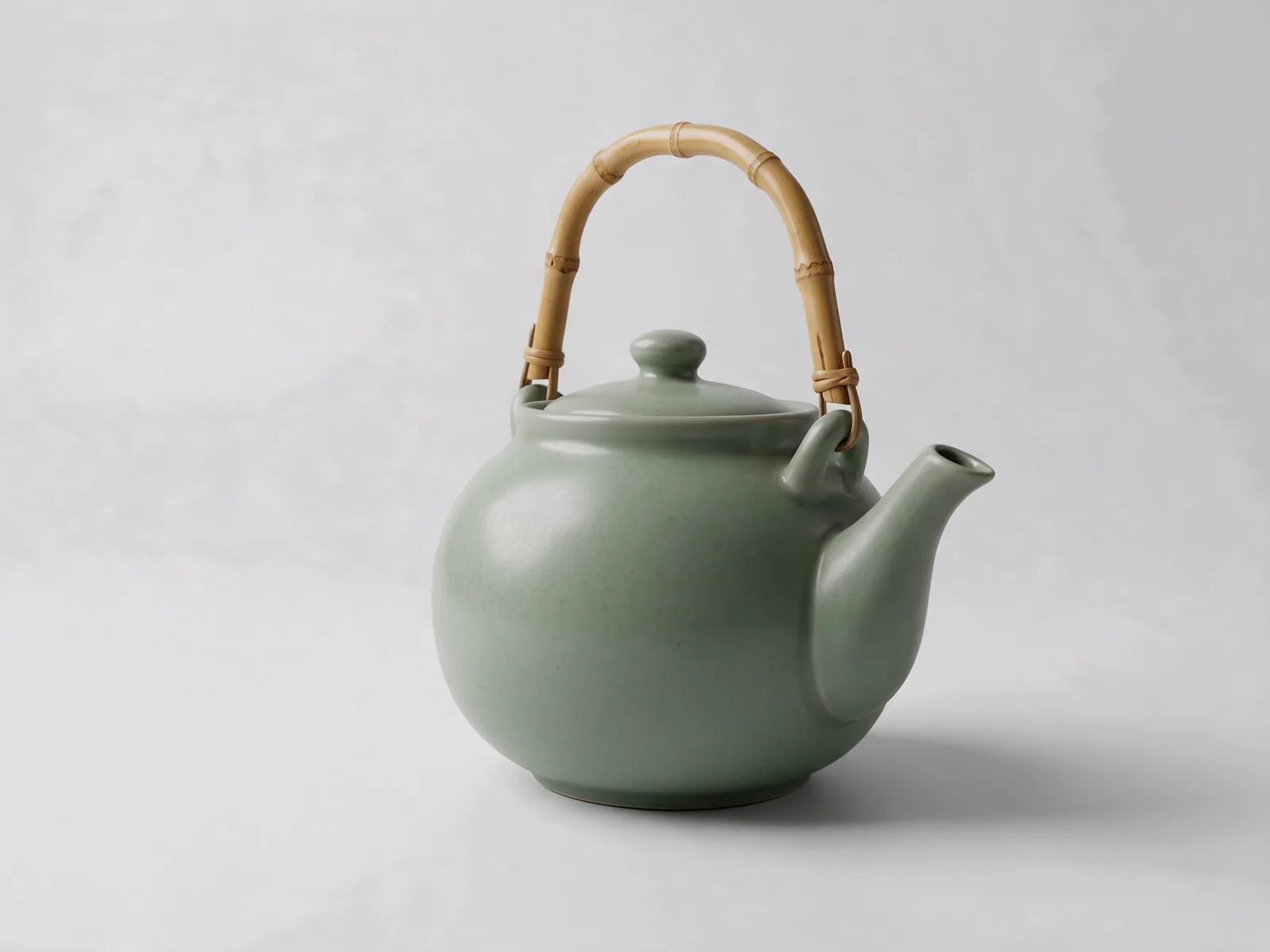
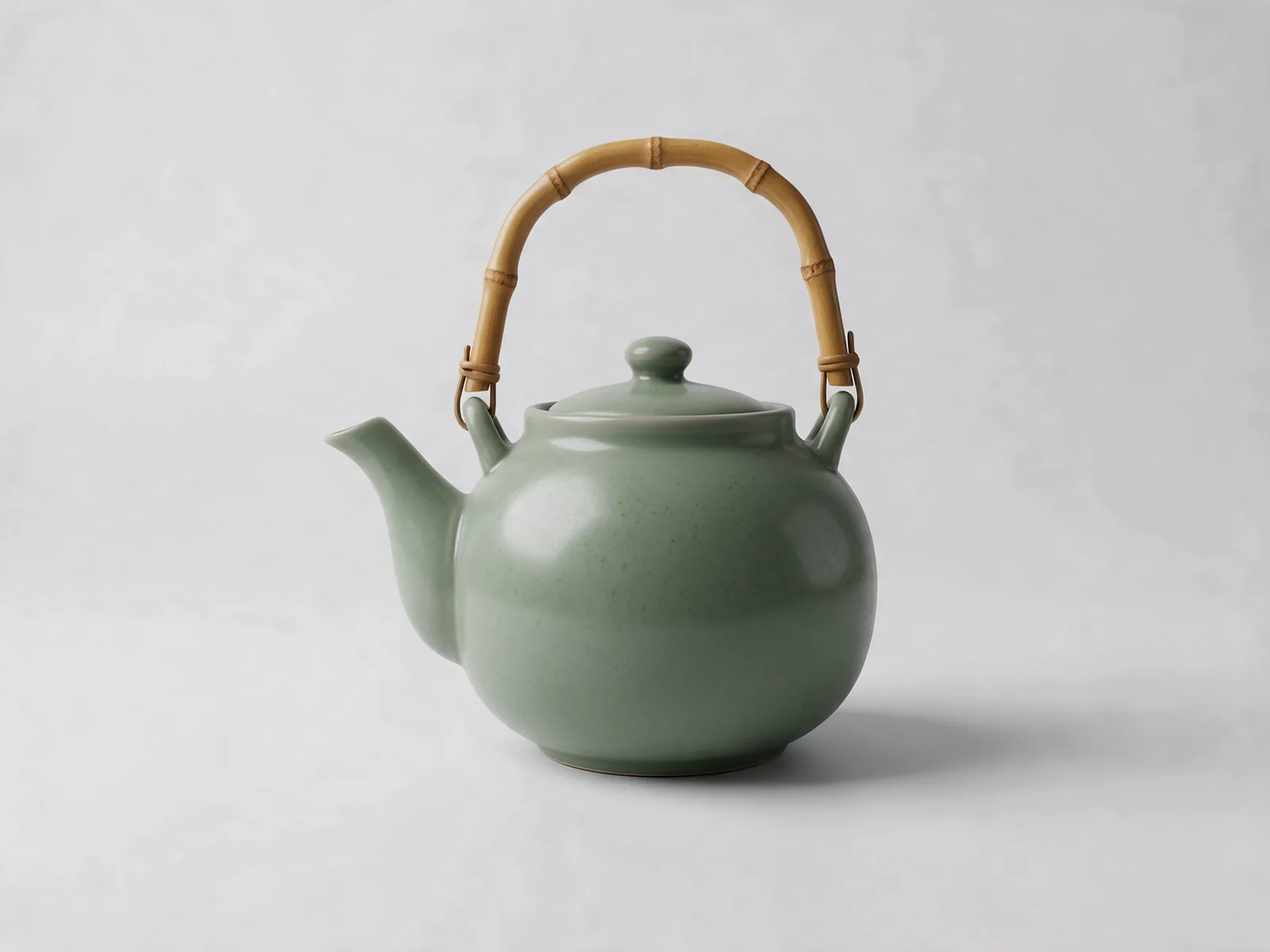
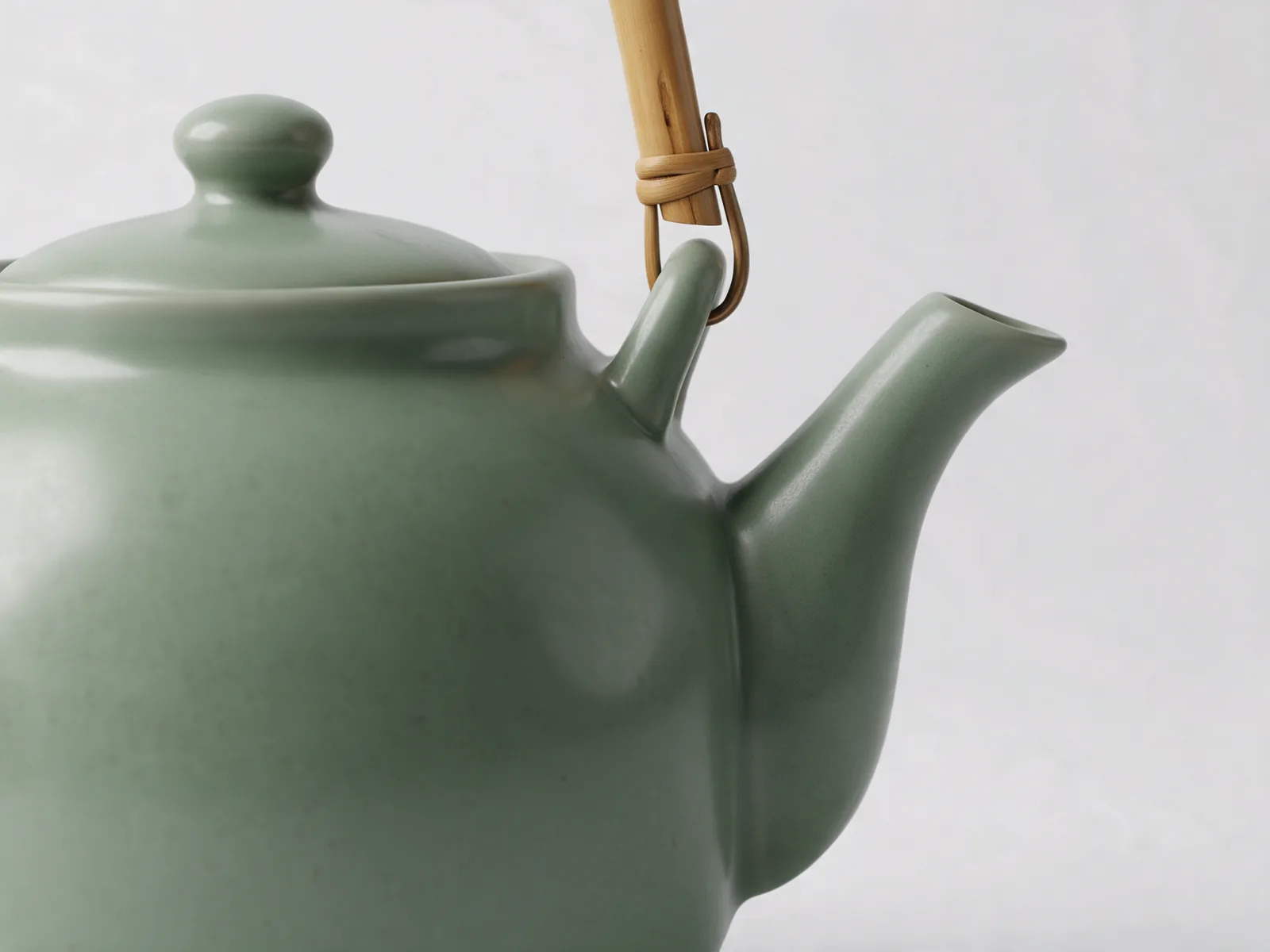
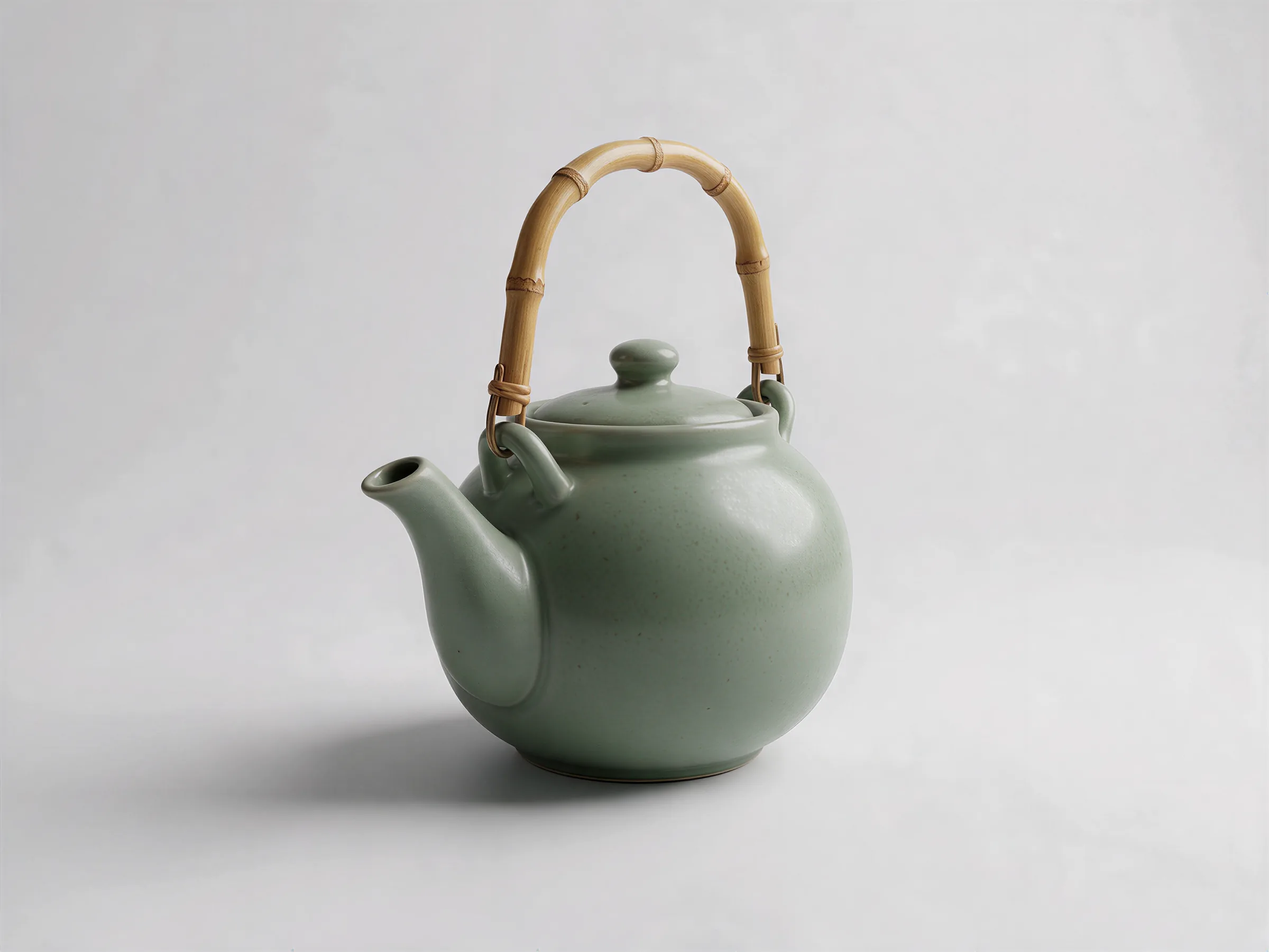
These AI product pictures all start from a single photo of a ceramic teapot. Each caption names the tool and the edit, so you can repeat the sequence on your own SKUs.

  1. Ceramic teapot in five frames: original kitchen photo, light-gray backdrop, breakfast-table scene, new angles and an upscaled final
    1. Original: the teapot on a kitchen counter, shot as is.
  2. 2. Image Editor: the same teapot on a light-gray backdrop.
  3. 3. Image Editor: placed on a breakfast table beside a window.
  4. 4. Variations: three new angles and a close crop, no prompt.
  5. 5. Image Upscaler: the chosen frame sharpened for a large listing image.

How to use AI for product photography in ZenCreator

  1. 1. Pick Nano Banana 2 in Image Editor

    Open Image Editor and select Nano Banana 2, one of the models available there. It suits clean, brand-safe product visuals and is the Editor model built to render text inside an image, such as label copy.

  2. 2. Upload a set of SKU photos

    Add up to 14 product photos per run with Nano Banana 2. A bigger catalog runs as several batches with the same instruction.

  3. 3. Switch on Batch Mode

    With Batch Mode on, each photo is edited on its own and returns its own result, instead of all uploads merging into one image.

  4. 4. Write the change and what stays fixed

    Name the edit and the parts that must not move, for example: "Place on a light-gray backdrop with a soft shadow; keep the product, label and color unchanged." Vague requests such as "make it pop" give unpredictable results.

  5. 5. Set the format, check the cost, generate

    Choose an aspect ratio, or leave Auto to match the first photo. The Generate button shows the credit cost per image and the batch total before you confirm.

Prompt patterns to adapt:

Table lampLight-gray seamless backdrop, soft shadow under the baseShade shape, cord, brand plate
Coffee grinderMarble kitchen counter, morning light from the leftHopper, dial markings, body color
Candle jarOak shelf with two books, warm evening lightLabel text, lid, wax color
Start a batch in Image Editor

Product photo editing at catalog scale: tools and limits

Plan a large catalog against these documented limits, then move each batch from one stage to the next inside the same account.

Backdrops and scenesImage Editor with Batch ModeModel, instruction, aspect ratioUp to 14 photos per run with Nano Banana 2; split bigger sets into more runs
Angle and crop variantsVariationsNumber of images, aspect ratio, 1K or 2KUp to 10 per photo and up to 1,000 photos per batch; one ratio and resolution for the batch
Final sizeImage UpscalerMode, detail level, target resolutionUp to 8K with SeedVR2 3B Base, up to 6K with SeedVR2 7B Premium
ExportTask results or My generationsSelected results or all of themMore than three images download as one ZIP; quality stays as generated
TurnaroundEvery toolNo extra settingMost tasks finish in 1–5 minutes; peak load can add delays

Work from a product list with ZenCreator MCP

Connect Claude Code, Cursor, ChatGPT or Claude to ZenCreator MCP, now in beta, with one server URL and a one-time browser login. Then ask in plain language, for example: "For each product in products.csv, generate a hero shot in our brand style." In a typical run, the assistant checks your balance and the credit cost before it generates anything.

Automate the pipeline through the Public API

Developers start a task, poll its status and fetch the finished file from a result URL, so a catalog system can request product images, variations and upscales without manual clicks. Calls use the same credits as the app, within the per-endpoint rate limits in the API documentation.

Choosing a product photography tool: reshoot or prompt edit?

Both routes end in listing images. The difference is where the work happens: on a set with a photographer, or in an AI photo editor for e-commerce that starts from the shots you already have.

Studio reshoot

  • Starting point: the product, a set, lighting and a booked session.
  • What changes per SKU: each new backdrop or scene means styling and shooting again.
  • Making 10 variants: each extra angle is another setup to shoot and retouch.
  • Consistency across a set: holds while the light and camera stay fixed.
  • What you check before listing: focus, exposure and retouching.

Prompt editing in ZenCreator

  • Starting point: the product photos you already have.
  • What changes per SKU: a new backdrop or scene is a written change, applied to each photo by Batch Mode.
  • Making 10 variants: Variations returns up to 10 angles or crops per photo.
  • Consistency across a set: one instruction and one aspect ratio apply to the whole run.
  • What you check before listing: labels, logos, reflections and color against the real product.

Need cut-outs on a transparent background or hand-masked edges? A dedicated cut-out tool fits that job better. For a backdrop swap by prompt, see the background remover.

Choose the reshoot for a product you have not photographed yet; choose prompt editing when the photos exist and the catalog needs more from them.

Have a folder of SKU photos ready? Try the backdrop edit on a few of them and check the results before you run the rest.

Edit a product photo

Where AI for product photography still needs your review

Product photography AI changes how the image is made; it does not replace the final check. Review these six points before a set goes live.

  • Small text and label copy: use Nano Banana 2 for anything with lettering; other Editor models tend to produce broken or nonsensical letters.
  • Exact logos: models tend to avoid reproducing precise logos and copyrighted marks, so if a mark is critical, add it in post.
  • Reflections and fine details: glass, chrome, small engraved parts and glossy packaging can drift, so look closely at shiny and metal products.
  • Occasional artifacts: some results show artifacts or small inconsistencies; try a cleaner input, a simpler scene or another run.
  • Complex edits: split a big change into steps, backdrop first and props second, rather than asking for everything in one generation.
  • Color, texture and shape: an AI result is a new image, not a measurement, so compare it with the real product before it reaches a listing.

Selling with these images: rights, consent and screening

  • Your source photos: every product photo you upload must be yours or used with permission, and that includes shots supplied by a manufacturer or distributor.
  • People in the frame: if a model, a customer or a member of staff appears, you need the consent that this edit and its use require.
  • Commercial use: the Terms permit commercial use of your results, subject to your compliance, the rights you hold and the terms governing the service and source materials. The license is non-exclusive.
  • Screening before generation: prompts and uploaded images are checked automatically before anything is generated, under the Content Policy.

Dimeris Ltd operates ZenCreator; learn more on the About page.

Product photo questions from catalog teams

Is ZenCreator an AI product photography generator or a product photo editor?

Mostly a product photo editor. Image Editor works from your real photo, so the shape, materials and label of the actual item are the starting point, and Variations adds new angles of that same shot. The platform can also create images from text alone, but a text-only result has never seen your product, so for listings start from a photo of each SKU.

Which files can a batch take, and how do I save the whole set?

Upload photos as JPG or PNG, the typical formats; exact support depends on the tool. When a run finishes, use Download Selected for the results you picked or Download All Results for everything. More than three images arrive as one ZIP file, downloading does not change image quality, and your results stay in My generations.

How long does a batch of product photos take?

Most tasks finish within one to five minutes. Peak load or a particular model can add delay, and if a task is still processing after 30 minutes, contact support with its task ID. To save credits on a large catalog, upscale just the shots you plan to publish.

How are credits charged for a catalog batch?

Credits come off your balance when a task starts. Before you confirm, the Generate button shows the cost per image and the total for the batch. If a generation fails because of an error on ZenCreator's side, the credits are typically returned automatically. Credits do not expire, there is no subscription, and one balance covers every tool, the API and MCP. Current packs are listed on Pricing.

How do finished images get into my store?

Download the set, as a single ZIP when it holds more than three images, and add it to your listings through your store's own upload. For automated pipelines, the Public API returns a URL for each finished result, and an assistant connected through MCP can work through a product list file.

Can I edit product photos that include a person?

Yes, as long as everyone shown has given consent for the edit and for the way you will use it. Image Editor can work with a product held in someone's hands or worn in a lifestyle shot. For full on-model clothing sets built from a face photo and a body reference, see the fashion page.

Give every SKU a finished catalog set

Start with one batch in Image Editor: one instruction, one result per photo, and the cost on the button before you run it.