Updated October 2026
AI Drama Generator: Short Vertical Episodes With the Same Cast
Tell your story in parts. Each episode is planned in Video Builder with your characters checked as stills before any clip is filmed, and it ends on a closing card that sets up the next one.
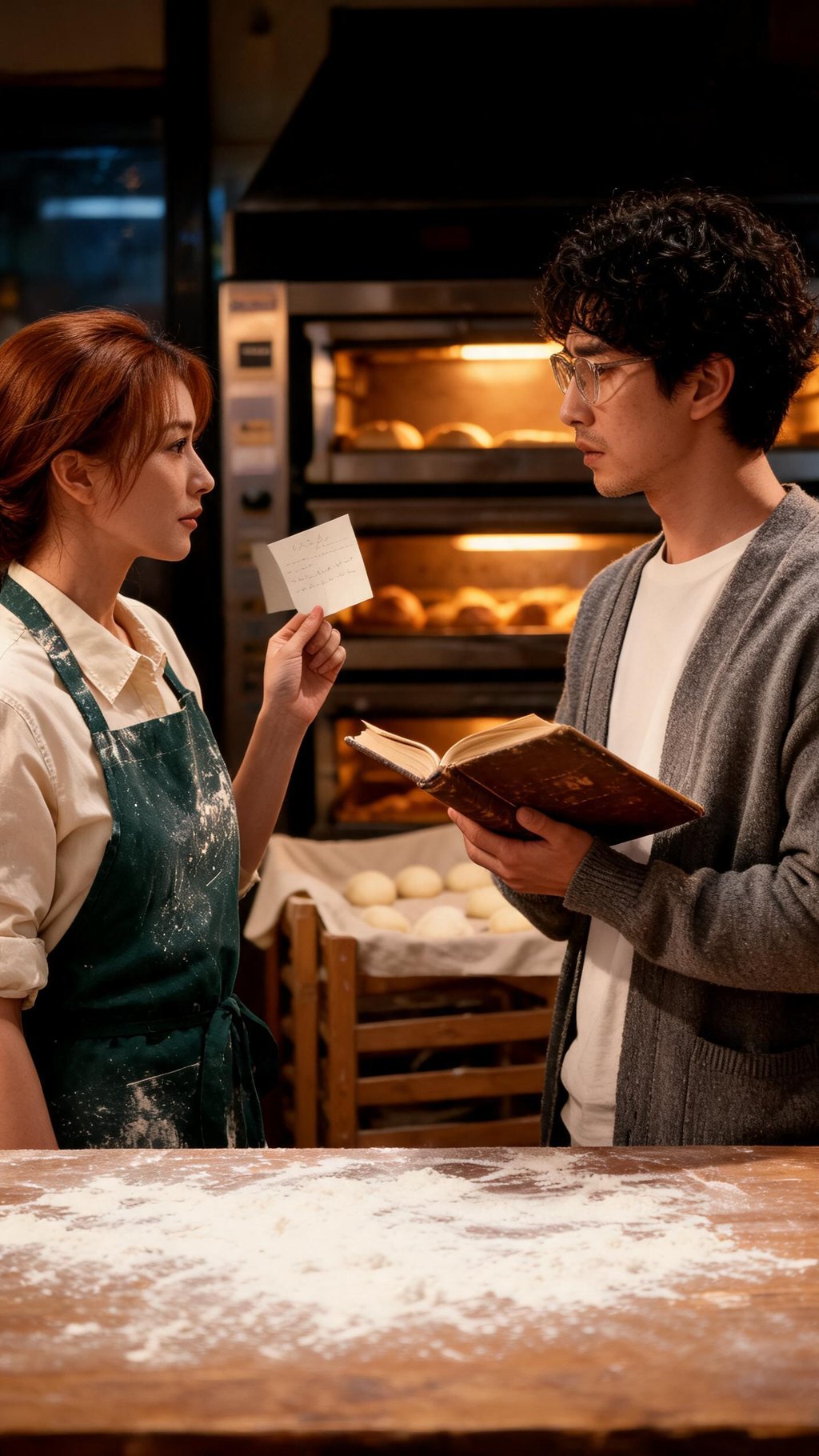
- 9:16 by default
- 15 s to 3 min per episode
- Cliffhanger closing cards
- Faces checked before filming
A drama told in parts, one project per episode
With ZenCreator as your AI drama generator, every episode is its own Video Builder project: one chapter of the story, the same characters, one cliffhanger. You write the episode brief in up to 4,000 characters, and the planner turns it into a title, scenes, shots and a description of each recurring character. Nothing is filmed until you have seen a portrait of every character and a still of every shot.
Episodes are vertical by default and run anywhere from 15 seconds to 3 minutes. The closing card at the end holds your cliffhanger line. There is no series or season setting: you start each new episode as a new project with the same reference photo and the same character description, and the episodes sit side by side under Your videos.
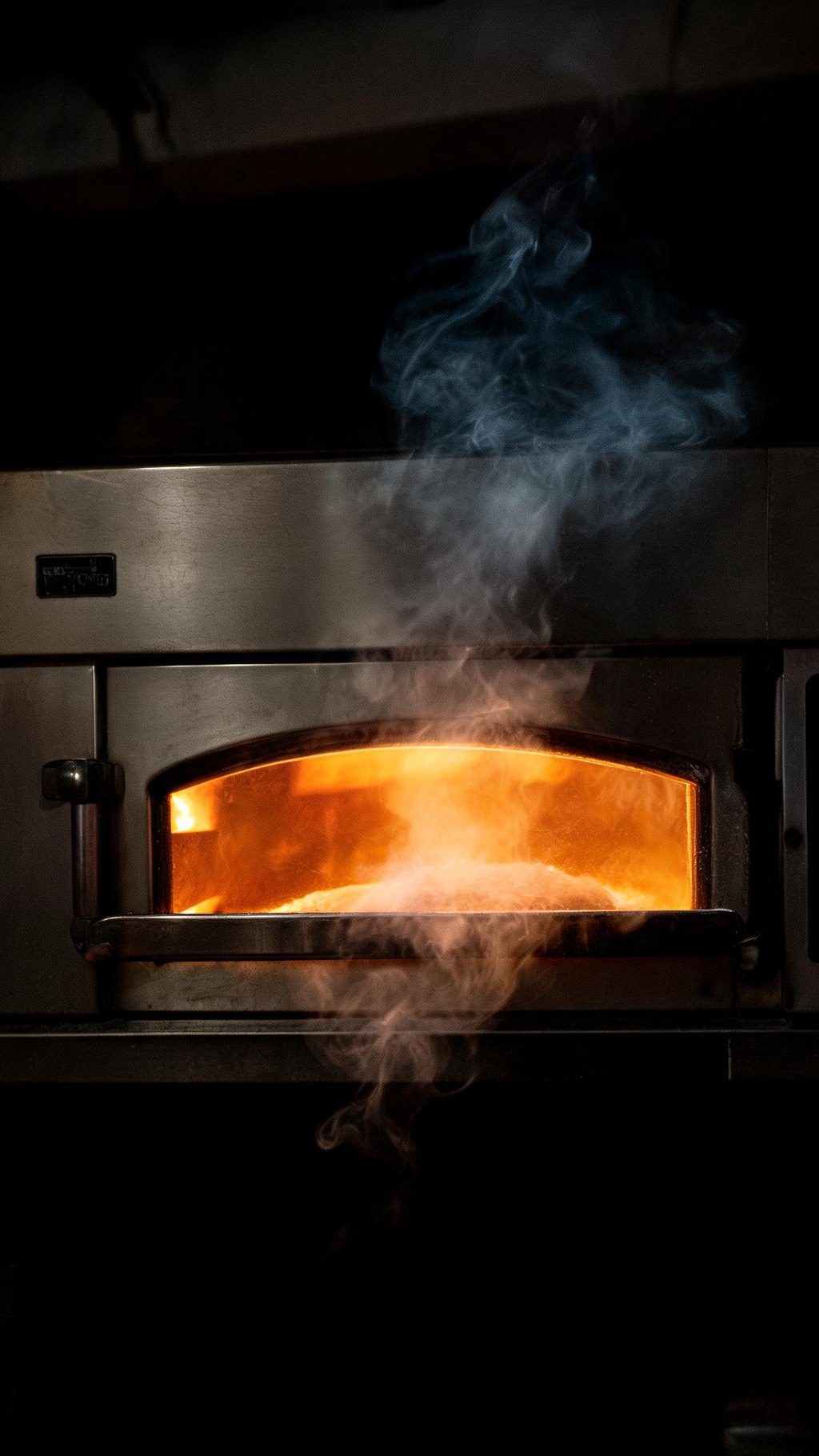
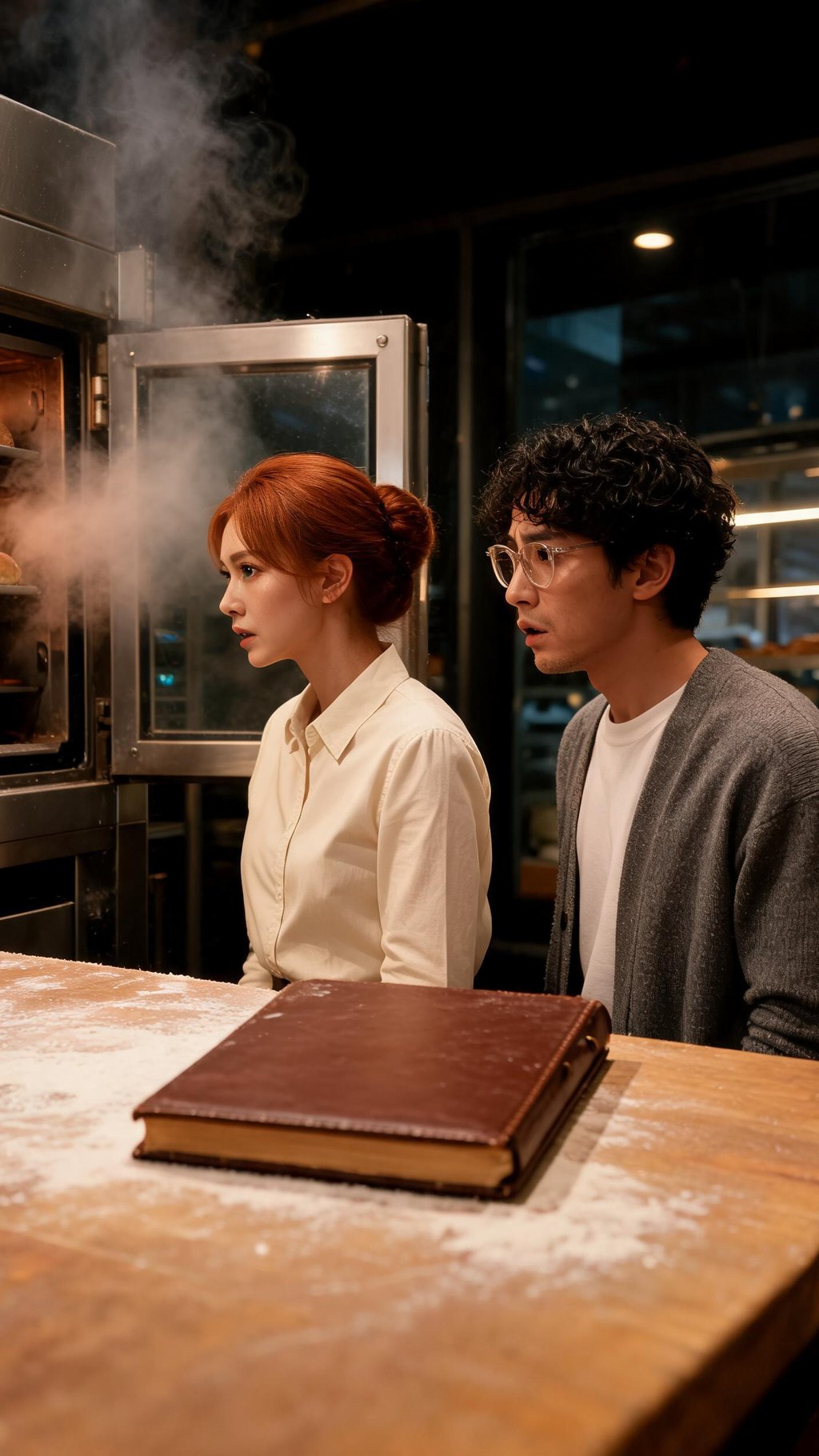
Episodes 1 and 2 of Night Bakery
Two separate Video Builder projects, the same reference images and descriptions: watch Rosa and Theo come back for the second episode.

An AI short drama generator built around one cast
Short drama depends on viewers recognizing the same faces from one chapter to the next. Four mechanics build each episode around them.
Characters written once, portraits built for you
Describe each character once in detail: appearance, hair and clothing. The planner builds a portrait from that description and keeps the character consistent across every shot of the episode.
Sized for vertical chapters
9:16 is the default aspect ratio, and an episode can run from 15 seconds to 3 minutes in 5-second steps. Results are strongest between 30 seconds and 2 minutes, a natural length for one chapter.
A closing card that holds the hook
Each episode can open on a title card and close on a final card. Put the episode number and name on the first and the unanswered question on the last, choose from six typefaces, or let Rewrite suggest new wording.
Two-hander scenes with both faces checked
Who appears sets the cast of each shot: one character, No one for an empty room, or Everyone when both share the frame. Fix the face keeps framing, hands and light, and Pin faces to the portrait applies the portrait face to every still.
How to plan an AI micro drama, episode by episode
A micro drama is told in short vertical chapters that open on a hook and stop on a turn. Here is one episode in Video Builder, and how the next begins.
1. Write your cast down once
For each character, write one detailed description (appearance, hair, clothing) that you will paste into every episode. If you add a reference photo, the first image you upload becomes the Style reference for your character.
2. Brief episode one to end on a turn
Tell what happens from the opening shot to the last, name the scenes and shots, and let the final shot set up the hook. Keep 9:16, pick a length such as 45 seconds and click Plan the video.
3. Check both faces in the stills
You get a portrait of each recurring character and a still for every shot. Set Who appears and fix any face; when both hold up, press Looks good — film it. After that, only prompts, model and resolution stay editable.



4. Put the cliffhanger on the closing card
Clips render three at a time, usually in around 2–3 minutes each. Then type the cliffhanger line on the closing card, pick a film look such as Warm, click Assemble the video and download the episode from the three-dot menu on the player.


5. Brief the next episode with the same references
Start a new project, attach the same first reference image, paste the same character descriptions and write where the story picks up. Note any change since the last episode, such as an apron now off.

Got a premise and two characters? That is enough to plan episode one.
What carries from one episode to the next
Video Builder holds your cast together inside a project; between projects, a few things are yours to repeat.
- Inside one episode
- The planner builds a portrait for each described character and keeps them consistent across shots; Pin faces to the portrait and Fix the face tighten the match.
- From one episode to the next
- Attach the same first reference image and paste the same description into the new brief. Results can vary by model and input.
- Inside one episode
- What has changed about them carries a change, such as an apron taken off, into every later shot.
- From one episode to the next
- Write each character's current state into the next brief yourself.
- Inside one episode
- Generate sound adds voices, ambience and effects when every shot's model supports it, but each shot's sound is made separately, so a voice can shift.
- From one episode to the next
- For steadier voices, generate dialogue in Zen Audio with the same reference clips each episode, then add the track in any video editor.
- Inside one episode
- One aspect ratio and target length per project; 9:16 by default.
- From one episode to the next
- Choose the same aspect ratio and a similar length each time.
- Inside one episode
- The planner sets the video title and it cannot be renamed; card text is editable.
- From one episode to the next
- Put the episode number and name on the opening card, the tease on the closing card.
There is no season or series setting, so run this table as a checklist before every new episode.
Stories in parts, made with an AI series maker
If your idea needs more than one sitting, these four formats fit the episode-by-episode workflow.
A micro drama for vertical feeds
Open on a hook in the first shot, close on a cliffhanger card and keep every chapter in 9:16: the shape AI micro dramas need to work in a vertical feed.
A recurring character for your channel
Put the same lead in a new situation each time you post. Every episode stays its own project under Your videos, so you can reopen an earlier one to see how the character looked.
A pilot to test a premise
Before committing to a full episode, make a 30-second version to test the brief, then build the full-length chapter once the hook works.
One story from two points of view
Alternate whose side the episode follows: with Who appears, give one character most of the shots in episode one and the other in episode two.
Rules for your characters and episodes
Keeping your cast fictional
Video Builder works with fictional characters: content involving real people isn't allowed in it. Only upload images you have the right and permission to use.
Stories the Content Policy rules out
A drama can be tense without crossing the lines in the Content Policy: no sexually explicit content, nothing involving minors, nothing non-consensual and no identity misuse. Every prompt and uploaded image is screened automatically before anything is generated.
Posting and earning from your episodes
Commercial use of your episodes is permitted under the Terms and Conditions, subject to your compliance, applicable rights and the terms governing the service. The license is non-exclusive: other users may generate similar outputs.
ZenCreator is a brand operated by Dimeris Ltd.
AI drama generator questions
Is there a series or season setting?
Not as a separate feature. Video Builder is not a dedicated AI series generator with a season library: each episode is its own project, listed under Your videos. The planner sets each title and it cannot be changed, so name the episode on its opening card. Links to finished videos expire after 12 hours, and reopening Video Builder refreshes them. Deleting a project has no confirmation step.
How do I keep a character looking the same in every episode?
Upload the same photo first in every episode's brief, where it becomes the Style reference. Up to 8 images fit; the extra ones become Frames that can open a shot. Files can be up to 50 MB, shortest side at least 512 px. Paste the same description, use Pin faces to the portrait, and expect some variation between models. Keep the character fictional: real people aren't allowed in Video Builder.
Can my characters speak lines?
Yes, with limits. Generate sound adds voices only when every shot's model supports it, and a voice can change from shot to shot. For dialogue that sounds the same across episodes, use Zen Audio: lines in English or Chinese, a distinct voice for each speaker in one generation, up to 2 minutes per generation, and up to 3 reference clips of 30 seconds or less reused in every episode. Add the track in any video editor.
What if one shot in an episode looks wrong after filming?
Edit that shot's motion prompt and click Regenerate; the previous clip is kept until its replacement is ready. Any later shots that continue from it with Continue from shot are filmed again too. To change only the cards or film look, such as a sharper cliffhanger line, use Adjust and re-assemble, which reuses your clips.
Can I join several episodes into one video?
Yes, with Video Merger. It combines 2 to 5 clips, including footage made outside ZenCreator, into one video with a combined length of up to 5 minutes, using Cut, Fade, Slide or Dissolve between them. Keep Audio decides whether the merged video keeps the clips' original sound.
Should I make one film or a series of episodes?
If the story works in one sitting of up to 3 minutes, make a single film; see AI Movie Maker. If it plays better in parts, with a hook between them and a posting schedule, plan each episode as its own project with the same cast.
Your first episode starts with one brief
Write your cast down, plan episode one and end it on a card worth coming back for. From there, Video Builder can be your AI drama maker for every chapter that follows.
Plan details are on the Pricing page.