Unblur Image:Sharpen Soft, Blurry Photos with AI
Upload a soft or slightly blurry photo, and ZenCreator's Image Upscaler cleans up blur and noise while it enlarges the image, in one AI pass. You get a sharper, larger version to download or keep editing.
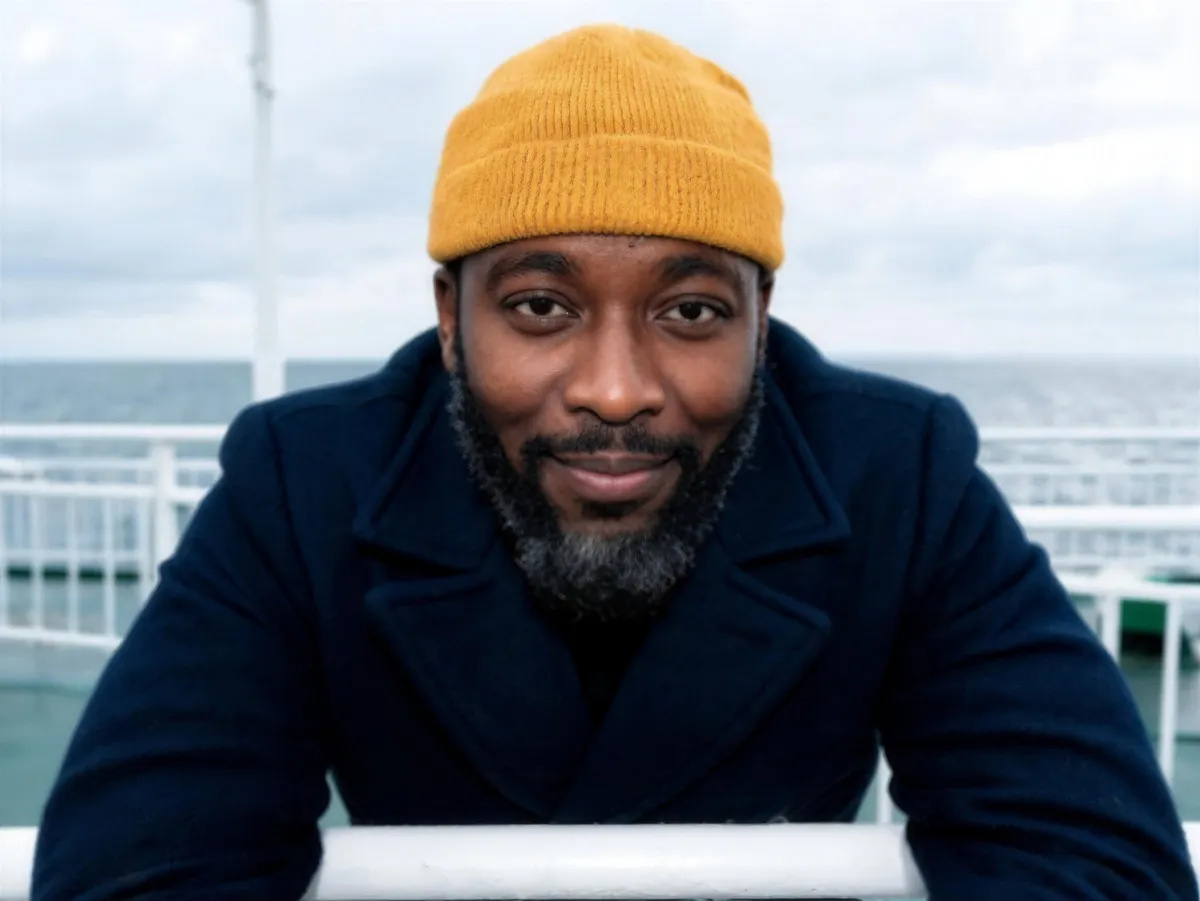
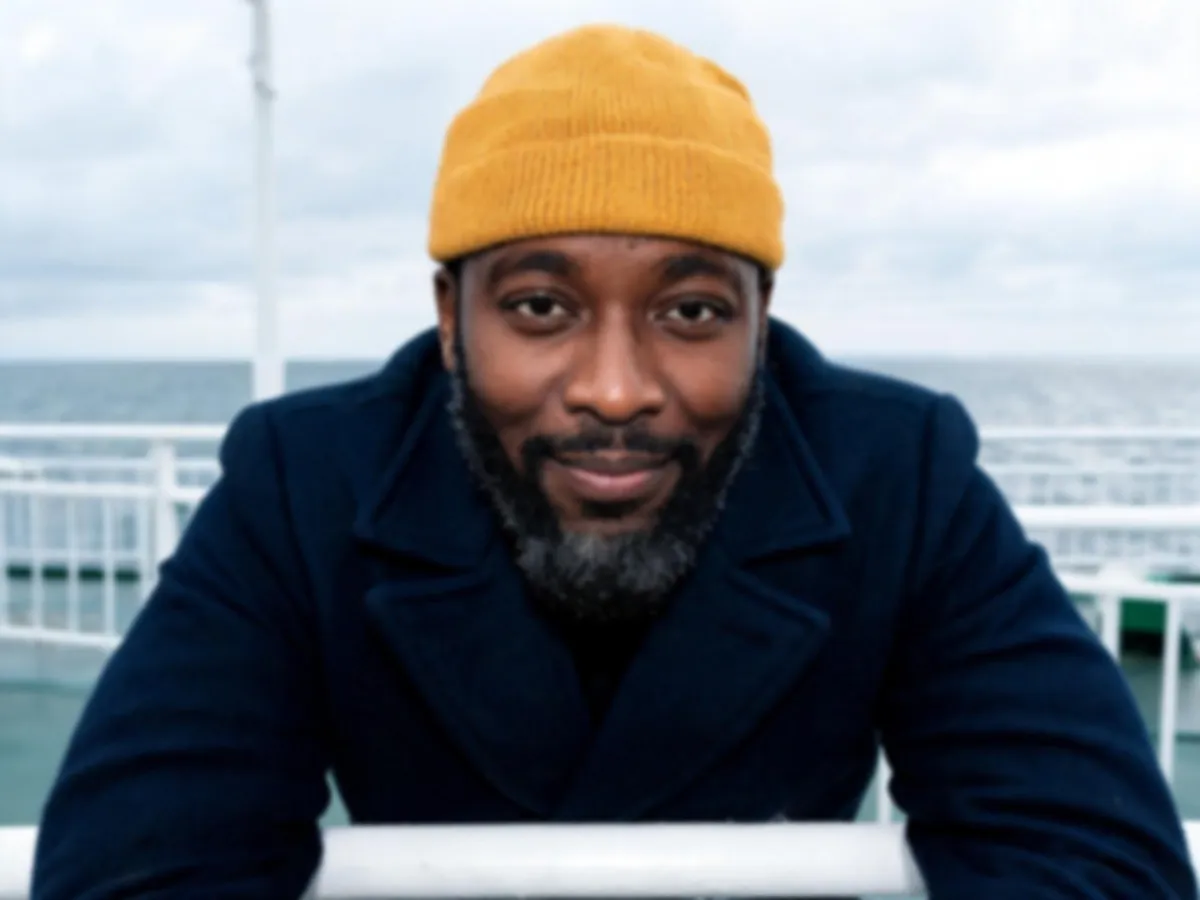
Soft portrait, sharper result. The original on the left, one SeedVR2 7B Premium run on the right.
Can you unblur a photo?
Yes, you can unblur an image when its detail is soft rather than gone: a slight focus miss, minor noise, or an AI render that came out soft. ZenCreator sharpens what the photo still holds. It can't bring back detail the camera never captured.
The work happens in the Image Upscaler. Instead of only making the picture bigger, its SeedVR2 modes clean up blur and noise while enlarging, so you get more defined detail at a higher resolution. You make an image less blurry by choosing a mode and a size, not by retouching it by hand.
Works best on:
Why unblur photos in ZenCreator
One tool handles the cleanup, the enlargement and the hand-off to whatever you do next.
Cleanup and enlargement in one pass
SeedVR2 works as an AI blur remover and enlarger at once: it cleans up blur and noise while it upscales, instead of just making the image bigger.
Choose sharpness or lower cost
Pick SeedVR2 7B Premium for the sharpest detail on faces, hair, skin and fine text, or SeedVR2 3B Base for a sharper result at a lower cost.
Faces stay faithful
Both modes enhance the existing image and don't intentionally redraw or change the face. When identity has to stay locked, follow up with Head & Face Swap.
Keep working on the result
Start from an upload or from a result made in Text to Image, Face Generation or another ZenCreator tool. When it's sharp, download it or send it on to Head & Face Swap or Image to Video.
Fix blurry photos you already have
Start with the file you have and remove blur from photos of people, products, AI renders and screens. Each pair shows the original next to the result.


Make a blurry picture clear
For portraits and profile shots, SeedVR2 7B Premium gives the sharpest result on faces, hair and skin.


Sharpen a soft AI generation
When a render comes out soft, send it from My generations to the Image Upscaler instead of generating it again.


Clean up product and listing photos
A product shot with slight focus softness comes back sharper and larger, ready to download for your store or listing.


Make small text easier to read
Screenshots and graphics with soft but still legible text suit SeedVR2 7B Premium, the mode that gives the sharpest result on fine text.
How to unblur an image in ZenCreator
Here's how to unblur a photo in four steps, all in your browser.
1. Open the Image Upscaler
Go to the Image Upscaler in the ZenCreator app, or send an image there from My generations.
2. Choose a mode
Select SeedVR2 3B Base or SeedVR2 7B Premium from the mode drop-down. Not sure which one? The comparison below helps you decide.
3. Set Detail and Target Resolution
Choose a Detail level of Low, Medium or High, then pick your output size directly, for example 4K.
4. Upload, generate and download
Upload your image and start the run to unblur a picture in one pass. When it's done, download the result from the task, from My generations or from the tool's Gallery.

The Image Upscaler panel: mode drop-down, Detail, Target Resolution and upload area.
AI unblur modes: sharper detail or lower cost
Both modes clean up and enlarge in a single pass. They differ in fidelity, in what Detail controls, and in maximum output size.
SeedVR2 3B Base
Best for: a sharper result than a basic upscale, with lower cost and faster runs than 7B Premium.Detail control: Low, Medium or High sets how much of the original resolution is kept before upscaling.Max output: up to 8K.Cost: depends on the mode and output size; see Pricing.
SeedVR2 7B Premium
Best for: the sharpest possible result, especially on faces, hair, skin and fine text.Detail control: Low, Medium or High sets how much extra detail is added while upscaling.Max output: up to 6K.Cost: higher than 3B Base, and it also depends on output size.
Start with 3B Base for everyday soft photos; switch to 7B Premium when a face or fine text needs the extra fidelity.
Unblur or upscale: which fix does your image need?
Your image is soft or blurry
Goal: clearer edges, texture and detail.What to choose: a SeedVR2 mode and a Detail level that suits the image.Result: a sharper image that is also larger.
Your image is sharp but too small
Goal: more pixels for print or a large screen.What to choose: the Target Resolution you need.Result: a bigger version of the same image.
Both jobs run in the same tool. This page covers clarity; if you only need more resolution, go to the Image Upscaler page.
What a blur remover can and can't fix
A photo blur remover works with the detail that is still in the file. Knowing what that covers helps you spend credits on images that can actually improve.
Usually improves
overall softnessa slight focus missminor noiselow micro-detail, including soft AI outputs
Can't recover
heavy motion blur or heavy compression damagedetail the original never capturedareas someone blurred, pixelated or redacted on purposea result without artifacts every time: AI can make mistakes


Heavy motion blur: detail that was never captured doesn't come back.To deblur a photo well, start from the least-degraded version you have, not a re-saved or compressed copy.
Where people unblur photos
Creators and AI artists
Clear up a blurry photo or a soft render first, then move it to Image to Video or Head & Face Swap without leaving ZenCreator.
Profile and portrait photos
Make a photo less blurry for a profile, team page or portfolio, and choose SeedVR2 7B Premium when the face matters most.
Online shops and listings
Rescue product shots that came out slightly soft, then pick the output size your store needs before you download.
Slides, screenshots and graphics
Make small, soft text easier to read before you share a screenshot or drop a graphic into a deck.
Make a picture less blurry in one pass
Upload the image, choose a mode and a size, and download the sharper version.
Your images, your rights
Your rights and consent. Only upload images you have the right and permission to use. If an image includes another person, make sure you have the consent required for your intended edit and use, as set out in the Content Policy.
Downloads your way. Save results from the task, from My generations or from the tool's Gallery. Downloading doesn't change the image quality.
Unblur image online. Everything runs in your browser, with nothing to install.
Updated October 2026
Questions about unblurring images
Do I need an app to unblur photos?
No. ZenCreator doesn't need a separate app: open it in the browser on your computer, phone or tablet and go to the Image Upscaler. Finished results appear in My generations, ready to download on the device you're using.
Can AI unblur parts of a photo that were blurred on purpose?
No. Intentional blur, pixelation or redaction removes the detail, and the Image Upscaler only enhances what is still in the image. Upload only images you have the rights and consent to use; the Content Policy prohibits identity misuse.
Will unblurring change the person's face?
It shouldn't. Both SeedVR2 modes enhance the existing image and don't intentionally redraw or change the face. AI can still produce occasional artifacts, so check the result, and when identity has to stay locked, follow up with Head & Face Swap.
What image formats can I upload?
Image uploads are typically JPG or PNG, and supported formats depend on the tool. A file can be rejected if it's corrupted, in an unsupported format, or if its resolution or aspect ratio isn't valid.
How much does it cost to unblur an image?
It runs on ZenCreator credits. The cost depends on the mode and the output size you choose, and the exact credit cost shows under the Generate button before you start. Credits work across all ZenCreator tools and don't expire; current credit packs are on the Pricing page.
Can I unblur a screenshot with small text?
Yes, if the text is soft but still legible. Choose SeedVR2 7B Premium, which gives the sharpest result on fine text. It can't bring back text that was blurred out on purpose or is already unreadable.
Does unblurring make my image bigger?
Yes. The Image Upscaler cleans up and enlarges in the same pass, and you choose the Target Resolution: up to 8K with SeedVR2 3B Base or up to 6K with SeedVR2 7B Premium.
Unblur your next photo in ZenCreator
Upload a soft photo, pick a mode and get a sharper, larger version in one pass, right in your browser.