Updated September 2026
AI Clothes Changer:Change Clothes in a Photo with a Prompt
Upload your photo, describe the new outfit or add a picture of the garment, and say what should stay the same. Image Editor puts the new clothes on the person, and your prompt tells it to keep the face, pose and background.
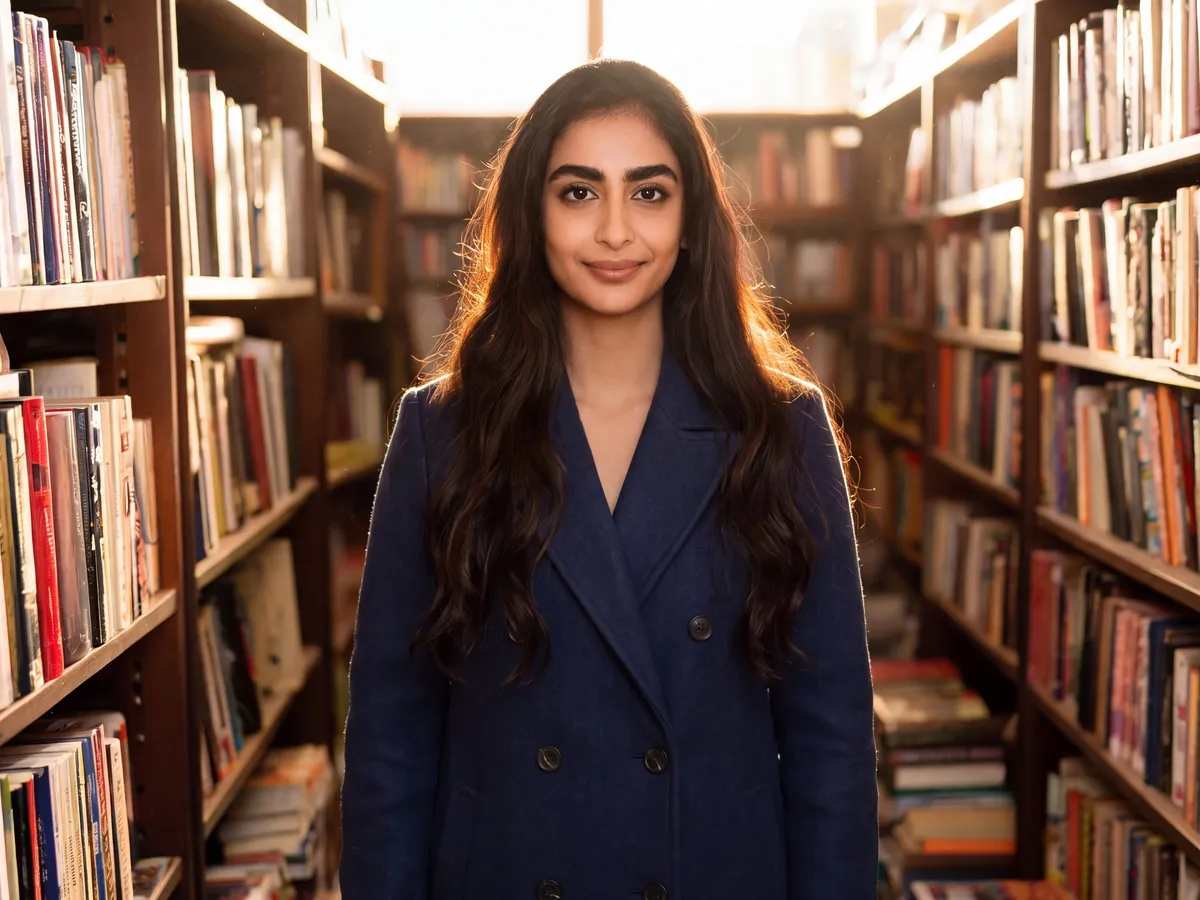
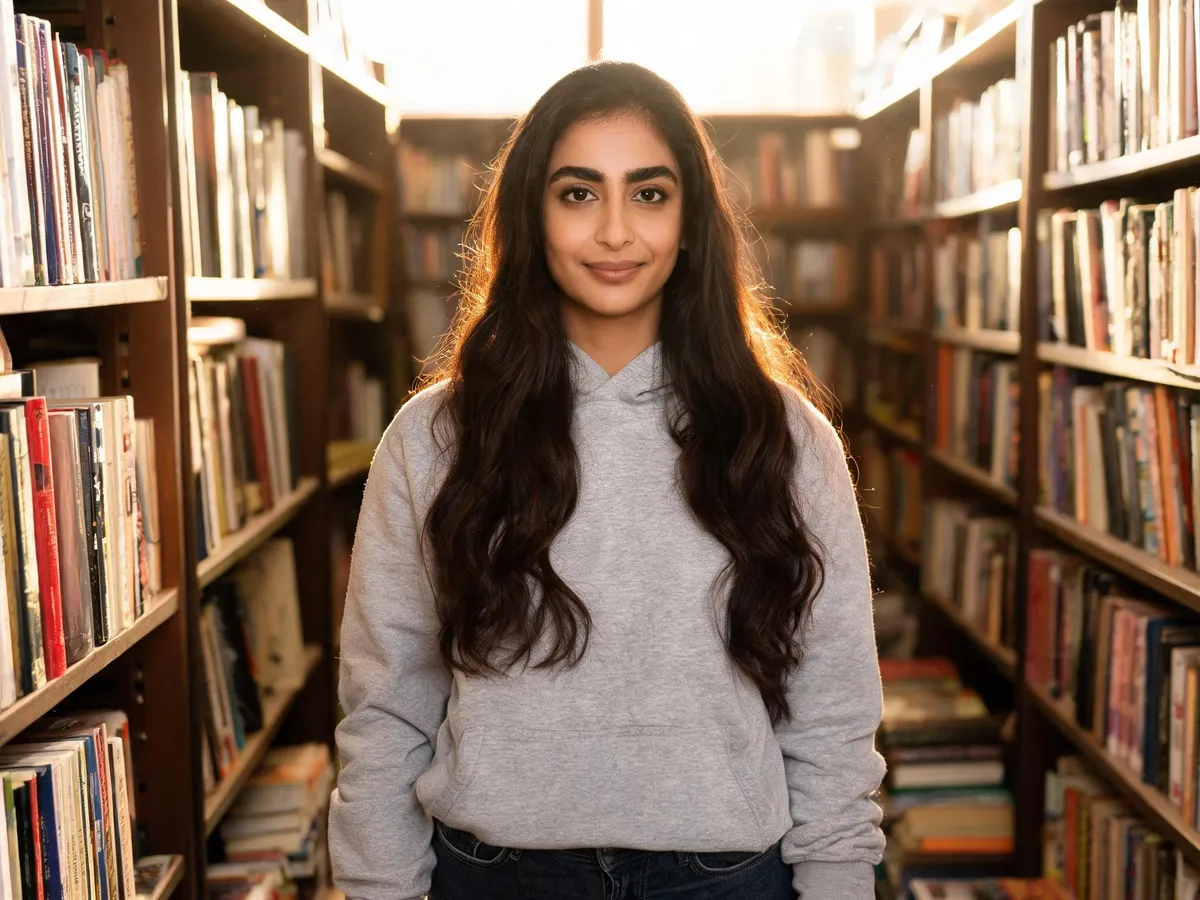
Same photo, new coat. Prompt: "change only the grey hoodie to a long navy wool coat with notched lapels; the long wavy hair must stay exactly as it is, falling forward over both shoulders on top of the coat; keep face, pose, light and background."
Change Clothes with AI on a Photo You Already Have
ZenCreator's AI clothes changer edits what a person is wearing in an existing photo. You write the change, such as "swap the denim jacket for a camel trench coat, keep her face and pose", or add an image of the garment, and the model applies it to the same shot.It all happens in the Image Editor in your browser. When the outfit is right, send the result on to face swap, upscaling or variations in the same workspace.
AI Clothes Swap: Describe the Outfit or Upload the Garment
There are two ways to tell the editor what the new clothes look like. Pick the one that matches what you have.


Describe the outfit
You provide: your photo of the person.You write: the change in plain words, for example "replace the T-shirt with a white linen shirt, keep her face and pose". Describe a new outfit and the model generates it on the person.Best for: ideas you don't have a picture of yet, like a color, a style or a whole new look.Tip: write it as a change, not a mood. "Make it cooler" gives unpredictable results; "swap the sneakers for brown leather boots" is a clear change.From a text prompt. Source photo, the prompt, and the edited result.


Swap clothes from a garment image
You provide: your photo plus an image of the garment, either a product shot or another photo.You write: "put this jacket on the person, keep everything else the same."Best for: a specific real item you want to see on the person.Tip: use a clear, unobstructed garment image. The model adapts lighting and composition when images come from different sources.From a garment image. Person, jacket reference, and the jacket on the person.
Need both? Upload the garment image and use the prompt to say how it should be worn and what stays the same.
What You Can Do with the AI Outfit Changer
From a full new look to a single recolored sweater, each edit starts from your own photo.


Swap the whole outfit
Change outfit from casual wear to a business suit: jacket, trousers and shoes together, while the prompt keeps the person and the setting.


Change clothing color in a photo
Use it as a clothes color changer: turn a red sweater forest green and ask the editor to keep the cut and the folds.


Swap a dress, top, or jacket
Replace one garment and leave the rest: a denim jacket becomes a summer dress, a T-shirt becomes a silk blouse. It works as an AI dress changer for lookbooks and social posts.


Add clothes to a photo
Layer something new over what the person already wears: a blazer over a plain T-shirt, a scarf and hat for a colder scene.


Edit clothes in a photo, keep the rest
Change one detail, such as the sleeves, the collar or the pattern, and state that face, pose and background stay unchanged. Precise prompts give more predictable edits.


Restyle a whole set at once
Turn on Batch Mode and each uploaded photo is edited separately with the same prompt, one result per image. A set of shots gets the same outfit change in one run.
How to Change Clothes in a Photo
An AI clothes changer online: five steps from upload to download.
1. Open Image Editor and pick a model
Image Editor offers several models; choose Nano Banana 2 for the most realistic, brand-safe clothing edits.
2. Upload your photo
Add the photo of the person, plus a garment image if you have one.
3. Describe the change
Write what to change and what stays the same, for example "change the jacket to a camel trench coat, keep face, pose and background".
4. Set the format
Choose an aspect ratio (Auto keeps the proportions of the first image you upload) and how many images to generate.
5. Generate and download
The credit cost per image and the total appear on the Generate button before you confirm, and you download the results when the task finishes.

The Image Editor workspace. Model, upload, prompt, aspect ratio, number of images and the Generate button with its cost.
Have a photo and an outfit idea? Try the change on your own shot.
Who Uses an AI Clothes Changer


Online stores and catalog shots
Show the same model in new garments without reshooting every look. As an AI clothing changer for catalogs, Image Editor with Batch Mode applies one outfit prompt across a set of photos.


Creators with a recurring character
Give your AI persona an outfit change for every post and tell the editor to keep the face. If the likeness drifts, run Head & Face Swap on the result as a final step.


Marketing and ad variants
Take one approved shot and produce several looks for testing: a seasonal color, a formal version, a casual version, all in the same scene and pose.


Previewing a look before you commit
Wondering whether to change your clothes for an event or buy a new coat? Preview the style on your own photo first. It shows a visual idea, not a size or fit check.
Pick the Right ZenCreator Tool for the Change
Clothing edits belong in Image Editor. When the job is really about the face, a new shot or the final size, another tool is the better choice.
The tools share one workspace and one credit balance, so a result can move from one step to the next. For backgrounds, objects and edits beyond clothing, see the AI Photo Editor.
Tips for Realistic Outfit Changes
Start with a clear face. A sharp, well-lit face in the source photo helps the editor keep the person recognizable.
Use a full-body shot for full outfits. When the whole look changes, a full-body photo gives the model better pose and proportion.
Name what stays the same. End every clothing prompt with what must not change, such as "keep face, pose and background".
Change one thing at a time. For complex edits, adjust the pose first and the clothing in a separate run.
Use Nano Banana 2 for brand visuals. Keep prompts simple and descriptive for clean, brand-safe product images.
Your Photos: Rights, Consent and Safety
Upload only what you may edit
Only upload images you have the right and permission to use. If an image includes another person, make sure you have the consent required for your intended edit and use, as set out in the Content Policy.
Requests are screened before generation
Prompts and uploaded images are automatically screened before anything is generated. How data is handled is described in the Privacy Policy.
Commercial use under the Terms
Edited images can be used commercially, subject to the Terms and Conditions and the rights in your source photos.
AI Clothes Changer FAQ
Is there an AI clothes changer app?
ZenCreator doesn't have a separate full app. The clothes changer runs in your browser, with versions built for phones and tablets, so you can open Image Editor on mobile without installing anything. There is also a ZenCreator mini-app inside Telegram.
How much does it cost to change clothes in a photo?
Image Editor runs on credits. Before you start, the Generate button shows the credit cost per image and the total for the run. Credits work across all ZenCreator tools, don't expire, and are sold as credit packs rather than subscriptions. Current packs are listed on Pricing.
Will the person's face stay the same?
Usually, when the source photo has a clear face and the prompt says to keep it. Avoid extreme or conflicting instructions in the same prompt. If the likeness still drifts, try another model or run Head & Face Swap on the result as the last step.
What photos can I upload, and how do I download results?
Common image formats such as JPG and PNG work; exact support depends on the tool. Download results from the task, from My generations or from the Gallery inside Image Editor, one image at a time or several at once. Downloads keep the quality the image was generated at.
How long does an outfit change take?
Most tasks finish within 1–5 minutes. At peak load, or with some models, it can take longer.
Can I use the edited images commercially?
Commercial use is permitted under the ZenCreator Terms and Conditions, subject to your compliance, applicable rights, and the terms governing the service and source materials. The license is non-exclusive, so similar outputs may be generated for other users.
What if the new outfit doesn't look right?
Simplify the prompt, split a complex change into separate runs, or switch to another model. Generative results can include artifacts, and running the edit again with a clearer instruction can help. If the problem persists, contact support through the chat in the app.
Put a New Outfit on Your Photo
You see the credit cost before you generate, and credits don't expire.