Uncensored AI Image Editor — Edit Without Filters (2026)
Edit AI images without content filters. ZenCreator's Editor & Combiner handles inpainting, outpainting, and restyling on any content, with no content filters.
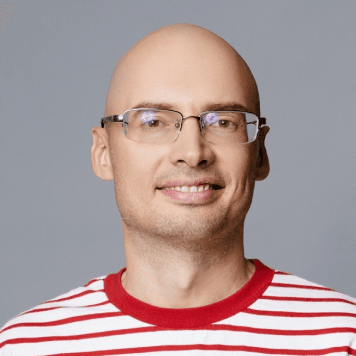
Most AI image editors let you upload anything — then refuse to edit it. The moment you try to inpaint near skin, adjust clothing, or restyle a body, the editor blocks the operation or blurs the output. Generating an uncensored image is step one. Editing it without filters is where production actually happens.
ZenCreator's Editor & Combiner processes any image the same way — no secondary content filter, no prompt rewriting, no blurred patches.
What can you actually do in an uncensored AI image editor?
Four operations that filtered editors block or degrade:
- Inpainting — select a region, describe what should replace it. Fix hands, adjust clothing, change expressions, modify body details. Filtered editors detect skin and refuse.
- Outpainting — extend the frame beyond the original crop. Add more background, more body, more scene. Filtered editors limit extension on certain content.
- Restyling — change the aesthetic of the entire image or a region. Shift from photorealistic to painted, from casual to glamour. Filtered editors restrict style changes on body-focused content.
- Combining — merge elements from two images into one scene. Place a character in a new background, add a second person, composite objects. Filtered editors refuse composites involving certain body types or poses.
How does the Editor & Combiner work on ZenCreator?
Upload your image. Select a region with the brush tool. Write what you want in that region. Generate.
Here is a real editing example — swapping the background while keeping the same person:
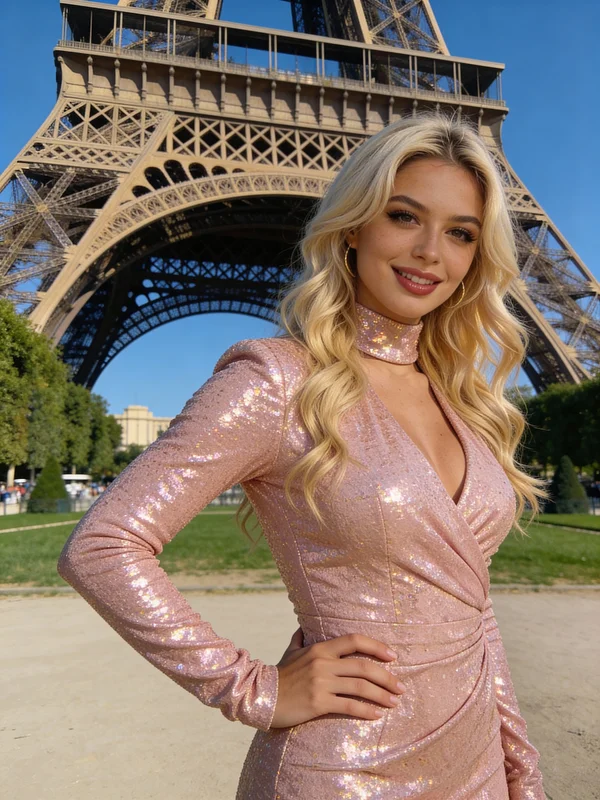
Try this template → (356 uses)
And here is an object removal example — removing a person from a scene cleanly:
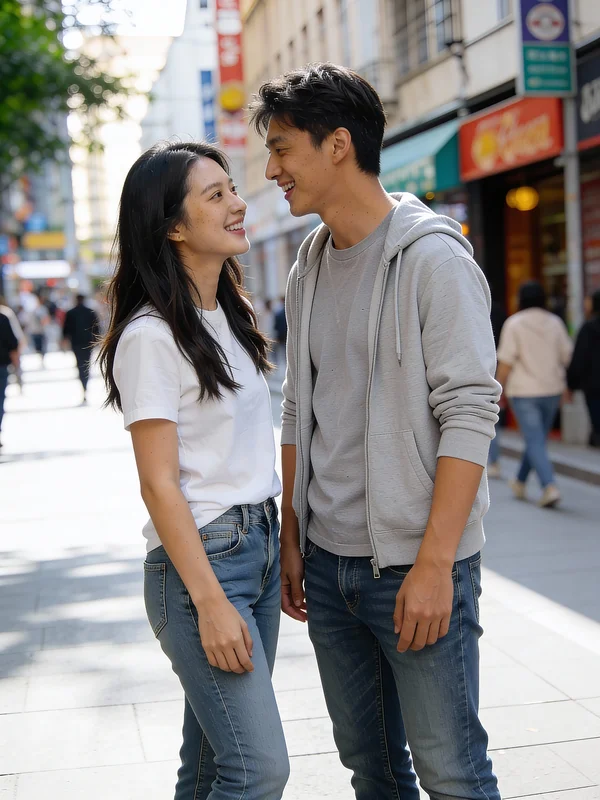
Try this template → (219 uses)
The tool works the same way on any content. No prompt rejection, no blur, no content classification step between your edit and the output.
What editing workflows does ZenCreator support?
ZenCreator's Editor is one tool in a 12-tool pipeline. Here is how it connects to the rest:
Generate → Edit → Animate → Publish
- Generate an image with Text-to-Image or Image-to-Image
- Edit with Editor & Combiner — fix details, extend frame, restyle, composite
- Upscale with Upscaler — up to 4x with Face-Safe mode
- Animate with Video Generator — turn edited image into video
- Face Swap with Face Swapping — apply consistent character across all edits
No other uncensored editor gives you this pipeline. MAGI AI, NinjaChat, PictoFlux — they offer editing in isolation. ZenCreator connects editing to generation, video, face swap, and publishing.
How does ZenCreator compare to other uncensored editors?
| Feature | ZenCreator | MAGI AI | NinjaChat | PictoFlux |
|---|---|---|---|---|
| Inpainting | Yes | Yes | Yes | Yes |
| Outpainting | Yes | Limited | No | No |
| Combining / composite | Yes | No | No | No |
| Face Swap integration | Yes (image + video) | No | No | No |
| Video generation | Yes (3 engines) | No | No | No |
| Upscaling | 4x with Face-Safe | Basic | No | No |
| Batch editing | Yes | No | No | No |
| Character consistency | Identity Lock | No | No | No |
| Social publishing | Direct to platforms | No | No | No |
| Watermark | No | Varies | No | No |
More editor templates to try
Real outputs from the Editor & Combiner — click any to open:
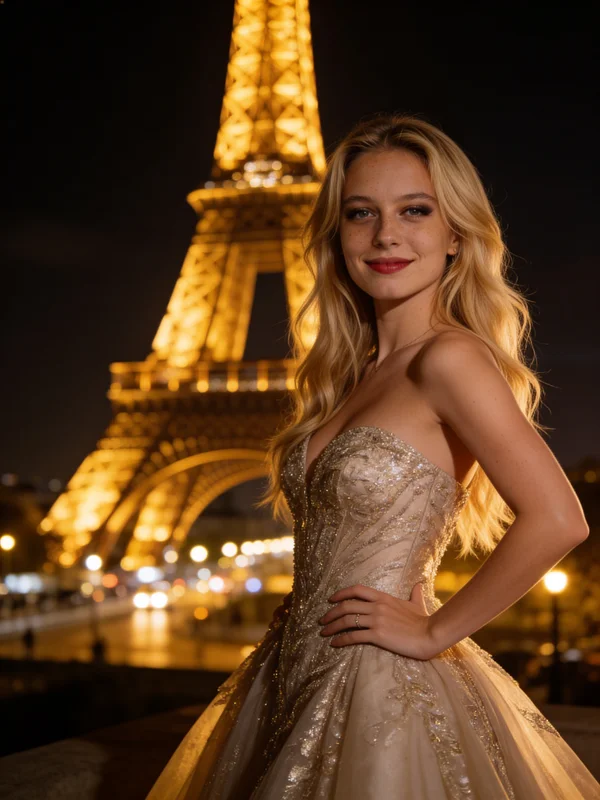
Try "Parisian golden gown" template → (191 uses)
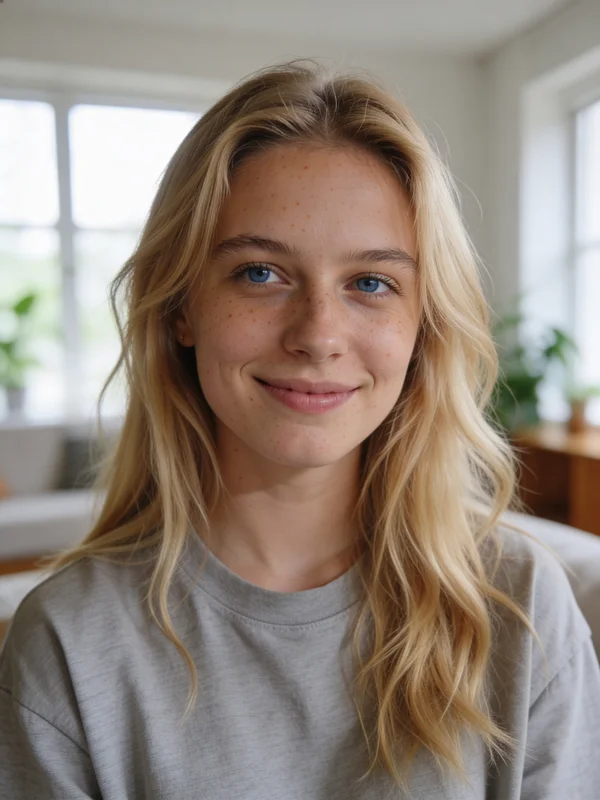
Try "Close-up portrait" template → (170 uses)
Editor Templates
Pre-built editing workflows — click any card to open it in the Editor & Combiner.
FAQ
How much is ZenCreator's image editor?
ZenCreator uses pay-once credit packs from $19.99 — no subscription, and credits never expire. The Editor & Combiner is available on every plan, and outputs have no watermark.
Does the editor filter any content?
No. The Editor & Combiner processes any image without content classification. Inpainting, outpainting, and restyling work the same regardless of content type.
Can I edit images I generated elsewhere?
Yes. Upload any JPG or PNG. The editor accepts images from any source — other AI generators, photos, screenshots, digital art.
What is the difference between Editor and Image-to-Image?
Image-to-Image transforms the entire image based on a reference + prompt. The Editor lets you select a specific region and modify only that area while keeping the rest unchanged. Use Image-to-Image for full restyling, Editor for targeted fixes.
Can I combine two characters in one scene?
Yes. The Combiner mode lets you composite elements from multiple images. For multi-character content with consistent faces, use the Collabs tool instead — it is designed specifically for group scenes with identity-locked characters.
Does the editor support face swap?
The Editor itself does not swap faces — that is a separate Face Swapping tool. But the workflow connects: edit an image in the Editor, then apply Face Swap to lock a consistent character onto it. Both tools work on the same canvas.
See also: Uncensored AI Image Editor Guide (8-tool roundup) | Free Unrestricted AI Image Editor (6-tool comparison) | AI Image Editor No Restrictions (ZenCreator deep dive)