Add Santa to Your Photo with AI

Put Santa in a picture of your own home: upload a photo of your tree or fireplace, add a Santa reference and describe where he stands. Image Editor places him in your room and adapts him to its light.

  • Your own room as the scene
  • Describe the edit in plain words
  • Works in your web browser
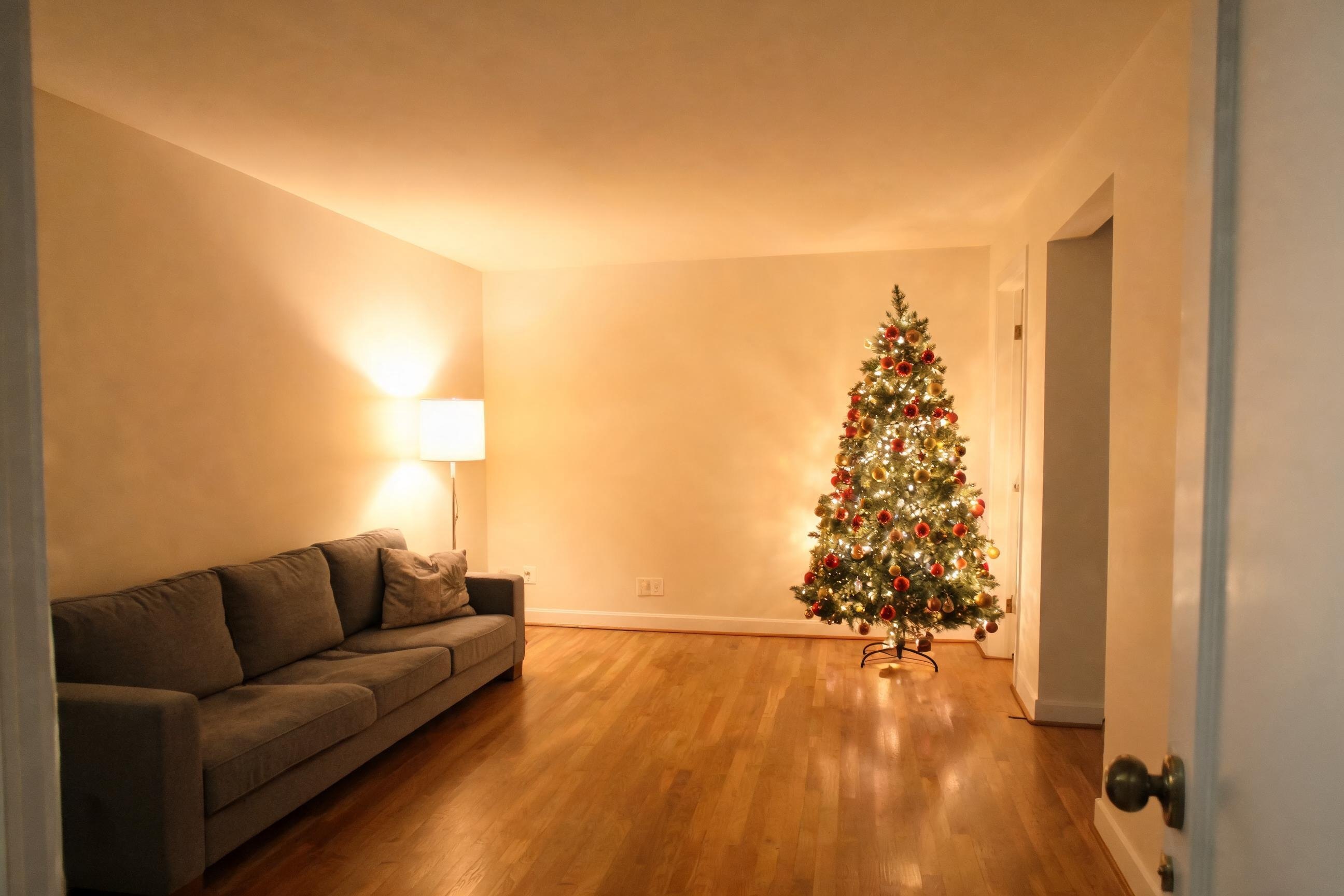
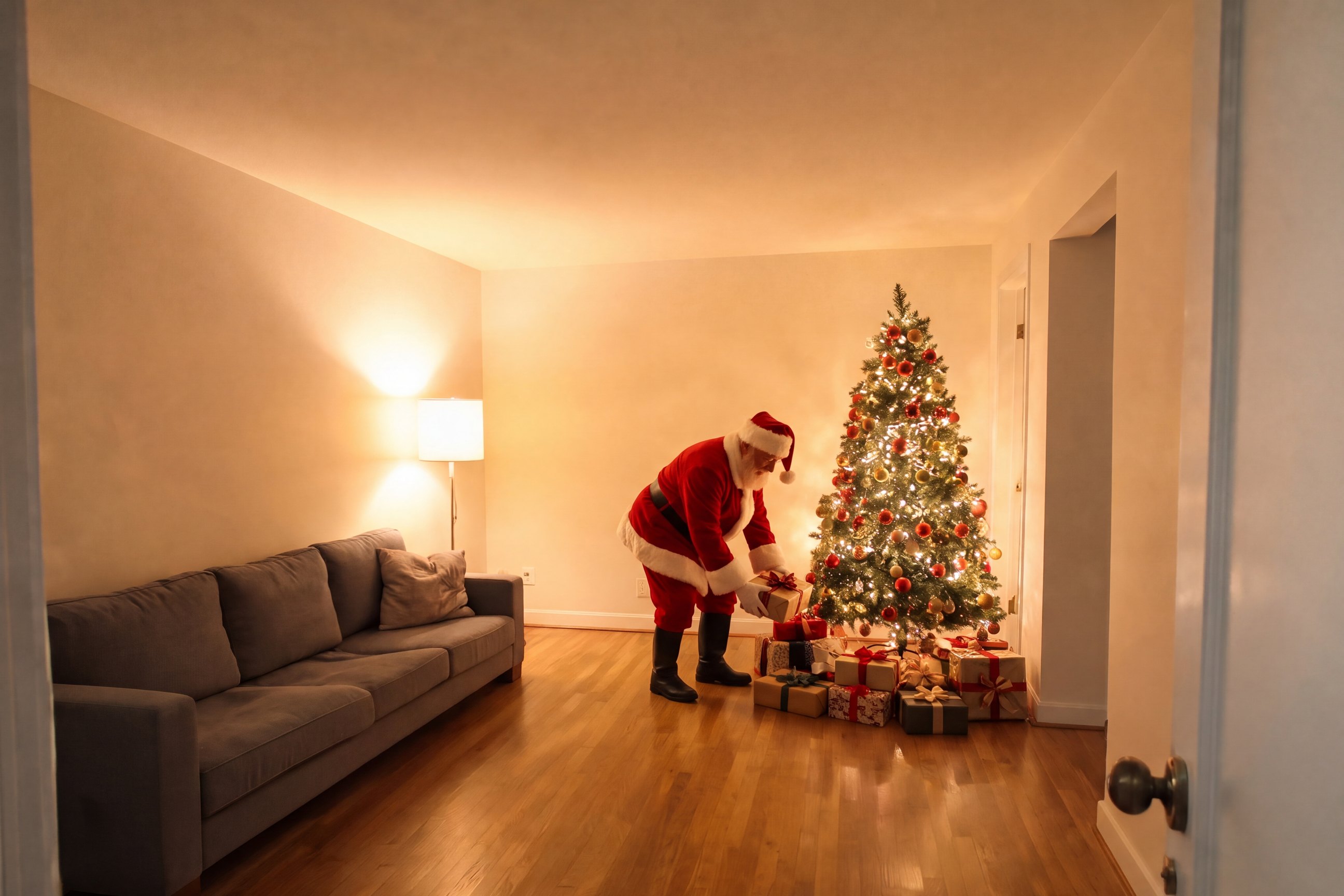
Living room with a Christmas tree before and after Santa was added with ZenCreator Image Editor
Same room, Santa added in one edit with a reference image.

To add Santa to your photo, ZenCreator uses Image Editor, a prompt-based editor that can put two or more people in the same picture and change a scene. You give it two images, your room photo and a Santa reference, and describe the change in plain words: where Santa stands, what he is doing and what has to stay exactly as it is.

When you mix images from different sources, Image Editor adapts lighting and composition, and one run can return several versions to choose from. It is the same tool behind the AI Photo Editor, set up here for one Christmas job.

How to insert Santa into a picture

  1. 1. Upload your room photo

    Start with a well-lit shot of the spot where Santa should appear: the tree, the fireplace, the front door. Upload it first, because with Aspect Ratio on Auto the result keeps the shape of the first image.

  2. 2. Add a Santa reference

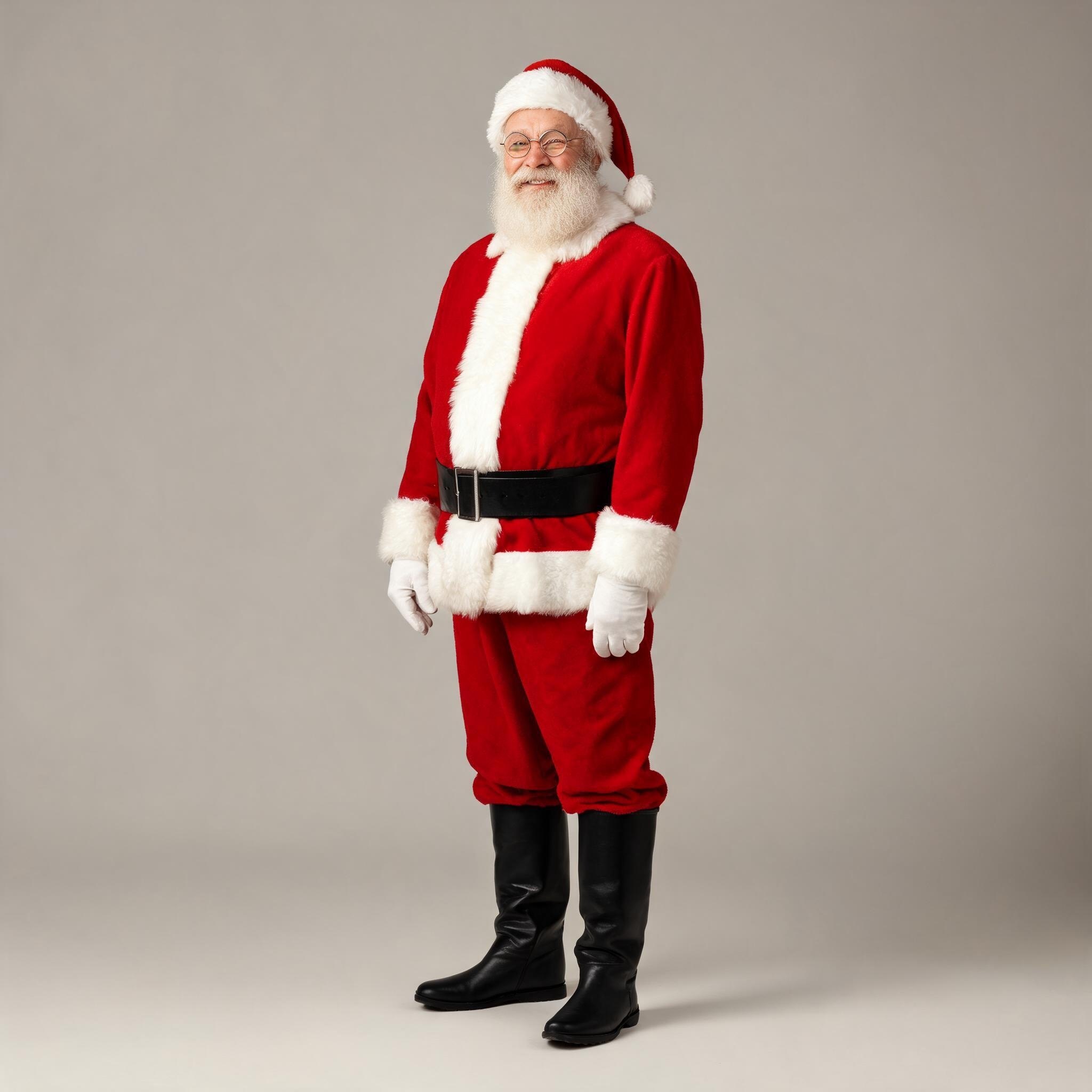
    Add a Santa image you have the right to use as the second image, or make one first in Text to Image and download it. Keep Batch Mode off so both images are combined into one result.

  3. 3. Choose a model

    Select an image model in the model list. To compare what each one does, see the current models.

  4. 4. Tell it where Santa goes

    Describe the edit as a change: what Santa does, where he stands and what stays untouched. For example: "Add Santa from the second image kneeling by the tree, placing a gift; keep the room, the tree and the lighting unchanged." Vague prompts give unpredictable results.

  5. 5. Generate and pick

    Leave Aspect Ratio on Auto, set the number of images and look at the credit cost on the Generate button before running it. Keep your favourite, and send it to the Image Upscaler if you want a larger print.

Santa reference image created in ZenCreator Text to Image
A Santa reference made in Text to Image.

Santa pictures in your house: four scenes to try

Each scene is a festive edit of a photo you took at home, and each sample prompt names the change and what to keep.

Santa by the tree with the gifts

The classic Christmas Eve moment, set in front of your own tree and your own wrapping paper.

"Add Santa from the second image kneeling by the tree, placing wrapped gifts underneath; keep the tree, the lights and the room unchanged."
Santa at the fireplace

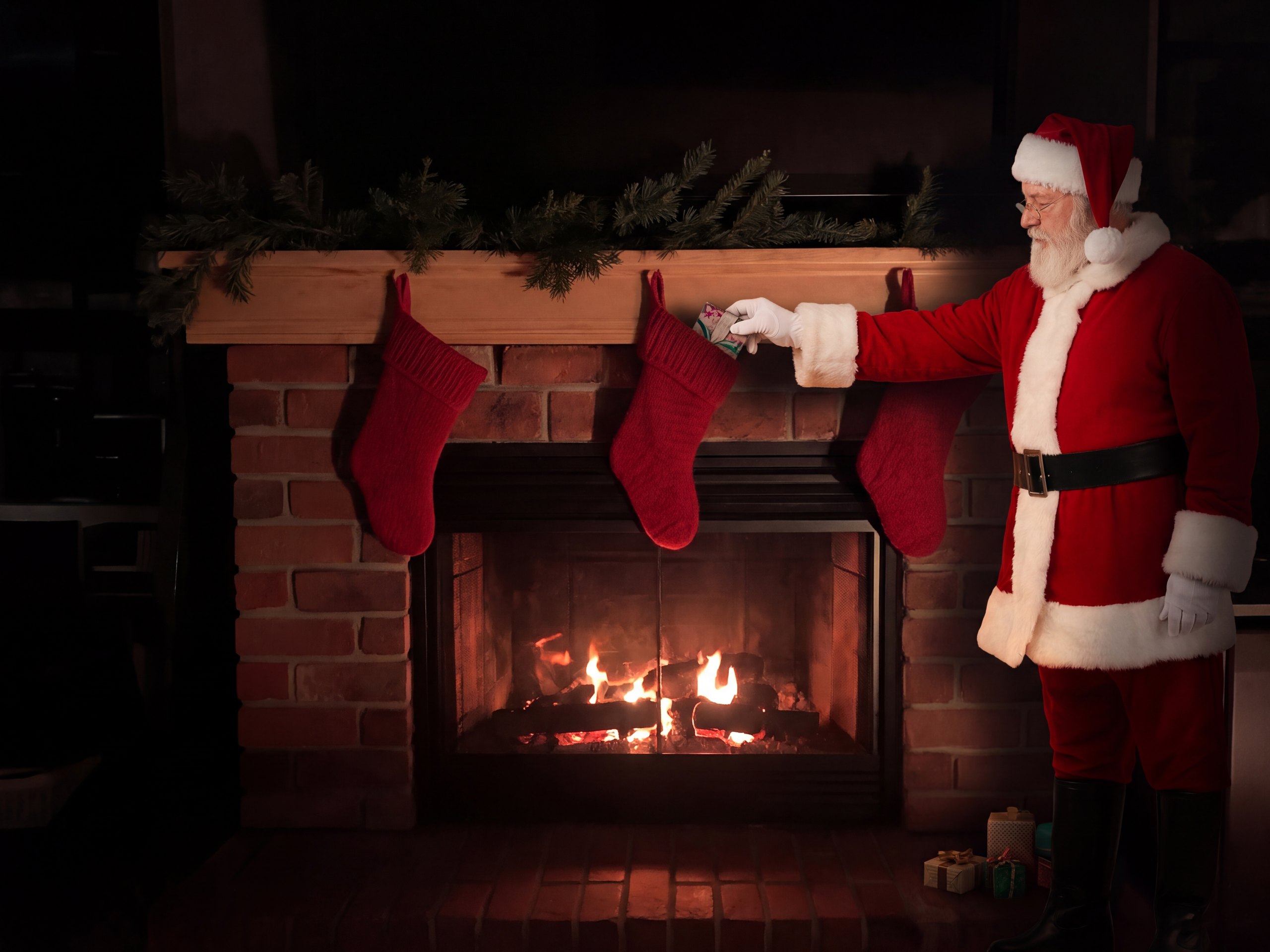
Santa filling the stockings you actually hung, with the glow of your own mantel around him.

"Add Santa from the second image standing at the fireplace, filling the stockings; keep the fireplace, the stockings and the warm light unchanged."

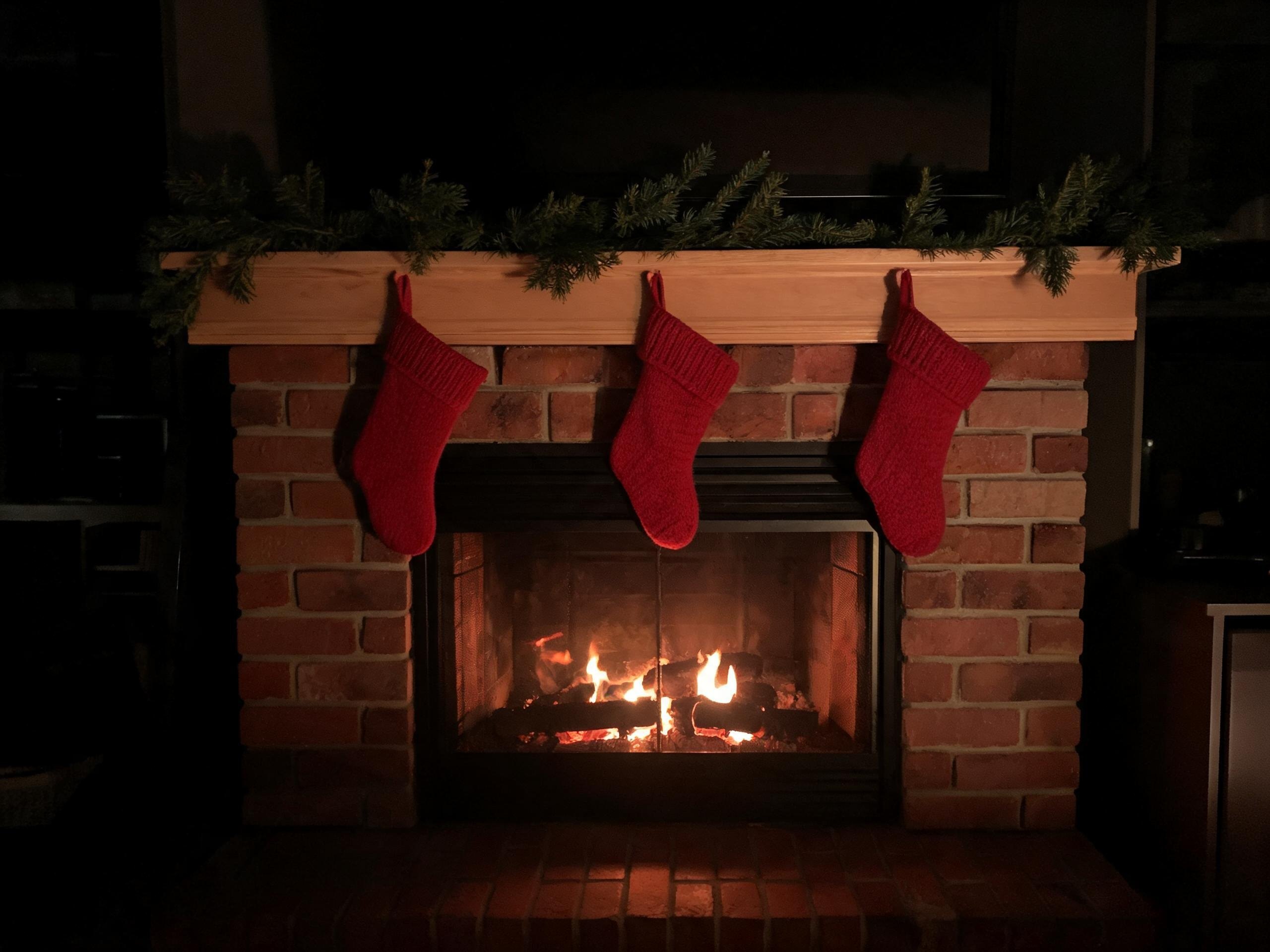
Fireplace with stockings before and after Santa appears beside it
Santa added at the fireplace; stockings and light kept.

Santa at your front door

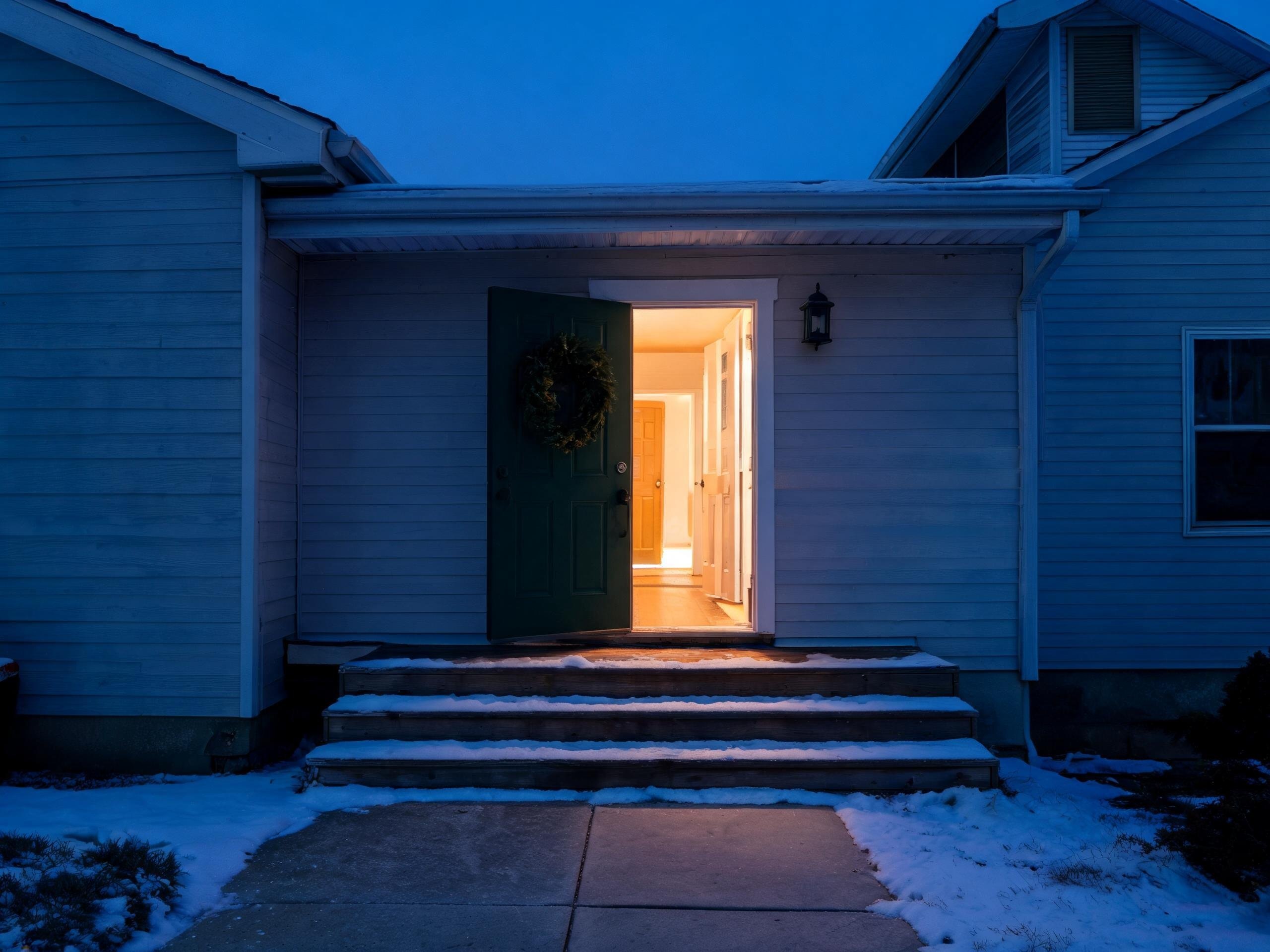
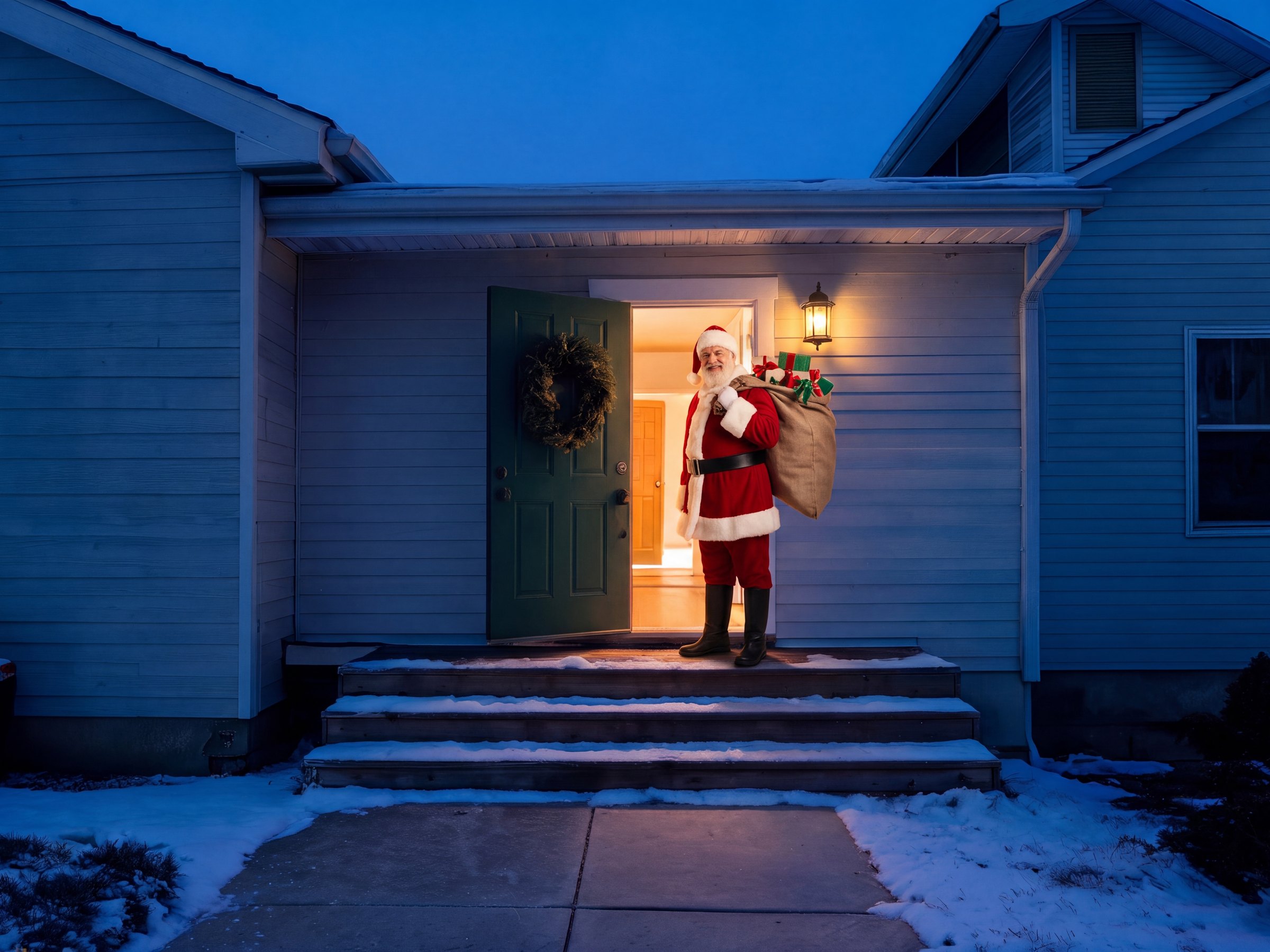
A doorway arrival works for a card or a December post, with your wreath and porch still in the frame.

"Add Santa from the second image at the open front door with a sack of gifts over his shoulder; keep the door, the wreath and the porch unchanged."

Front door with a wreath before and after Santa arrives with a sack of gifts
Santa added at the front door.

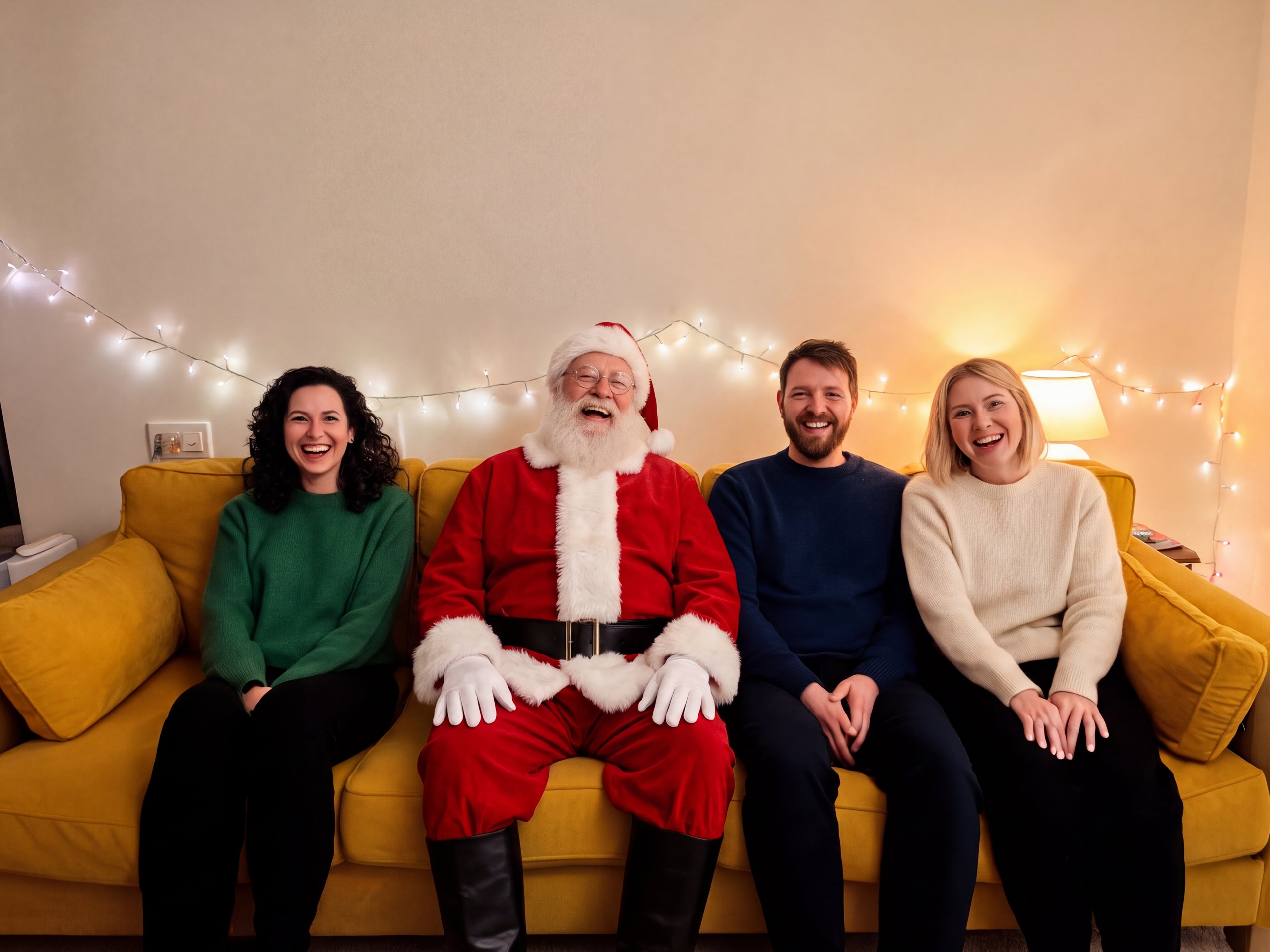
Santa on the sofa with you and your friends

Start from a photo of adults who all agreed to the edit, and keep every face as it is.

"Add Santa from the second image sitting on the sofa between us, laughing; keep everyone's faces, clothes and poses unchanged."

Adults on a sofa before and after Santa joins them, faces unchanged
Santa added to a photo of friends; every face kept.

Want your own face as an elf instead? Try the AI elf photo.

What makes an AI Santa photo look like it belongs

The result depends on your photo, your Santa reference and your prompt. Four habits make the difference.

Start from a sharp, well-lit room photo

A clear, evenly lit picture gives the edit far more to match than a dark or blurry one. Shoot with the tree lights on and the room tidy enough to read.

Give Santa a clear reference

A full-length Santa image helps with pose and proportions. Images from different sources work too: the model adapts lighting and composition to your room.

Tell it what to leave alone

Name everything that must not change: the tree, the furniture, the lights, anyone already in the shot. "Make it festive" leaves too much to chance.

Make several versions, keep the best

Ask for a few images per run and choose the one where Santa sits most naturally. For a complex scene, change one thing at a time: Santa first, then extra gifts or a sign.

Your room or a whole new scene?

Santa added to your photo — Image Editor
What you start with:
your room photo plus a Santa reference.
What stays yours:
the room, the tree and anyone already in the picture, as far as your prompt asks.
Choose it for:
a Santa-at-home picture of the place you actually decorated.
Where to start:
Open Image Editor from this page.
A generated Christmas scene — Text to Image
What you start with:
a written description of the scene.
What stays yours:
the idea; the room, the tree and Santa are all generated.
Choose it for:
a card image or a Christmas portrait setting that does not need to be your home.
Where to start:
see the AI Photo Generator and the AI Christmas photo generator.

If the picture has to show your own home, start with your photo in Image Editor.

Have a photo of your decorated room? Add Santa to it in Image Editor.

Whose photos you can use

Rights to both images

Only upload images you have the right and permission to use. If an image includes another person, make sure you have the consent required for your intended edit and use, as the Content Policy sets out.

For adults, 18 and over

You must be at least 18 to use ZenCreator, and photos of children can't be uploaded or edited. See the Terms and Conditions. What you make is a festive edit of your own photo, not a record of a real visit.

Checked before generation

Prompts and uploaded images are automatically screened before generation.

Questions about adding Santa to a photo

Do I need to download an app to add Santa?

No download is needed. Image Editor opens in your web browser: you upload your room photo and the Santa reference there, write the prompt and generate. Nothing has to be installed first; you bring the two images and a short description of the scene you want.

Do I need my own picture of Santa?

You need a Santa image as the second reference, but it does not have to be a photo you took. Use any Santa image you have the right to use, or create one in Text to Image, download it and upload it to Image Editor.

Will my room stay the same?

It stays as close as your prompt asks. Say what has to remain unchanged: the room, the tree, the lighting, anyone already in the photo. Results depend on the photo, the reference and the prompt, so generate several versions, and for a busy scene make one change per run.

Can I add my partner or friends to the picture with Santa?

Yes. Santa can join a shot of you with your partner or friends, since Image Editor handles more than one person in a picture. Facial likeness can vary, so use clear, well-lit photos and ask the editor to keep every face unchanged. Use only photos of adults, such as your partner, friends or adult family members, who agreed to the edit.

Can the picture say "Merry Christmas" too?

Yes. Write the exact words into the prompt, for example a "Merry Christmas" banner above the fireplace. Text rendering depends on the image model, so check the model list before this edit.

Do I need to pay to add Santa to a photo?

Yes. Generating uses credits from a credit pack, and the Generate button displays the credit cost, so you always know it before a run starts. Current packs are listed on Pricing.

Santa, in your own living room

Upload the photo of your tree, add a Santa reference and describe the moment you want to see.

Generating uses credits from a credit pack, see Pricing. ZenCreator is operated by Dimeris Ltd, see About us.