Put Your Face on an Elf: Your Own Photo, Turned Into a Christmas Elf

Upload a clear photo of yourself, describe the elf costume and the festive scene, and Image Editor restyles the picture while keeping the face you tell it to keep. Pick an image model in the editor, then generate.

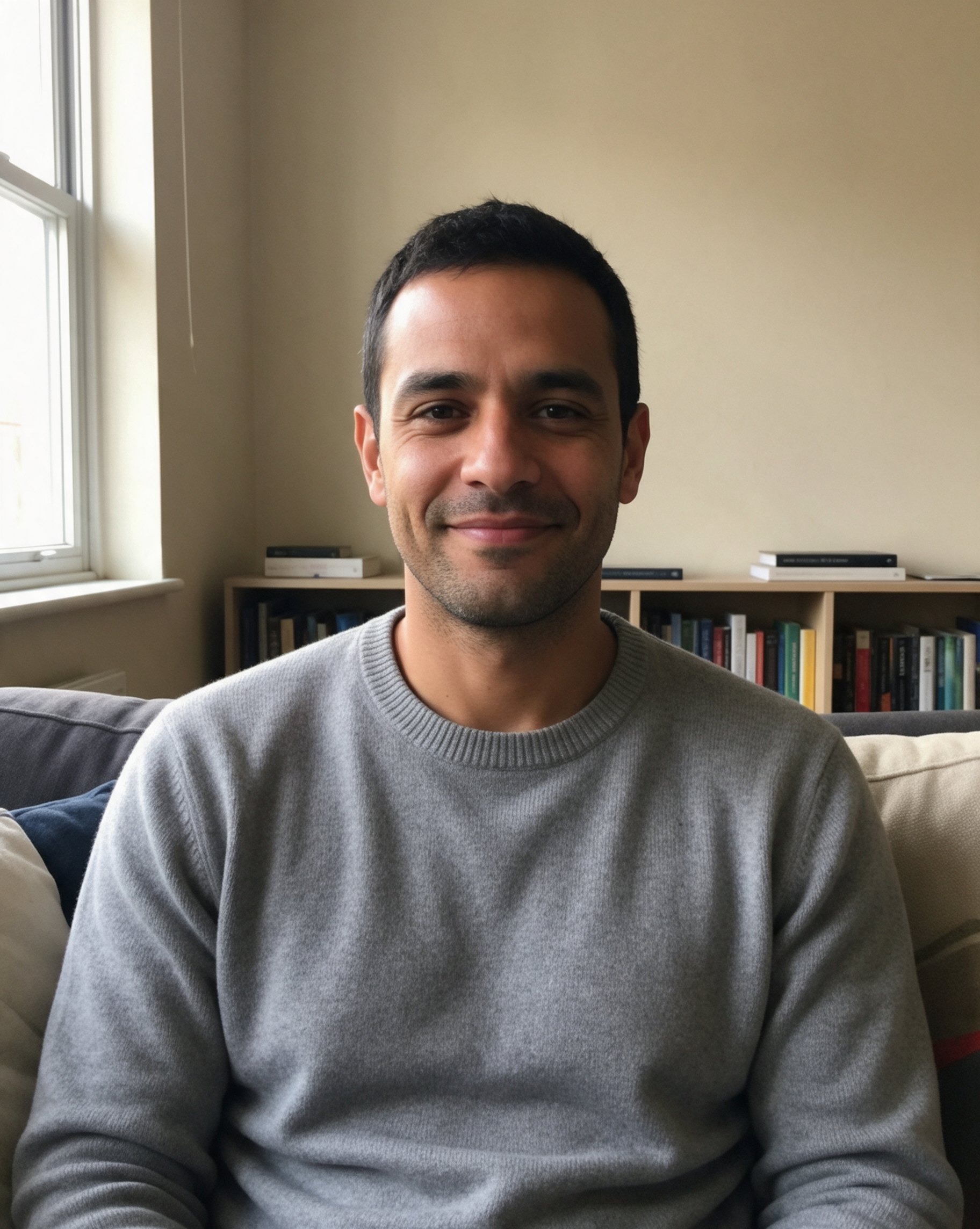
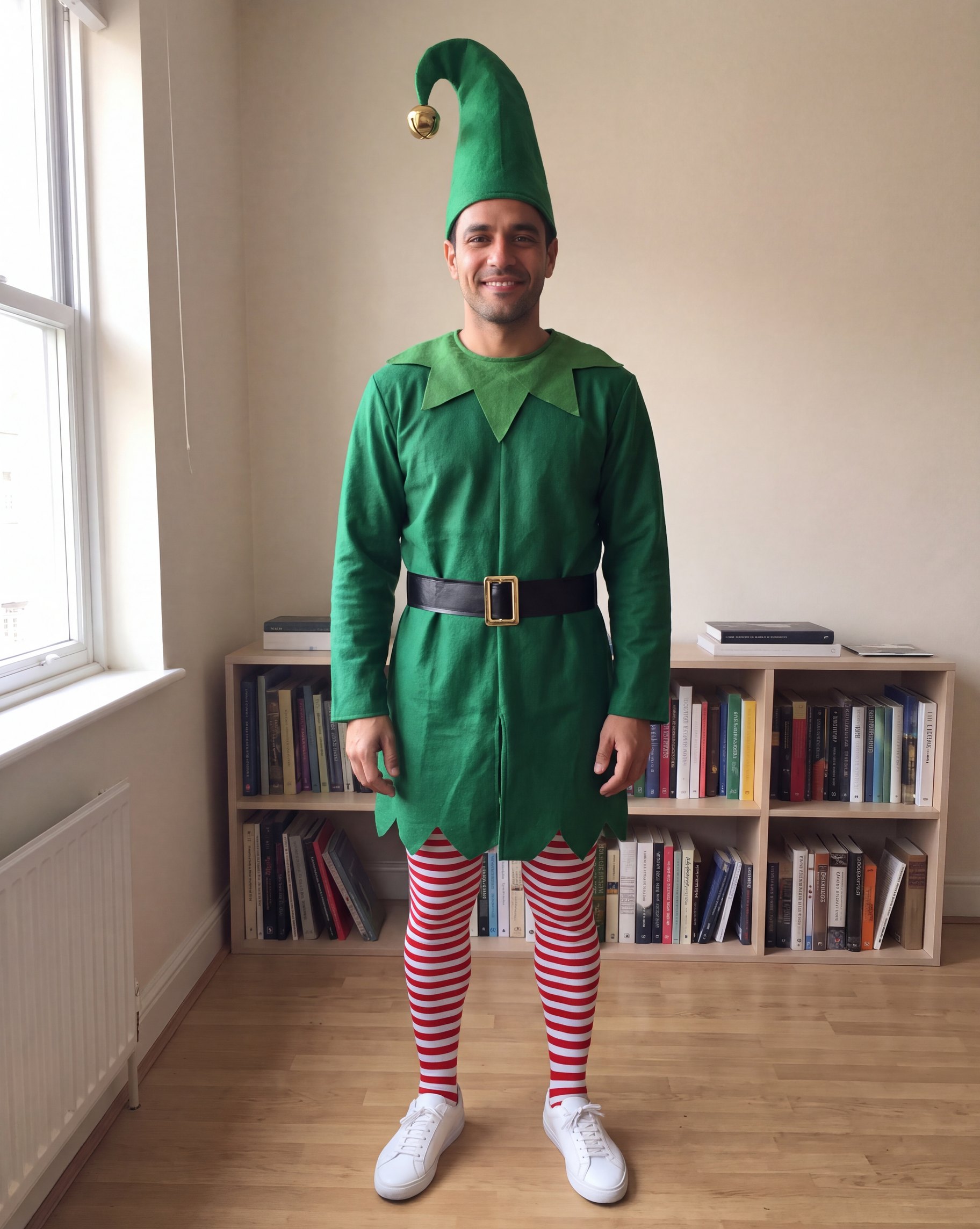
An adult's portrait and the same person edited into a Christmas elf costume with ZenCreator Image Editor
Before
After
Your own photo, not a cartoon bodyDescribe the costume and the sceneRuns in your browser

To put your face on an elf with ZenCreator, you start from your own photo instead of a ready-made elf picture. Upload a clear, front-facing shot, then write the change as a prompt: the green costume, the striped stockings, the pointed hat with a bell, the workshop behind you — and what must stay the same, such as your face, hair and pose.

The editor rebuilds the outfit and the scene around you, so the result is an elf version of the same person in the same photo. It is the same prompt-based workflow as the AI Photo Editor, aimed at one holiday job.

What Your Elf Photo Can Include

Elf costume and hat

Ask for the full outfit — tunic, belt, stockings, a hat with a bell — and the editor changes your clothes while you stay in your own photo. For everyday outfit changes, the AI Clothes Changer covers the rest of the year.

A festive scene behind you

Swap your living room for a toy workshop, a snowy street or a lit-up tree. The background changes; you stay in the frame.

Two or more people as elves

Upload a photo of each person, and Image Editor can bring two or more people into one elf scene — you and a friend, a partner or a coworker. Use photos of people who agreed to it.

The same elf look on several photos

Turn on Batch Mode and the same elf prompt is applied to each photo separately, one result per image — handy when everyone on the team wants the matching look.

How to Make Yourself an Elf From One Photo

1. Open Image Editor and pick a model

Choose an image model from the model list. To compare what each one does, see the current models.

2. Start from a front-facing photo

A sharp, front-facing photo helps the editor keep your face. If you want the whole costume in the picture, add a full-body shot as well — it helps with pose and proportions.

3. Write the elf costume into the prompt

Describe the change and what stays the same, for example: "Dress me as a Christmas elf: green elf costume, striped stockings, pointed hat with a bell. Keep my face, hair and pose unchanged."

4. Pick the best of several versions

Set how many images to generate, check the credit cost shown on the Generate button, then run it and keep the version that looks most like you.

Full-length elf photo of the same man, made in ZenCreator Image Editor

Elf Template or an Edit of Your Own Photo?

Most elf pictures online come from one of two methods. They solve different jobs.

Face-in-hole elf template

Starting point:
a ready-made elf picture with a gap or slot where you put your face on an elf body.
Pose:
fixed by the template.
Costume and scene:
whatever the template already shows.
Likeness:
a cut-out of your face placed into someone else's picture.
Your photo, edited into an elf

Starting point:
your own photo, uploaded to Image Editor.
Pose:
yours, or changed in the prompt if you ask.
Costume and scene:
the ones you describe.
Likeness:
kept from your photo when you tell the editor to keep it.

A template is quick for a laugh. An edit is for a picture that still reads as your photo — and if you would rather drop your face into an image that already exists, that is what AI Face Swap is for.

Make Your Elf Move

Once you have an elf photo you like, send it to image to video and describe the motion. ZenCreator turns the still into a short clip (length depends on the model) that keeps you as the subject. Ideas to write into the prompt:

  • a wave, a nod or a slow head turn
  • snow drifting down behind you
  • a slow camera push-in toward your face

The clip starts from your elf photo, so pick a result that is already in the pose and outfit you want — the video won't rebuild the costume for you.

A short clip made from an elf photo with Image to Video.

Keep It Looking Like You

Results vary, and likeness can drift — especially with long or complex prompts. These four habits give your face in a Christmas elf look the best chance of staying yours.

Start with a clear face photo

Good light and a face that isn't covered or blurred give the editor the identity to hold on to.

Name what stays the same

End the prompt with what must not change — "keep my face, hair and pose unchanged" — because the editor follows what you tell it to keep.

Change one thing per run

For a bigger change, edit in steps: costume first, then the scene in a separate generation.

Simplify and run it again

If a version drifts, shorten the prompt to the essentials and generate again rather than piling on detail.

An Elf With Your Face — Not a Stranger's

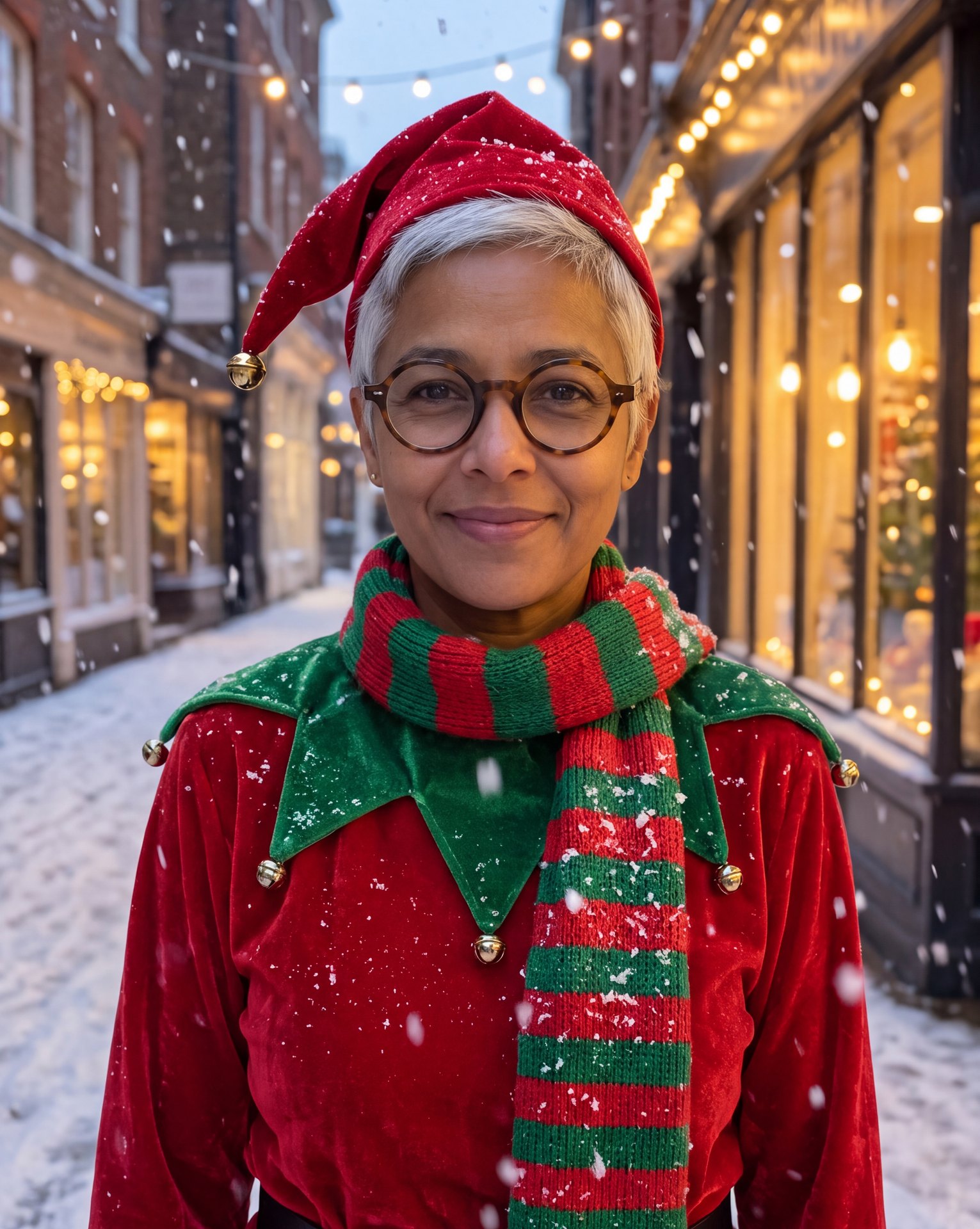
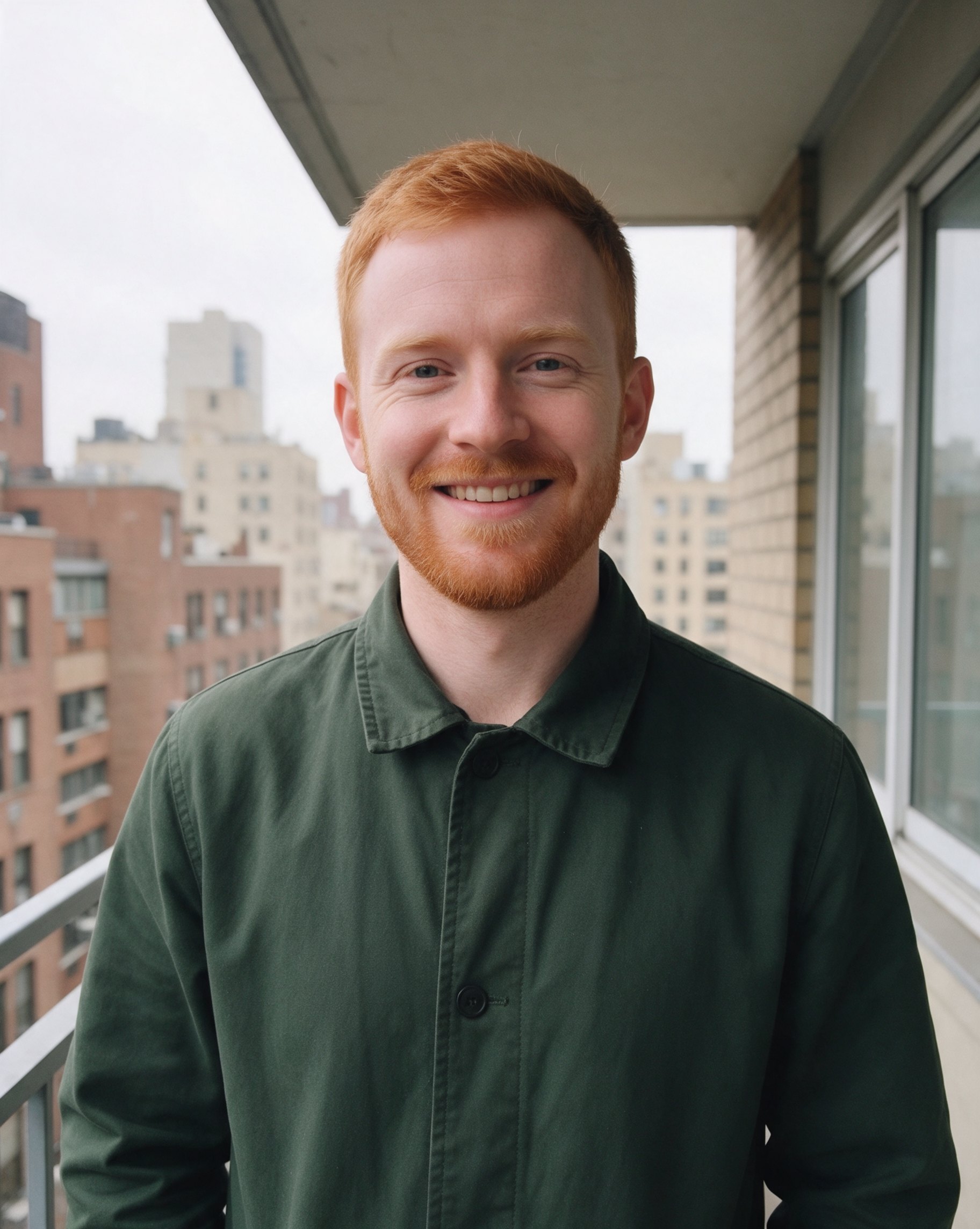
Each pair below is one real edit: the original photo on the left, the elf version on the right, made in Image Editor.

An adult's portrait and the same person edited into a Christmas elf costume with ZenCreator Image Editor
Before
An adult's portrait and the same person edited into a Christmas elf costume with ZenCreator Image Editor
After
Portrait to elf. A chest-up photo from home, a prompt for a green elf tunic and a hat with a bell in a toy workshop, and the same man in the result.
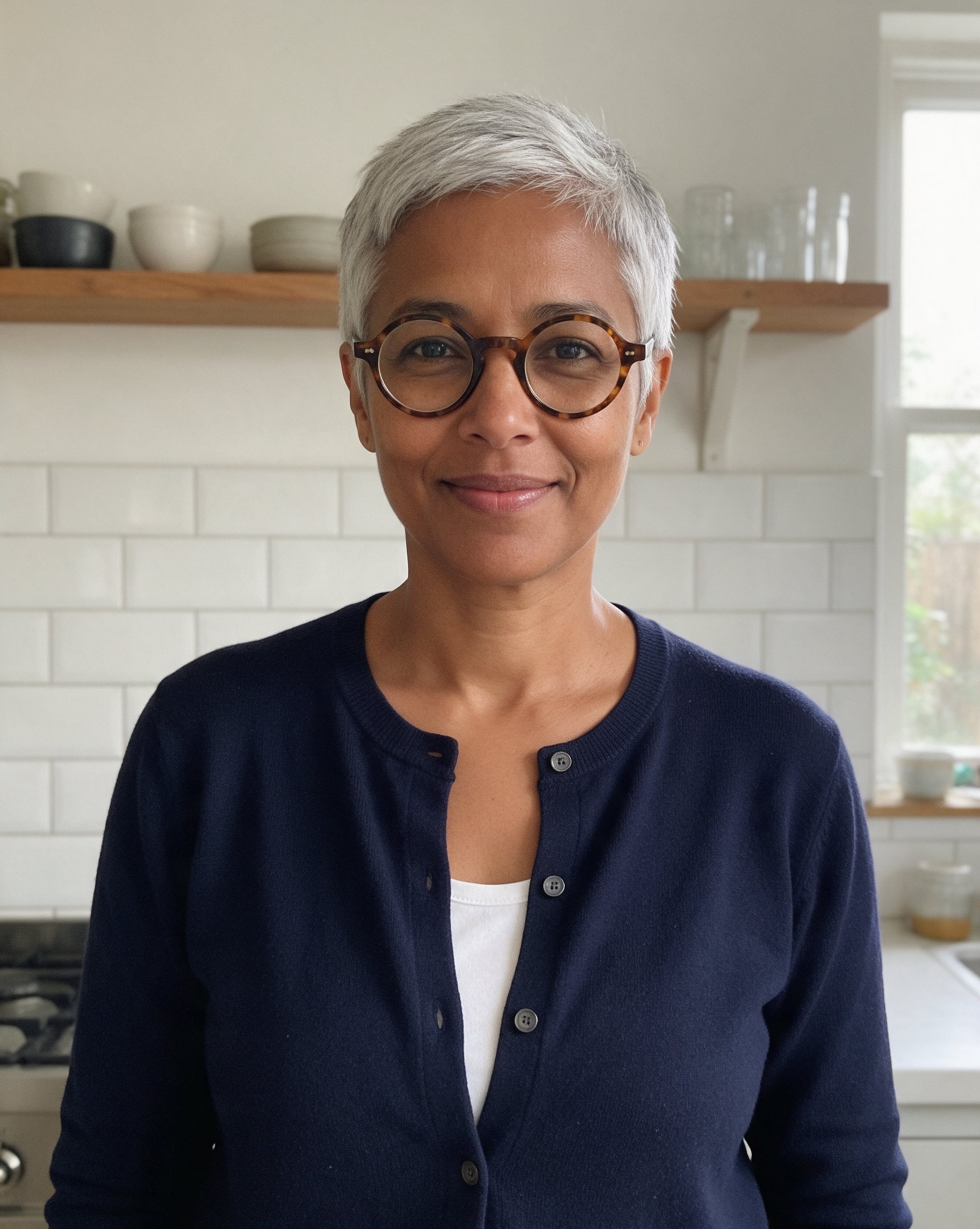
A second adult and the same person as a Christmas elf in a festive scene, edited with ZenCreator Image Editor
Before
A second adult and the same person as a Christmas elf in a festive scene, edited with ZenCreator Image Editor
After
A different face, a different scene. A photo from her kitchen, a snowy street at dusk, and a prompt for a red elf outfit that keeps her face and glasses.
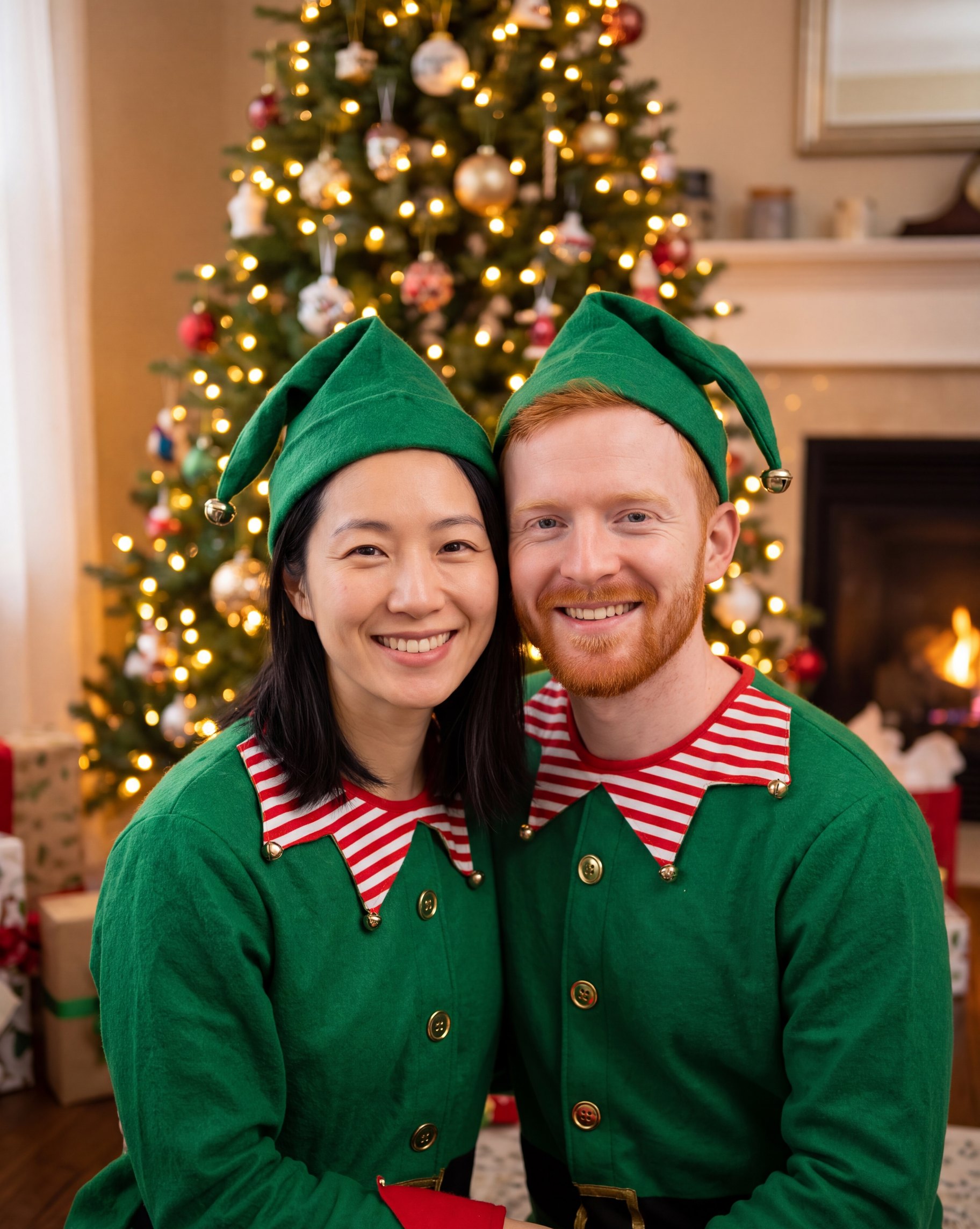
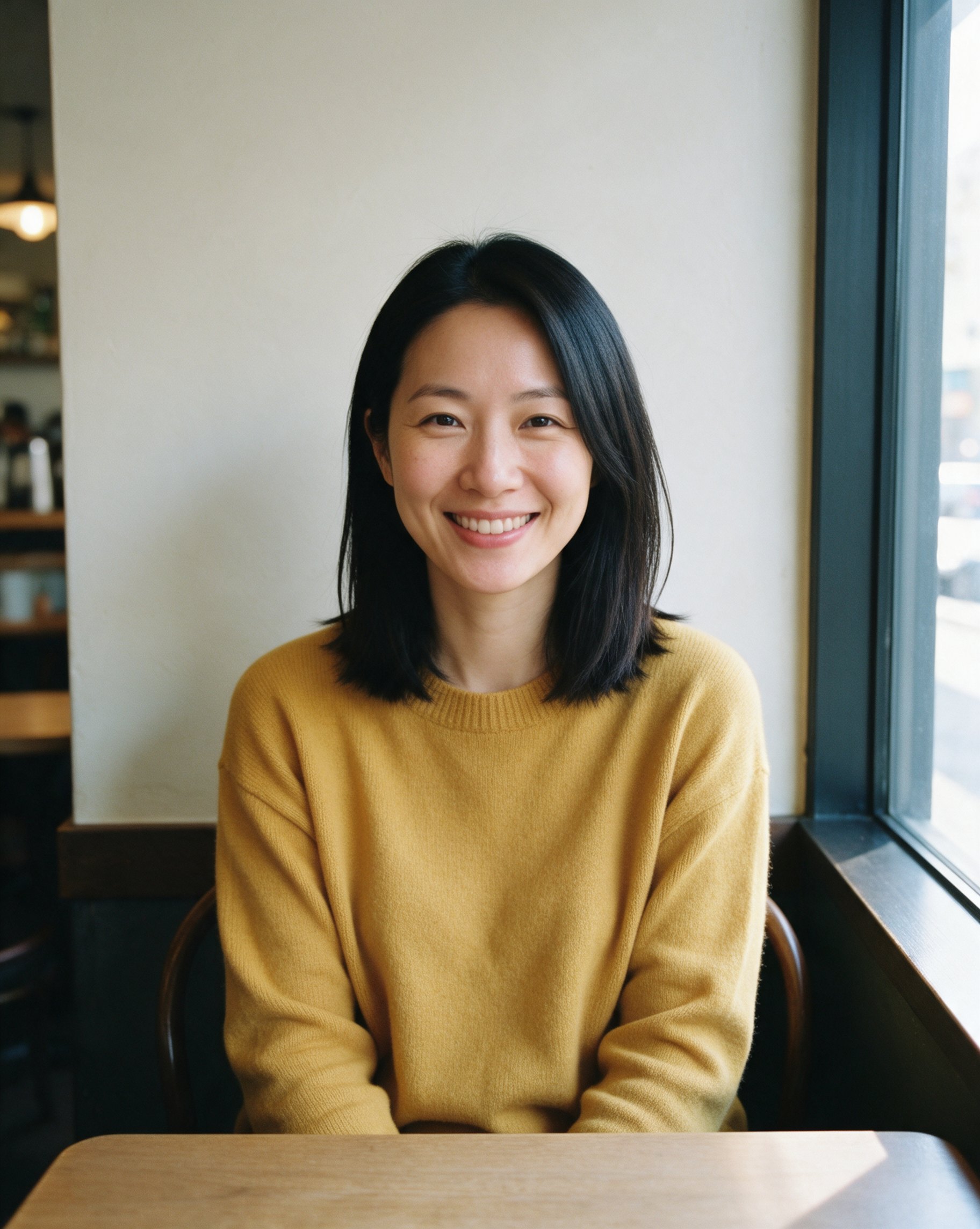
Two adults in one photo, both edited into Christmas elves with ZenCreator Image Editor
Two people, one elf scene. Two separate photos combined in one edit, with a prompt for matching green costumes in front of a lit-up tree.

One clear photo and a costume written into the prompt are all the editor needs to start.

Where an Elf Photo Fits

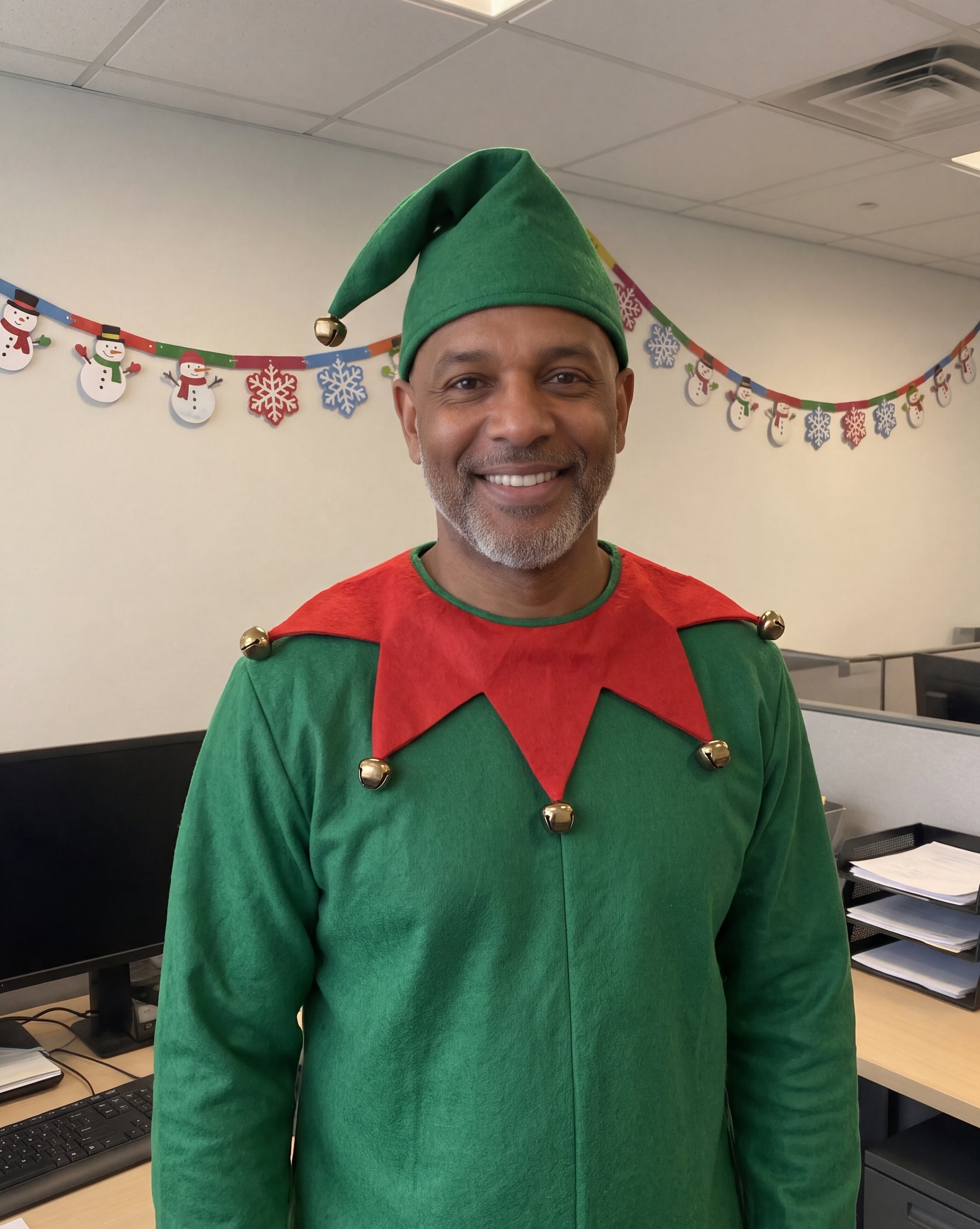
A colleague in a Christmas elf costume at the office, edited with ZenCreator Image Editor

Office party and team posts

Collect a photo from each colleague who agrees to the edit, and Batch Mode puts the same elf costume on every photo for the party invite or the December team post.

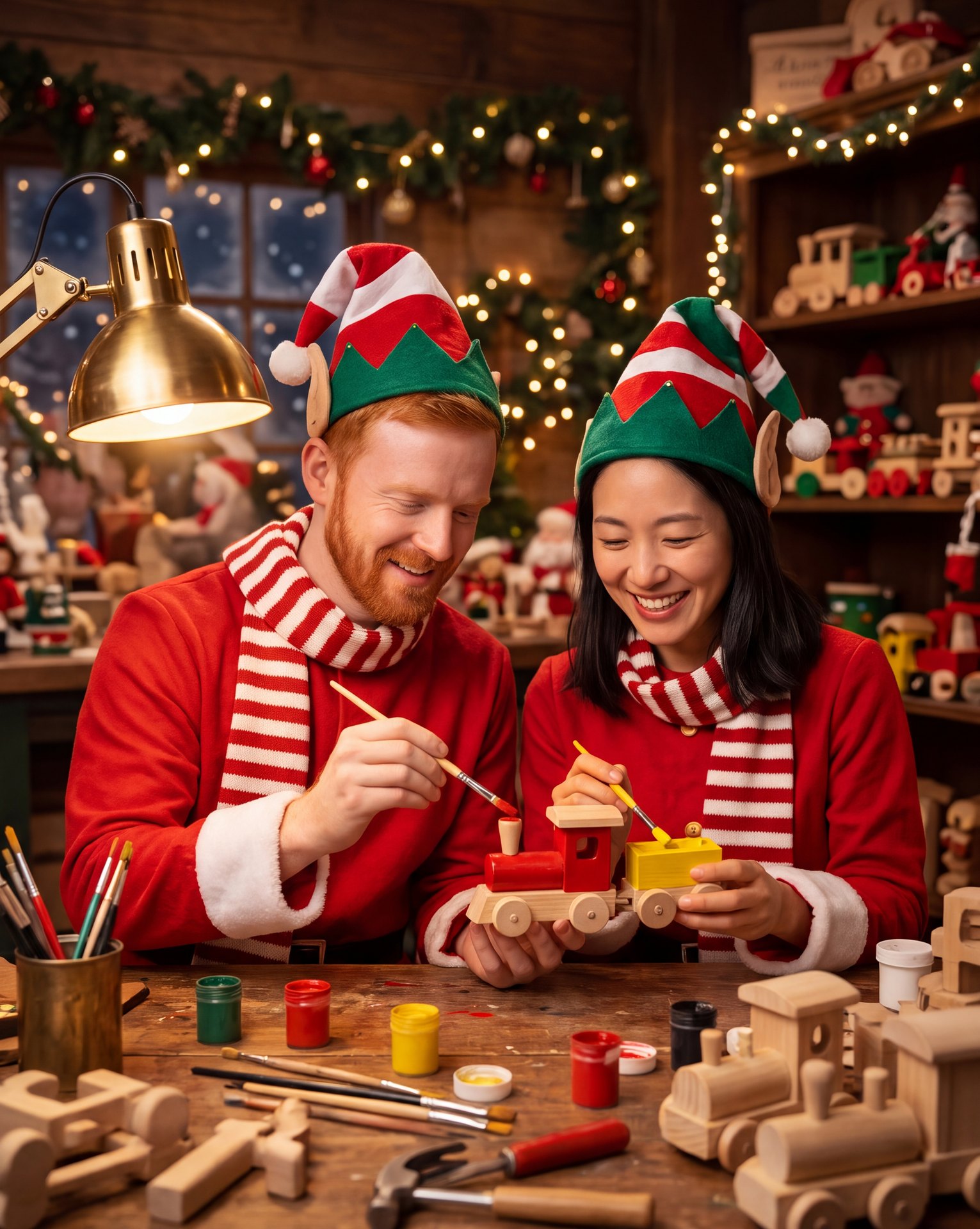
Two adults as Christmas elves in a toy workshop, a picture for a holiday card made with ZenCreator Image Editor

A holiday card picture for two

Put yourself and your partner or a friend into one workshop scene for the front of a card. For wider Christmas portraits and card pictures, try the Christmas photo generator.

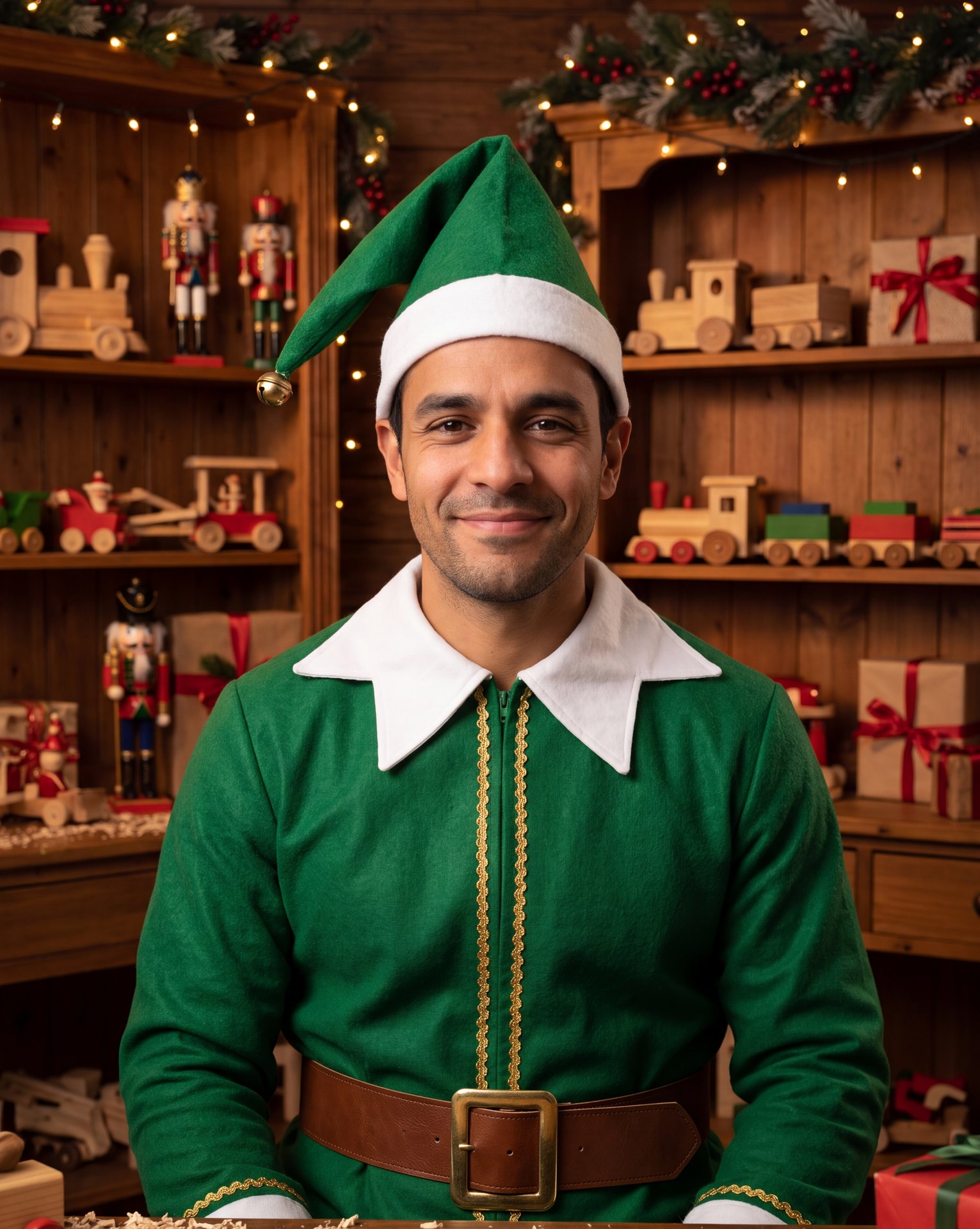
Headshot-framed Christmas elf portrait of the same man, edited with ZenCreator Image Editor

A December profile picture

Keep your usual headshot framing and swap only the outfit and background, so people still recognise you in the thumbnail for the whole month.

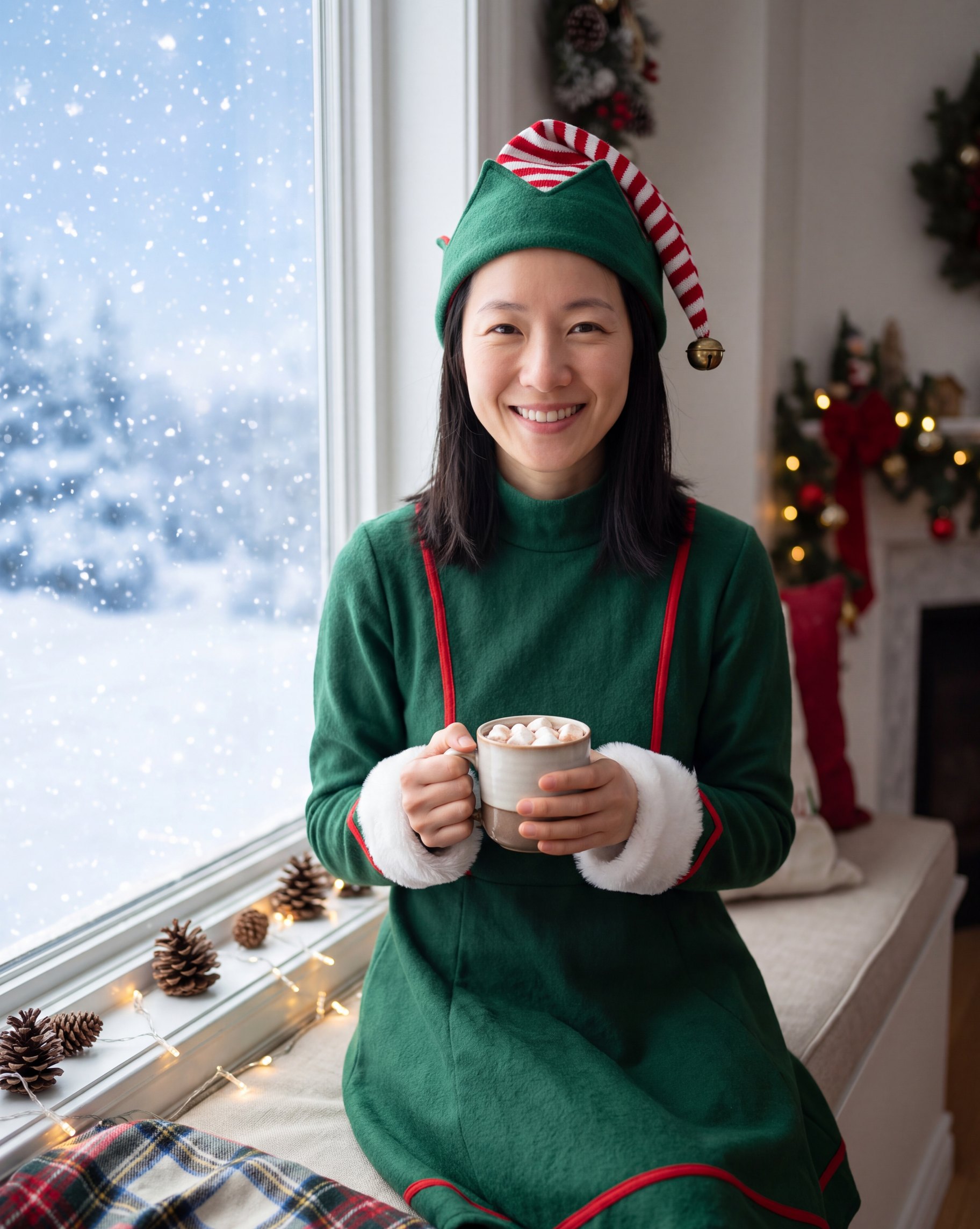
A creator as a Christmas elf by a snowy window for a holiday post, edited with ZenCreator Image Editor

Seasonal posts for your feed

Creators can put the same elf look on a run of photos for a week of holiday content, then animate the best one. If the post needs Santa as well, see how to add Santa to a photo.

Adults Only, Photos You May Use

18+ only:

You must be at least 18 to use ZenCreator, and content involving minors can't be uploaded, edited or created, as the Content Policy sets out.

Permission for every face:

Only upload images you have the right and permission to use. If an image includes another person, make sure you have the consent required for your intended edit and use, as required by the Terms.

Automatic checks:

Prompts and uploaded images are automatically screened before generation.

Elf Photo Questions

Do I need an app to turn myself into an elf?

No. ZenCreator runs in your web browser, so there is nothing to download or install. Open Image Editor, upload your photo and describe the look.

How do credits work for an elf photo?

Generating an elf photo uses credits from a credit pack, which you buy before your first generation. The Generate button shows the credit cost per image and the total before you confirm, so you see what a run uses before it starts. Current credit packs are listed on the Pricing page.

My elf doesn't look like me — what now?

Try a different source photo first: a sharper, front-facing shot with your whole face visible. Then split the edit — costume in one run, background in the next. If it still drifts, ask in the support chat inside ZenCreator.

Who can make elf photos on ZenCreator?

Adults only. You must be 18 or older to use ZenCreator, and content involving minors is prohibited under the Content Policy. Use photos of adults who agreed to the edit.

Can I put a greeting like "Merry Christmas" on the picture?

Yes. Choose an Image Editor model that renders text inside an image, then add a short line to the prompt, for example: "Add the words 'Merry Christmas' in red letters above my head." Keep the text short and spell it out exactly as you want it.

Can I share the picture or use it for my business?

Commercial use is permitted under the ZenCreator Terms, subject to your compliance, applicable rights, and the terms governing the service and source materials. Similar or identical outputs may be generated for other users, so you don't get exclusive rights to a look or style. If other people appear in the picture, make sure their consent covers how you use it.

Your Elf Photo Starts With One Upload

Bring a clear photo, describe the costume and the scene, and tell the editor to keep your face.