AI Christmas Photo Generator: Your Photo or a New Festive Scene

Upload a photo and describe the Christmas look — outfit, lights, background, a greeting — or describe a festive scene and generate it. Download the version you like.

Original photo and an AI Christmas version of the same person made in ZenCreator Image Editor

Before and after, one festive edit. The source picture and its first Christmas version.

Start from your own photoDescribe the change in wordsReadable greeting text

ZenCreator's AI Christmas photo generator works two ways: Image Editor changes your own photo from a written description — a holiday sweater, a decorated tree behind you, warm string lights — and Text to Image creates a new Christmas scene from a prompt alone.

Either way, you end up with AI Christmas photos you can download, post or keep editing in another tool.

Edit Christmas photos or generate a new scene

Christmas photo editing from your picture

You bring:
a photo you already like — a selfie, a portrait, a shot of the two of you.
You describe:
the change and what stays, for example "swap the background for a lit fireplace, keep the face and pose unchanged".
Good for:
profile pictures, holiday posts and greeting images that still show the real you.
Keep in mind:
a sharp, well-lit photo with the face clearly visible gives the closest likeness; results vary with the photo.

More on describing edits: AI Photo Editor

A new Christmas scene from a description

You bring:
only a prompt — no photo needed.
You describe:
subject, setting, light and style, for example "a snowy cabin porch at dusk, string lights, warm glow from the windows".
Good for:
festive backgrounds, winter scenes and greeting images built from scratch.
Keep in mind:
a person you describe is a new character, not you.

More on generating from text: AI Photo Generator

Have a photo you like? Edit it. Starting from an idea? Generate it.

What AI Christmas photos you can make

Each of these AI Christmas pictures starts with a sentence you write, either about your own photo or about a scene you want to see.

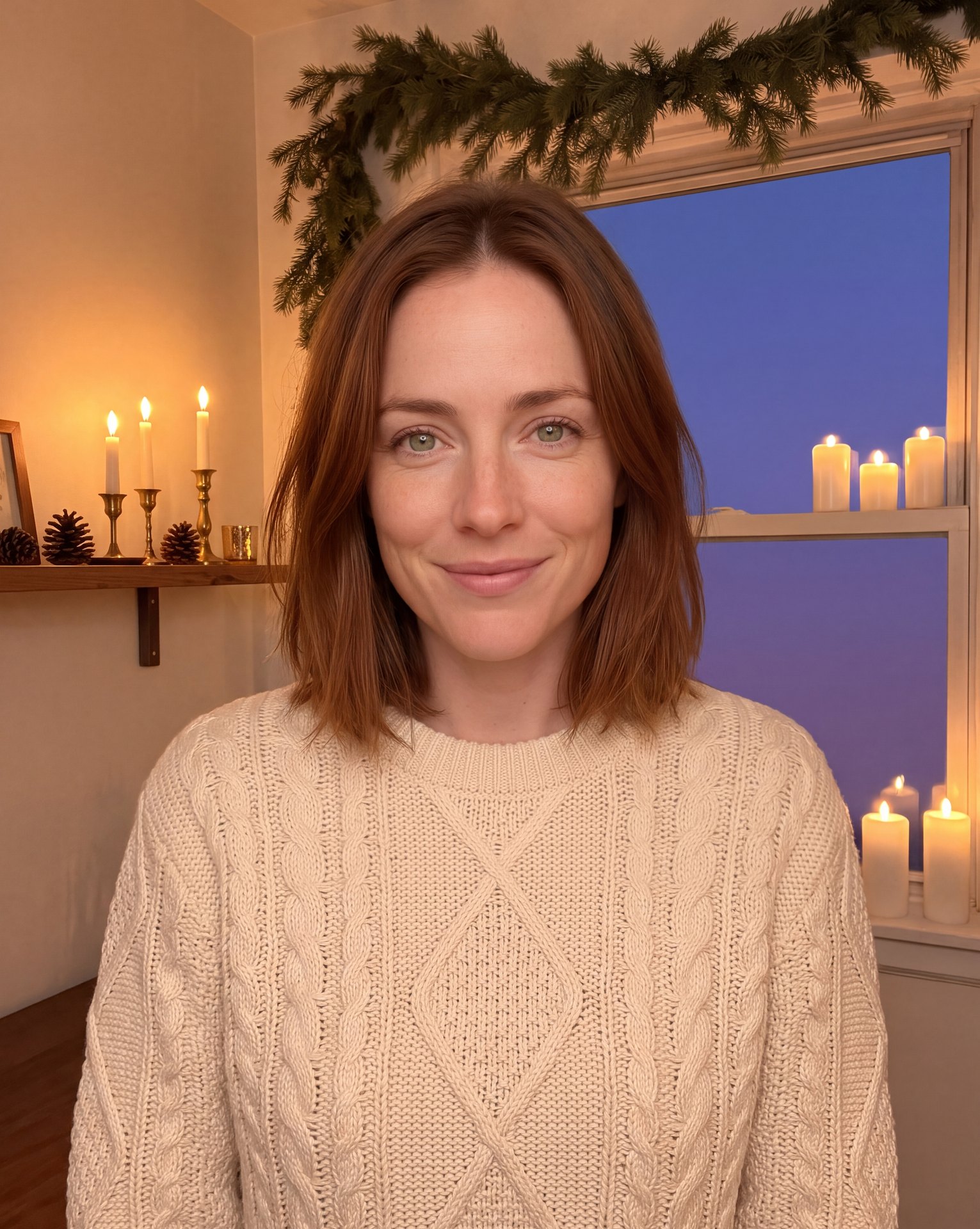
AI festive portrait of a woman in a knitted holiday sweater with warm light and a decorated corner, her face and pose kept from her own photo

Festive portrait from your own photo

Change the outfit to a knitted holiday sweater, warm up the light and add a decorated corner, while your prompt asks the editor to keep your face and pose.

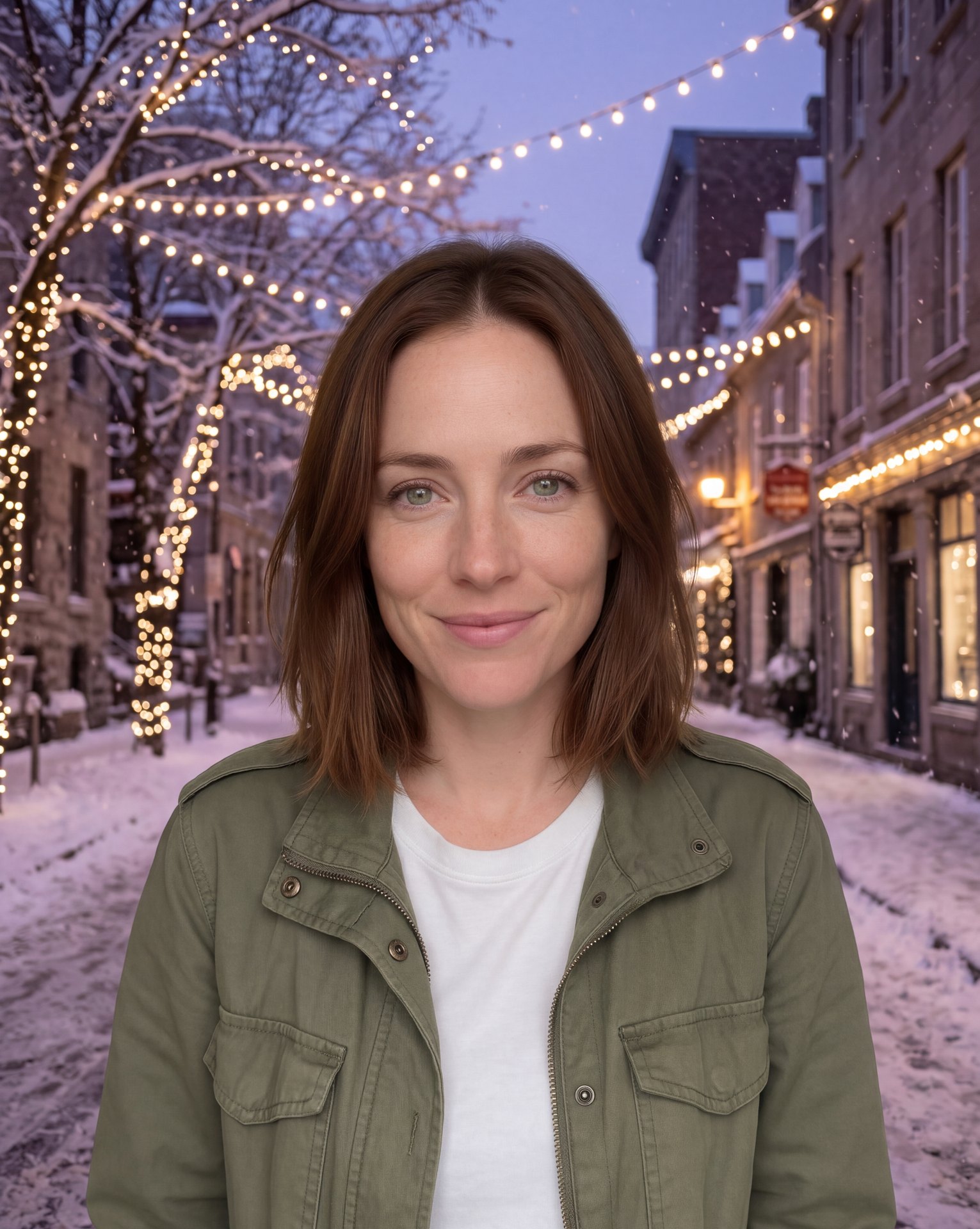
AI Christmas background behind a woman: a snowy lane replaces the everyday street while she stays unchanged

AI Christmas background

Trade the kitchen or the street behind you for a lit tree, a fireplace or a snowy lane. Describe the new location and ask for the person to stay unchanged.

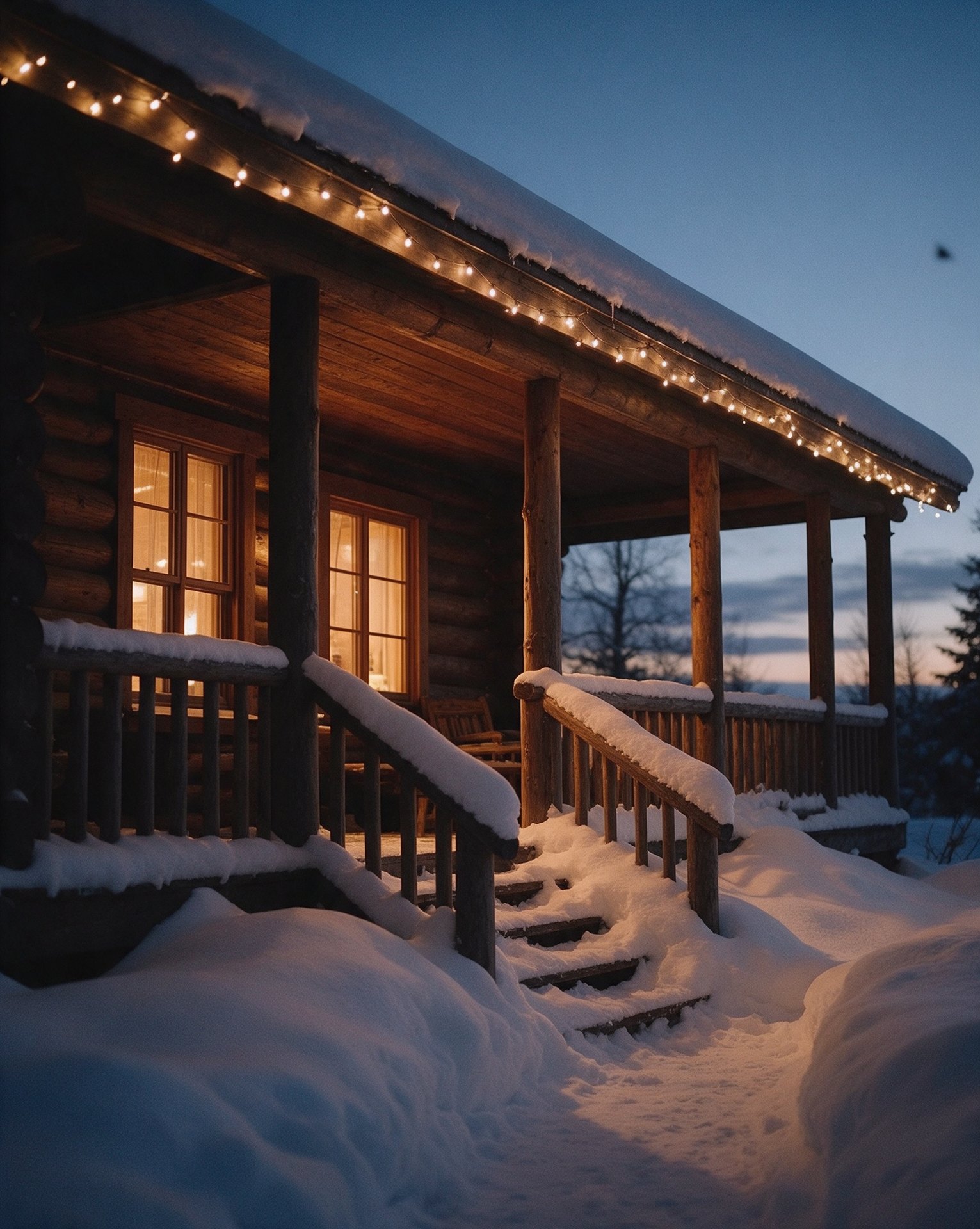
Christmas scene generated from a text description: a snowy cabin porch at dusk with string lights and warm light in the windows

A whole Christmas scene from a description

No photo needed: describe the subject, the setting, the light and the style in Text to Image — a cabin porch in the snow, a market at dusk — and generate several versions in one run.

AI-generated Christmas greeting image with the readable words Merry Christmas
Readable greeting text, made in Image Editor.

Greeting image with readable text

Put "Merry Christmas" or a family name on a sign, a banner or a card inside the picture. In Image Editor, the image model used for text-in-image edits reliably renders readable text, and the result works as a picture for a card or a post.

Family Christmas photo from separate pictures

Bring adult relatives who live apart — partners, adult siblings, parents with their grown sons and daughters — into one festive frame, with everyone's agreement to the edit.

Want something more playful? You can add Santa to your photo or turn yourself into an elf.

Christmas photo prompts to start from

Look
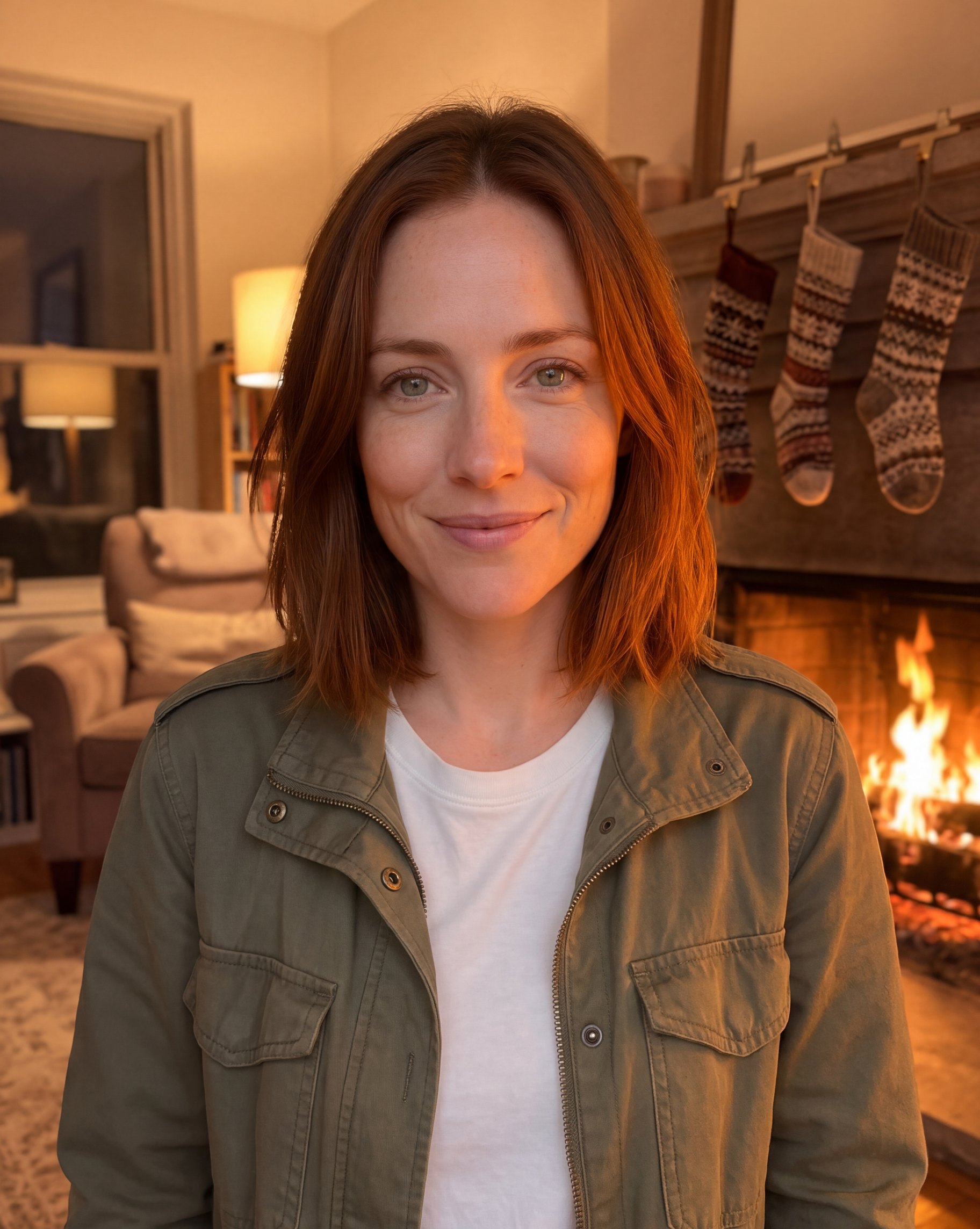
Cozy fireplace portrait
What to write
Change the background to a living room with a lit fireplace and stockings on the mantel, warm evening light
What to keep
Keep the face, hair and pose unchanged
Look
Snowy street background
What to write
Replace the background with a snowy street lined with string lights at dusk, light snowfall
What to keep
Keep the person, outfit and framing unchanged
Look
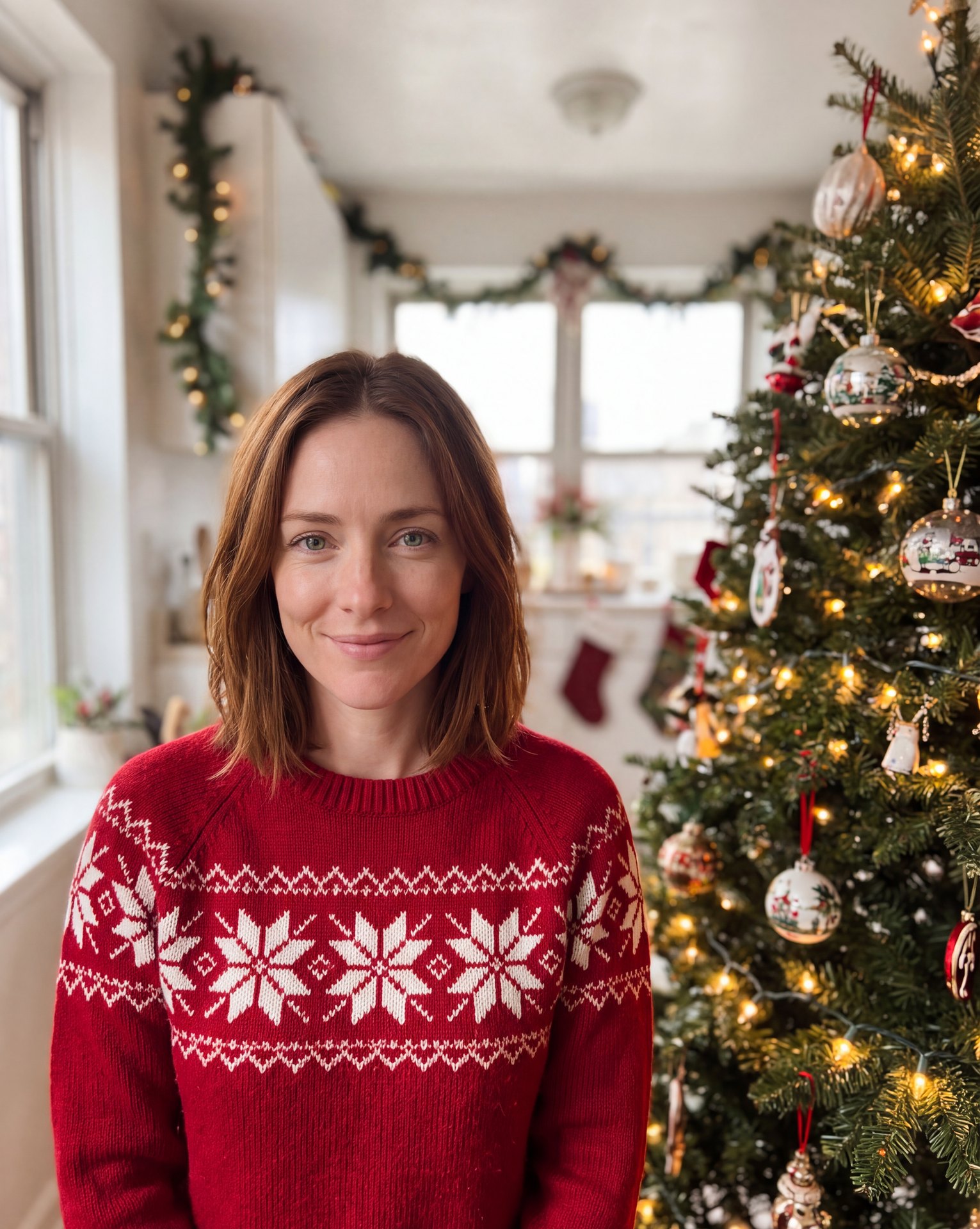
Christmas tree living room
What to write
Place the person beside a decorated Christmas tree with warm fairy lights and soft window light
What to keep
Keep the face and expression unchanged
Look
Holiday sweater outfit
What to write
Change the top to a red knitted holiday sweater with a white snowflake pattern
What to keep
Keep the face, pose and background unchanged
Look
Greeting sign
What to write
Add a small chalkboard sign on the wall behind the person that reads "Merry Christmas" in white letters
What to keep
Keep the person and the lighting unchanged
Look
Mrs. Claus outfit
What to write
Change her outfit to a long red dress with white fur trim, a wide black belt and a red Santa hat, with a decorated tree behind her
What to keep
Keep the face, hair and pose unchanged
Look
Santa suit portrait
What to write
Text to Image — a bearded man in a classic red Santa suit with white trim, black boots and a belt, standing by a lit fireplace, warm evening light
What to keep
No photo needed: the man is a new character, not you; for your own photo, use Image Editor and keep the face unchanged
Copy a line, then adjust it to your photo or scene.

How to make an AI Christmas photo

1. Upload a clear photo

Open Image Editor and upload a sharp, well-lit picture with the face clearly visible. For a shared scene, add one photo per person.

2. Describe the Christmas change

Choose a model (see the current models), then write the change and what to keep: "add a decorated tree and warm lights behind me, keep my face and pose unchanged".

3. Pick how many versions, then generate

Set the number of images for the run. The credit cost appears on the Generate button before you confirm, and the results are saved to My Generations.

4. Create a Christmas photo from a description

No photo to start from? Open Text to Image, describe the scene and generate, then download the version you like or send it on to Image to Video.

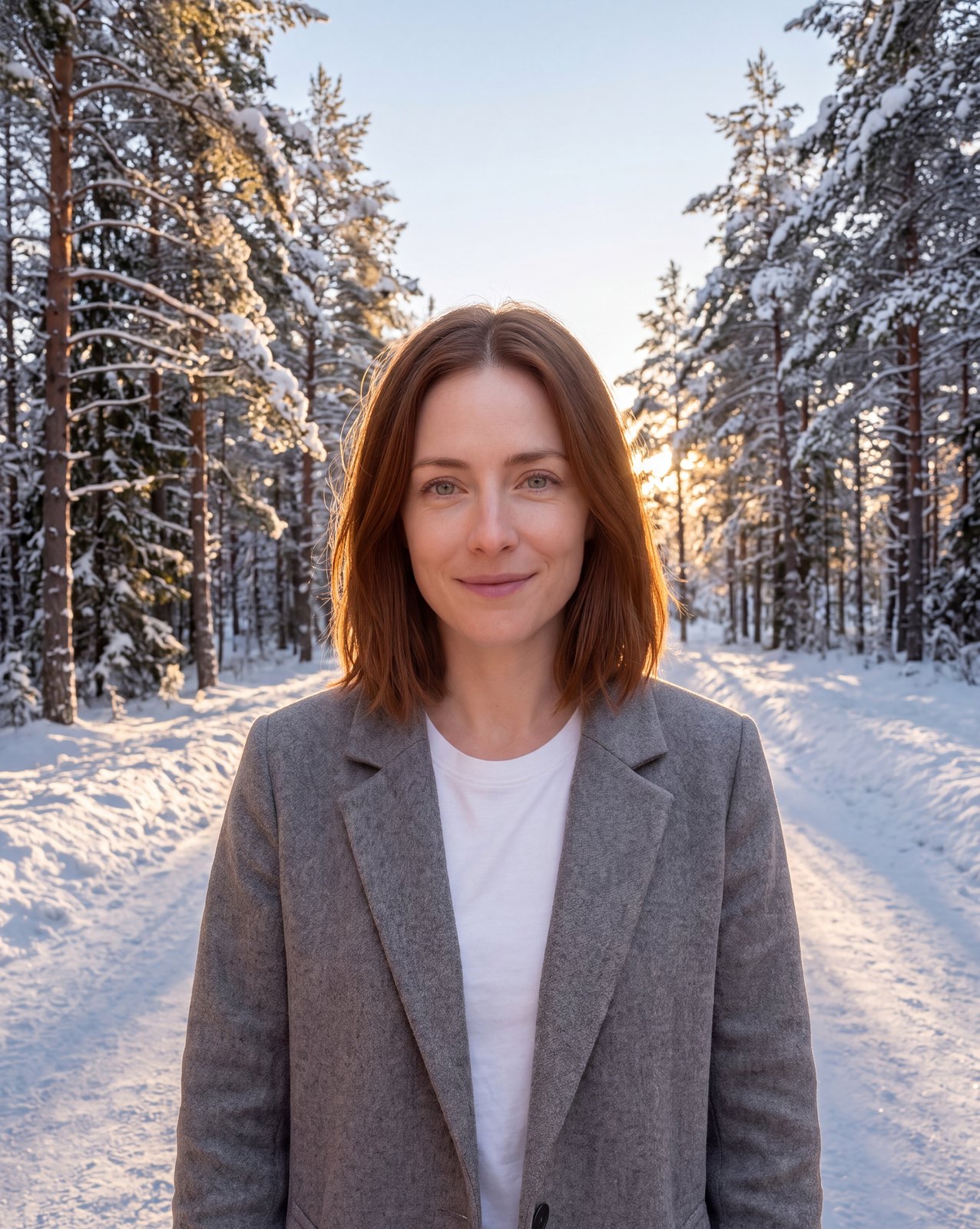
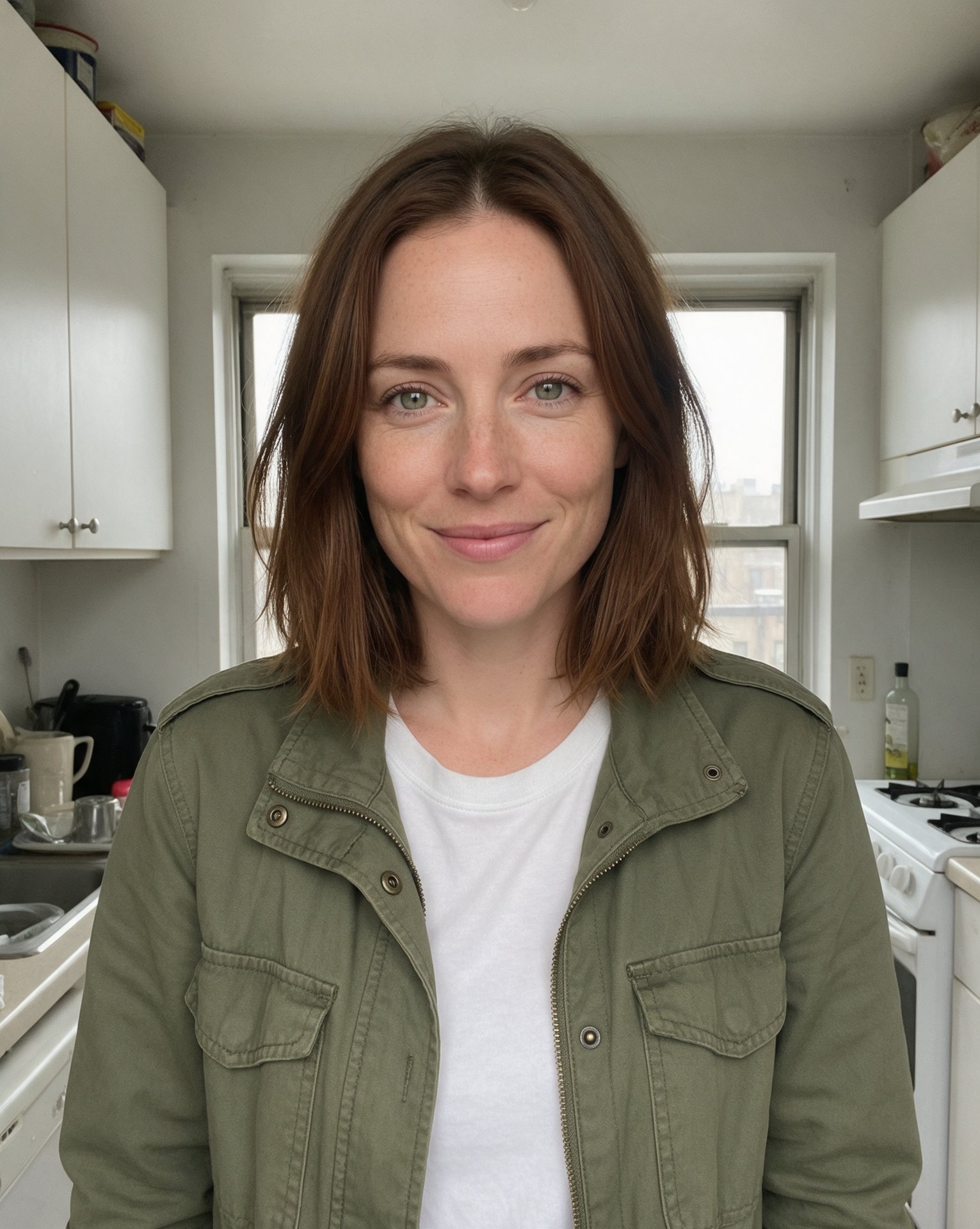
The same person, three Christmas scenes

Every image in this row is an AI-generated Christmas photo made from the same source picture in Image Editor.

Original photo and three AI Christmas versions of the same person made in ZenCreator Image Editor
The original photo.
Original photo and three AI Christmas versions of the same person made in ZenCreator Image Editor
Holiday sweater by a lit tree.
Original photo and three AI Christmas versions of the same person made in ZenCreator Image Editor
Snowy street background.
Original photo and three AI Christmas versions of the same person made in ZenCreator Image Editor
Fireplace glow and warm lights.

Real ZenCreator outputs; results vary with the photo and prompt.

Ready to see your own picture in a Christmas setting? Open it in Image Editor and describe the look.

Turn your Christmas photo into a short clip

A finished Christmas photo can move. Send it to Image to Video, describe the motion — snow drifting down, lights twinkling, a slow push-in — and the tool turns the still into a short clip that keeps the person and the general styling of the original. It makes a moving greeting or a seasonal post from the photo you already picked. More about image to video.

Why make your holiday photos in ZenCreator

Edits that follow your words

Image Editor changes a photo from a written prompt, which makes it a practical Christmas photo editor: name the sweater, the tree and the light, and ask for everything else to stay as it is.

Matching festive edits for a set of portraits

Batch Mode applies the same edit to each photo separately, so a set of portraits can share one festive style. For a themed series of a single person, there is also the AI Photo-Shoot Generator.

Compare versions, keep them all

Generate a few variations per run, then find all of them in My Generations to download or to send to another tool.

Your photos, your rights and your privacy

Photos you have permission to use

Only upload images you have the right and permission to use. If an image includes another person, make sure you have the consent required for your intended edit and use — see the Content Policy.

Who sees your results

Your generations are private to your account unless you choose to share them. The Privacy Policy explains what data is processed and why.

Deleting your data

You can delete your account and media from Settings or by email. Deletion starts immediately and is completed within 30 days; some limited records may be kept where the law requires — details on Data Deletion.

ZenCreator is operated by Dimeris Ltd. About ZenCreator

AI Christmas photo FAQ

What is the AI Christmas photo trend, and can I make one here?

It is the habit of sharing festive portraits made from your own photo: a sweater by the tree, a snowy street, the glow of a fireplace. To make one here, upload your photo to Image Editor, describe the Christmas look and what should stay the same, then generate a few versions and keep your favorite.

Will my face stay recognizable in the Christmas version?

Usually, yes, when you start from a sharp, well-lit photo with your face clearly visible and your prompt says what to keep, for example "keep my face and hair unchanged". Facial likeness can vary between models and runs, so compare the versions and regenerate if one drifts. Results vary with your photo and prompt.

Can I put several family members in one Christmas photo?

Yes. Image Editor can combine two or more people into one photo from separate references, so relatives who are not in the same place can still share one scene. Use a clear photo of each adult and say in the prompt how they should stand together; results depend on the photos. Make sure everyone shown agrees to the edit.

Do I need to buy credits before I generate?

Yes. Generating uses credits from a credit pack; the cost of each run appears on the button before you confirm. See Pricing for the current credit packs.

Is there an app to download?

You don't need one: ZenCreator works in your web browser. Open Image Editor from this page, upload a photo from your device and download the result when it is ready.

Can I use my Christmas photos on cards and social posts?

Yes. You can use your results under the ZenCreator Terms and Conditions, subject to your compliance with them and to the rights in your source photos. Similar results may be generated for other users, so a look is not exclusive to you.

Make your Christmas photo

Start from a photo you like or a scene you can picture, and make AI holiday photos that look the way you described them.