Image Enhancerfor Clearer, Better-Quality Photos
Upload a portrait, product shot or AI render that falls short on detail. ZenCreator's AI image enhancer sharpens edges and fine texture, cleans up softness and minor noise, and produces a larger file you can download or take into your next edit.
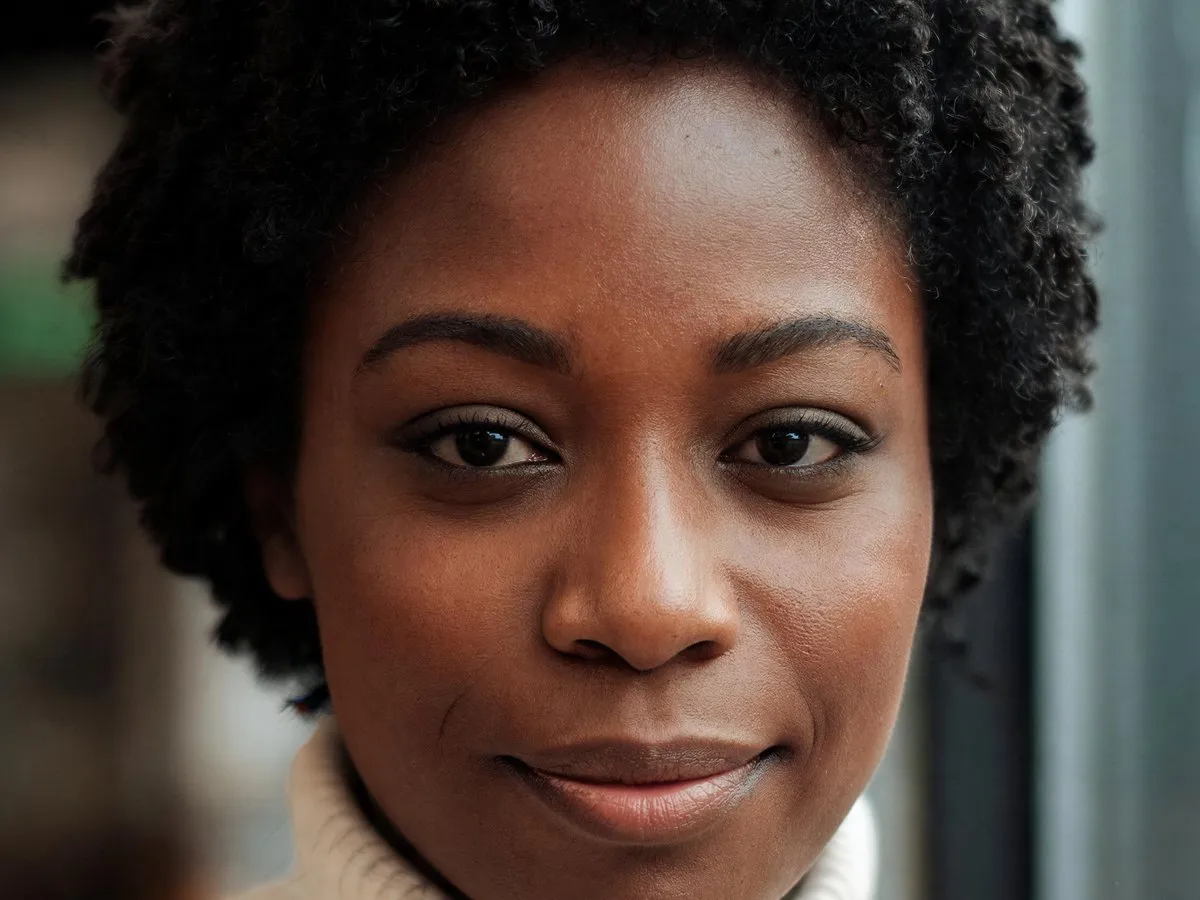
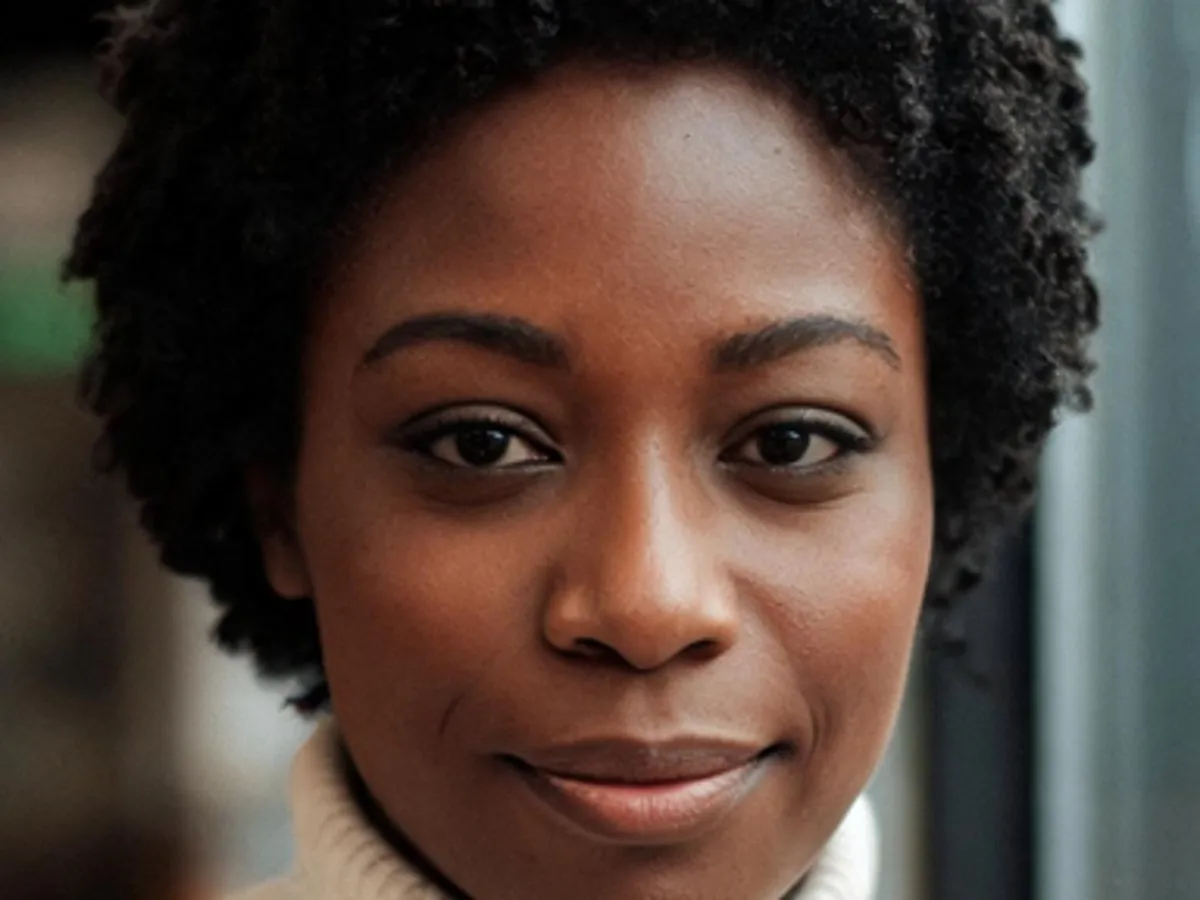
Same portrait, before and after. Enhanced with SeedVR2 7B Premium in ZenCreator.
What an image quality enhancer actually fixes
An image enhancer makes an existing photo look better by sharpening what is already in it, not by laying a filter on top. ZenCreator's version handles four common problems in one run while the image is enlarged.
- The photo looks soft and edges don't hold up
- Sharpens edges and fine detail so the subject reads clearly
- Grain and minor noise show in flat areas
- Cleans up noise while enlarging, instead of scaling the grain up with the picture
- Skin, hair and fabric lack micro-detail
- Adds fine detail back into textures; SeedVR2 7B Premium gives its sharpest result on faces, hair, skin and fine text
- The file is too small for where it's going
- Delivers a better quality image at the Target Resolution you pick, up to 8K
Results depend on the source: the enhancer works with the detail a file still holds, so heavy blur and strong compression limit how far any image can go.
Improve image quality for the job in front of you
Pick the situation that looks like yours: each pair shows one image before and after the AI photo enhancer.


Bring out detail in portraits and headshots
For a headshot, team page or social profile, use SeedVR2 7B Premium to improve photo quality where people look first. It is the mode for the sharpest faces, hair and skin.


Make product shots crisper for your store
Stitched edges and material texture come through more clearly, which helps improve picture quality before a shot goes on a store page. Set the Target Resolution the listing needs before you run it.


Refine AI art before you post
A Text to Image, Photoshoot or Variations result that is almost right but a little soft? Open it from My generations and use the Image Upscaler as your AI art enhancer, refining the image you like instead of generating a new one.


Improve clarity in hair, fabric and texture
Fine texture is where low quality shows first. As an image clarity enhancer, SeedVR2 7B Premium lets you raise Detail to add extra definition to strands, weave and surfaces while it enlarges.
Pick the right quality setting
The mode and the Detail level shape the result, so set up the photo quality enhancer for the goal you have.
- Mode
- SeedVR2 7B Premium
- What Detail does
- Low, Medium or High sets how much extra detail is added while enlarging
- Max output
- Up to 6K
- Mode
- SeedVR2 3B Base
- What Detail does
- Low, Medium or High sets how much of the original resolution is kept before enlarging
- Max output
- Up to 8K
- Mode
- SeedVR2 3B Base
- What Detail does
- Low, Medium or High sets how much of the original resolution is kept before enlarging
- Max output
- Up to 8K
- Mode
- SeedVR2 3B Base
- What Detail does
- Low, Medium or High sets how much of the original resolution is kept before enlarging
- Max output
- Up to 8K
Cost depends on the mode and the output size, so run the AI enhancer on your keepers rather than on every draft.
How to enhance a photo in three steps
Here's how to enhance image quality in ZenCreator, from an empty panel to a finished file.
1. Choose a mode
Open the Image Upscaler and pick SeedVR2 7B Premium or SeedVR2 3B Base from the mode drop-down, using the table above as your guide.
2. Set Detail and the output size
Choose Low, Medium or High for Detail, then set the Target Resolution directly: up to 8K with 3B Base or up to 6K with 7B Premium.
3. Upload and generate
Add your image and run it. The credit cost, which varies with mode and output size, is shown before you confirm.Your result is saved to My generations; download it from there, from the task, or from the tool's Gallery.Open the enhancer

Image Upscaler settings: mode, Detail, Target Resolution and the upload area, as they appear in the app.
What you get from a photo enhancer built into a studio
ZenCreator is an AI platform for photos and video, so the AI picture enhancer sits right next to the tools you will use next.
Better quality photos, designed to keep the face
Neither SeedVR2 mode sets out to redraw or change a face; both only enhance the image you give them. For guaranteed identity control, finish with Head & Face Swap, our AI Face Swap tool.
Works on what you made in ZenCreator
Run it on an upload or on a result from Face Generation, Text to Image, Reference-To-Image, Photoshoot or Variations. Picked a favorite from a Variations set? Send it to the Image Upscaler before you download it.
The next step without re-uploading
Send the finished image from My generations straight to Head & Face Swap, Variations or Image to Video.
Credits that work everywhere and don't expire
One balance covers every ZenCreator tool, so the credits you keep for enhancing photos today can animate one of them next month.
Try it on the photo you had in mind
Start with the image that bothers you most, then check the enhanced version at full size before you download it.
Start from what's wrong with the photo
- Start here
- Right here: set it up with the quality table above
- Why
- Enhancement sharpens detail and cleans up minor noise in the same run that enlarges it
- Start here
- Unblur Image
- Why
- That page is about blur: what can be sharpened and which mode to pick for it
- Start here
- Image Upscaler
- Why
- When size is the only problem, that page covers enlarging a sharp image for print or a big display
All three jobs run in the same ZenCreator tool; only the starting point differs. This page covers overall quality and clarity.
Before and after: what changes, what stays
A good quality enhancer should hold up at full size, not only in a thumbnail. Zoom in on the pair below.


100% crop of the same image: the original on the left, the enhanced result on the right.
What changes
Edges and fine detail look sharperSoftness and minor noise are reducedThe file is larger, at the size you choseWhat staysComposition and subject: the process is built to keep them, though that is a goal, not a promiseThe face: enhanced, not intentionally redrawnYour colors: also intended to carry over, not guaranteed
AI can make mistakes and occasional artifacts are normal, so check faces and small text at full size before the image goes live.
Upload, enhance, keep your files
Your rights and consent. Only upload images you have the right and permission to use. If an image includes another person, make sure you have the consent required for your intended edit and use; the Content Policy sets out the rules.
Files that keep their quality. The file you save has the same quality as the result on screen, whichever download option you use.
An online photo enhancer, not an install. ZenCreator runs in the browser on desktop, phone or tablet, so there is nothing to set up before your first run.
Updated October 2026
Image enhancer FAQ
Do I need a photo enhancer app or software?
No separate photo enhancement software is needed. ZenCreator doesn't have a full native app; it works as an image enhancer online, with mobile and tablet versions that open in your browser. Open the Image Upscaler in ZenCreator or send an image to it from My generations, and the finished result is saved back to My generations.
Can I enhance old or scanned photos?
Yes, when the scan is soft, grainy or low in detail: the enhancer sharpens and enlarges what the scan still holds. Scan at the highest quality you can and upload that file. Heavy damage limits how much can come back, so check the result at full size; for soft, grainy scans it is a practical way to fix photo quality before you share or print them.
Which file types can I upload?
JPG and PNG are the usual image formats, and exactly what is accepted varies by tool. When a file is refused, the cause is usually that it is corrupted, in a format the tool doesn't take, or has an invalid resolution or aspect ratio. For a strong starting point, upload the cleanest version of the image you have.
How much does it cost to enhance an image?
Enhancing an image uses ZenCreator credits. The amount varies with mode and output size, and you see it before you confirm the run. One credit balance covers every tool and doesn't expire; see Pricing for the current credit packs.
Can I use enhanced photos commercially?
Commercial use is permitted under the ZenCreator Terms, subject to your compliance, applicable rights, and the terms governing the service and source materials. In practice, that starts with having the rights to the photo you upload.
Is enhancing an image the same as upscaling it?
Not quite, but in ZenCreator they happen together. The enhancer improves sharpness, noise and micro-detail while producing a larger file, up to 8K with SeedVR2 3B Base or 6K with 7B Premium. If all you need is a bigger version of an already sharp picture, start from the Image Upscaler page.
Give your next photo a sharper finish
Upload it, pick a mode and an output size, and let the picture enhancer do the detail work before you download a crisper version.