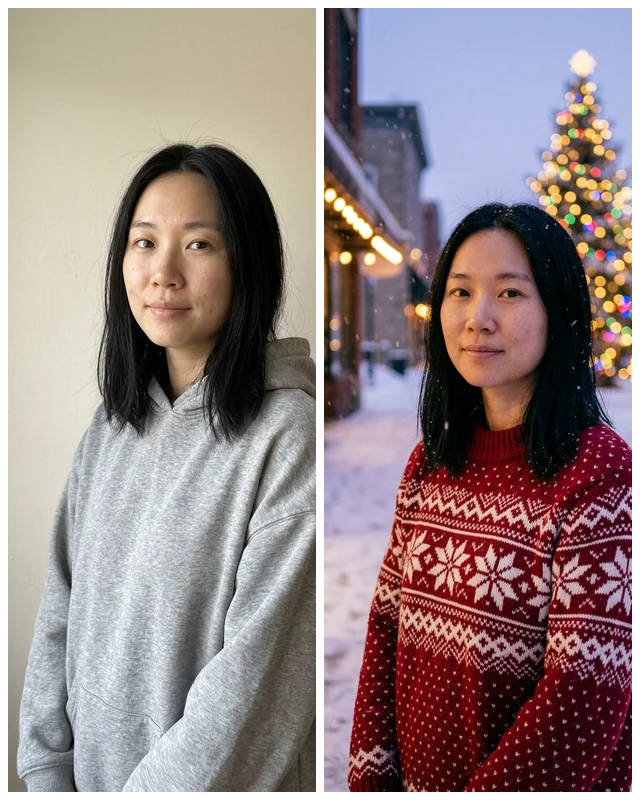
Create a Christmas Video With AI, From a Photo or a Prompt
Turn one festive photo, or a few lines describing a scene, into an AI Christmas video with falling snow, twinkling lights and a little movement. Image to Video animates the still with SFW models; Image Editor can dress your photo up first.
Four friends, one toast, a few seconds of Christmas.
Made from one festive still
·Short clips of a few seconds
·Sound is optional
To create a Christmas video here, you start from a single still: your own photo, or a festive scene made from a description. Image to Video turns it into a short clip: snow drifting down, candles flickering, a glass going up.
Use a photo of you and your friends as it is, or add a tree and string lights in Image Editor first. Already filmed something? The restyle route below reworks your own clip into a Christmas scene.
AI Christmas Videos You Can Make From One Still
Three scenes for a greeting or a post, each with a prompt you can copy when making Christmas videos of your own.
A Festive Portrait That Comes Alive
Give a portrait of yourself a snowy, lit backdrop and let the scene move around you. It suits a story post or a greeting to friends.
Prompt: "snow starts falling, the lights behind her twinkle, she turns to the camera and smiles; camera slowly pushes in"
Snow, lights and a slow push-in.
Friends Raising a Toast at the Table
Put you and a friend into one festive photo, then animate the moment the mugs meet. Everyone in the frame should have agreed.
Prompt: "two friends at a dressed holiday table clink their mugs and laugh while snow falls outside the window"
A toast with friends.
A Wave Hello From Beside the Tree
A seasonal hello for colleagues or a group chat. Add your greeting as text over the finished clip in any video editor.
Prompt: "a man in a knitted sweater waves to the camera beside a lit tree, then points to the gifts"
One person, one lit tree, one wave.
How to Make a Christmas Video With AI
1. Get the festive still ready
The video model animates what the still shows, so the outfit, the setting and every person must already be in the frame; two people in the clip need two in the photo. Use your photo as it is, add snow or a festive background in Image Editor, as on our AI Christmas photo page, or create the scene in Text to Image.
Name the motion: snow falling, lights twinkling, a head turning, a slow push-in. Keep to one idea per clip and add the sound you want, such as a crackling fire or laughter.
4. Try a few takes, then add your greeting
Start with short takes, keep the one you like and make a longer version. Add your greeting over the clip in a video editor, since small lettering does not stay readable in generated video.
Your Own Photo or a Scene You Describe?
A Personalized Christmas Video From Your Photo
Begin with: a clear photo of you, or of people who agreed to appear.
Where the still is made: your photo as it is, or Image Editor to add the festive setting.
Works well when: the clip should look like you and your own people.
Limits to know: likeness can drift once the face moves, so use a sharp, front-facing photo and say what must stay the same.
An AI Christmas Video From a Short Description
Begin with: a few lines describing the scene and who is in it.
Where the still is made: an SFW model in Text to Image; the AI Photo Generator page shows how that step works.
Works well when: you want a festive scene or a character that is not you.
Limits to know: described people are invented, so this route will not show you or your friends.
Either way, the finished still goes into Image to Video, where the same settings apply.
AI Christmas Video Generator Settings
The video models offered here are SFW; these are the controls that shape your clip.
Setting
Option in ZenCreator
What it changes
Model
One of the SFW video models in Image to Video
Models differ in facial realism, identity stability and the length and resolution they offer
Length
A short clip; the lengths on offer depend on the model you pick
The shortest length for a Story or a first test, longer once a scene has more going on
Sound
Depends on the model: on or off on some, always on with others
The sound follows your prompt; pick a model with an audio switch when you want a silent clip
Resolution
Depends on the model you pick
Try an idea at a lower resolution where the model offers one, then run the one you like at the highest
Takes per run
One clip for each start image, up to 100 per batch
Try one scene with three photos and keep the clip that works
Setting
Model
Option in ZenCreator
One of the SFW video models in Image to Video
What it changes
Models differ in facial realism, identity stability and the length and resolution they offer
Setting
Length
Option in ZenCreator
A short clip; the lengths on offer depend on the model you pick
What it changes
The shortest length for a Story or a first test, longer once a scene has more going on
Setting
Sound
Option in ZenCreator
Depends on the model: on or off on some, always on with others
What it changes
The sound follows your prompt; pick a model with an audio switch when you want a silent clip
Setting
Resolution
Option in ZenCreator
Depends on the model you pick
What it changes
Try an idea at a lower resolution where the model offers one, then run the one you like at the highest
Setting
Takes per run
Option in ZenCreator
One clip for each start image, up to 100 per batch
What it changes
Try one scene with three photos and keep the clip that works
Got the photo with the tree, the lights and the people you want? Let it move.
Shot a short video at the office party or by your tree? Video to Video reworks an existing clip from a text prompt: describe the Christmas look, such as falling snow or string lights, and get back a restyled clip. Upload a short clip that you filmed, with the consent of everyone in it; length limits depend on the model, and the sound may be generated anew rather than kept.
A Christmas Video Maker That Starts With Your Photo
Photo edit and animation, one account
A still from Image Editor or Text to Image goes on to Image to Video without leaving ZenCreator, the pairing behind our AI Video Generator. An AI Christmas video maker for your own pictures, not a stock slideshow.
Up to 100 stills in a single run
Load several versions of a scene at once; each comes back as its own clip. Compare them as short takes, then make the longer cut.
One credit balance for every tool
One balance covers every ZenCreator tool and model, and the credits do not expire, so what is left after the holidays goes into your next edit.
Only upload images you have the right and permission to use. If an image includes another person, make sure you have the consent required for your intended edit and use; the details are in the Terms.
An 18+ Account
ZenCreator accounts are for people aged 18 and over, and content involving minors is prohibited by the Content Policy.
Uploads and Prompts Get Checked
Prompts and uploaded images are automatically screened before generation. ZenCreator is operated by Dimeris Ltd.
Christmas Clip Questions
How do I put a name or a greeting into my Christmas clip?
The dependable route is to add the greeting over the finished clip in a video editor. You can also write it into the still first, since the image model Image Editor uses for text-in-image edits renders clean, readable text inside an image; once the still moves, the lettering may blur, so check the take before sharing.
Can a whole group of friends be in one clip?
Yes, if everyone is in the start image. Image Editor combines two or more people into one photo from several reference images. Animate that combined photo afterwards. Everyone shown must have agreed, and in a larger group each face may hold its likeness less consistently.
Will my Christmas clip have sound?
It can. Depending on the model you pick, the sound is created from your prompt with the video and can be switched off, or a generated track comes on every clip. Describe what you want to hear, such as sleigh bells or a room full of laughter. For a particular song, add your own track in a video editor afterwards.
When do I pay, and where do I see what a clip costs?
Generating uses credits from a credit pack you buy first. Before you start, the area under the Generate button shows the cost per clip and the batch total; credits do not expire and work in every tool. Current packs are on the Pricing page.
Can I share the finished clip, including for a shop or brand?
You can send it as a greeting or post it on social media. Commercial use is permitted under the Terms, subject to your compliance, applicable rights, and the terms governing the service and source materials. Similar outputs may be generated for other users, so you do not get exclusive rights to the result.
What if a face changes once the clip starts moving?
Make the still easier to animate: a sharp, front-facing face, good light, simple motion and a short length. Describing key facial and hair traits in the prompt helps too. AI results vary and no take is guaranteed to come out right, so regenerate or adjust the prompt until the face holds.
Start Your Christmas Clip
Bring a photo or an idea for a scene, and this Christmas video generator turns it into a clip you can send before the holidays.