AI Elf Video Maker: Make a Dancing Elf With Your Face

Make an elf dance video from one photo of yourself — or of a partner or friends who said yes. Image Editor dresses you as a Christmas elf first, then Image to Video makes that elf dance in a short clip.

  • Your face, your elf
  • Two steps, one studio
  • Safe-for-work models only
Her photo became an elf, then the elf danced.

To make an elf video with ZenCreator, you start from a real face rather than a cartoon body: one photo becomes a Christmas elf in costume, and that elf then dances in a short clip. You choose who plays the elf — you, your partner, a friend who agreed — and how the elf moves.

It takes two tools because a video model can only animate what its start frame already shows. Image Editor builds the elf frame from your photo; Image to Video adds the dance. There is no ready-made dance menu here: you describe the dance, or you bring a dance clip of your own.

Make an Elf Dance Video: Frame First, Then the Dance

  1. 1. Turn Yourself Into an Elf First

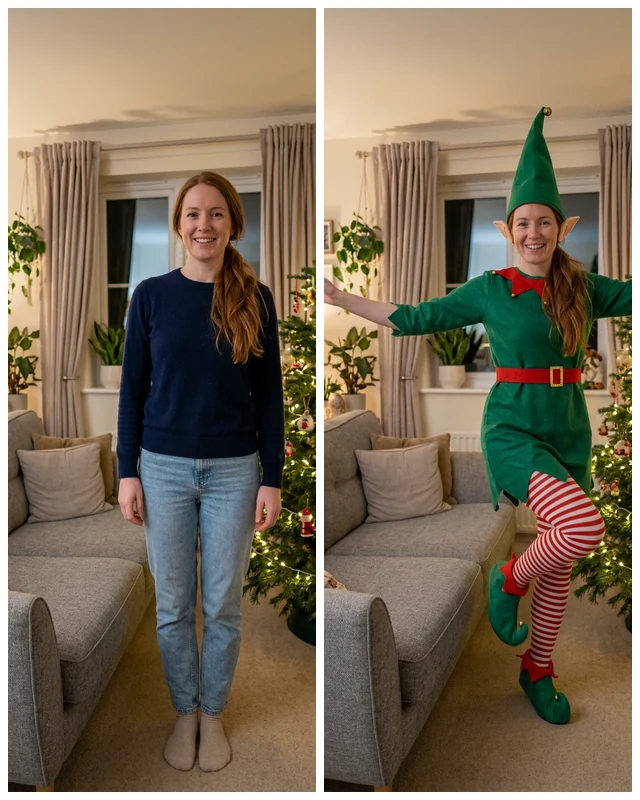
    Open Image Editor, upload a clear photo. Put the costume, the full body and a dance-ready pose into this frame now, because the video step will not add them later — for example: "dress the person from my photo as a Christmas elf: green tunic, pointed hat, pointed ears; full body, arms out, ready to dance; keep my face". More costume and likeness tips are on the page that shows how to turn your photo into an elf.

    Everyday portrait of a woman and the same woman edited into a full-body Christmas elf costume
    From everyday portrait to full-body elf.
  1. 2. Start the Clip From That Frame

    Open image to video, pick a video model (see the current models) and use the elf frame as the start image.

  2. 3. Describe One Dance Move

    Write the move and keep the camera still: "the elf does a cheerful jig and a spin, full body visible, fixed camera". If you want sound, choose a model that supports audio and switch it on; the sound is generated together with the clip.

  3. 4. Keep the Take You Like

    Run a few takes of the same frame and compare them. Keep the one where the face and the moves look right to you, and run that frame again whenever you want another version.

Dancing Elf Videos for You, Your Partner and Your Team

Each idea below starts from one elf frame, so whoever dances has to be in the photo from the start. For Santa himself or a festive scene without elves, see the AI Santa video generator or the AI Christmas video generator.

Just You, Dancing as an Elf

The simplest clip and the best first test: one photo of you turns into an elf video with your face, dancing in your own kitchen or living room.

Sample prompt: "the elf shuffles side to side, waves at the camera and finishes with a small bow; full body, fixed camera".

A solo elf dance starring you.

An Elf Duo With Your Partner or Best Friend

Give Image Editor both photos and ask for two elves side by side in one frame. The clip can only show the two of you if you are both in that frame, and each of you should agree to appear in it.

Sample prompt: "two elves dance side by side, bump shoulders and laugh; full bodies, fixed camera".

An elf duo from one shared frame.

Your Team as an Elf Crew

For an office-party post, put colleagues who said yes into one elf frame — Image Editor accepts several reference photos — and then animate it. With three or more faces, each person's likeness and the timing of the dance can vary, so start with two or three people.

Sample prompt: "three elves in an office with tinsel do a simple step-touch together; full bodies, fixed camera".

The whole team, one elf dance.

Dance From a Prompt or Copy Moves From a Clip?

Let the AI Elf Dance From a Prompt

  • Your input: your elf frame and a one-line dance prompt
  • Source of the moves: the video model, following your words
  • Clip length: short; the length options depend on the video model you pick
  • Before you run: the dance follows the prompt loosely, so run a few takes

Copy the Moves From Your Own Dance Clip

  • Your input: your elf frame plus a dance video you filmed — MP4 or MOV, or a link to your own Instagram or TikTok clip
  • Source of the moves: your clip, move for move, transferred in video to video
  • Clip length: follows your clip, up to the limit of the model you pick
  • Before you run: one dancer per run; the face must be clearly visible

Either way, your dancing elf video starts from the same elf frame, so make that first.

Already have an elf frame you like? Take it straight to the dance.

Animate your elf

Get a Better Dance From an AI Elf Video Generator

The video model can only move what the start frame gives it, so most of the work happens before you press Generate.

  1. Full Body, Costume On, Arms Ready

    Show the whole elf, already dressed, in a pose that can turn into a dance. A head-and-shoulders crop cannot become a full-body routine.

  2. One Move and a Still Camera

    Ask for one dance idea per clip and keep the camera fixed. Video models perform best with clear prompts and controlled motion; for a second move, run a second clip.

  3. A Short Take Before a Long One

    Check the dance in a short take first. Once the look and the moves are right, run the same frame at a longer length.

  4. Everyone Who Dances Is in the Frame

    Want two elves in the video? The start frame has to show two elves; the video step will not add a dancer who isn't there.

An Elf Video Maker With the Photo Step Built In

One Studio for the Photo and the Dance

The elf frame and the dance clip are made in the same studio with the same account, so the AI elf video takes shape in one place — the same studio behind the AI video generator.

Several Elf Frames, One Run

Image to Video accepts up to 100 start images in one run and makes a clip from each, so you can try different poses or costumes with the same settings and keep the best.

One Credit Balance for Both Steps

Step 1 and step 2 draw on one balance: ZenCreator credits work in every tool and model, and they have no expiry date.

Whose Faces Can Dance

Ask Before You Turn a Friend Into an Elf

Only upload images you have the right and permission to use. If an image includes another person, make sure you have the consent required for your intended edit and use — a duo or team clip needs a yes from everyone in it, as the Terms set out.

Users Must Be 18 or Older

You must be at least 18 to use ZenCreator, and content involving minors is prohibited under the Content Policy.

Every Upload and Prompt Is Screened

Prompts and uploaded images are automatically screened before generation. ZenCreator is operated by Dimeris Ltd.

Elf Video Questions, Answered

Is this connected to the dancing-elf app I've used before?

No. ZenCreator is not affiliated with ElfYourself® or its owners. On ZenCreator you build your own elf clip from your photo, using Image Editor and Image to Video.

Can I pick a ready-made dance?

No — there is no ready-made elf dance template to pick. You make an elf dance video by describing the moves in your prompt, or by using a dance clip you filmed in Video to Video, which copies its moves onto your elf.

How many elves can dance in one clip?

Build one frame with everyone in it first — Image Editor accepts several reference photos — and then animate that frame. The more faces, the more each person's likeness and the dance can vary, so two or three people are a good start. Copying moves from a clip works for one dancer per run.

How are credits charged for an elf dance clip?

Both steps use credits from a credit pack: the elf frame in Image Editor, then the clip in Image to Video. Each tool shows the cost of a run right below its Generate button, so you see it before you start, and credits never expire. The packs are listed on Pricing.

Can the clip have music or a greeting on it?

With a video model that supports audio, sound can be generated together with the clip when audio is switched on; the sound comes from your prompt, not from a song you choose. If you copy moves from your own dance clip, the copy can keep that clip's original sound, depending on the model. Small text in the frame will not stay readable once it moves, so add your greeting afterwards in any video editor.

Can I post the elf video or use it for work?

Yes, you can share it in posts and greetings. Commercial use is permitted under the ZenCreator Terms, subject to your compliance, applicable rights and the terms governing the service and source materials. Similar outputs may be generated for other users.

Your Elf Is One Photo Away From Dancing

Build the elf frame in Image Editor, then give it its first dance in Image to Video.

Already made your elf photo? Start the dance from it.